> ## Documentation Index
> Fetch the complete documentation index at: https://docs.bytebase.com/llms.txt
> Use this file to discover all available pages before exploring further.
# Two-factor Authentication
Two-factor authentication (2FA) provides an extra layer of security for member accounts. When signing in, you will be required to enter the security code generated by your Authenticator App.
Bytebase implements rate limiting during MFA verification to protect against brute force attacks. Users are allowed a maximum of **5 failed MFA attempts within a 5-minute window**. The MFA temporary token expires after 5 minutes. See [Sign-in Restriction](/administration/sign-in-restriction#rate-limiting-for-login-attempts) for more details.
## Configuring 2FA using a TOTP mobile app
### Step 1: Download a TOTP app
A time-based one-time password (TOTP) application automatically generates an authentication code that changes after a certain period of time. We recommend using cloud-based TOTP apps such as:
* [Google Authenticator](https://googleauthenticator.net/)
* [Authy](https://authy.com/)
* [Microsoft Authenticator](https://www.microsoft.com/en-us/security/mobile-authenticator-app/)
* [1Password](https://support.1password.com/one-time-passwords/)
### Step 2: Enable "Two-factor authentication"
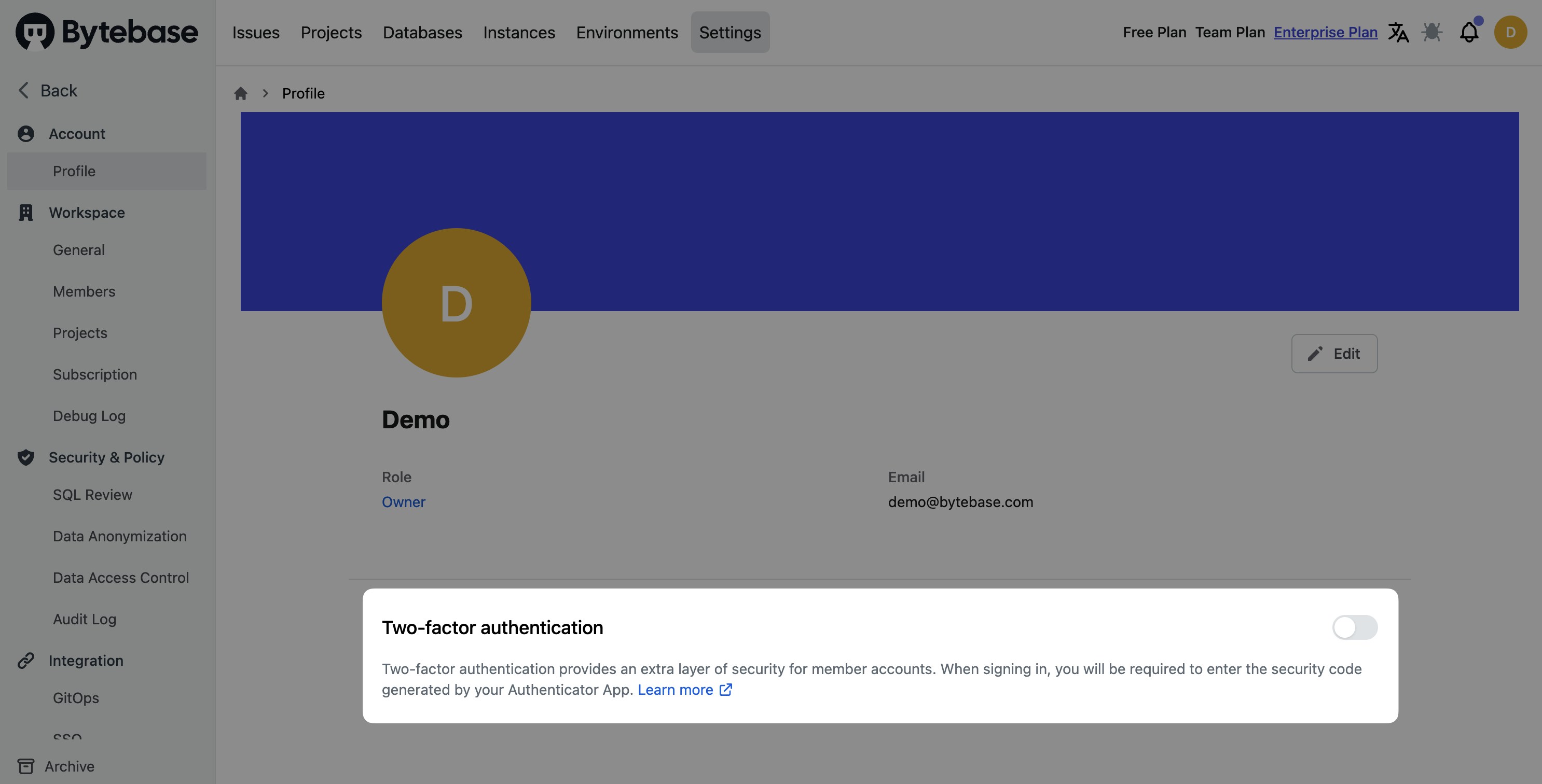
In the user's profile dashboard page, turn on the "Two-factor authentication" switch to enable 2FA for your account.
 ### Step 3: Scan the QR code with your TOTP app
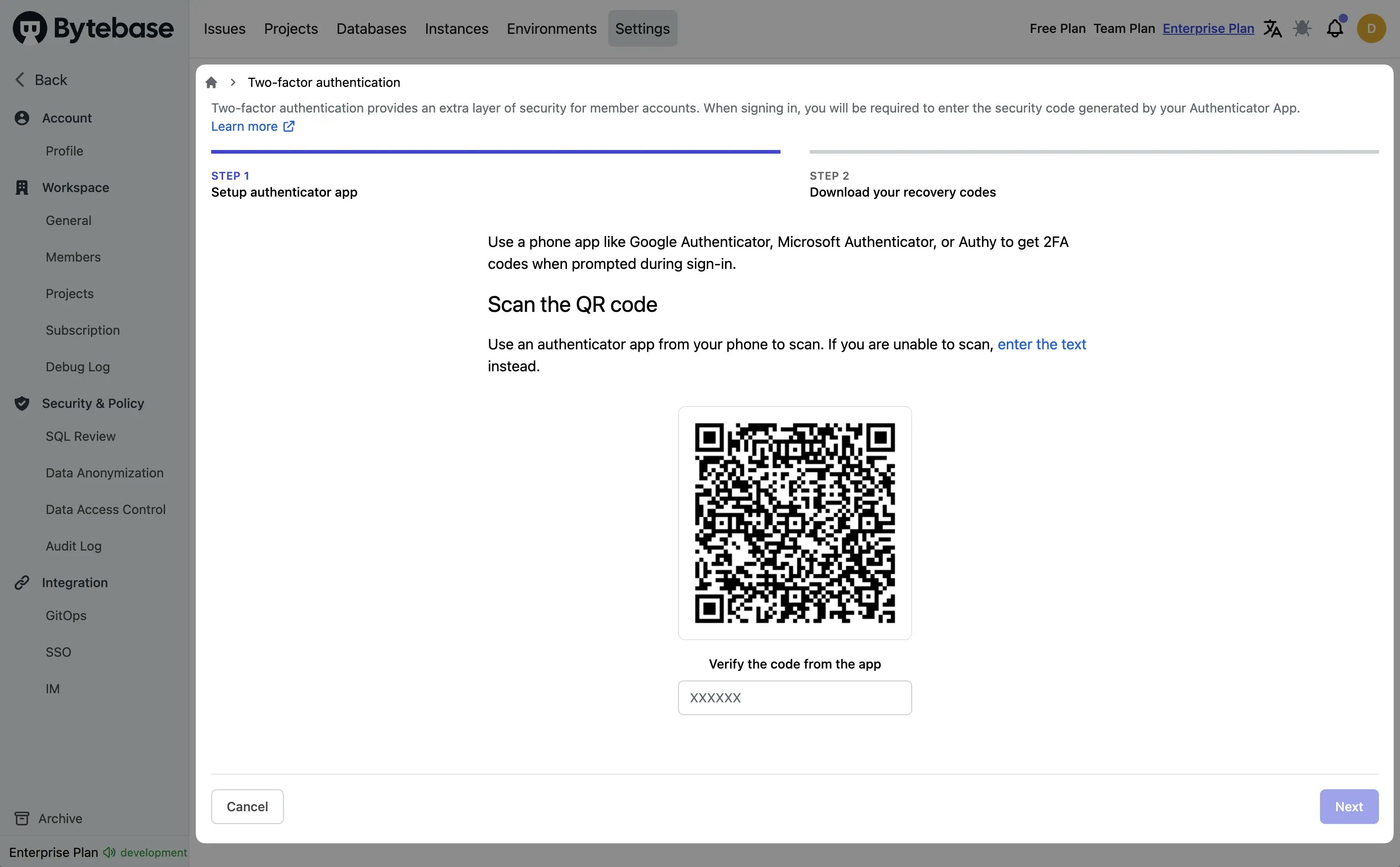
In the "Two-factor authentication" page, you will be prompted to scan the QR code with your TOTP app. Then enter the authentication code generated by your TOTP app to verify your identity.
### Step 3: Scan the QR code with your TOTP app
In the "Two-factor authentication" page, you will be prompted to scan the QR code with your TOTP app. Then enter the authentication code generated by your TOTP app to verify your identity.
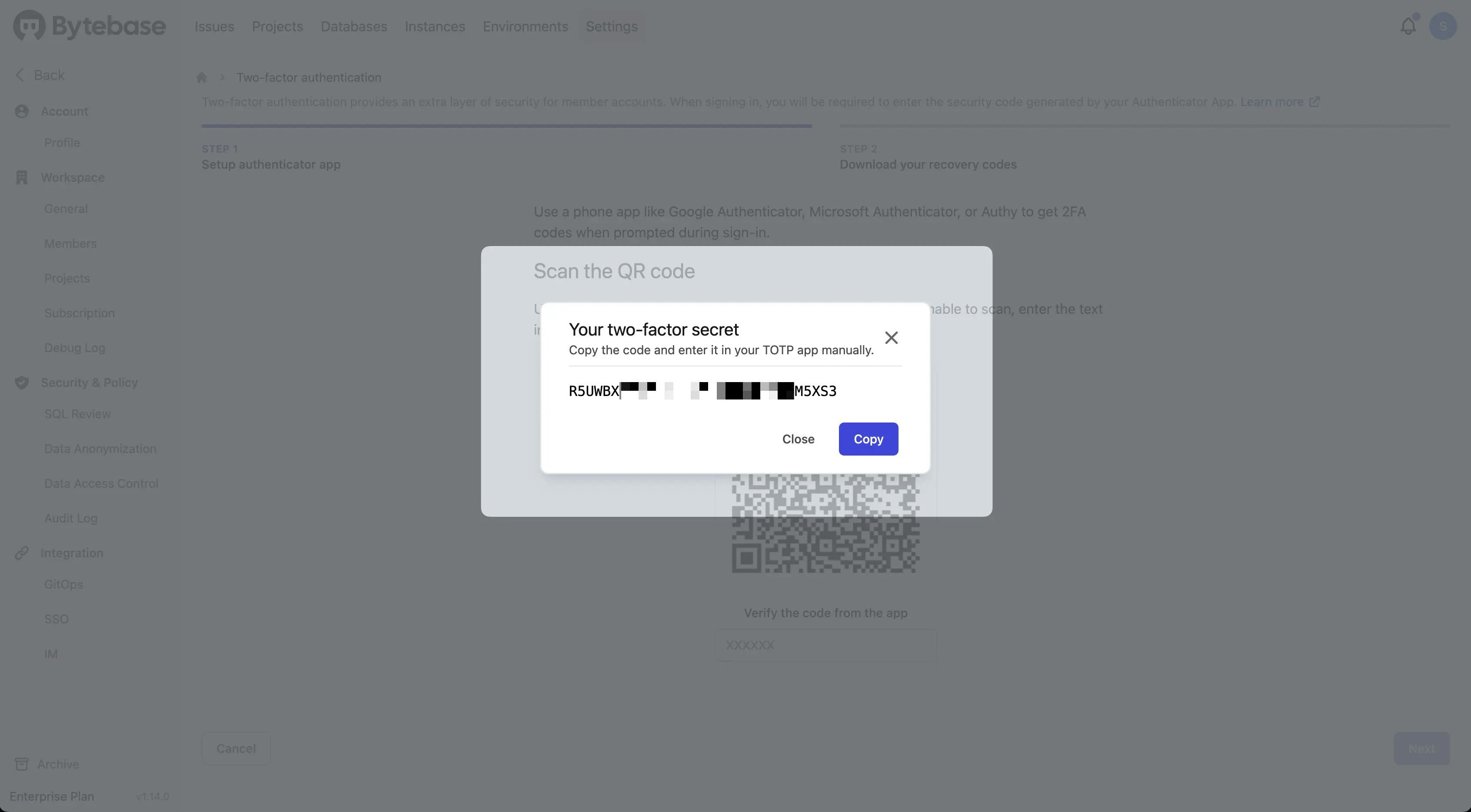
 If you can't scan the QR code, click **enter the text** to see the secret. You can then manually enter it in your TOTP application to get the authentication code.
 ### Step 4: Download the recovery codes
After verifying your TOTP app, you will be prompted to download your recovery codes.
Under "Download your recovery codes", click **Download** to download your recovery codes to your device. Save them to a secure location because your recovery codes can help you get back into your account if you lose access.
### Step 4: Download the recovery codes
After verifying your TOTP app, you will be prompted to download your recovery codes.
Under "Download your recovery codes", click **Download** to download your recovery codes to your device. Save them to a secure location because your recovery codes can help you get back into your account if you lose access.
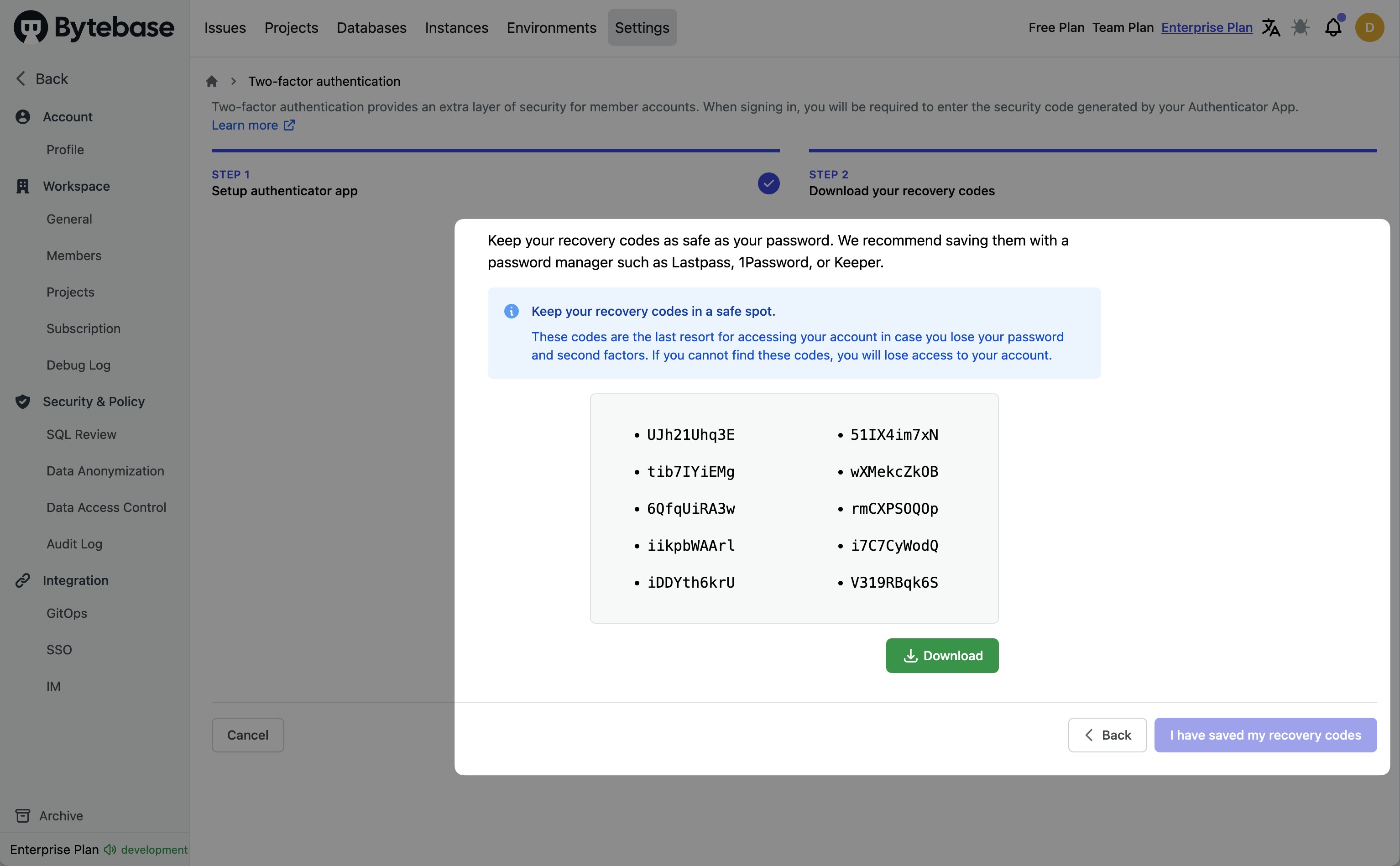 ### Step 5: Click **I have saved my recovery codes** to finish
After saving your two-factor recovery codes, click **I have saved my recovery codes** to enable two-factor authentication for your account.
## Enable Require 2FA for all users
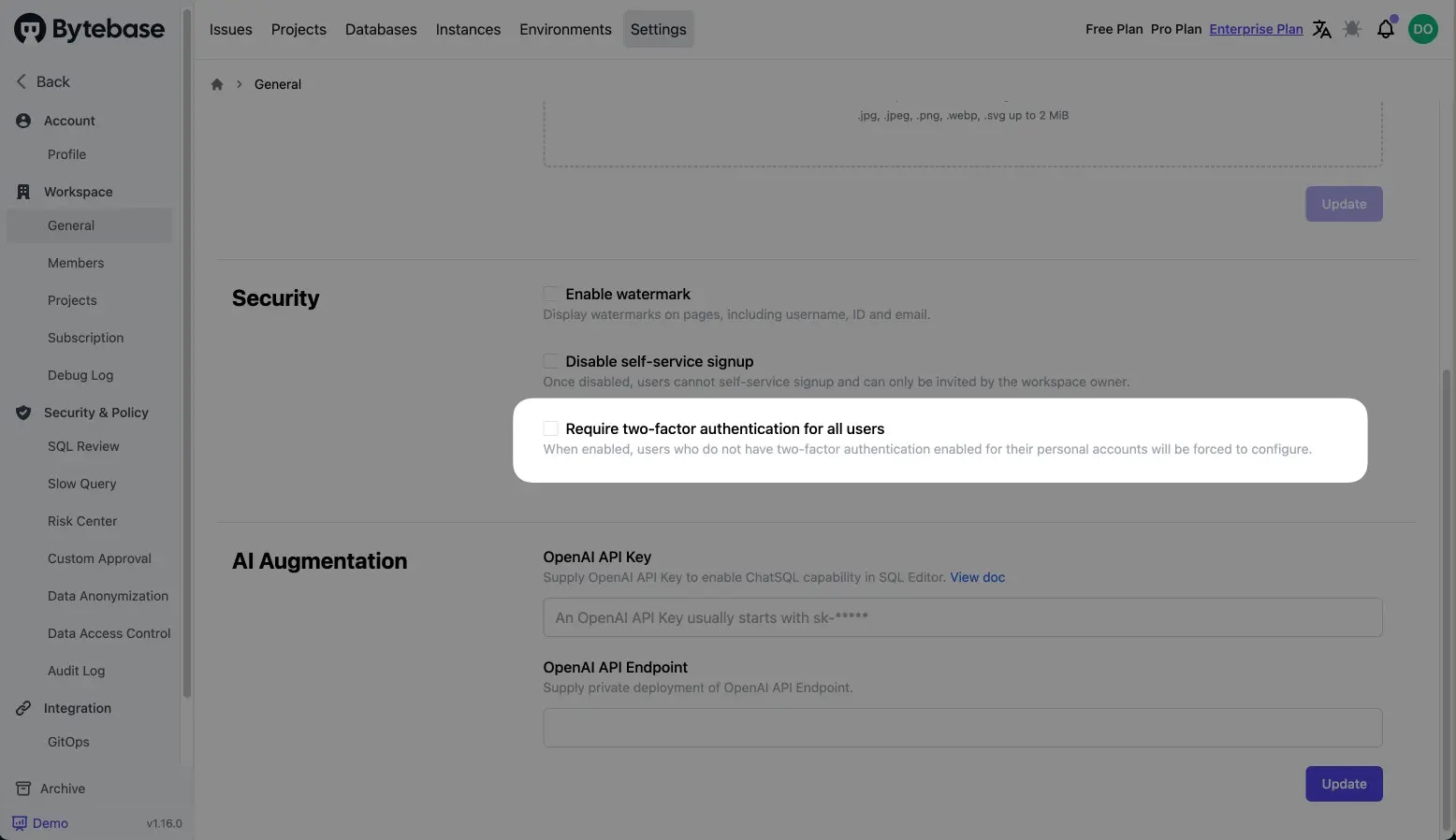
The workspace admin can require all users to enable two-factor authentication (2FA) in the Security setting page. This will ensure that all users have an extra layer of security for their accounts.
### Step 5: Click **I have saved my recovery codes** to finish
After saving your two-factor recovery codes, click **I have saved my recovery codes** to enable two-factor authentication for your account.
## Enable Require 2FA for all users
The workspace admin can require all users to enable two-factor authentication (2FA) in the Security setting page. This will ensure that all users have an extra layer of security for their accounts.