> ## Documentation Index
> Fetch the complete documentation index at: https://docs.bytebase.com/llms.txt
> Use this file to discover all available pages before exploring further.
# Manage License
Bytebase offers [3 pricing plans](https://www.bytebase.com/pricing): `Free`, `Pro`, `Enterprise`.
| Plan | Deployment | Users | Pricing |
| -------------- | ------------------ | --------- | --------------- |
| **Free** | Self-host or Cloud | Up to 20 | Free |
| **Pro** | Cloud only | Unlimited | \$20/user/month |
| **Enterprise** | Self-host or Cloud | Custom | Custom |
**Pro plan is cloud-only.** Self-hosted deployments require an Enterprise license. Existing Pro self-host licenses are grandfathered. Self-hosted Free instances can start a [14-day Enterprise trial](https://www.bytebase.com/contact-us/).
Running more than one self-hosted Bytebase replica requires HA to be enabled in the license. If multiple replicas are detected without HA enabled, Bytebase disables backend runners for safety. As a result, background operations such as rollout task execution, plan checks, schema sync, and other scheduled runners will stop progressing until you scale back to a single replica or enable HA in the license.
## How Users Are Counted
Two kinds of users count against your plan's user limit, sharing the same seats:
* **Workspace users** — members added to the workspace.
* **Active VCS users** — non-bot pull request / merge request authors observed by `bytebase-release` workflows on GitHub, GitLab, and Bitbucket. An author stays active for 90 days after they were last seen, then drops off automatically. Bytebase relies on the `bytebase-release` workflow to exclude bot accounts before reporting authors.
When the combined count reaches your seat limit, Bytebase stops admitting new active VCS users — the release check no longer counts the author once the limit is full.
To review usage, go to **Settings > Subscription**, where the active VCS user count is shown. Download the full list as a CSV file with columns `vcs_type`, `user_id`, `user_name`, `display_name`, and `last_seen_at`.
## Configure Workspace License
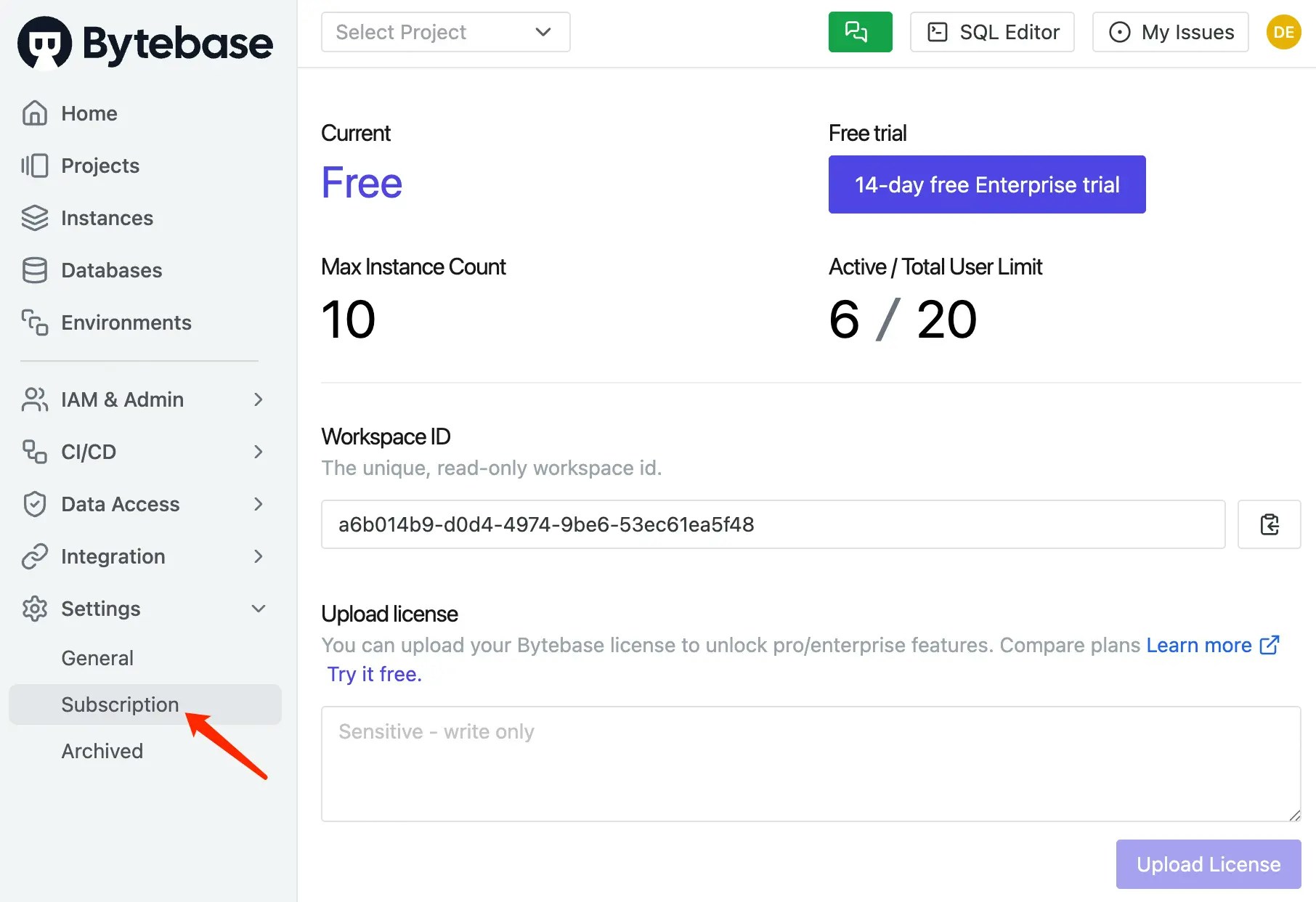
Go to **Settings > Subscription**, paste your license and click **Upload License**.
 ## Configure Instance License
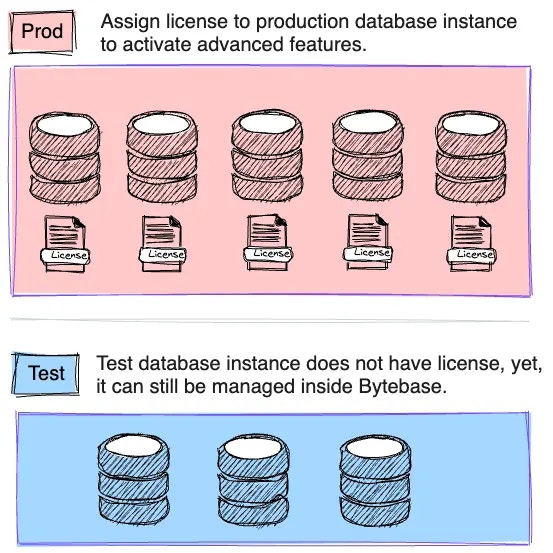
Some features (e.g. [Dynamic Data Masking](/security/data-masking/overview)) require assigning license quota to individual instances. Enterprise-wide features like [SSO](/administration/sso/overview/) work without per-instance assignment.
## Configure Instance License
Some features (e.g. [Dynamic Data Masking](/security/data-masking/overview)) require assigning license quota to individual instances. Enterprise-wide features like [SSO](/administration/sso/overview/) work without per-instance assignment.
 You can assign instance licenses from:
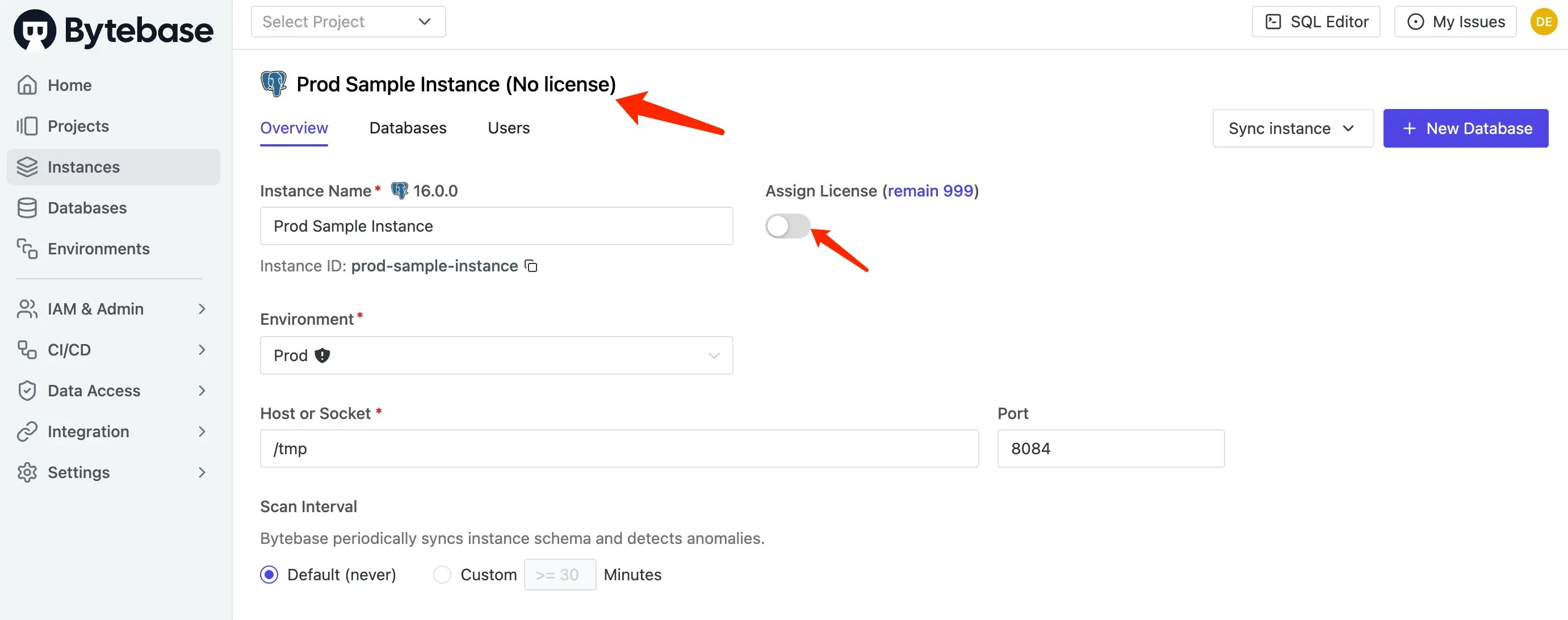
1. **The instance page** — assign/unassign directly on each instance.
You can assign instance licenses from:
1. **The instance page** — assign/unassign directly on each instance.
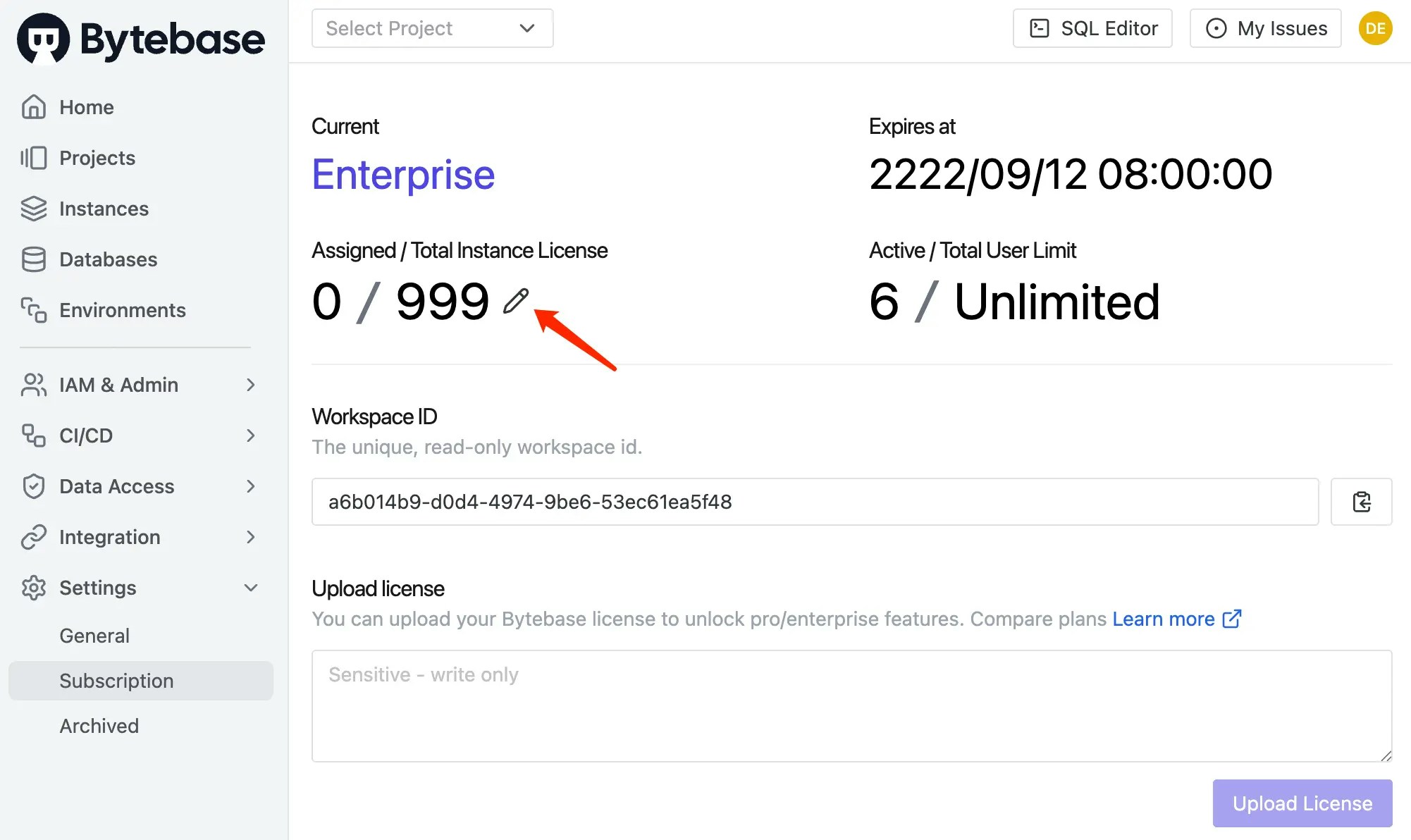
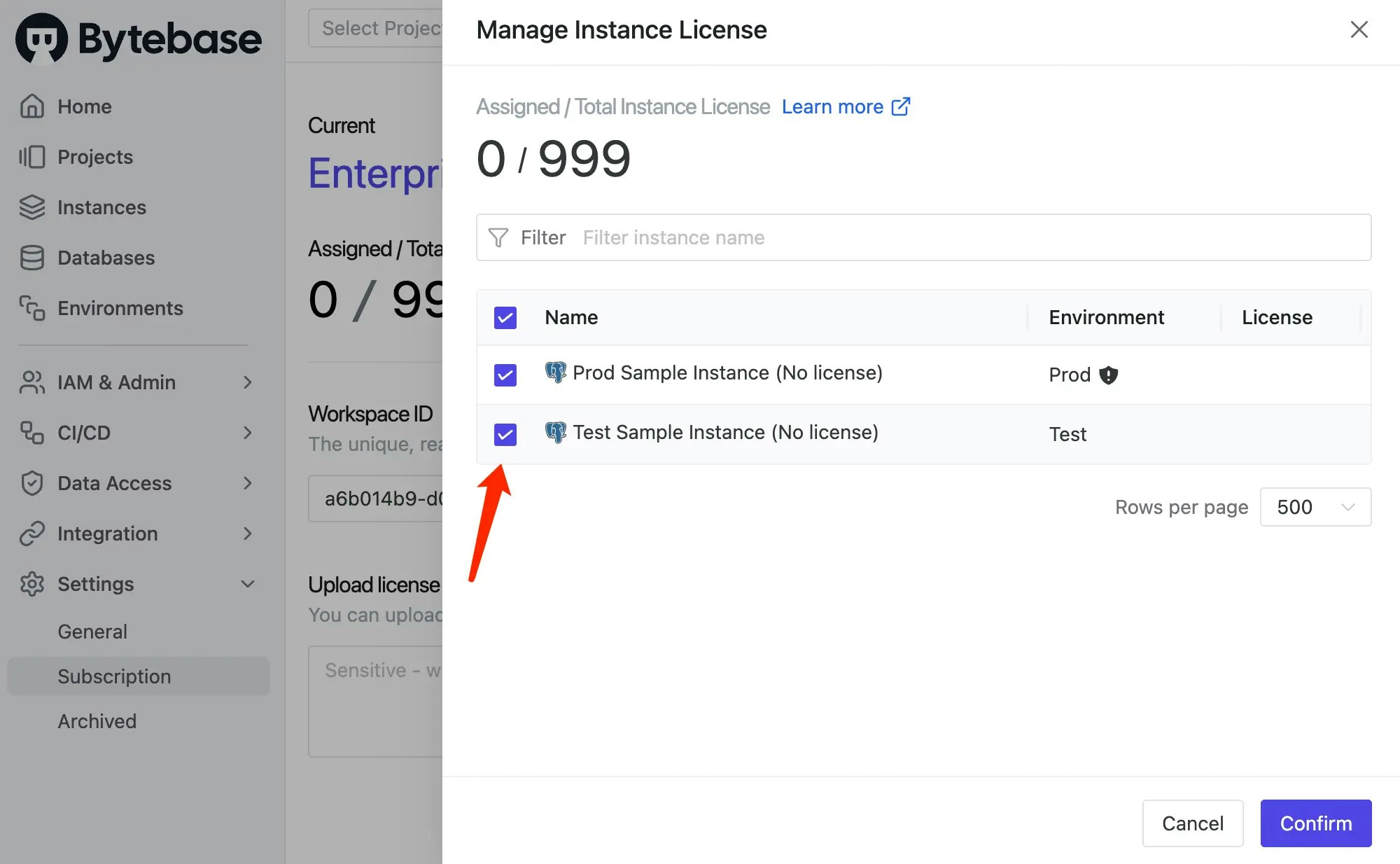
 2. **Settings > Subscription** — click the instance area or edit icon to open the license drawer, tick the instances, and click **Confirm**.
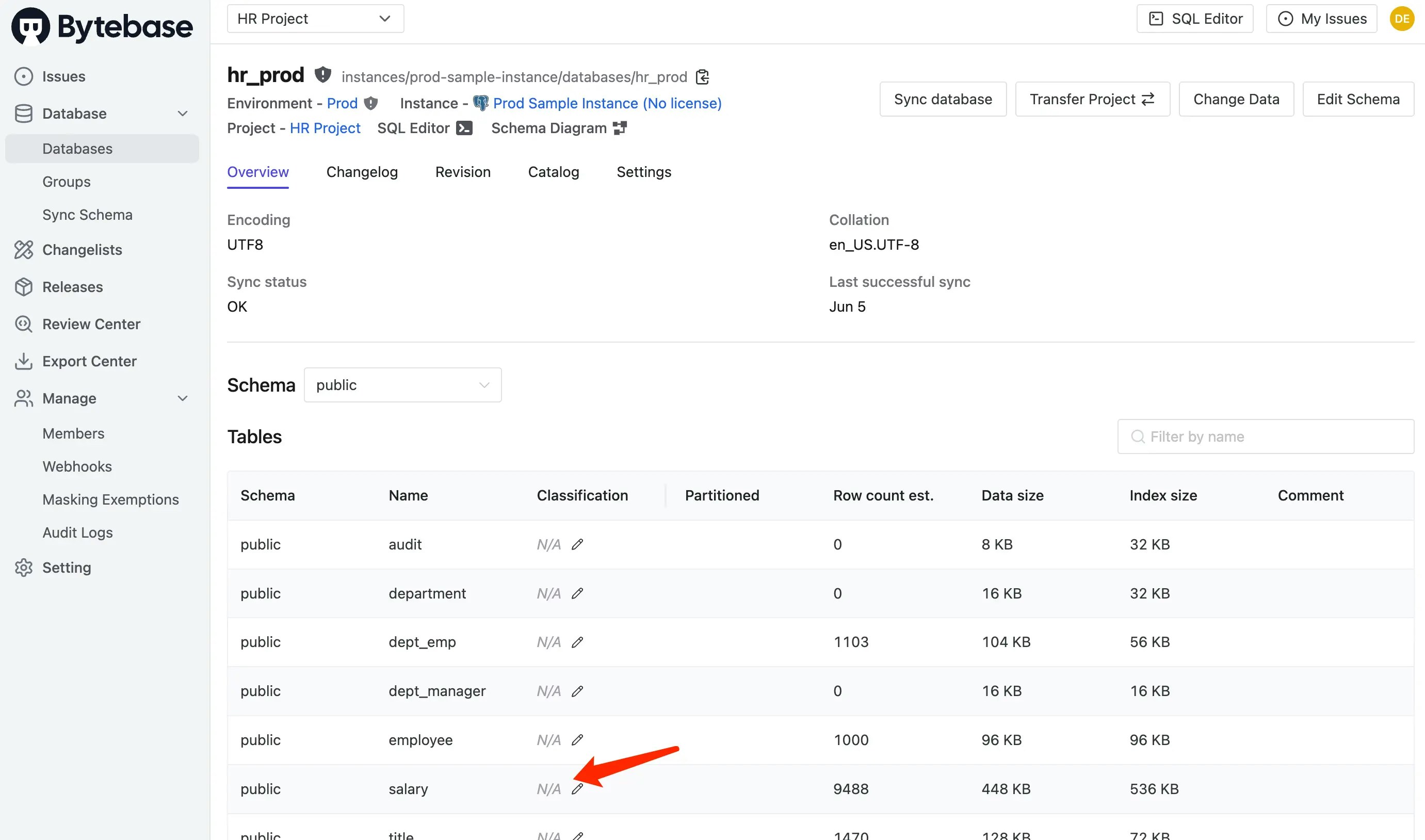
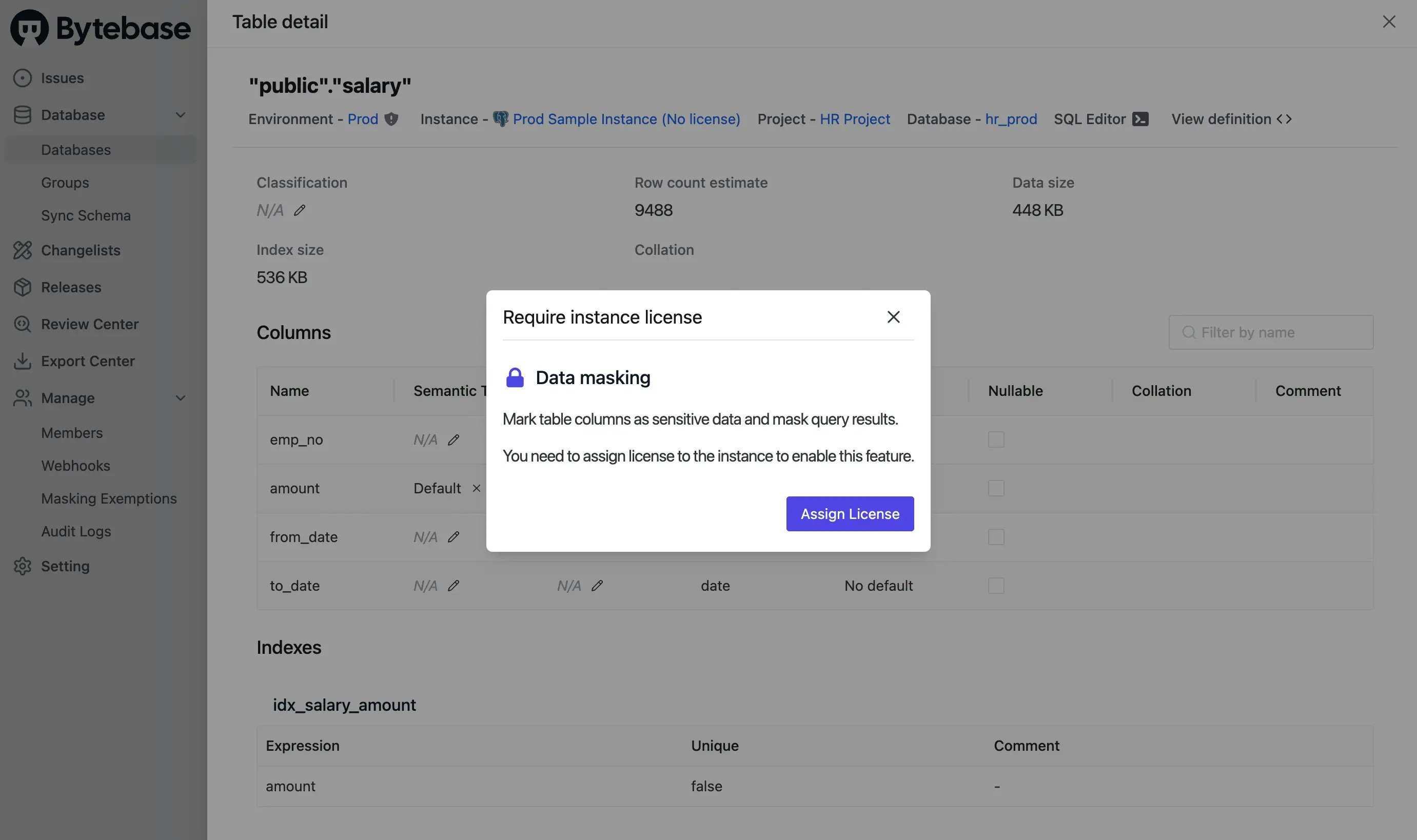
 3. **Gated feature prompts** — when you encounter a feature requiring a license, click the **Assign License** button in the popup.
 To reduce costs, license only the instances that need advanced features (e.g., production only).