> ## Documentation Index
> Fetch the complete documentation index at: https://docs.bytebase.com/llms.txt
> Use this file to discover all available pages before exploring further.
# IdP-Initiated Flow
By default, SSO uses a **Service Provider-initiated (SP-initiated)** flow: users visit Bytebase, click "Sign in with X", get redirected to the identity provider, then back. **IdP-initiated** flow reverses this — users click the Bytebase tile directly from their identity provider's dashboard (e.g. Okta portal) and land in Bytebase already authenticated. This eliminates the extra step of visiting Bytebase first and works with both OAuth 2.0 and OIDC providers.
## Prerequisites
1. Configure [External URL](/get-started/self-host/external-url) for your Bytebase instance
2. Set up an [OAuth 2.0](/administration/sso/oauth2) or [OIDC](/administration/sso/oidc) SSO provider in Bytebase
IdP-initiated flow in Bytebase works with OAuth 2.0 and OpenID Connect (OIDC) protocols. This feature uses a specialized endpoint to initiate the authentication flow from the identity provider's side.
## Configuration
### Step 1: Configure SSO Provider in Bytebase
First, ensure you have already configured your SSO provider (OAuth 2.0 or OIDC) in Bytebase following the respective documentation:
* [OAuth 2.0 Configuration](/administration/sso/oauth2)
* [OIDC Configuration](/administration/sso/oidc)
### Step 2: Get Your IdP-Initiated URL
Once your SSO provider is configured, the IdP-initiated flow URL follows this format:
```
{EXTERNAL_URL}/auth/idp-init?idp={IDENTITY_PROVIDER_ID}
```
Where:
* `{EXTERNAL_URL}` is your Bytebase external URL (e.g., `https://bytebase.example.com`)
* `{IDENTITY_PROVIDER_ID}` is the Identity Provider ID you specified when creating the SSO provider in Bytebase
**Example**:
If your external URL is `https://bytebase.example.com` and your Identity Provider ID is `okta-company`, the IdP-initiated URL would be:
```
https://bytebase.example.com/auth/idp-init?idp=okta-company
```
### Step 3: Add Deep Linking (Optional)
You can optionally specify where users should land after authentication by adding a `relay_state` parameter. If not provided, users will be directed to the Bytebase homepage after successful authentication.
```
{EXTERNAL_URL}/auth/idp-init?idp={IDENTITY_PROVIDER_ID}&relay_state={PATH}
```
**Example**:
To redirect users to a specific project after login:
```
https://bytebase.example.com/auth/idp-init?idp=okta-company&relay_state=/projects/123
```
The `relay_state` parameter is optional. When used, it must be a relative path (starting with `/`). External URLs are not permitted for security reasons.
## Okta Configuration
After setting up your [OIDC SSO provider](/administration/sso/oidc) in Bytebase, configure the Initiate Login URL in your Okta application to enable IdP-initiated flow.
1. In your Okta Admin Console, go to **Applications** > **Applications**.
2. Select your existing Bytebase OIDC application (the one you created when setting up OIDC SSO).
3. Go to the **General** tab and click **Edit** in the **General Settings** section.
4. Set the **Initiate login URI** to your Bytebase IdP-initiated URL:
```
https://bytebase.example.com/auth/idp-init?idp=okta-company
```
Where `okta-company` is the Identity Provider ID you configured in Bytebase.
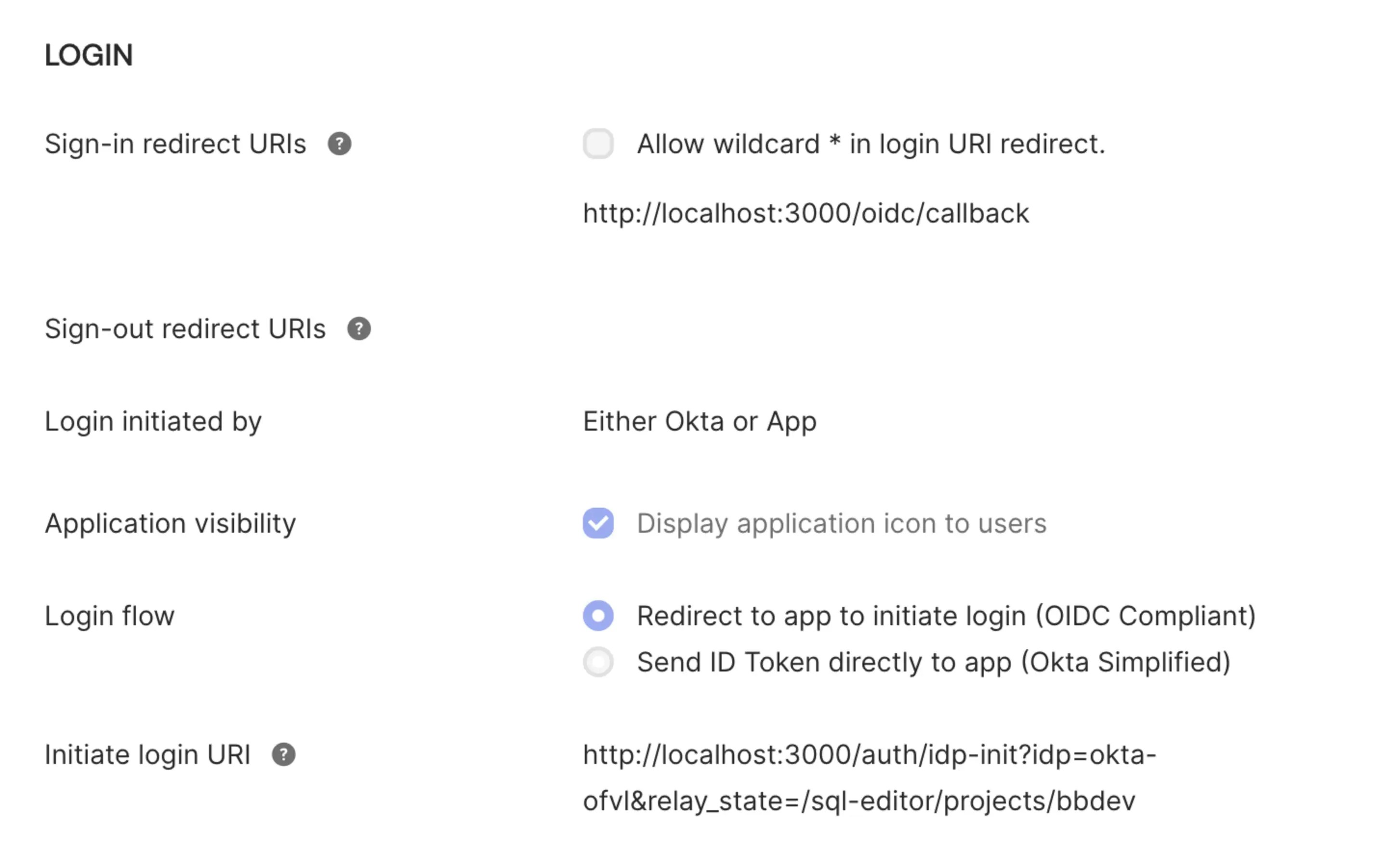 5. Click **Save** to apply the changes.
6. Now when users click the Bytebase tile in their Okta End-User Dashboard, they will be automatically authenticated and redirected to Bytebase without needing to click any additional login buttons.
To direct users to a specific page after login, add the `relay_state` parameter to your Initiate Login URI:
```
https://bytebase.example.com/auth/idp-init?idp=okta-company&relay_state=/projects/123
```
## Other Identity Providers
For other identity providers (GitLab, Keycloak, Casdoor, etc.), the configuration typically involves:
1. Creating a bookmark/shortcut application in your IdP
2. Setting the target URL to your Bytebase IdP-initiated URL
3. Assigning the bookmark to appropriate users or groups
Consult your identity provider's documentation for creating bookmark or web link applications.
## Security Considerations
IdP-initiated flow in Bytebase includes several security measures:
### CSRF Protection
The IdP-initiated flow uses the same state parameter mechanism as SP-initiated SSO to prevent Cross-Site Request Forgery (CSRF) attacks. Each authentication request generates a unique, single-use state token.
### Token Expiration
State tokens expire after 10 minutes, limiting the window for potential replay attacks.
### Relay State Validation
The `relay_state` parameter is validated to ensure it's a relative path, preventing open redirect vulnerabilities. External URLs are rejected.
### Existing Session Handling
If a user already has an active Bytebase session when using IdP-initiated flow, the system will respect the existing session state.
While IdP-initiated flow provides a better user experience, SP-initiated flows offer slightly stronger security guarantees because the authentication request originates from and is controlled by the service provider. For high-security environments, consider whether the convenience of IdP-initiated flow is appropriate for your security requirements.
## Troubleshooting
### Users redirected to homepage instead of intended destination
If you're using the `relay_state` parameter but users are landing on the homepage:
1. Verify that the `relay_state` value is URL-encoded if it contains special characters
2. Ensure the path starts with `/` (e.g., `/projects/123`, not `projects/123`)
3. Check that the path exists and is accessible to the authenticated user
### IdP-initiated flow not working
If clicking the application tile in your IdP dashboard doesn't authenticate users:
1. Verify your External URL is configured correctly in Bytebase
2. Check that the Identity Provider ID in the Initiate Login URI matches exactly what you configured in Bytebase (case-sensitive)
3. Ensure the OIDC SSO provider is properly configured and tested using SP-initiated flow first
4. Verify the Initiate Login URI is correctly set in your Okta application's General Settings
### Authentication succeeds but shows an error
This may indicate an issue with token exchange or user provisioning:
1. Verify the OAuth/OIDC configuration in Bytebase has correct client ID and secret
2. Check the user information field mapping in your SSO configuration
3. Review Bytebase server logs for detailed error messages
4. Ensure the user's email in the IdP matches a valid email format
## Learn More
* [OAuth 2.0 Configuration](/administration/sso/oauth2)
* [OIDC Configuration](/administration/sso/oidc)
* [External URL Configuration](/get-started/self-host/external-url)
* [SSO Overview](/administration/sso/overview)
5. Click **Save** to apply the changes.
6. Now when users click the Bytebase tile in their Okta End-User Dashboard, they will be automatically authenticated and redirected to Bytebase without needing to click any additional login buttons.
To direct users to a specific page after login, add the `relay_state` parameter to your Initiate Login URI:
```
https://bytebase.example.com/auth/idp-init?idp=okta-company&relay_state=/projects/123
```
## Other Identity Providers
For other identity providers (GitLab, Keycloak, Casdoor, etc.), the configuration typically involves:
1. Creating a bookmark/shortcut application in your IdP
2. Setting the target URL to your Bytebase IdP-initiated URL
3. Assigning the bookmark to appropriate users or groups
Consult your identity provider's documentation for creating bookmark or web link applications.
## Security Considerations
IdP-initiated flow in Bytebase includes several security measures:
### CSRF Protection
The IdP-initiated flow uses the same state parameter mechanism as SP-initiated SSO to prevent Cross-Site Request Forgery (CSRF) attacks. Each authentication request generates a unique, single-use state token.
### Token Expiration
State tokens expire after 10 minutes, limiting the window for potential replay attacks.
### Relay State Validation
The `relay_state` parameter is validated to ensure it's a relative path, preventing open redirect vulnerabilities. External URLs are rejected.
### Existing Session Handling
If a user already has an active Bytebase session when using IdP-initiated flow, the system will respect the existing session state.
While IdP-initiated flow provides a better user experience, SP-initiated flows offer slightly stronger security guarantees because the authentication request originates from and is controlled by the service provider. For high-security environments, consider whether the convenience of IdP-initiated flow is appropriate for your security requirements.
## Troubleshooting
### Users redirected to homepage instead of intended destination
If you're using the `relay_state` parameter but users are landing on the homepage:
1. Verify that the `relay_state` value is URL-encoded if it contains special characters
2. Ensure the path starts with `/` (e.g., `/projects/123`, not `projects/123`)
3. Check that the path exists and is accessible to the authenticated user
### IdP-initiated flow not working
If clicking the application tile in your IdP dashboard doesn't authenticate users:
1. Verify your External URL is configured correctly in Bytebase
2. Check that the Identity Provider ID in the Initiate Login URI matches exactly what you configured in Bytebase (case-sensitive)
3. Ensure the OIDC SSO provider is properly configured and tested using SP-initiated flow first
4. Verify the Initiate Login URI is correctly set in your Okta application's General Settings
### Authentication succeeds but shows an error
This may indicate an issue with token exchange or user provisioning:
1. Verify the OAuth/OIDC configuration in Bytebase has correct client ID and secret
2. Check the user information field mapping in your SSO configuration
3. Review Bytebase server logs for detailed error messages
4. Ensure the user's email in the IdP matches a valid email format
## Learn More
* [OAuth 2.0 Configuration](/administration/sso/oauth2)
* [OIDC Configuration](/administration/sso/oidc)
* [External URL Configuration](/get-started/self-host/external-url)
* [SSO Overview](/administration/sso/overview)