> ## Documentation Index
> Fetch the complete documentation index at: https://docs.bytebase.com/llms.txt
> Use this file to discover all available pages before exploring further.
# Overview
Single Sign-On (SSO) is an authentication method that enables users to securely authenticate with multiple applications and websites by using just one set of credentials.
## Supported Protocols
Bytebase supports three SSO protocols:
* **[OAuth 2.0](/administration/sso/oauth2)** — Authorization protocol. Bytebase gets a token and fetches your profile from the provider. Good for providers that don't support OIDC (e.g. GitHub).
* **[OpenID Connect (OIDC)](/administration/sso/oidc)** — Identity layer built on top of OAuth 2.0. Adds a standardized ID token so Bytebase gets user info directly. Preferred when available.
* **[LDAP](/administration/sso/ldap)** — Directory lookup protocol. Bytebase queries a user directory directly with username/password. No browser redirects involved.
## Authentication Flow
There are two ways SSO authentication can start:
* **SP-Initiated (default)** — User visits Bytebase, clicks "Sign in with X", gets redirected to the identity provider, then back to Bytebase after authentication.
* **[IdP-Initiated](/administration/sso/idp-initiated)** — User clicks the Bytebase tile directly from their identity provider's dashboard (e.g. Okta portal) and lands in Bytebase already authenticated. Works with OAuth 2.0 and OIDC providers.
## User & Group Provisioning (SCIM)
SSO handles **authentication** (who is this person), but not **provisioning** (creating/updating/deactivating accounts). For automatic user and group provisioning, Bytebase supports [SCIM 2.0](/administration/scim/overview) with [Entra ID](/administration/scim/entra-id) and [Okta](/administration/scim/okta).
SCIM requires the IdP to communicate with Bytebase over HTTP. **LDAP does not support SCIM** — if you need SCIM with a provider like Microsoft Entra ID, you must configure SSO via [OIDC](/administration/sso/oidc-entra-id) or [OAuth 2.0](/administration/sso/oauth2#microsoft-entra-azure-ad), not LDAP.
## Which Protocol to Use
| Identity Provider | Recommended Protocol | [SCIM](/administration/scim/overview) | Notes |
| ----------------------------- | ---------------------------------------------- | ------------------------------------- | ----------------------------------------------------------------------------------- |
| Google | [OIDC](/administration/sso/oidc#google) | — | Also available via [OAuth 2.0](/administration/sso/oauth2#google) |
| GitHub | [OAuth 2.0](/administration/sso/oauth2#github) | — | GitHub does not support OIDC |
| GitLab | [OIDC](/administration/sso/oidc#gitlab) | — | Also available via [OAuth 2.0](/administration/sso/oauth2#gitlab) |
| Microsoft Entra ID (Azure AD) | [OIDC](/administration/sso/oidc-entra-id) | [Yes](/administration/scim/entra-id) | Also available via [OAuth 2.0](/administration/sso/oauth2#microsoft-entra-azure-ad) |
| Okta | [OIDC](/administration/sso/oidc#okta) | [Yes](/administration/scim/okta) | Also available via [LDAP](/administration/sso/ldap#okta) (no SCIM) |
| Keycloak | [OIDC](/administration/sso/oidc#keycloak) | — | |
| Casdoor | [OIDC](/administration/sso/oidc#casdoor) | — | |
| Authing | [OIDC](/administration/sso/oidc#authing) | — | |
| JumpCloud | [LDAP](/administration/sso/ldap#jumpcloud) | — | |
## Prerequisites
Configure [External URL](/get-started/self-host/external-url).
## Create SSO provider
As a **Workspace Admin**, you can create a SSO provider following the steps below:
1. In Workspace, go to **IAM & Admin** -> **SSO** from left side bar.
2. Click **Create** to start creating SSO.
3. Fill in all the required fields.
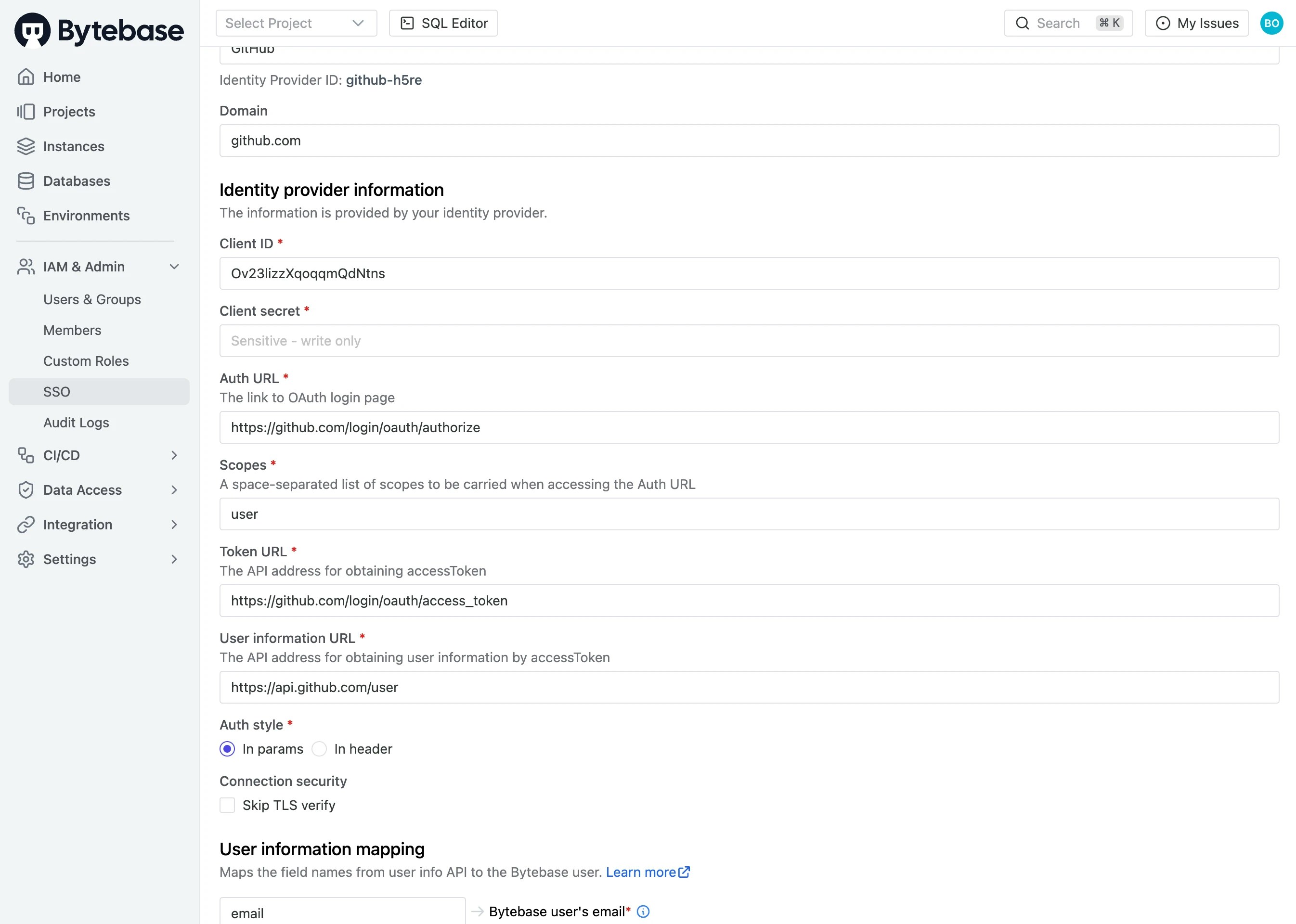 4. **Test Connection** on bottom left.
5. If successfully connected, click **Update** on bottom right.
## Sign in with SSO
Bytebase employs JIT (Just-In-Time) user provisioning. It will create the user the first time the user signs in.
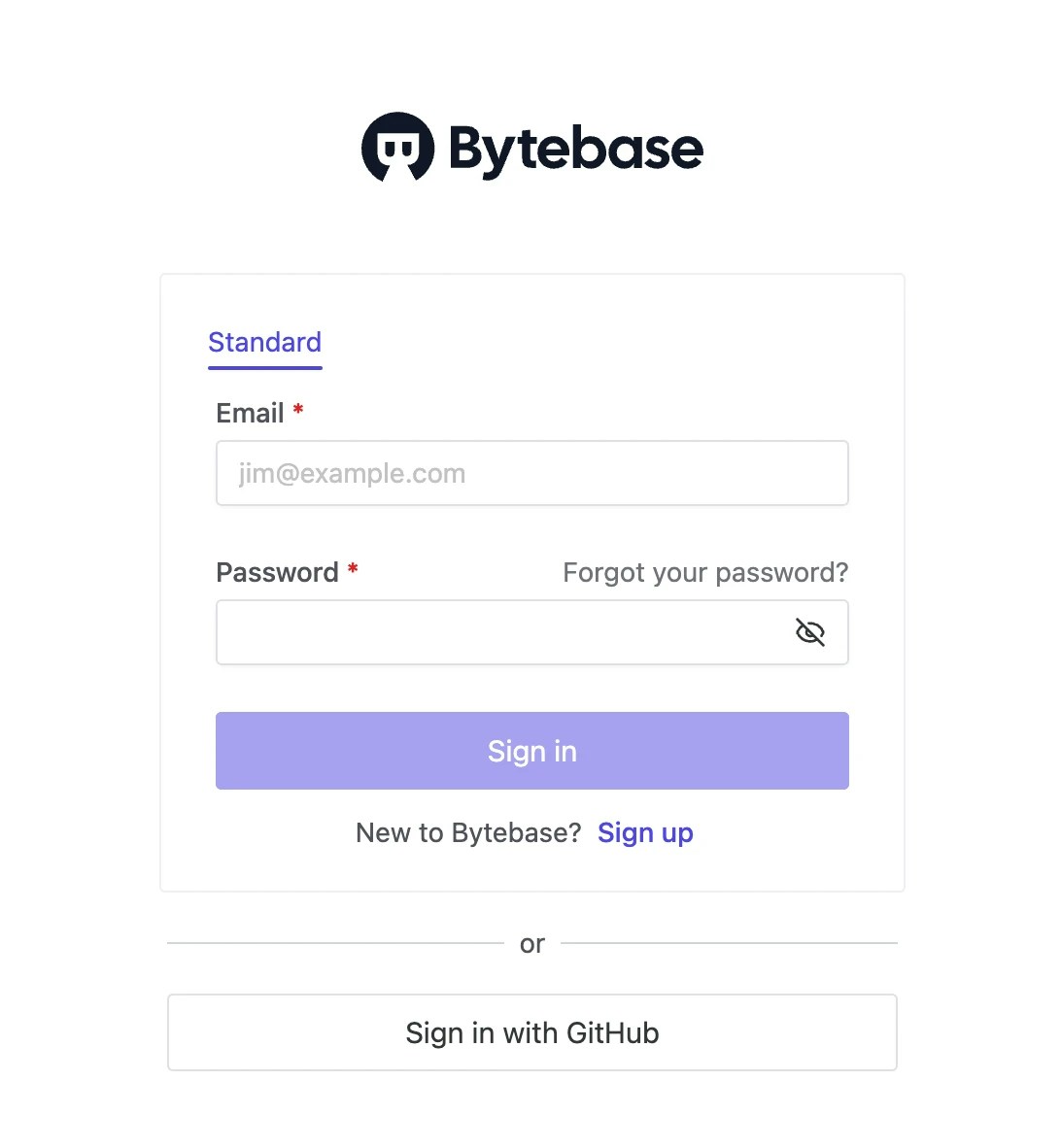
Once a valid SSO has been created, you can choose to sign in with the configured SSO provider.
4. **Test Connection** on bottom left.
5. If successfully connected, click **Update** on bottom right.
## Sign in with SSO
Bytebase employs JIT (Just-In-Time) user provisioning. It will create the user the first time the user signs in.
Once a valid SSO has been created, you can choose to sign in with the configured SSO provider.
 ## Enforce SSO Sign-in
As `Workspace Admin`, you can enforce SSO sign-in for all users in Workspace.
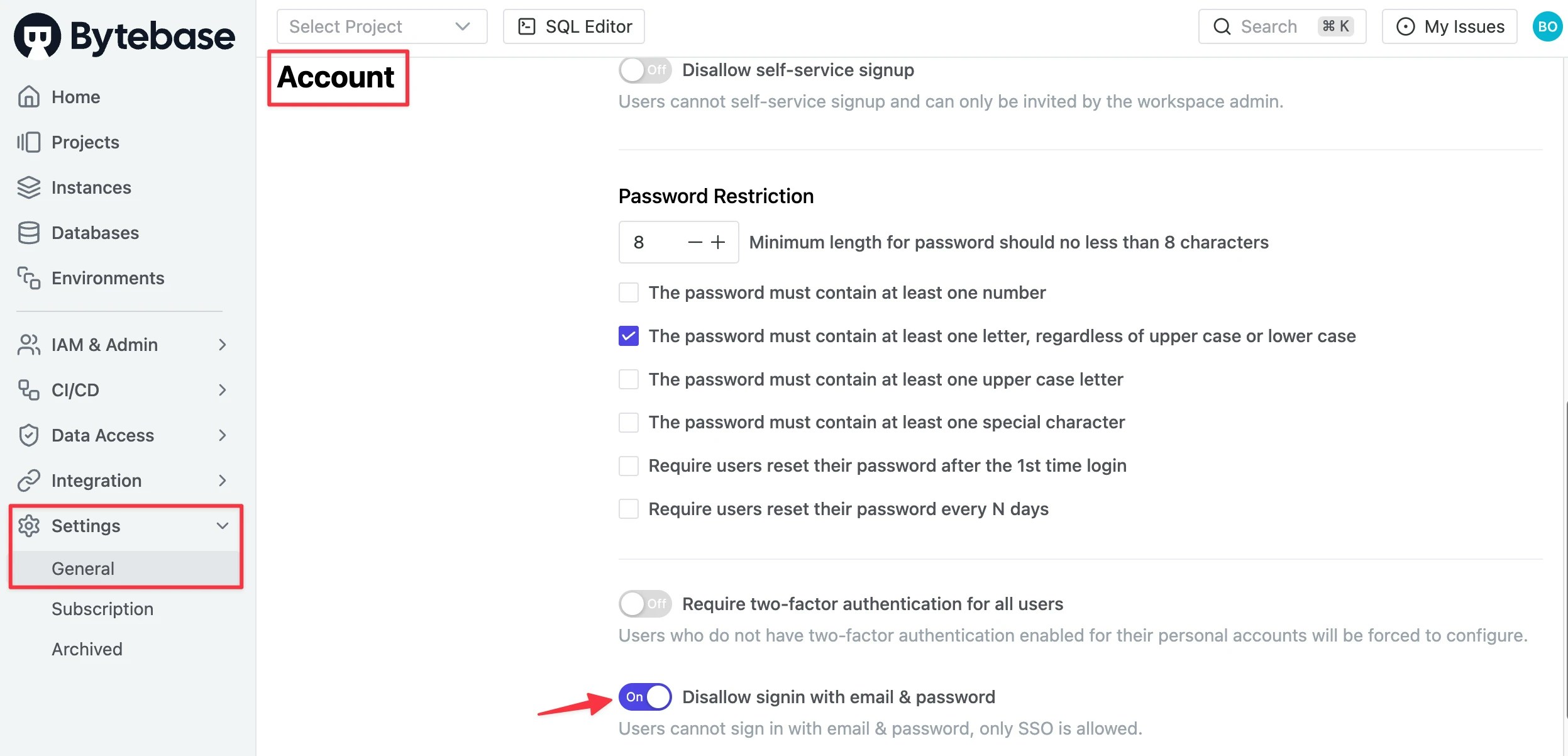
In **Workspace**, go to **Settings** > **General**, scroll down to **Account** section and switch on `Disallow signin with email & password`. Then users can only sign in with SSO.
## Enforce SSO Sign-in
As `Workspace Admin`, you can enforce SSO sign-in for all users in Workspace.
In **Workspace**, go to **Settings** > **General**, scroll down to **Account** section and switch on `Disallow signin with email & password`. Then users can only sign in with SSO.
 Afterwards, when the user tries to sign in, the only option is to sign in with the configured SSO provider.
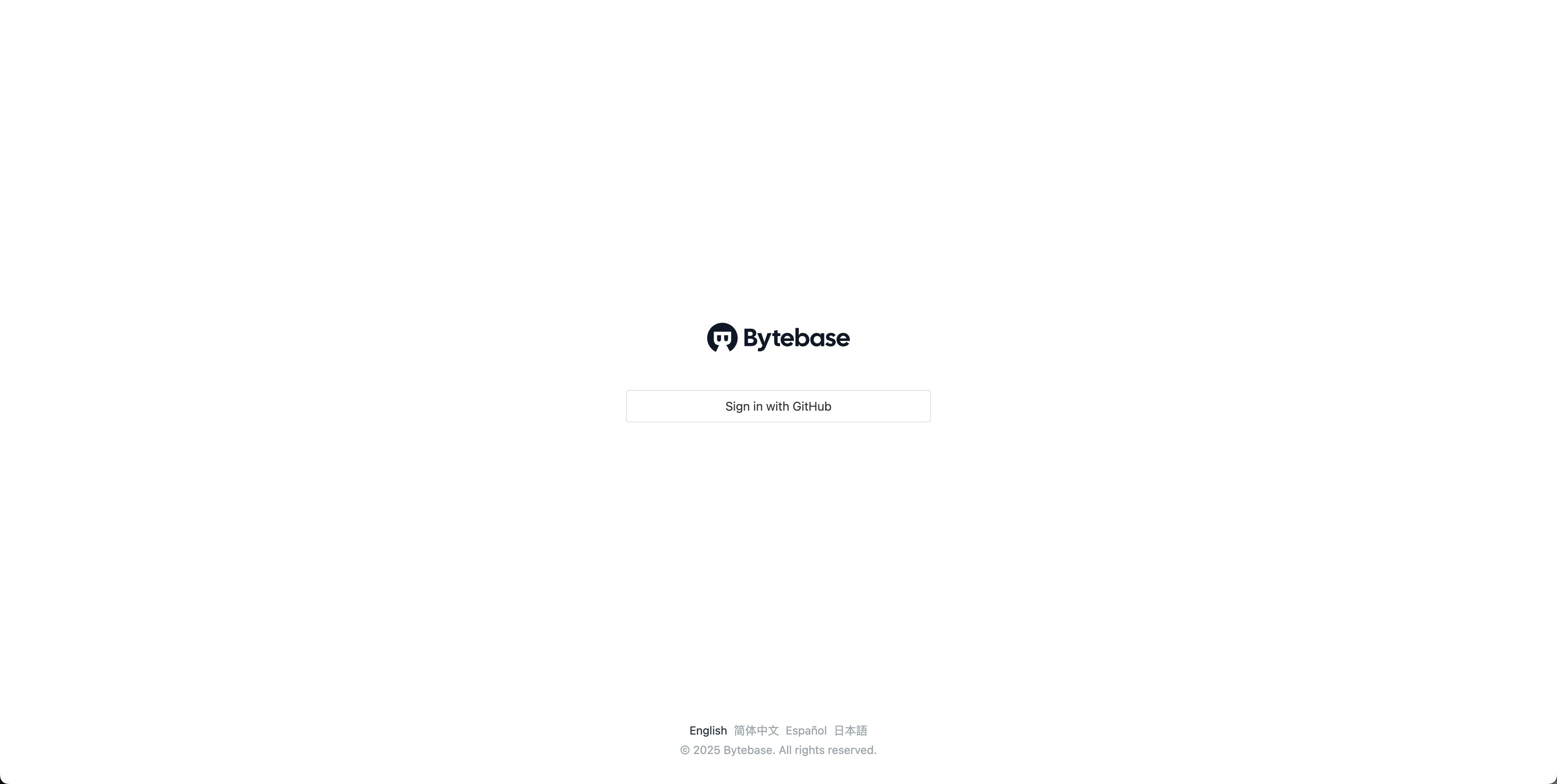 In case of emergency, the admin can log in by navigating to `/auth/admin` and entering the email and password.