> ## Documentation Index
> Fetch the complete documentation index at: https://docs.bytebase.com/llms.txt
> Use this file to discover all available pages before exploring further.
# Users & Groups
## User
A `User` represents a human team member who can access and perform operations in Bytebase.
For machine identities, see [Service Accounts](/administration/service-account) and [Workload Identity](/administration/workload-identity/overview).
## User Group
A `User Group` organizes multiple users together for easier permission management. Workspace admins create groups and add users, then assign these groups to roles within projects.
Bytebase does not support nested groups. A group can only contain users, it can't contain another group.
Machine identities (service accounts and workload identities) cannot be part of user groups. Since they are for automated processes with specific access needs, including them in groups could grant unintended permissions. This is considered an [anti-pattern](https://cloud.google.com/iam/docs/best-practices-service-accounts#groups).
## Add group
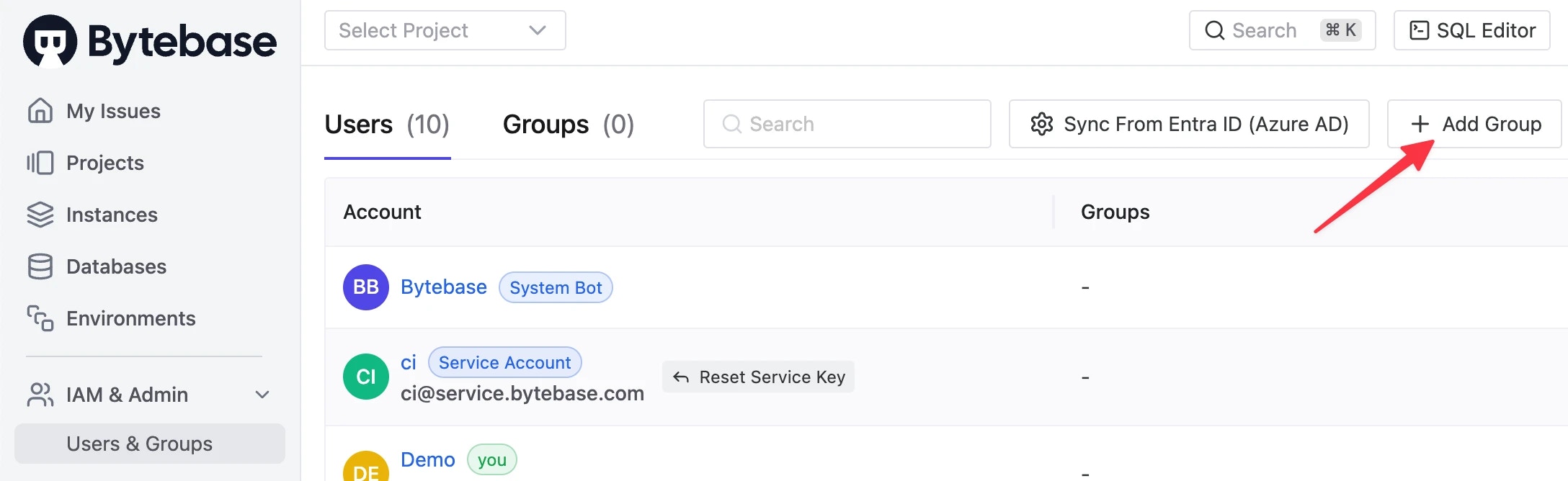
Within Workspace, go to **IAM & Admin** > **Users & Groups**, and **Add Group** from top-right.
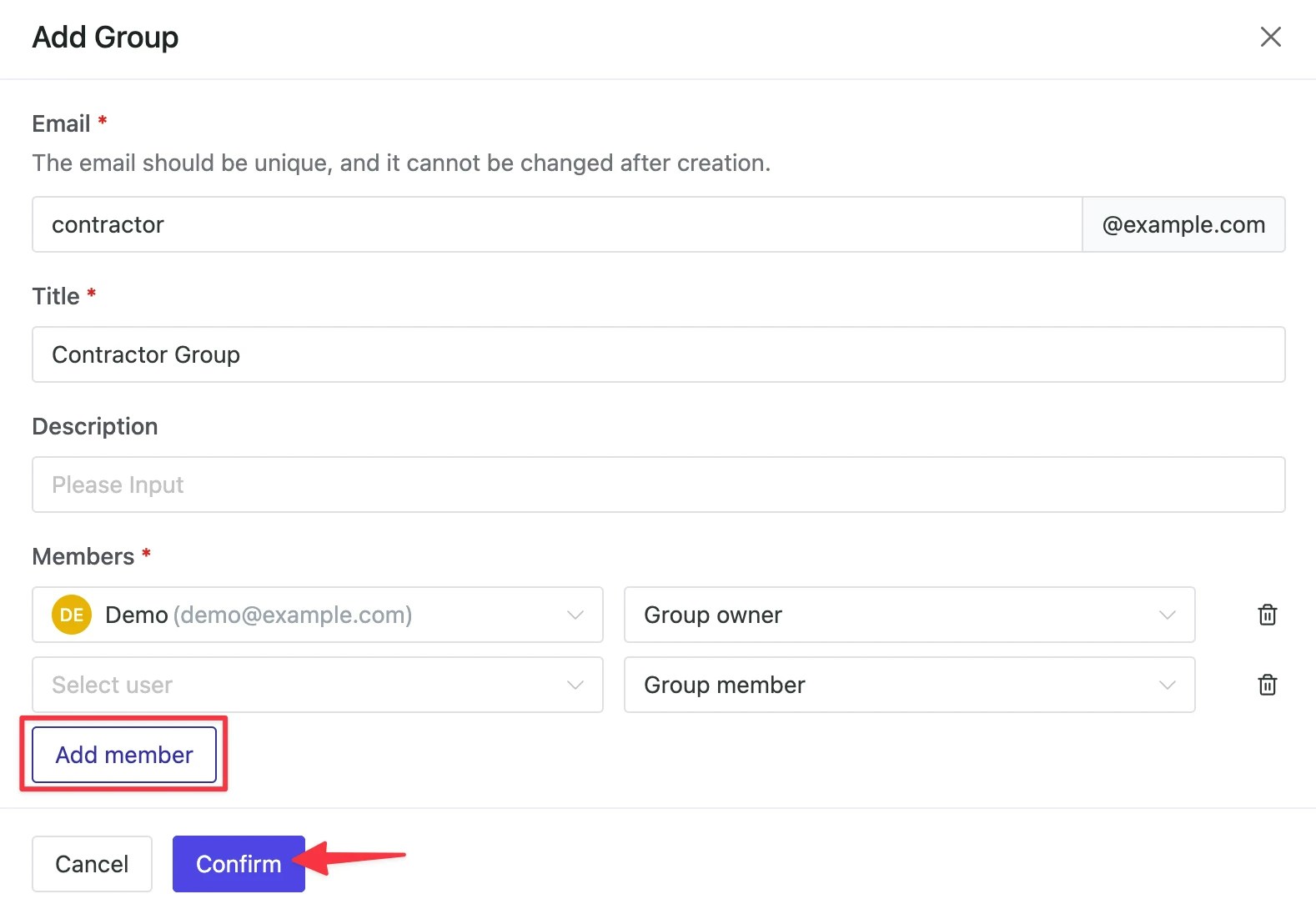
 Create an Email for this group, it'll serve as an account and *cannot be changed after creation*. Fill the group's name into the Title bar. You can **Add member** below, where they can be `Group member` as well as `Group owner`.
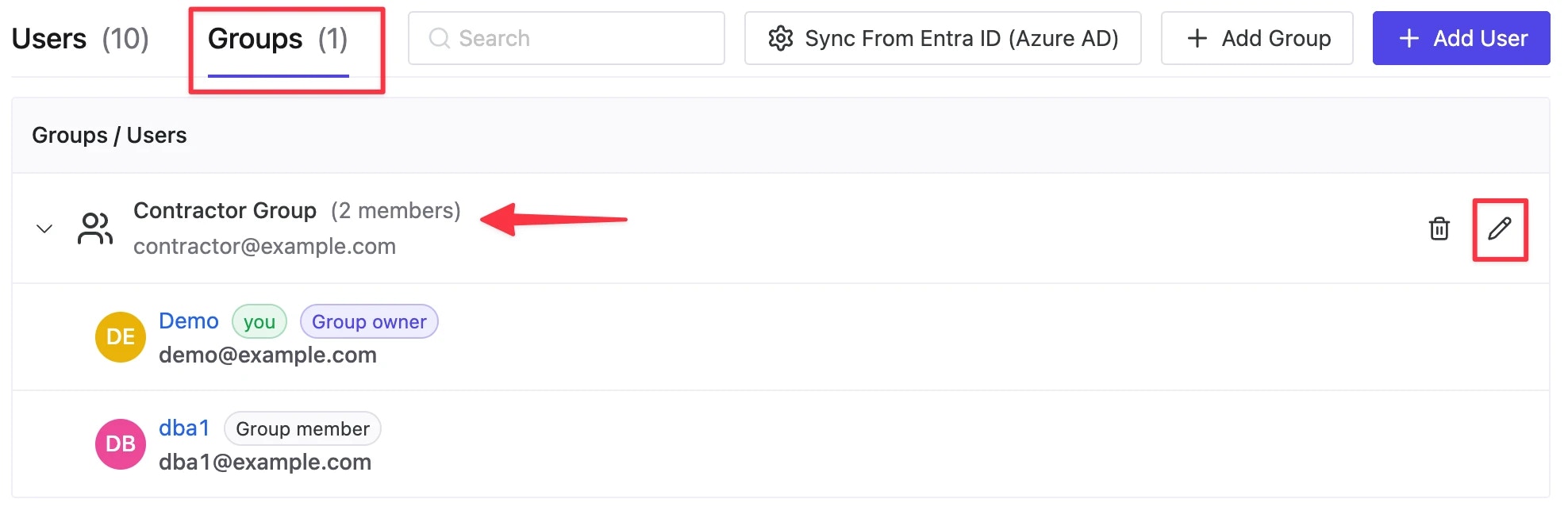
 Here we've created a `Contractor Group`, you can view or edit it under **Groups** page.
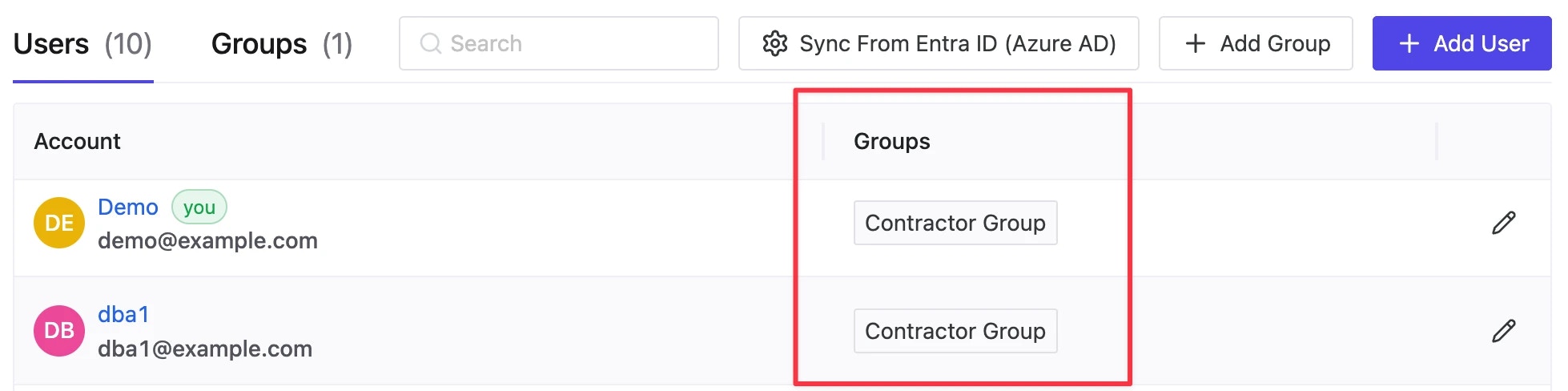
 You can see which group a user belongs to under **Users** page as well.
 ## Grant roles to group
Now that we've created this `Contractor Group`, we can assign corresponding permissions to these groups within any project.
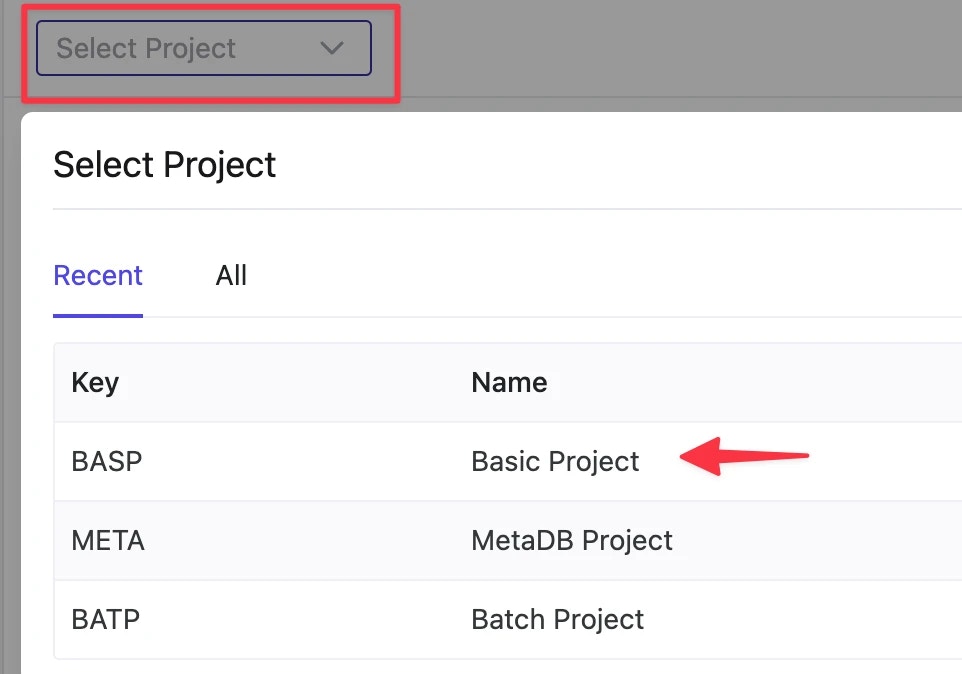
**Select Project** from top left. Enter `Basic Project`.
## Grant roles to group
Now that we've created this `Contractor Group`, we can assign corresponding permissions to these groups within any project.
**Select Project** from top left. Enter `Basic Project`.
 Go to **Manage** > **Members** where you can see the project's members and roles. Our `Contractor Group` is not among them before we **Grant Access** to the group from top right.
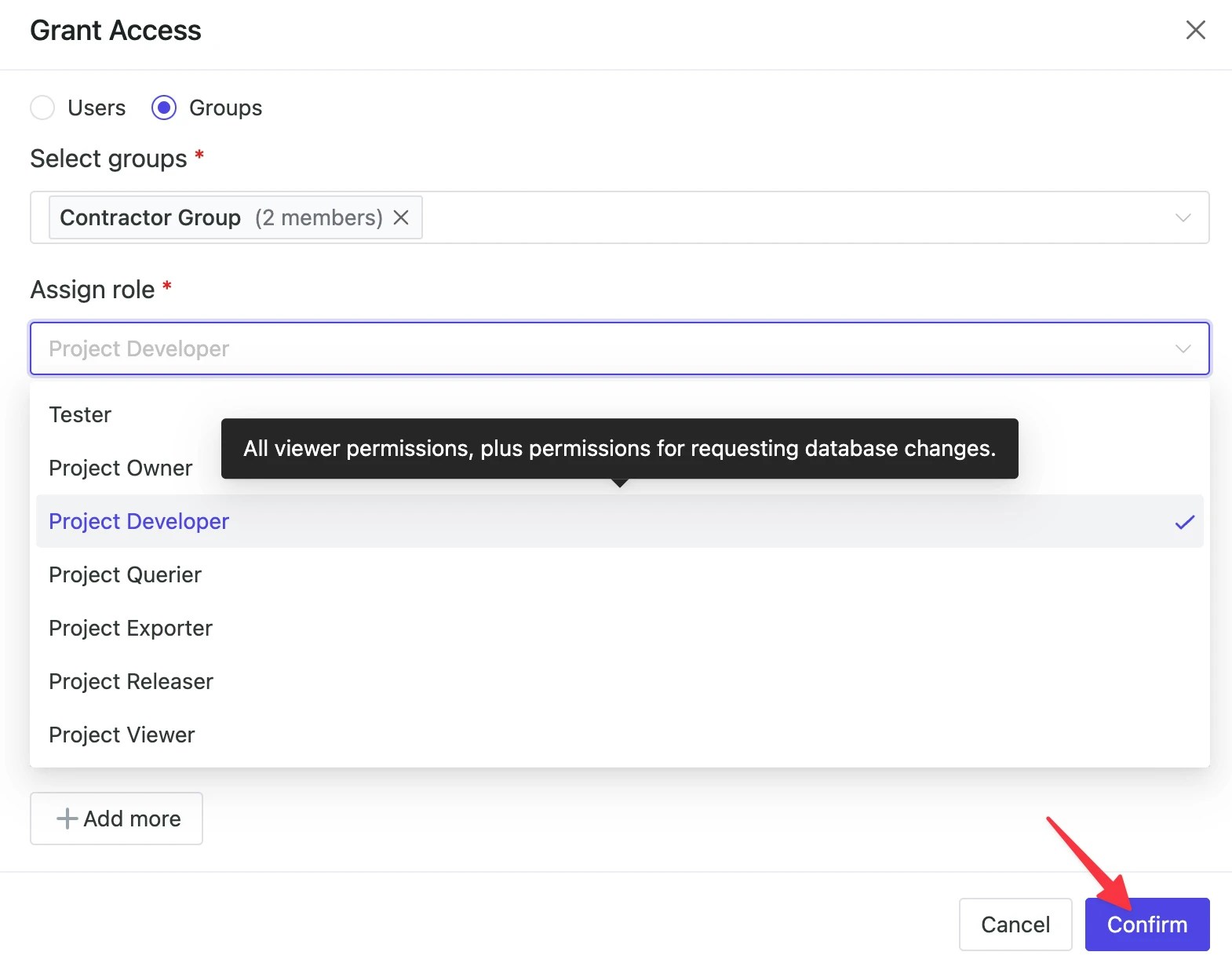
Choose **Groups** and Select our group in **Grant Access** detail page. **Assign role** and **Confirm**.
Go to **Manage** > **Members** where you can see the project's members and roles. Our `Contractor Group` is not among them before we **Grant Access** to the group from top right.
Choose **Groups** and Select our group in **Grant Access** detail page. **Assign role** and **Confirm**.
 Now you can see the `Contractor Group` under **View by members** page as well as **View by roles** page within **Members** section of `Basic Project`.
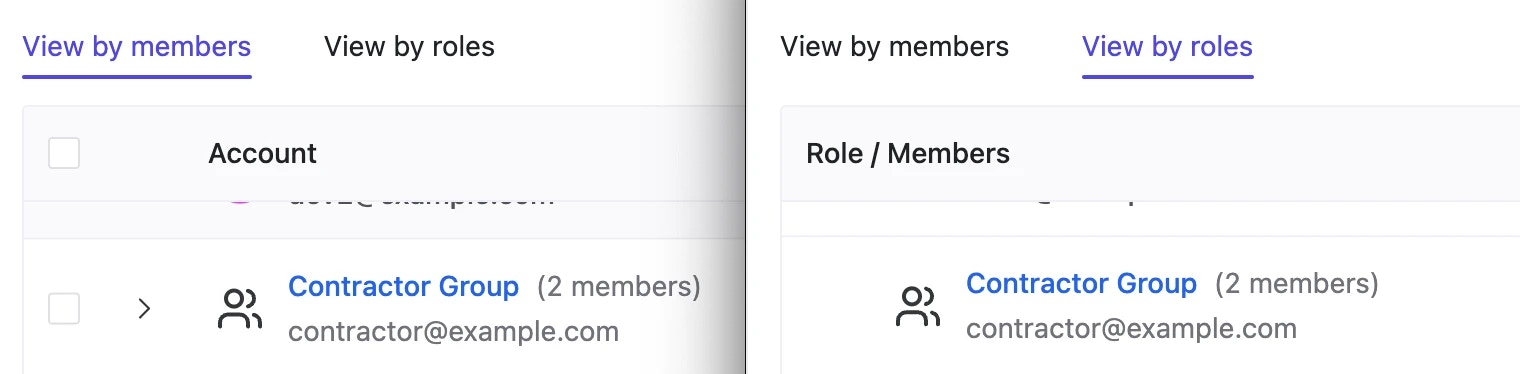 All members within this group now share permission to the project.