> ## Documentation Index
> Fetch the complete documentation index at: https://docs.bytebase.com/llms.txt
> Use this file to discover all available pages before exploring further.
# Environment Policy
Configure and manage your database environments including policies, permissions, and lifecycle operations.
## Environment tier
### Environment color
You can configure any color for an environment either by inputting in **HEX** tab or choosing one in the palette.
SQL Editor then displays the configured color tab.
 ### Production indicator
Once you mark an environment as a production environment, Bytebase will attach a shield icon 🛡️ besides the environment name.
## Rollout policy
Control who can deploy changes to each environment and whether deployments happen automatically or require manual approval.
Manage deployment permissions and automatic rollout settings
## SQL Review policy
Configure automated SQL validation rules for each environment to ensure code quality and compliance. Different environments can have different strictness levels - for example, production might enforce stricter rules than development.
Set up automated SQL validation rules and best practices enforcement
## Access control
Configure environment-specific restrictions for SQL Editor operations:
* **Restrict data copying in SQL Editor**: Only Workspace Admins and DBAs can copy data from query results
* **Restrict querying admin data sources**: Limit access to administrative data sources in the SQL Editor
## Statement execution
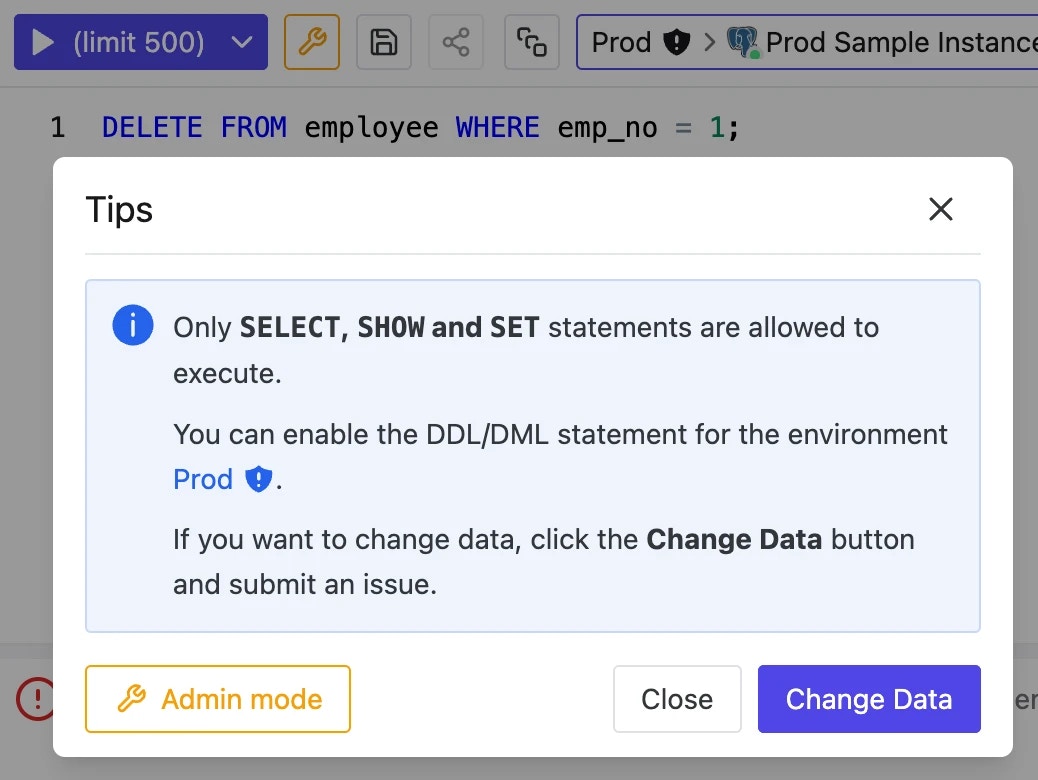
By default, users with **SQL Editor User** role or `sql.dml` and `sql.ddl` [database permissions](/security/database-permission/overview/) can execute DDL and DML statements directly in SQL Editor. To restrict statement execution to SELECT-only queries and require users to create issues for data modifications, turn on the following **statement execution** settings (**Default**: `off`/`off`):
* Disallow running DDL statements in the SQL editor
* Disallow running data-modifying DML statements in the SQL Editor
### Production indicator
Once you mark an environment as a production environment, Bytebase will attach a shield icon 🛡️ besides the environment name.
## Rollout policy
Control who can deploy changes to each environment and whether deployments happen automatically or require manual approval.
Manage deployment permissions and automatic rollout settings
## SQL Review policy
Configure automated SQL validation rules for each environment to ensure code quality and compliance. Different environments can have different strictness levels - for example, production might enforce stricter rules than development.
Set up automated SQL validation rules and best practices enforcement
## Access control
Configure environment-specific restrictions for SQL Editor operations:
* **Restrict data copying in SQL Editor**: Only Workspace Admins and DBAs can copy data from query results
* **Restrict querying admin data sources**: Limit access to administrative data sources in the SQL Editor
## Statement execution
By default, users with **SQL Editor User** role or `sql.dml` and `sql.ddl` [database permissions](/security/database-permission/overview/) can execute DDL and DML statements directly in SQL Editor. To restrict statement execution to SELECT-only queries and require users to create issues for data modifications, turn on the following **statement execution** settings (**Default**: `off`/`off`):
* Disallow running DDL statements in the SQL editor
* Disallow running data-modifying DML statements in the SQL Editor
 ## Delete an environment
To permanently delete an environment:
1. Navigate to the environment page
2. Click **Delete this environment** at the bottom of the page
3. Confirm the deletion
Deleting an environment will also remove it from all related instances and databases. This action cannot be undone.
## Delete an environment
To permanently delete an environment:
1. Navigate to the environment page
2. Click **Delete this environment** at the bottom of the page
3. Confirm the deletion
Deleting an environment will also remove it from all related instances and databases. This action cannot be undone.