> ## Documentation Index
> Fetch the complete documentation index at: https://docs.bytebase.com/llms.txt
> Use this file to discover all available pages before exploring further.
# Step 5: Create a Project
**Project** is a logic unit to model a team effort. It's similar to the project concept in other dev tools such as Jira, GitLab. **Project** is the container to group logically related **Databases**, **Issues** and **Users** together.
In Bytebase, A **Database** or an **Issue** always belongs to a single **Project**.
Make sure you have configured environments, instances, and members properly at the workspace level.
## Create project
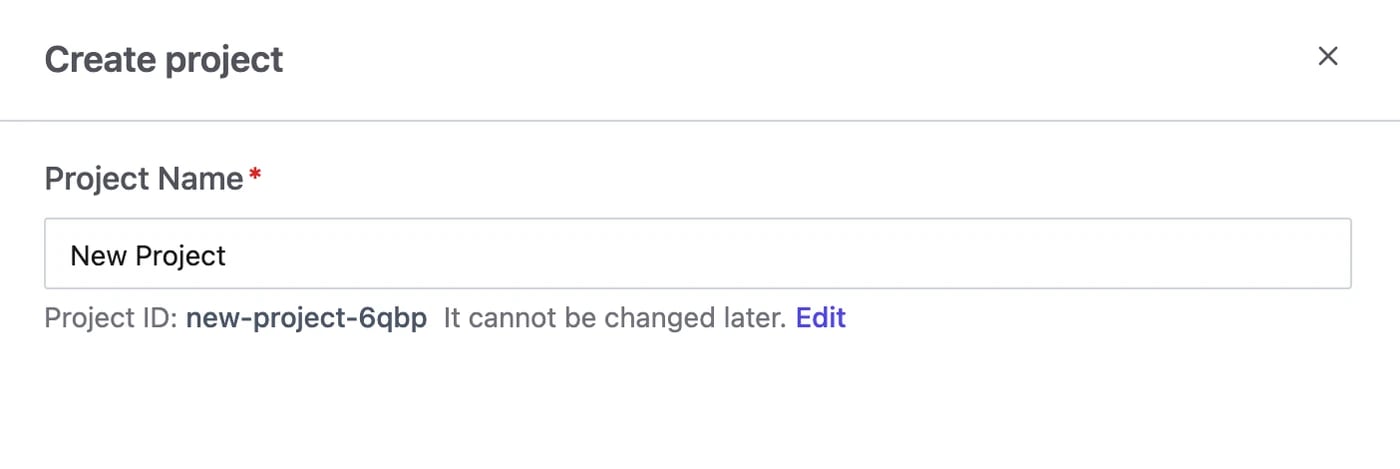
Go to **Projects** and click **Create**. Give the project a **Project Name**; the **Project ID** is derived from the name and cannot be changed later.
 ## Transfer a database into the project
To make changes to a database, you need to place it in a project first.
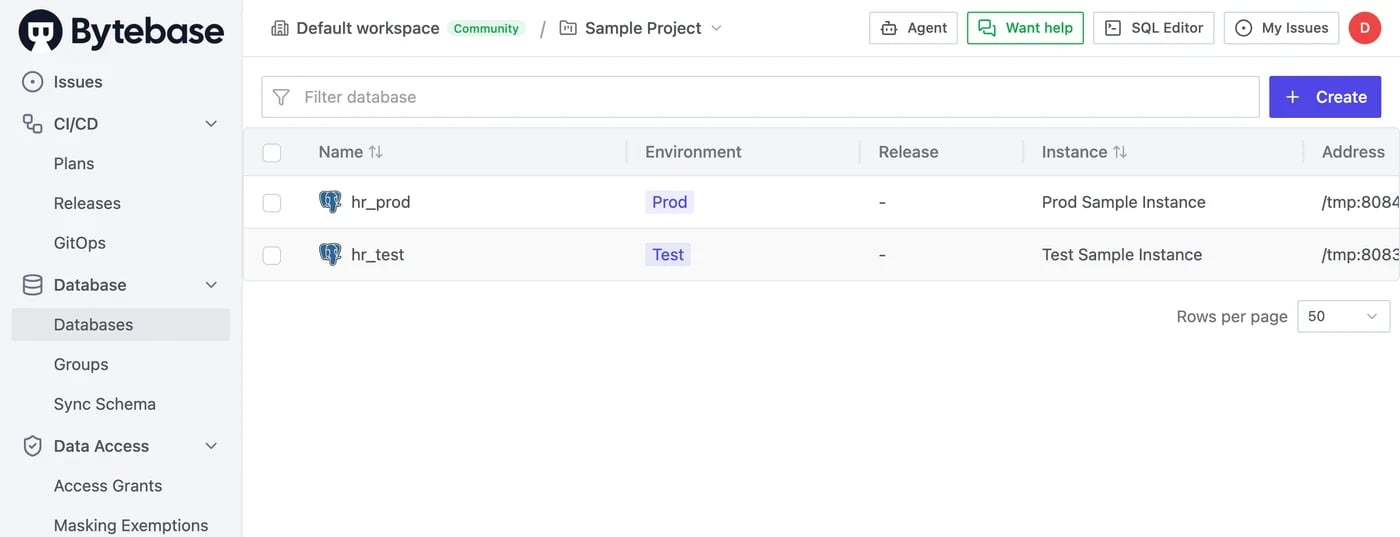
Once a project is created, you need to fill it with some Databases. On the project's **Database** > **Databases** page, click **Create** to add a new database.
## Transfer a database into the project
To make changes to a database, you need to place it in a project first.
Once a project is created, you need to fill it with some Databases. On the project's **Database** > **Databases** page, click **Create** to add a new database.
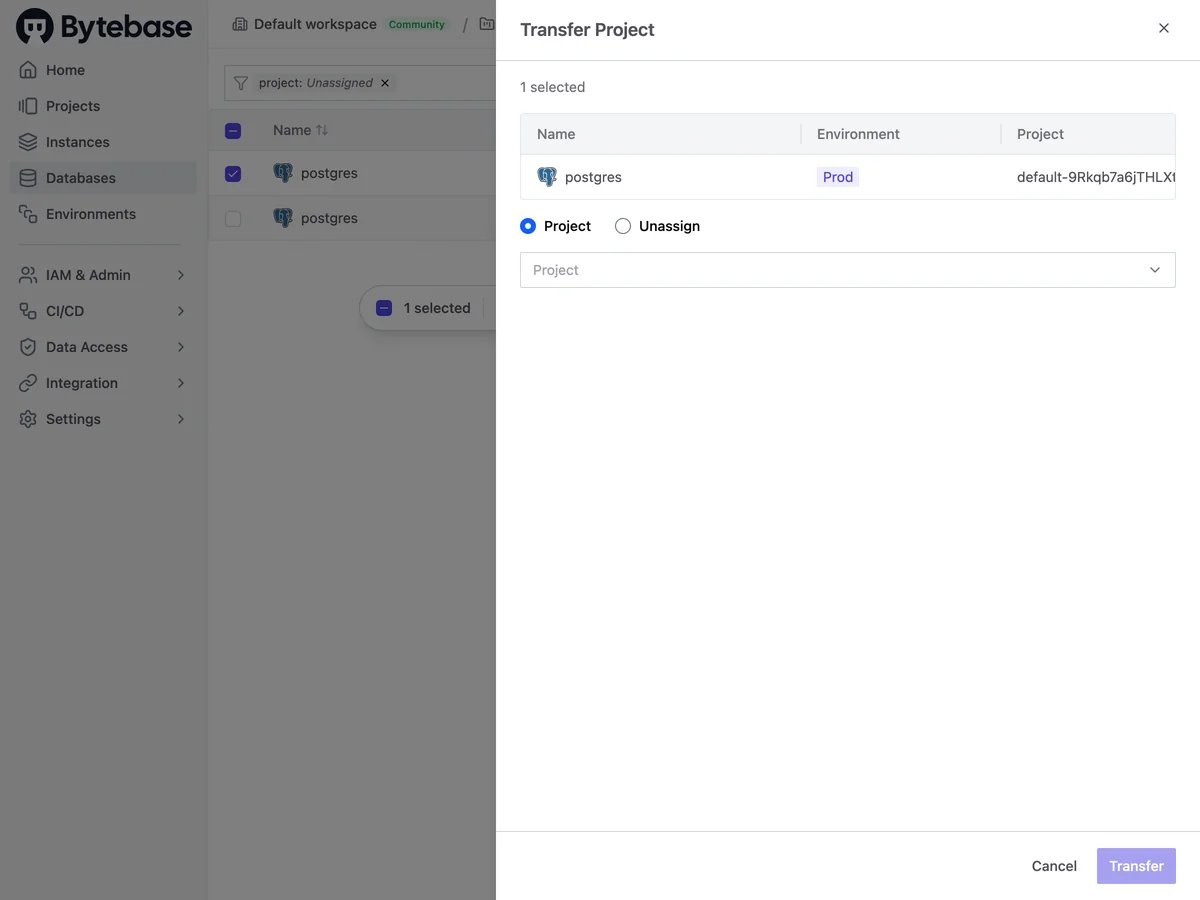
 To bring an existing database in, go to the workspace **Databases** page, select the database(s), and click **Transfer Project**, then pick the target project.
 ## Manage the members in the project
To manage fine-grained database access, check out [Database Permission](/security/database-permission/overview/).
A project is only visible to its related **users**. The project creator assumes `Project Owner`role and can manage project members.
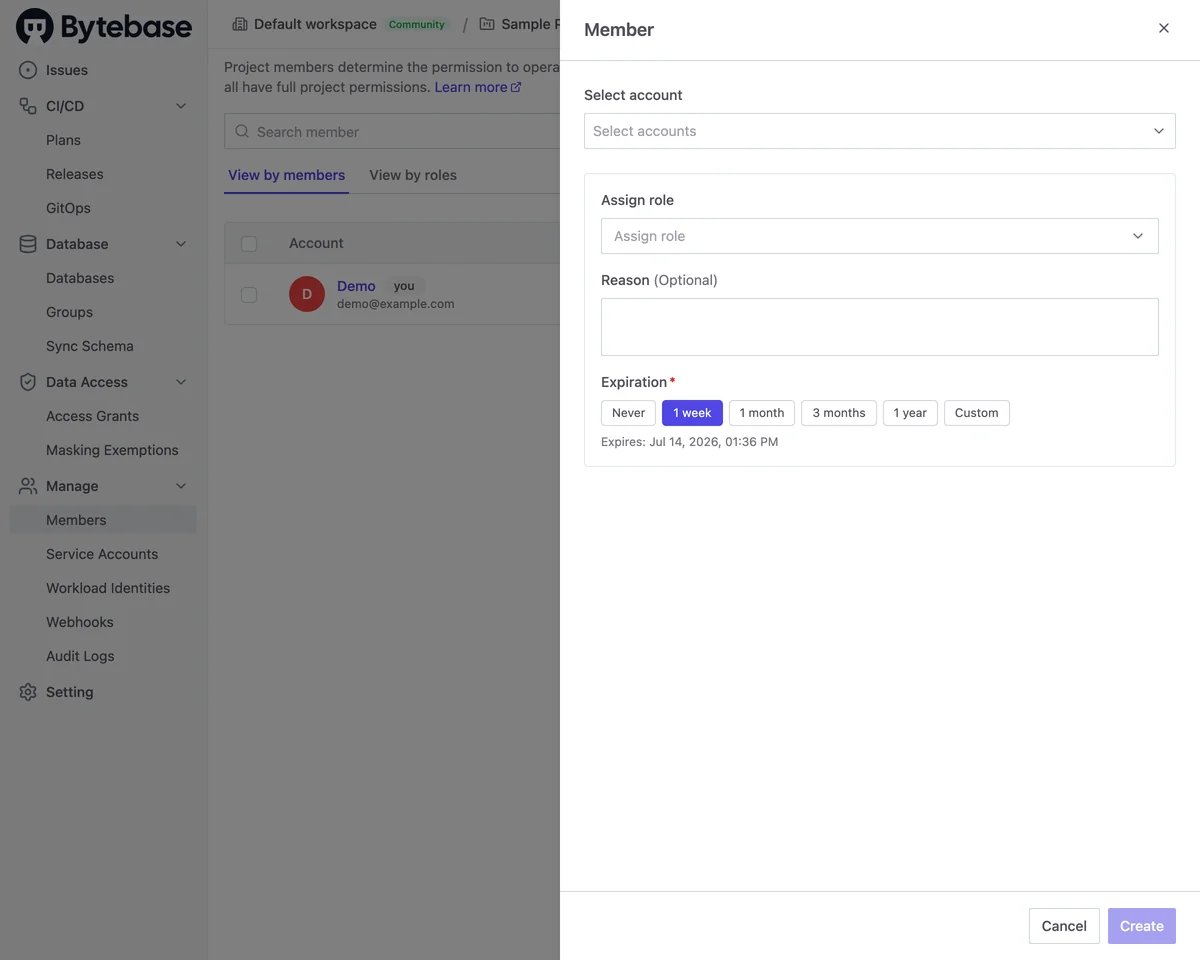
Go to the project page. Click **Manage** > **Members** on the left sidebar. **Grant Access** to add new project members from workspace level accounts. You can assign project-level roles to the members.
## Manage the members in the project
To manage fine-grained database access, check out [Database Permission](/security/database-permission/overview/).
A project is only visible to its related **users**. The project creator assumes `Project Owner`role and can manage project members.
Go to the project page. Click **Manage** > **Members** on the left sidebar. **Grant Access** to add new project members from workspace level accounts. You can assign project-level roles to the members.