> ## Documentation Index
> Fetch the complete documentation index at: https://docs.bytebase.com/llms.txt
> Use this file to discover all available pages before exploring further.
# Step 2: Register Account
After deploying Bytebase successfully, you need to register accounts for your team members.
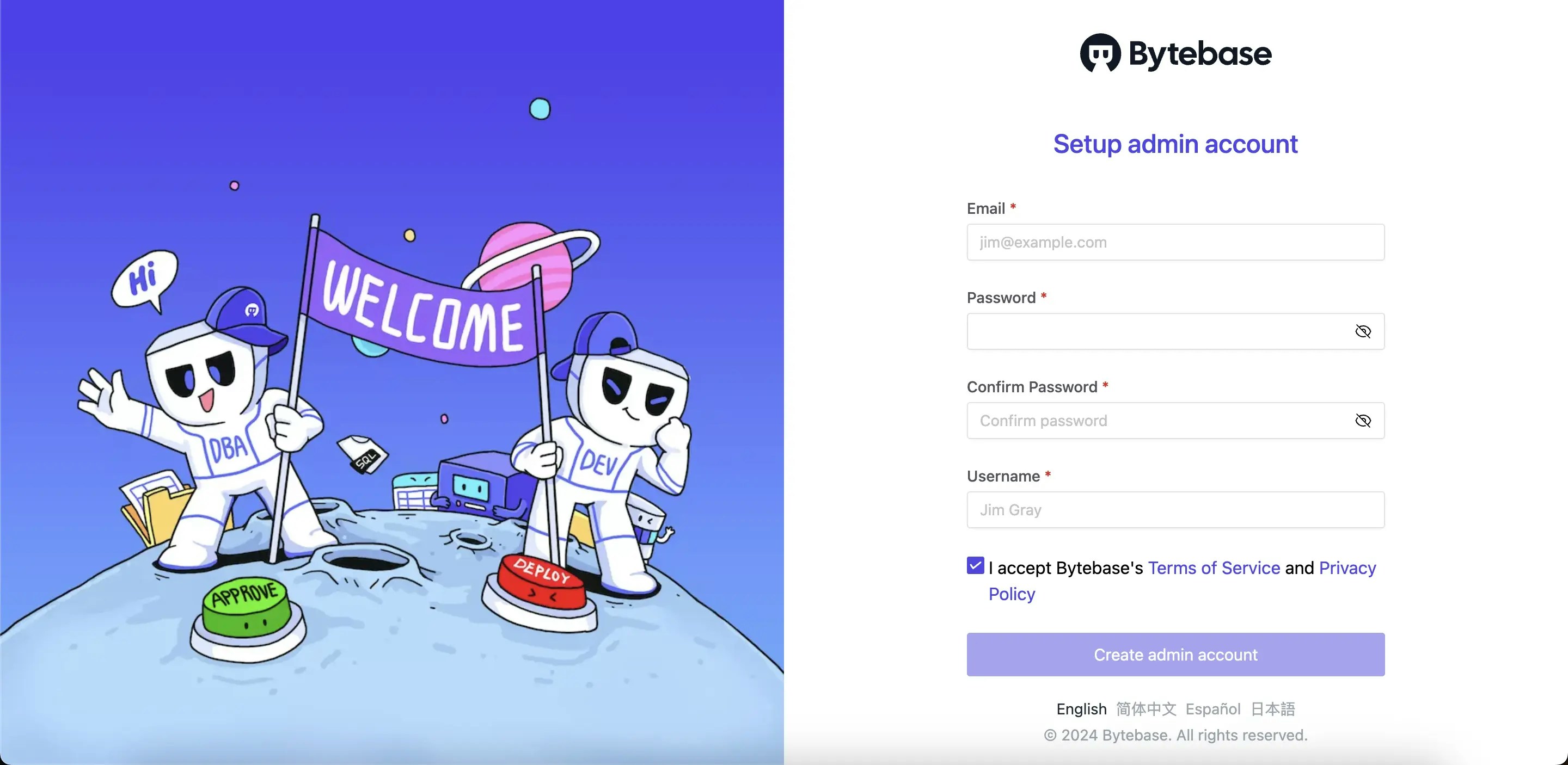
## Create the first admin account
The first registered account is the admin account and will be granted a **Workspace Admin** role.
All following registered accounts will be regular accounts.
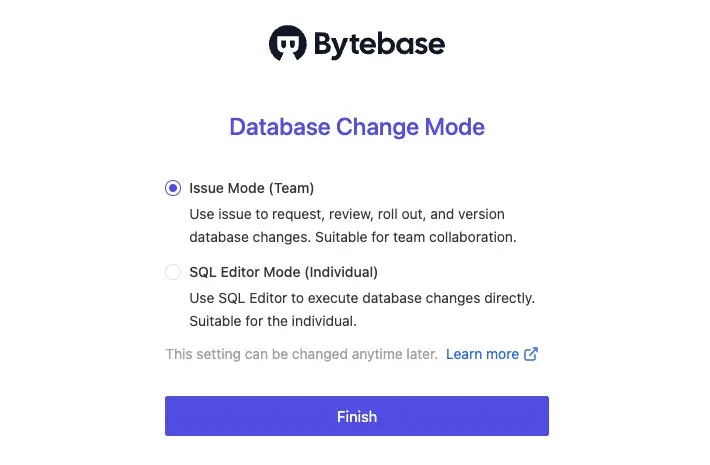
 You will be promoted to choose the [Database Change Mode](/administration/mode). Keep the default
and you can always change it later.
You will be promoted to choose the [Database Change Mode](/administration/mode). Keep the default
and you can always change it later.
 ## Manage users or members
Bytebase also supports [SSO](/administration/sso/overview) and [SCIM (Directory Sync)](/administration/scim/overview).
As a **Workspace Admin**, you can manage all users in **Users & Groups** under **Security & Policy** section. You can **Add User** on the upper-right, or click the pencil icon to update user information like email.
## Manage users or members
Bytebase also supports [SSO](/administration/sso/overview) and [SCIM (Directory Sync)](/administration/scim/overview).
As a **Workspace Admin**, you can manage all users in **Users & Groups** under **Security & Policy** section. You can **Add User** on the upper-right, or click the pencil icon to update user information like email.
