> ## Documentation Index
> Fetch the complete documentation index at: https://docs.bytebase.com/llms.txt
> Use this file to discover all available pages before exploring further.
# Just-in-Time Access
Just-in-Time (JIT) access grants database access only when it's needed and only for a limited time, instead of leaving standing permissions in place. A member requests access, an approver reviews it, and the grant expires automatically — so unused privileges never accumulate, every grant is tied to a stated reason, and each use is recorded for audit.
In Bytebase, you can grant just-in-time access at two levels of granularity:
* **Request a role** — get a time-boxed role (e.g. `SQL Editor User`) on the selected databases. See [Request a Role](/security/database-permission/request/).
* **Just-in-time data access** — get a time-boxed grant to run a specific read-only statement, and optionally **export** the result (**just-in-time data export**). Described below.
Either way, the request goes through an [approval flow](/change-database/approval/) and is recorded in the [audit log](/security/audit-log/).
## Set up just-in-time access
Before members can request JIT access, an admin enables it on the project and makes sure an approval flow is in place.
Setting this up requires an account with the `bb.settings.set` and `bb.projects.update` permissions — for example a **Workspace Admin**.
### Enable the project setting
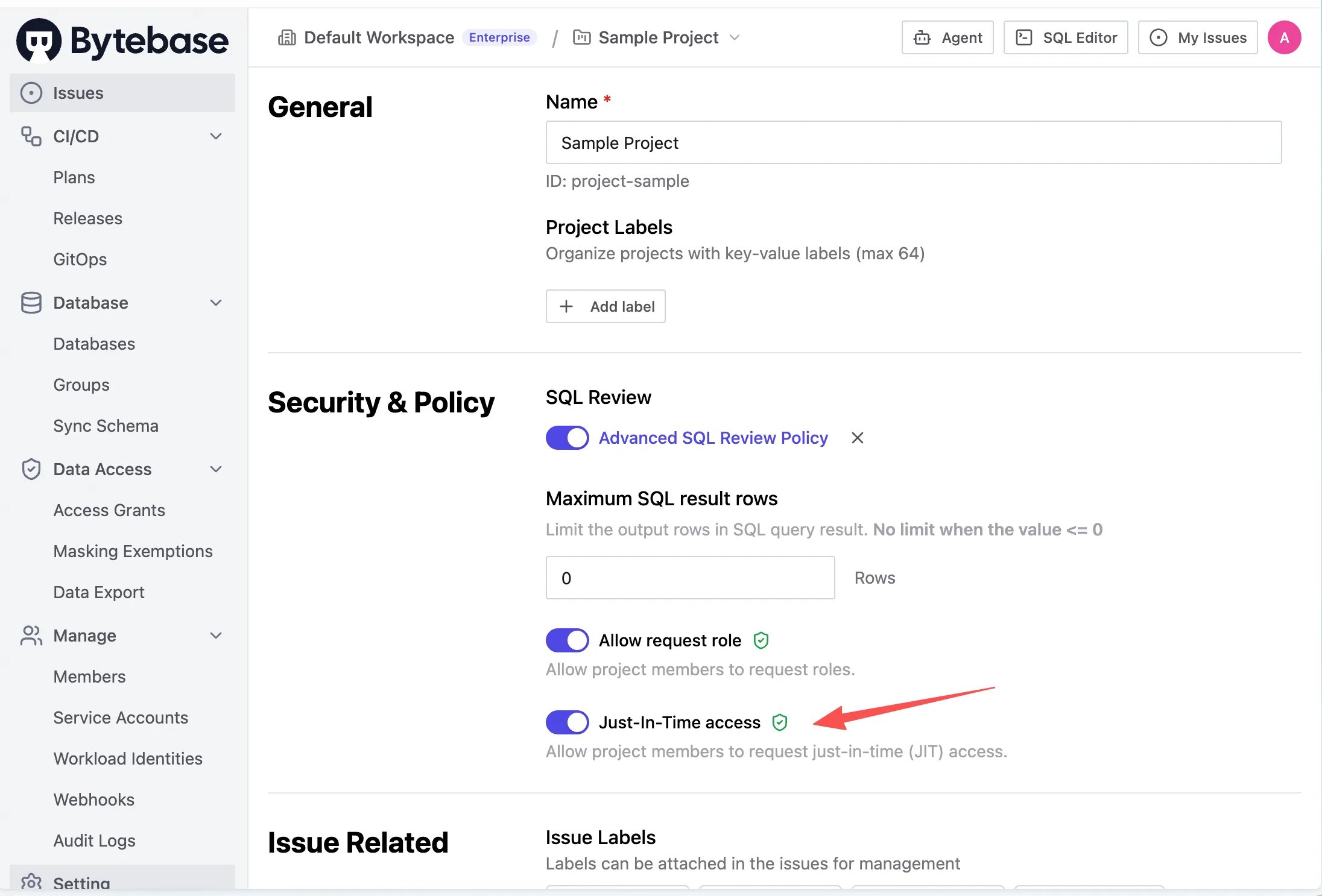
In your project, click **Settings** on the left sidebar, find **Security & Policy**, and turn on either or both:
* **Allow request role** — allow project members to request roles.
* **Just-In-Time access** — allow project members to request just-in-time (JIT) access.
 ### Configure the approval flow
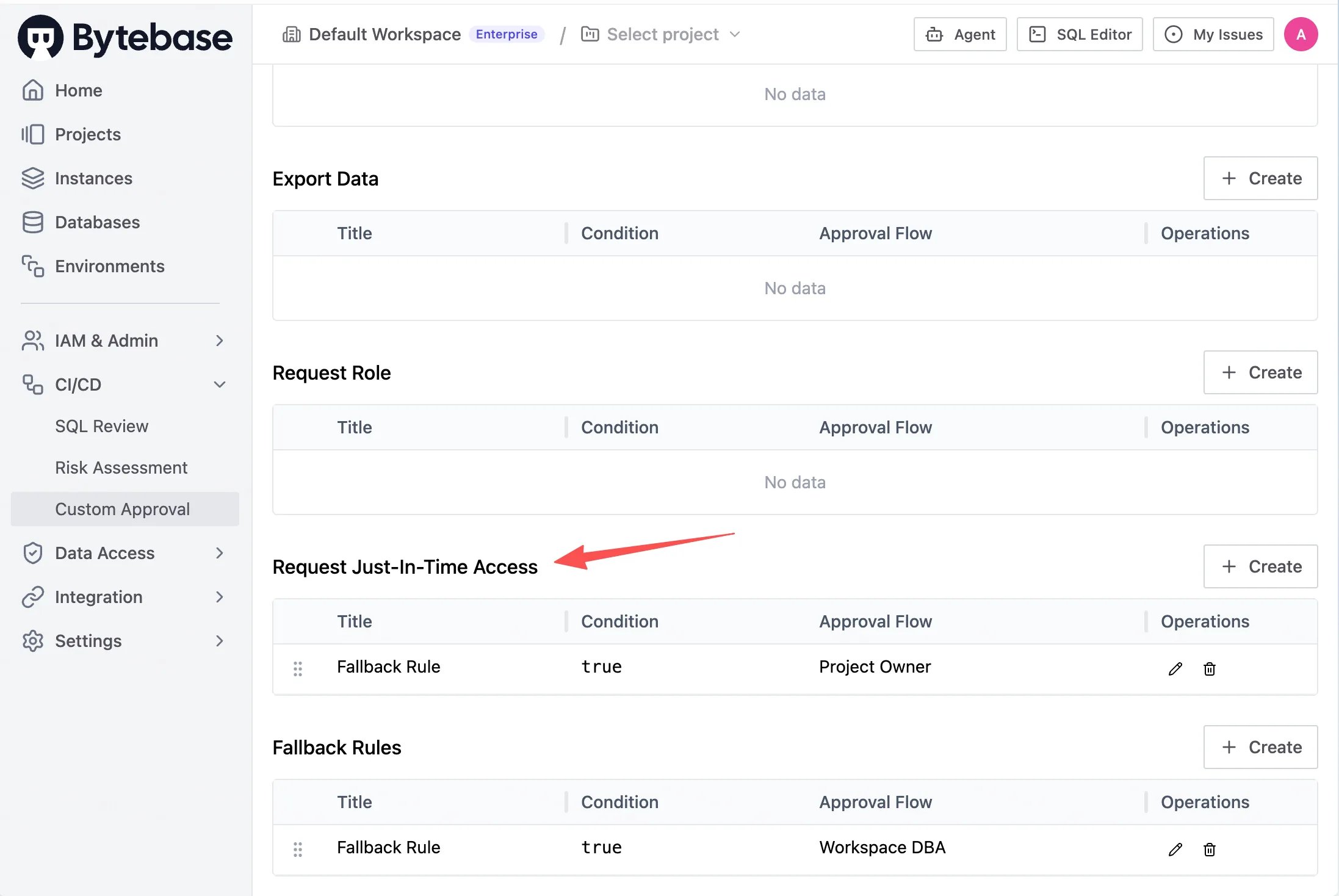
Every JIT request runs through [Custom Approval](/change-database/approval/) (**Workspace > CI/CD > Custom Approval**). Add a rule under the **Request Just-In-Time Access** source so requests route to the right approver. If no rule matches, the workspace **Fallback Rule** applies.
### Configure the approval flow
Every JIT request runs through [Custom Approval](/change-database/approval/) (**Workspace > CI/CD > Custom Approval**). Add a rule under the **Request Just-In-Time Access** source so requests route to the right approver. If no rule matches, the workspace **Fallback Rule** applies.
 ## Just-in-time data access
When you don't have query permission (`bb.sql.select`) on a database in **SQL Editor**, you can request access just-in-time for a single statement.
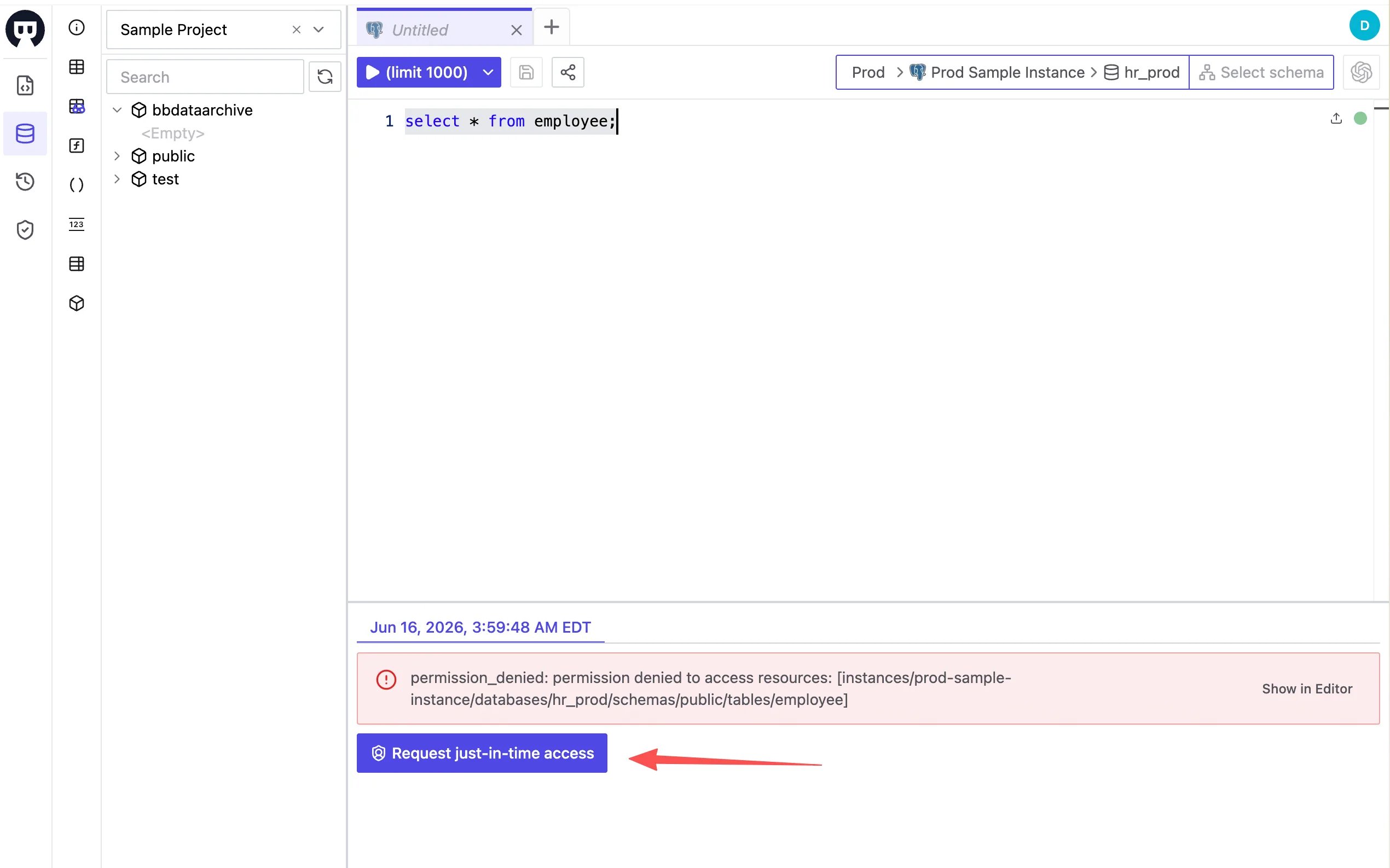
In SQL Editor, choose the project with **Just-In-Time access** enabled, select the database, and run your query. Without permission, the result panel returns `permission_denied` along with a **Request just-in-time access** button.
## Just-in-time data access
When you don't have query permission (`bb.sql.select`) on a database in **SQL Editor**, you can request access just-in-time for a single statement.
In SQL Editor, choose the project with **Just-In-Time access** enabled, select the database, and run your query. Without permission, the result panel returns `permission_denied` along with a **Request just-in-time access** button.
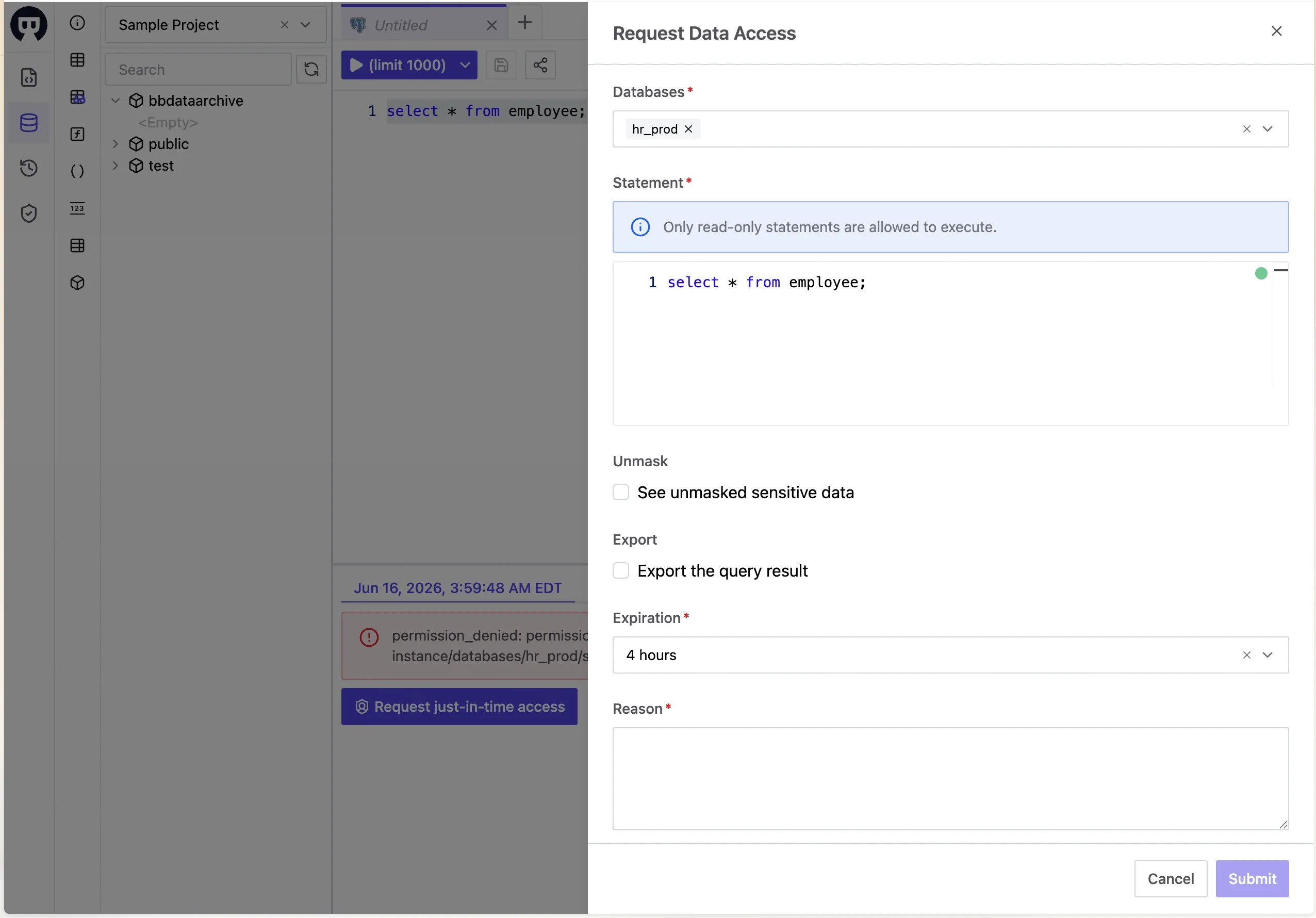
 Click it to open the **Request Data Access** dialog, pre-filled with the database, statement, and a default expiration. Review and complete:
* **Databases** — the targets you need to access.
* **Statement** — the SQL to run. Only read-only statements are allowed.
* **Unmask** — see unmasked sensitive data in the result.
* **Export** — also export the query result (grants [just-in-time data export](#just-in-time-data-export)).
* **Expiration** — how long the access stays valid.
* **Reason** — the justification reviewers see.
Click it to open the **Request Data Access** dialog, pre-filled with the database, statement, and a default expiration. Review and complete:
* **Databases** — the targets you need to access.
* **Statement** — the SQL to run. Only read-only statements are allowed.
* **Unmask** — see unmasked sensitive data in the result.
* **Export** — also export the query result (grants [just-in-time data export](#just-in-time-data-export)).
* **Expiration** — how long the access stays valid.
* **Reason** — the justification reviewers see.
 Submit, and Bytebase opens the request issue in a new tab, routed through the **Request Just-In-Time Access** approval flow.
## Just-in-time data export
Including **Export** in the request grants **just-in-time data export** — time-boxed permission to export the query result. To require every export to go through this flow, a **Workspace Admin** turns off **Enable data export** at the workspace level (**Settings > General**); members can then no longer export directly. As long as **Just-In-Time access** is enabled on the project, they can still request a just-in-time data export when they need one.
## Approval
Each request is reviewed with [Custom Approval](/change-database/approval/), under the source that matches the request:
* **Request a role** → the **Request Role** source.
* **Just-in-time data access** → the **Request Just-In-Time Access** source.
The approver sees the requested databases, the exact statement, the granted permissions (including any **Unmask** or **Export**), the expiration, and the requester's reason.
Submit, and Bytebase opens the request issue in a new tab, routed through the **Request Just-In-Time Access** approval flow.
## Just-in-time data export
Including **Export** in the request grants **just-in-time data export** — time-boxed permission to export the query result. To require every export to go through this flow, a **Workspace Admin** turns off **Enable data export** at the workspace level (**Settings > General**); members can then no longer export directly. As long as **Just-In-Time access** is enabled on the project, they can still request a just-in-time data export when they need one.
## Approval
Each request is reviewed with [Custom Approval](/change-database/approval/), under the source that matches the request:
* **Request a role** → the **Request Role** source.
* **Just-in-time data access** → the **Request Just-In-Time Access** source.
The approver sees the requested databases, the exact statement, the granted permissions (including any **Unmask** or **Export**), the expiration, and the requester's reason.
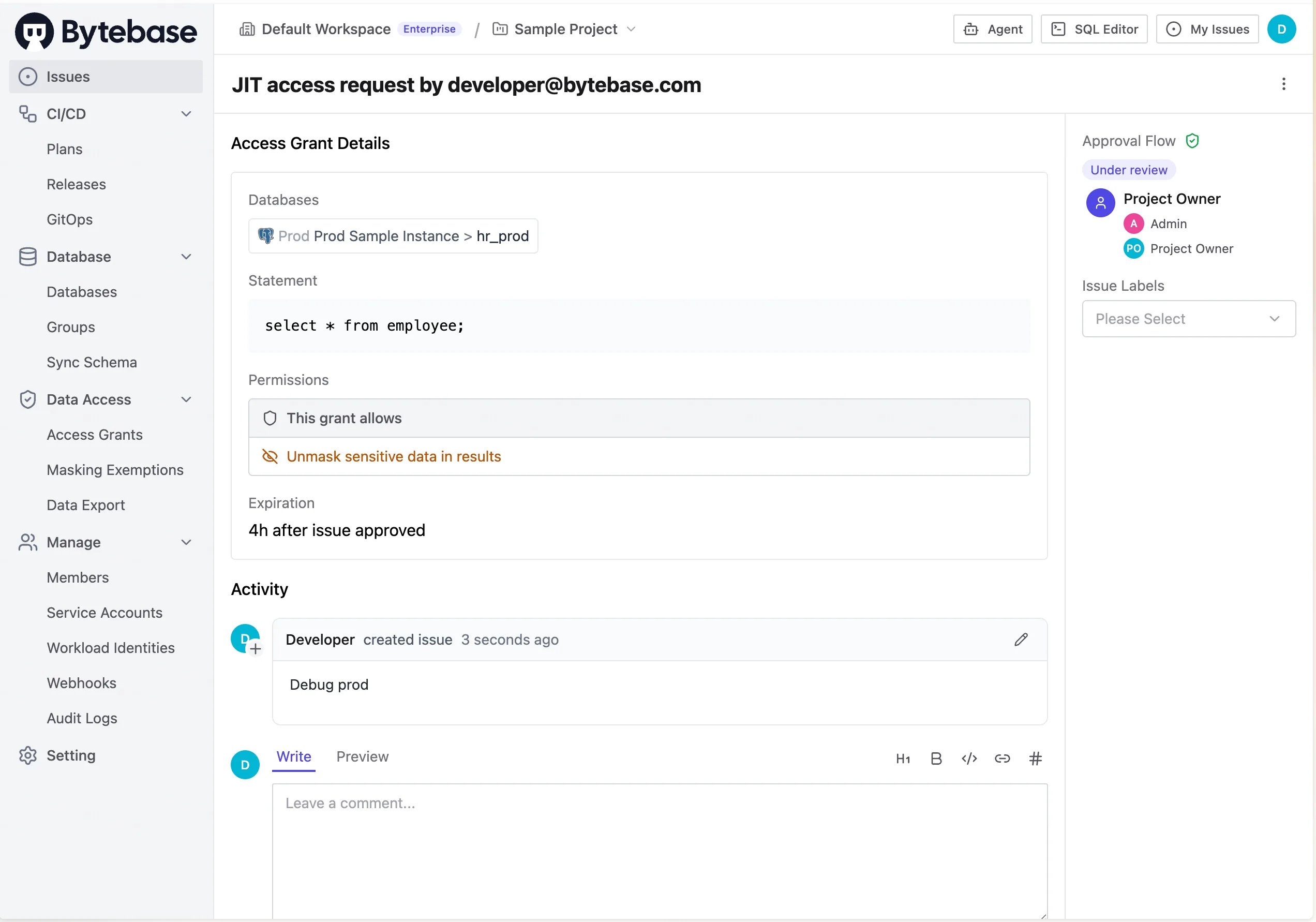 For just-in-time data access, conditions can match the request, for example:
* `request.data_export == true` — the request includes export.
* `request.unmask == true` — the request includes unmasking.
Conditions can also match the target with `resource.database_name`, `resource.table_name`, and similar attributes.
## Use the granted access
Open the **Just-In-Time Access** tab — the shield icon on the **SQL Editor** left sidebar — to track your requests. Each shows its status (**Pending** while awaiting approval, **Active** once approved and usable), the databases, any **Export** or **Unmask** badge, the time left before expiration, and a link to the approval issue.
For just-in-time data access, conditions can match the request, for example:
* `request.data_export == true` — the request includes export.
* `request.unmask == true` — the request includes unmasking.
Conditions can also match the target with `resource.database_name`, `resource.table_name`, and similar attributes.
## Use the granted access
Open the **Just-In-Time Access** tab — the shield icon on the **SQL Editor** left sidebar — to track your requests. Each shows its status (**Pending** while awaiting approval, **Active** once approved and usable), the databases, any **Export** or **Unmask** badge, the time left before expiration, and a link to the approval issue.
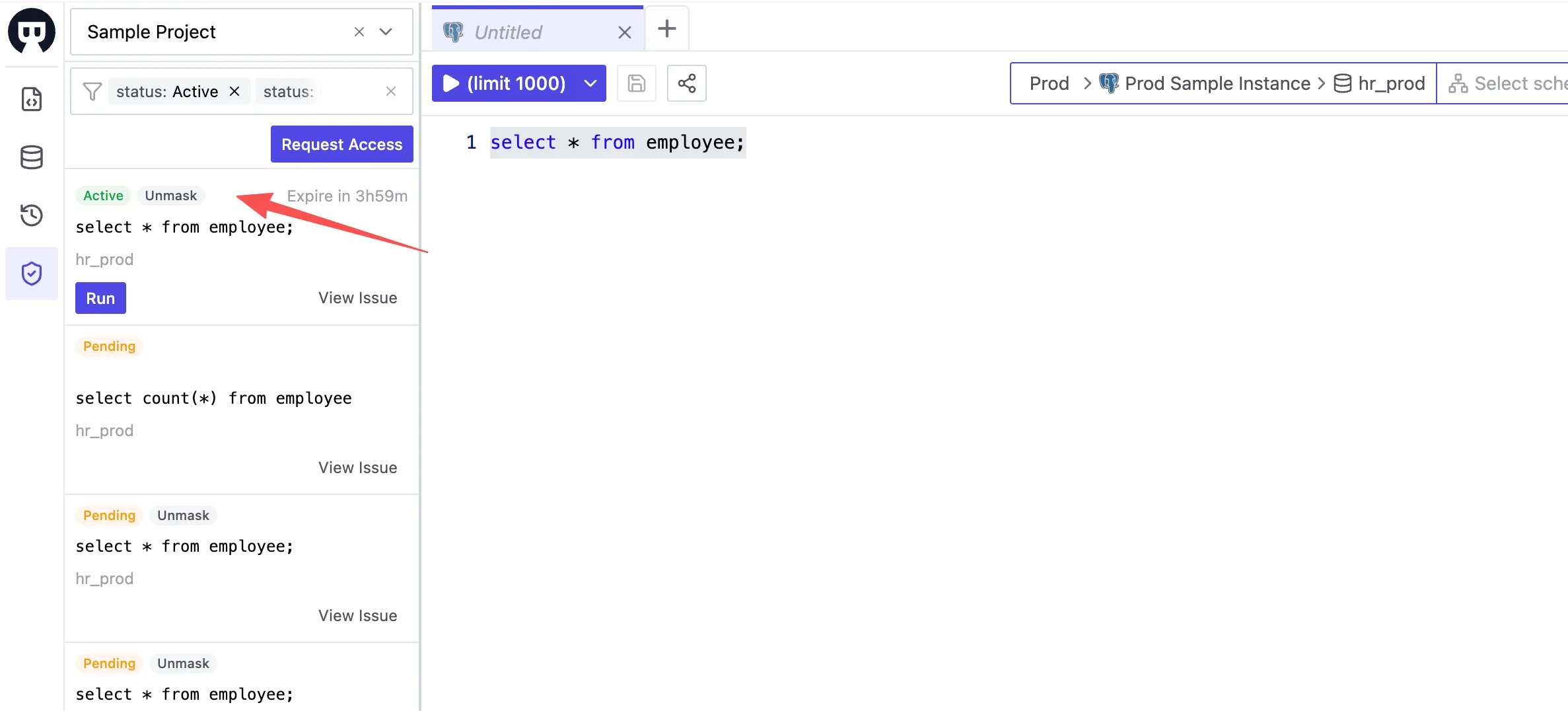 Once a grant is **Active**, click **Run** to execute its approved statement; if the grant includes **Export**, you can export the result. The grant stays usable until it expires.
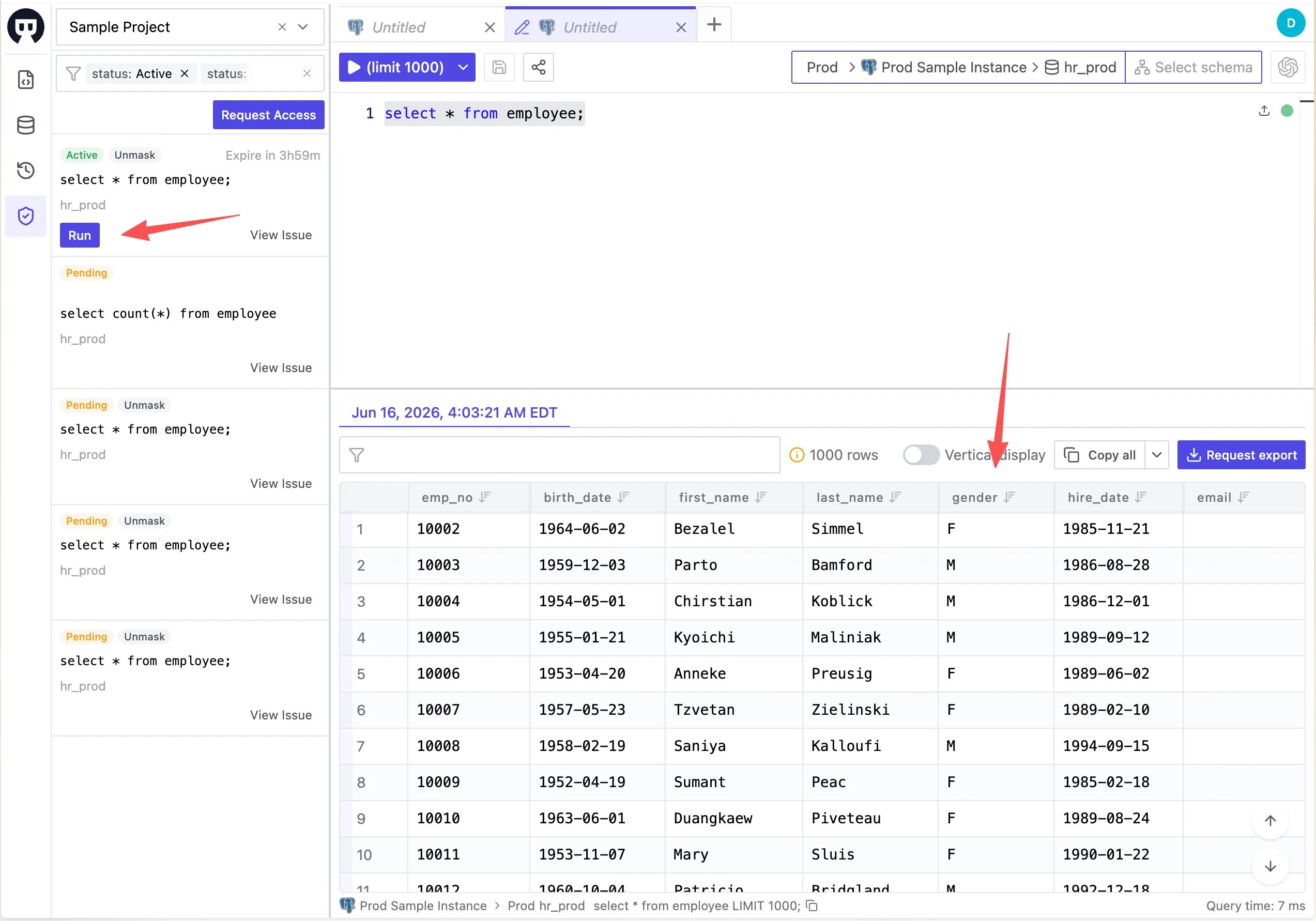 Only a statement that **exactly** matches the one in the grant is allowed to run — even a small edit to the SQL is denied. Use the **Run** button on the Just-In-Time Access list to re-run the approved statement reliably.
To review every just-in-time grant in a project, go to **Data Access > Access Grants** in the project sidebar.
## Expiration and audit
Just-in-time access expires automatically at the **Expiration** you set when requesting, so access is never left standing. Members see a [reminder](/security/database-permission/expiration/) before a granted role expires.
The [audit log](/security/audit-log/) records each query and export, including which access grant authorized it.
Only a statement that **exactly** matches the one in the grant is allowed to run — even a small edit to the SQL is denied. Use the **Run** button on the Just-In-Time Access list to re-run the approved statement reliably.
To review every just-in-time grant in a project, go to **Data Access > Access Grants** in the project sidebar.
## Expiration and audit
Just-in-time access expires automatically at the **Expiration** you set when requesting, so access is never left standing. Members see a [reminder](/security/database-permission/expiration/) before a granted role expires.
The [audit log](/security/audit-log/) records each query and export, including which access grant authorized it.