> ## Documentation Index
> Fetch the complete documentation index at: https://docs.bytebase.com/llms.txt
> Use this file to discover all available pages before exploring further.
# Database Change with Custom Approval Flow
Bytebase provides a basic yet configurable rollout mechanism by default. This means that manual rollout is skipped for **Test** environments and required for **Prod** environments.
However, for more complicated enterprise-level cases, users may need different approval flows to handle database changes according to different conditions. For example, DDL that drops tables should require multi-level approval, while creating a new table may only need DBA review. Additionally, users may need to involve roles other than **DBA/Developer/Project Leader**, such as **Testers**.
This tutorial will walk you through how to create custom approval flows with condition-based rules and how to add new roles to be involved.
## Feature included
* Custom approval
* Custom roles
## Prerequisites
* [Docker](https://www.docker.com/) must be installed on your system.
* This features require an [Enterprise Plan](https://www.bytebase.com/pricing).
## Step 1 - Start Bytebase and Prepare the Users
1. Make sure your Docker is running, and start the Bytebase Docker container with the following command:
```bash theme={null}
docker run --rm --init \
--name bytebase \
--publish 8080:8080 --pull always \
--volume ~/.bytebase/data:/var/opt/bytebase \
bytebase/bytebase:latest
```
2. Open `localhost:8080` in a browser, register as an admin and you will be granted as **Workspace Admin** role and automatically logged in.
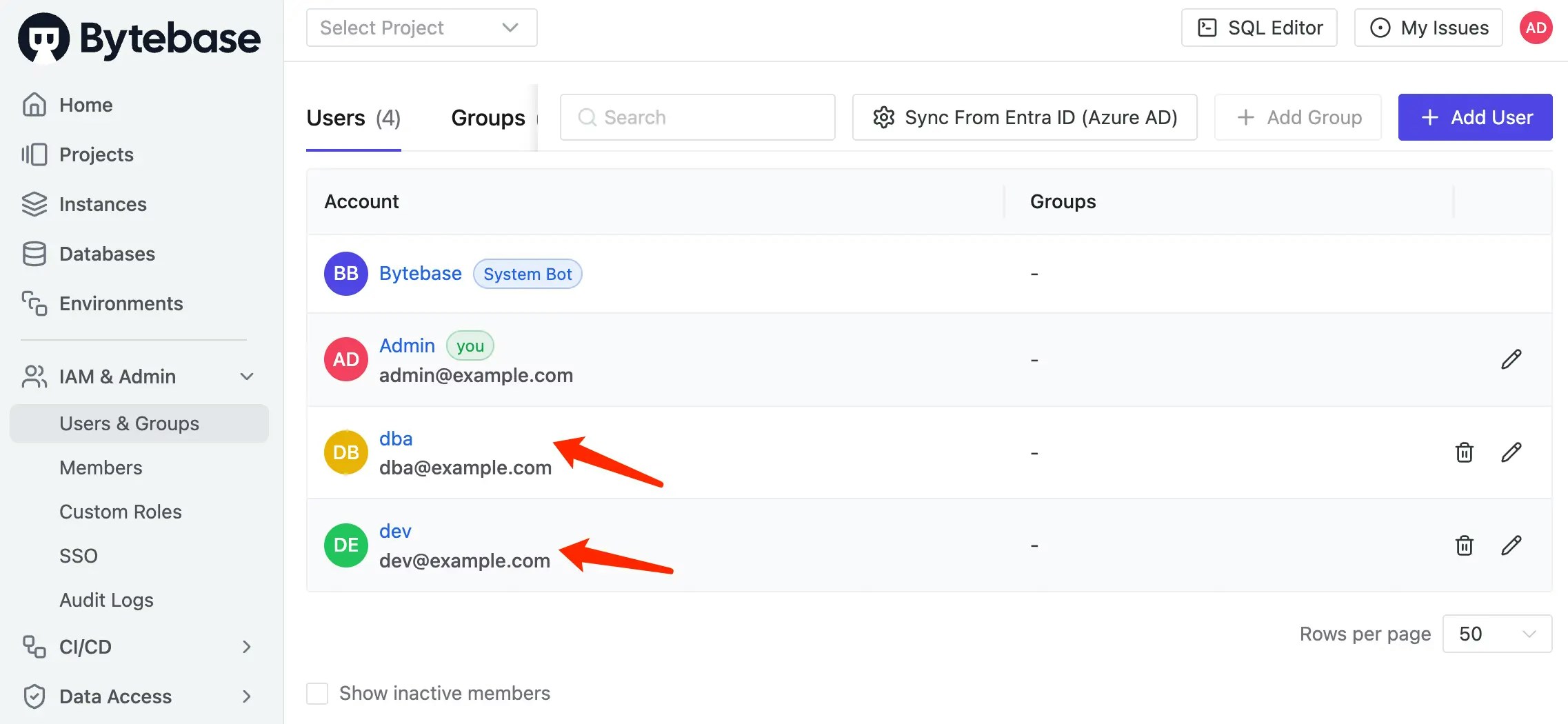
3. Click **IAM > Admin** on the left bar. Add one `dba@example.com` as **Worksace DBA**, and one `dev@example.com` as **Project Developer** (which will apply to all projects).
 ## Step 2 - Upgrade to Enterprise Plan
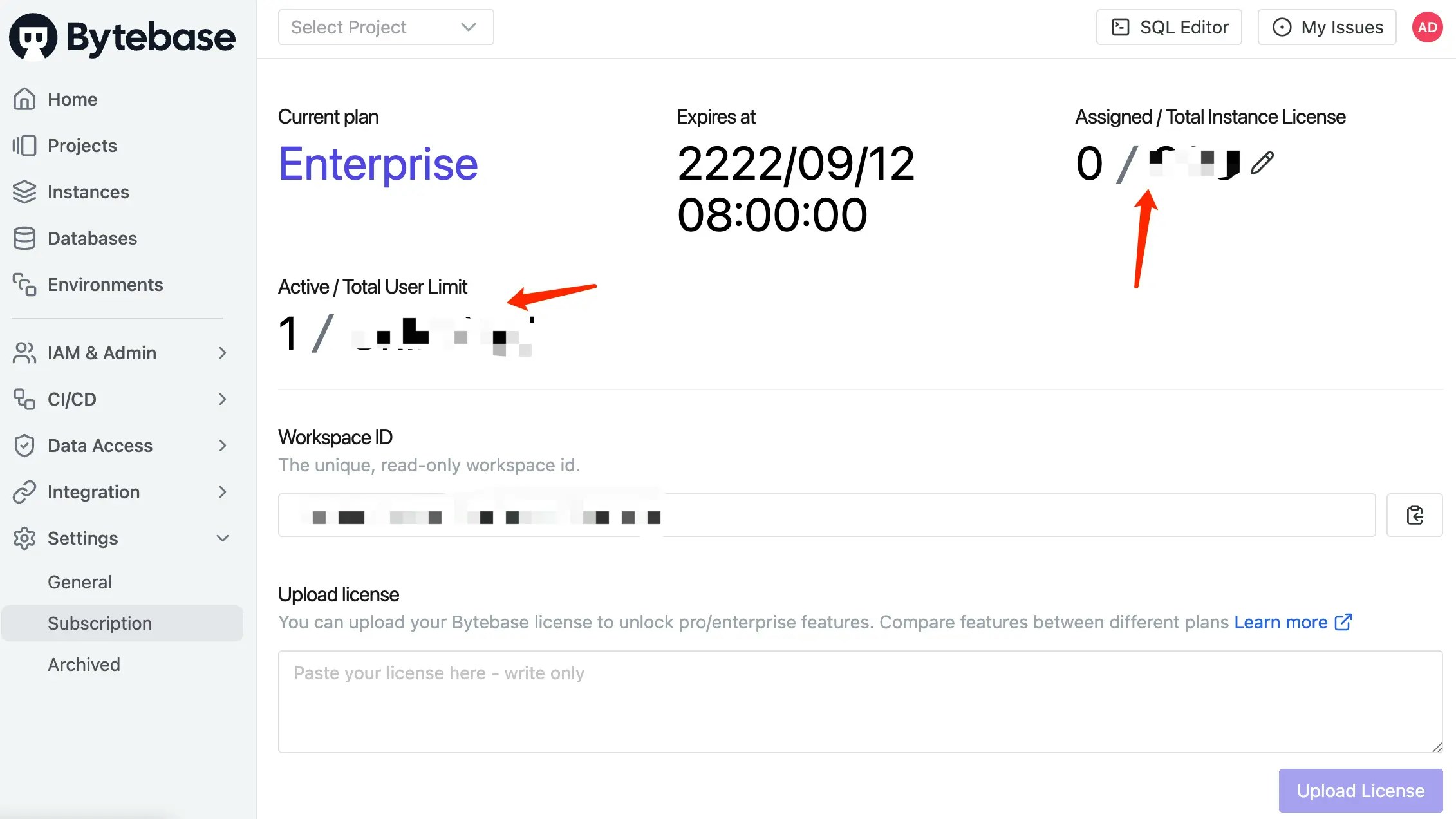
1. Click **Settings > Subscription** on the left bar. Fill your Enterprise Plan license key and click **Upload License**. Now you have several instance licenses but not assigned to any instance.
## Step 2 - Upgrade to Enterprise Plan
1. Click **Settings > Subscription** on the left bar. Fill your Enterprise Plan license key and click **Upload License**. Now you have several instance licenses but not assigned to any instance.
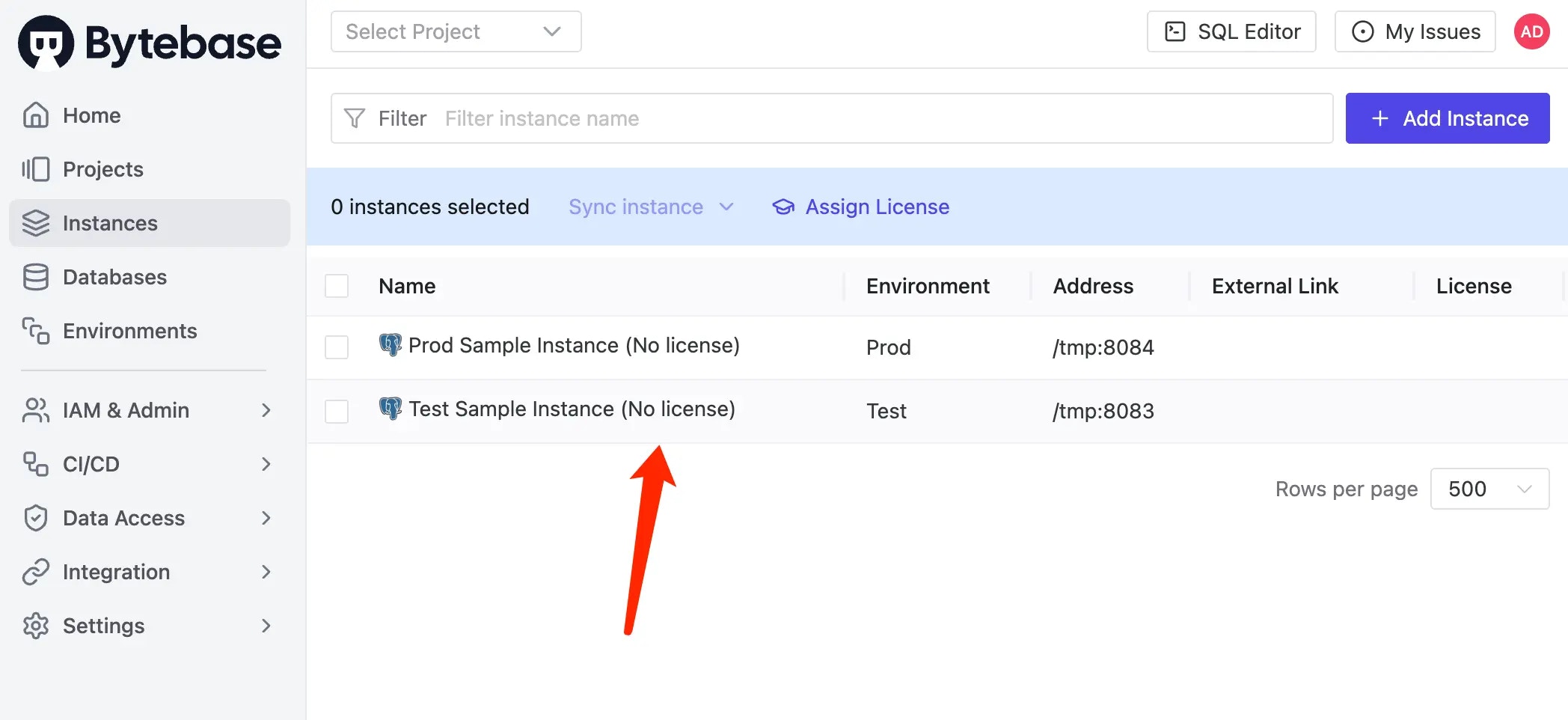
 2. Click **Instances** on the left bar. Now the existing sample instances are not assigned any license.
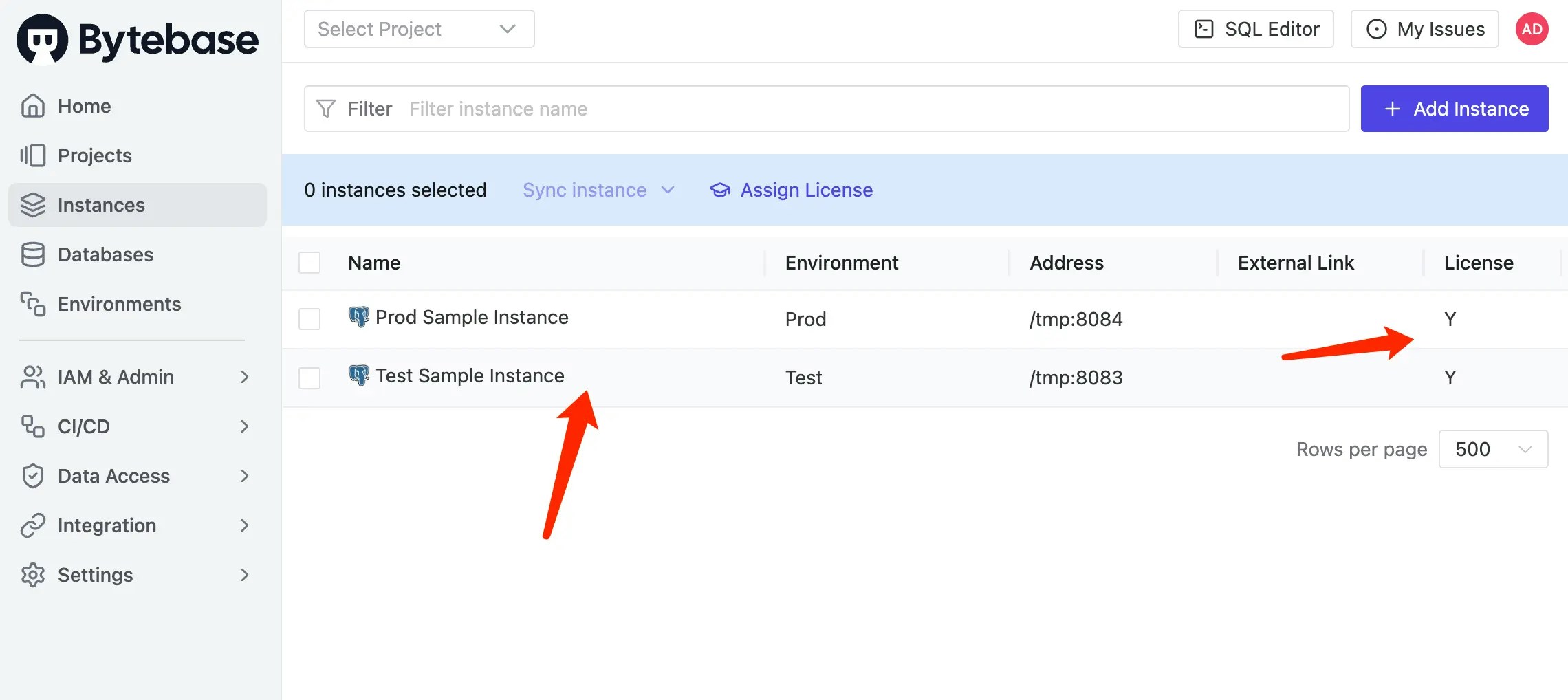
 3. Click **Assign license** on the top bar. Select the instance you want to assign the license to and click **Confirm**. Now the instances are assigned with licenses.
 ## Step 3 - Run Schema Change without Custom Approval Flow
1. Log out and login as **Developer**. Go into the `Sample Project` , click **Database > Databases** on the left bar. Select both existing sample databases `hr_prod` and `hr_test`, and click **Edit Schema**.
## Step 3 - Run Schema Change without Custom Approval Flow
1. Log out and login as **Developer**. Go into the `Sample Project` , click **Database > Databases** on the left bar. Select both existing sample databases `hr_prod` and `hr_test`, and click **Edit Schema**.
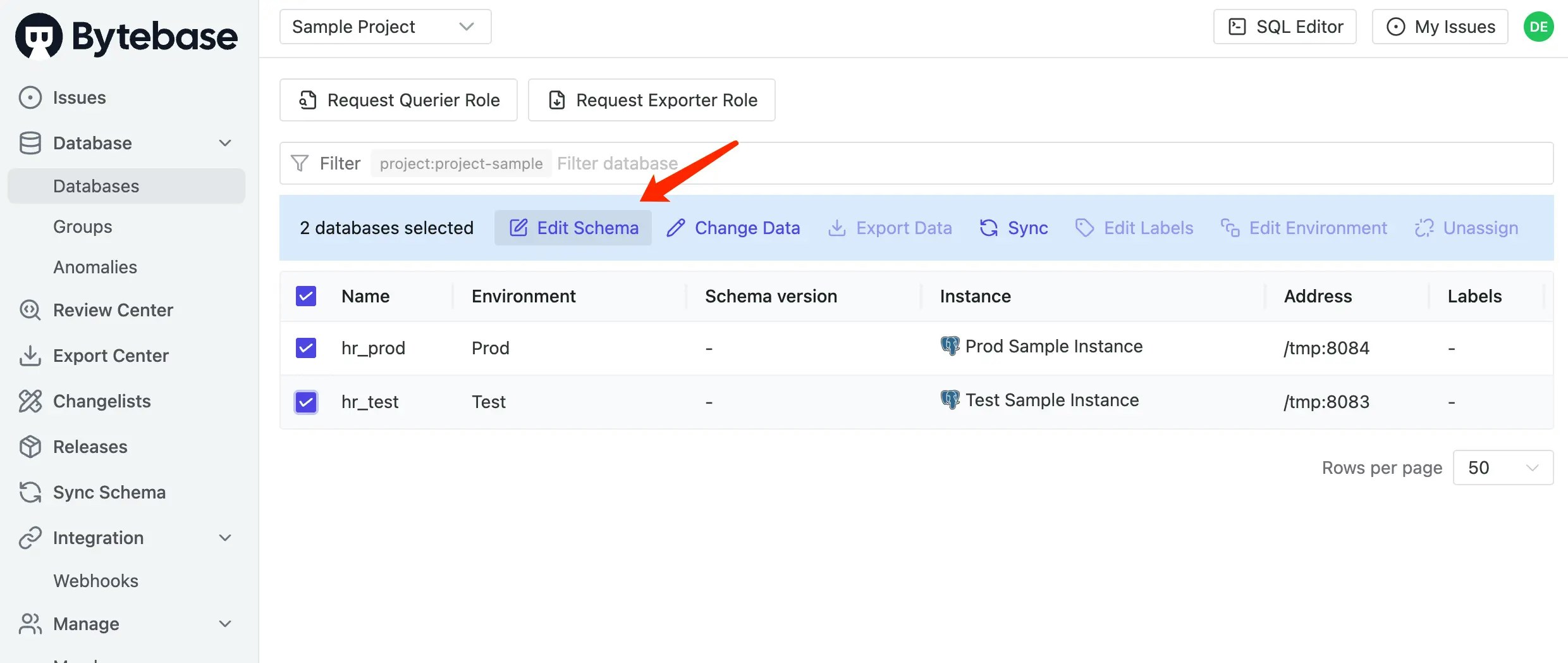 2. It will redirect to the issue preview, paste the following SQL and click **Create**.
```sql theme={null}
CREATE TABLE t1 (
id INT NOT NULL,
name VARCHAR(255) NOT NULL,
PRIMARY KEY (id)
);
```
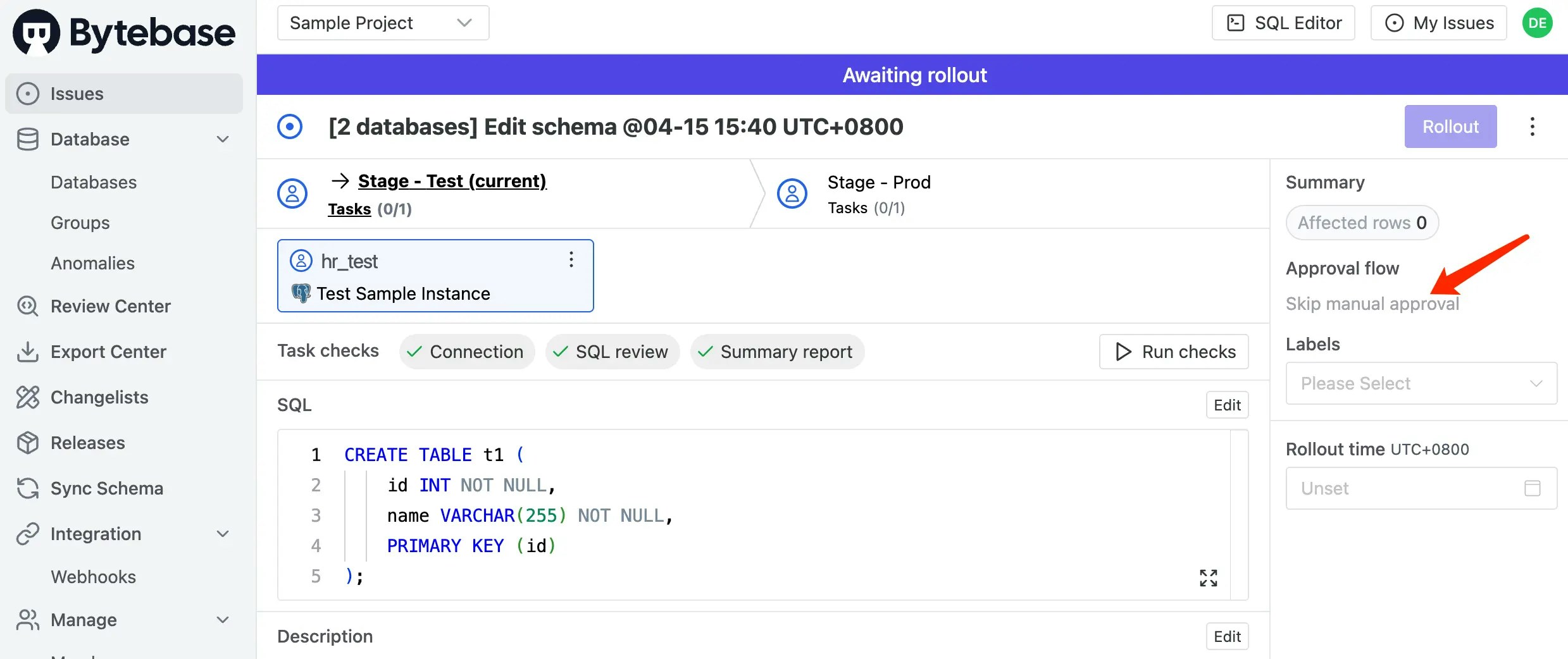
3. The issue is created and waiting for rollout. There's no approval flow for this issue, since we haven't configured any custom approval flow yet.
2. It will redirect to the issue preview, paste the following SQL and click **Create**.
```sql theme={null}
CREATE TABLE t1 (
id INT NOT NULL,
name VARCHAR(255) NOT NULL,
PRIMARY KEY (id)
);
```
3. The issue is created and waiting for rollout. There's no approval flow for this issue, since we haven't configured any custom approval flow yet.
 ## Step 4 - Configure Custom Approval Rules and Run a Schema Change
1. Login as **Admin**. Click **CI/CD > Custom Approval** on the left bar. Under the **Change Database** section, click **Add Rule** to create approval rules with conditions:
* Rule 1: Title: `DDL ALTER in Prod`; Condition: `statement.sql_type == "ALTER_TABLE" && resource.environment_id == "prod"`; Approval Flow: `Project Owner -> DBA`
* Rule 2: Title: `DDL CREATE in Prod`; Condition: `statement.sql_type == "CREATE_TABLE" && resource.environment_id == "prod"`; Approval Flow: `DBA`
Rules are evaluated top to bottom - the first matching rule wins. You can drag to reorder them.
2. Logout and login as **Developer**. Go into the project, select both databases and click **Edit Schema**. Paste the same SQL as before and click **Create**.
```sql theme={null}
CREATE TABLE t1 (
id INT NOT NULL,
name VARCHAR(255) NOT NULL,
PRIMARY KEY (id)
);
```
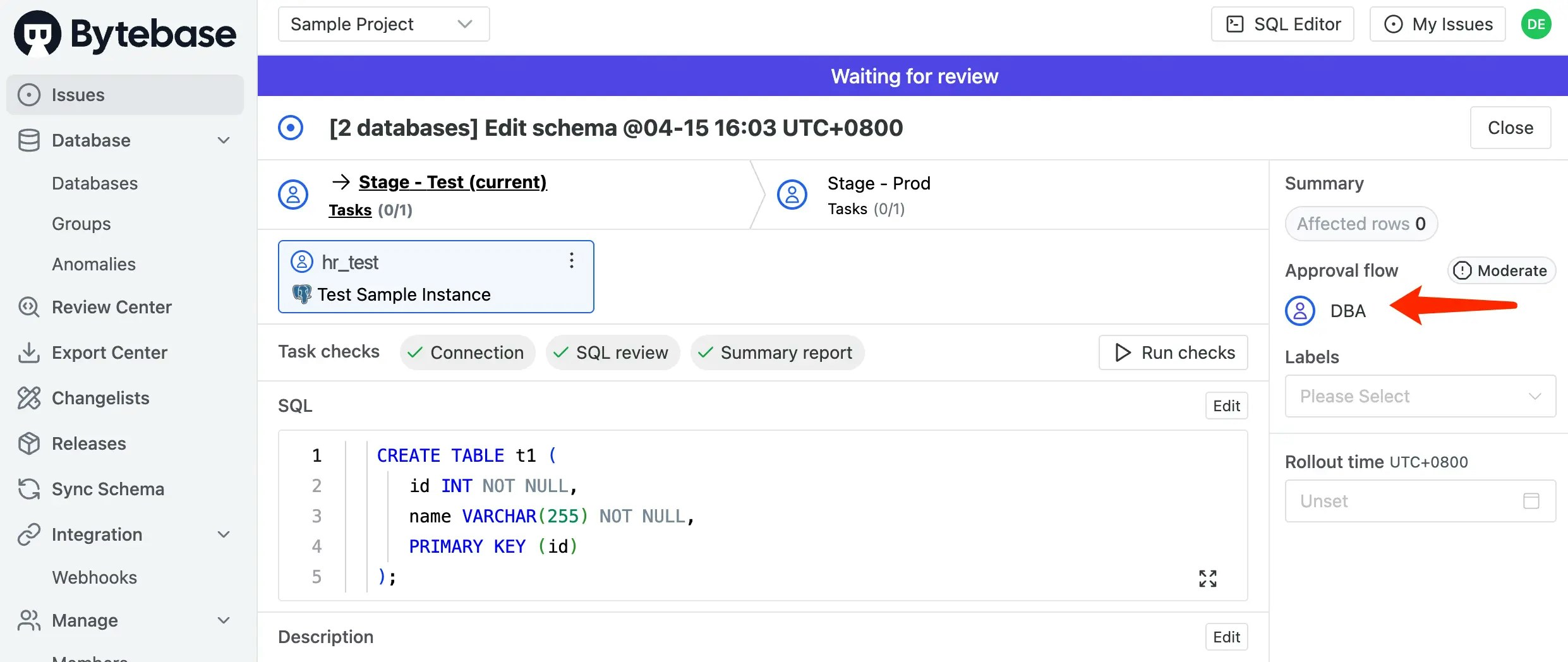
3. This time, the CREATE TABLE statement matches the second rule, so it will be reviewed by the **DBA** approval flow.
## Step 4 - Configure Custom Approval Rules and Run a Schema Change
1. Login as **Admin**. Click **CI/CD > Custom Approval** on the left bar. Under the **Change Database** section, click **Add Rule** to create approval rules with conditions:
* Rule 1: Title: `DDL ALTER in Prod`; Condition: `statement.sql_type == "ALTER_TABLE" && resource.environment_id == "prod"`; Approval Flow: `Project Owner -> DBA`
* Rule 2: Title: `DDL CREATE in Prod`; Condition: `statement.sql_type == "CREATE_TABLE" && resource.environment_id == "prod"`; Approval Flow: `DBA`
Rules are evaluated top to bottom - the first matching rule wins. You can drag to reorder them.
2. Logout and login as **Developer**. Go into the project, select both databases and click **Edit Schema**. Paste the same SQL as before and click **Create**.
```sql theme={null}
CREATE TABLE t1 (
id INT NOT NULL,
name VARCHAR(255) NOT NULL,
PRIMARY KEY (id)
);
```
3. This time, the CREATE TABLE statement matches the second rule, so it will be reviewed by the **DBA** approval flow.
 4. Try another DDL with **ALTER** type.
```sql theme={null}
ALTER TABLE employee ADD COLUMN age INT NOT NULL;
```
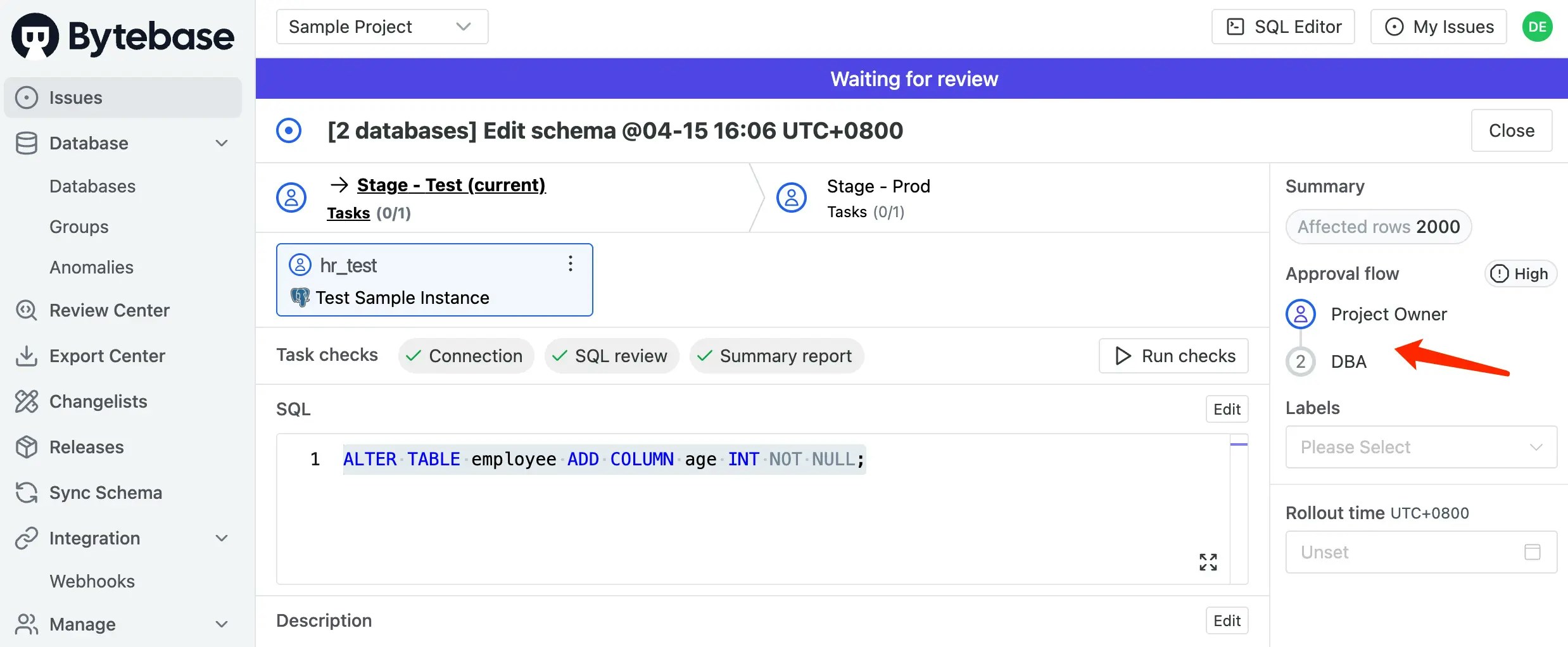
5. This time, the ALTER TABLE statement matches the first rule, so it will be reviewed by the **Project Owner -> DBA** approval flow.
4. Try another DDL with **ALTER** type.
```sql theme={null}
ALTER TABLE employee ADD COLUMN age INT NOT NULL;
```
5. This time, the ALTER TABLE statement matches the first rule, so it will be reviewed by the **Project Owner -> DBA** approval flow.
 ## Step 5 - Build Your Own Approval Flow
What if there is other roles in the team, for example, a **Tester** . Bytebase has another feature called **Custom Roles**.
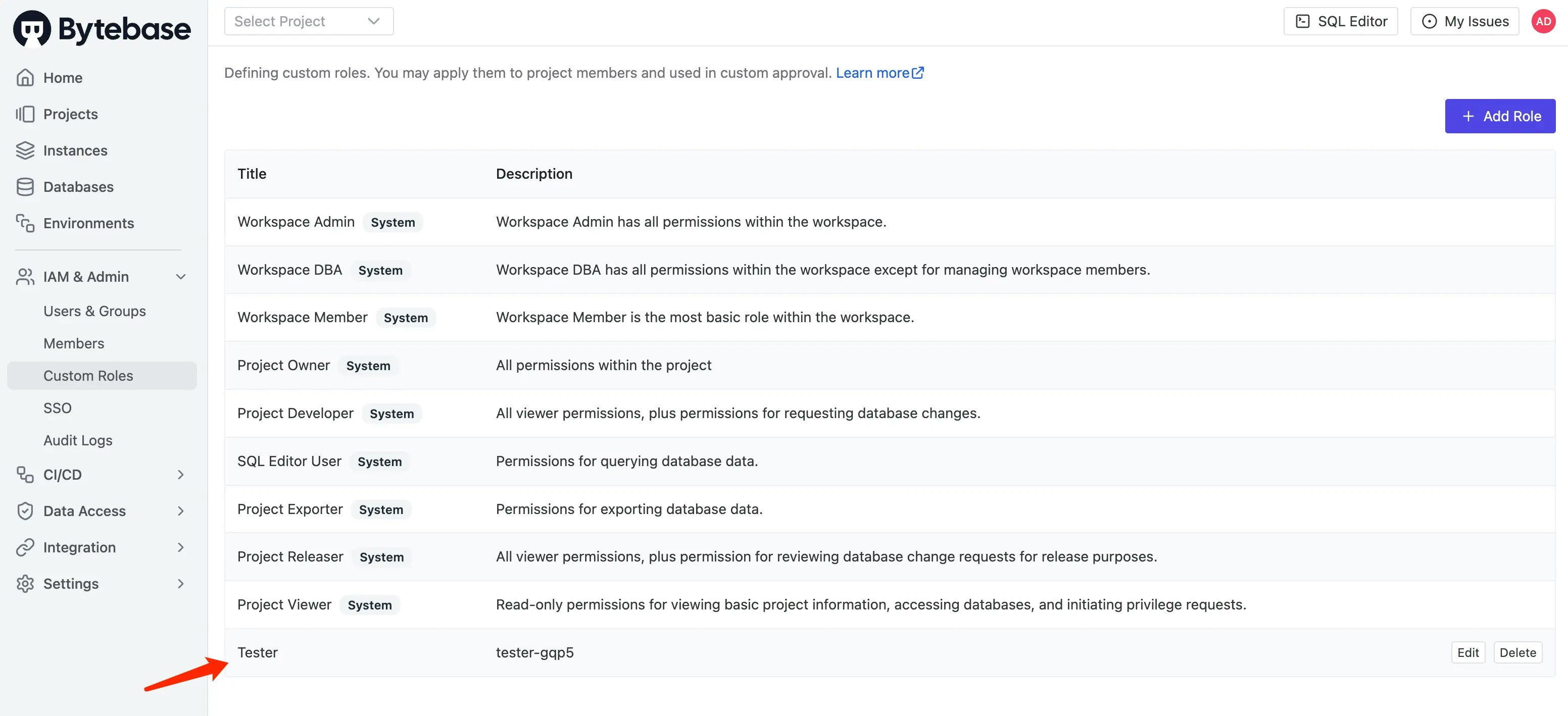
1. Login as **Admin**. Click **IAM\&Admin > Custom Roles** on the left bar. You may also add a new role, e.g. **Tester**, here to make it simple, we can import permissions from **Project Releaser** role.
## Step 5 - Build Your Own Approval Flow
What if there is other roles in the team, for example, a **Tester** . Bytebase has another feature called **Custom Roles**.
1. Login as **Admin**. Click **IAM\&Admin > Custom Roles** on the left bar. You may also add a new role, e.g. **Tester**, here to make it simple, we can import permissions from **Project Releaser** role.
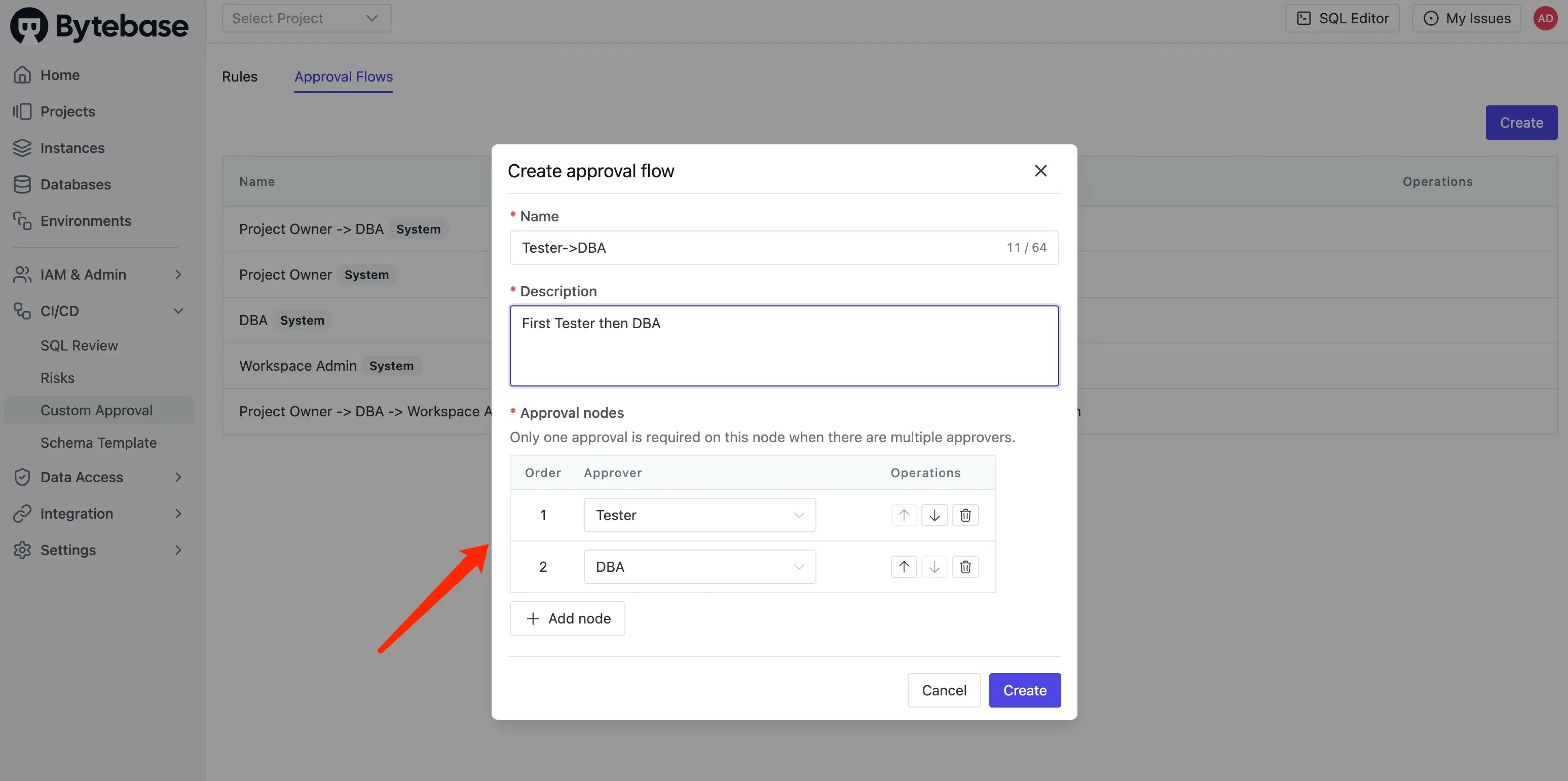
 2. Click **CI/CD > Custom Approval**. Under the **Change Database** section, click **Add Rule** and create a new approval flow with `Tester -> DBA` as the approval nodes.
 3. Create a new user with the role **Tester**.
4. Go to **CI/CD > Custom Approval**, and edit the CREATE TABLE rule to use the `Tester -> DBA` approval flow instead.
5. Logout and login as **Developer**. Go into the project, select both databases and click **Edit Schema**. Paste the same SQL as before and click **Create**.
```sql theme={null}
CREATE TABLE t1 (
id INT NOT NULL,
name VARCHAR(255) NOT NULL,
PRIMARY KEY (id)
);
```
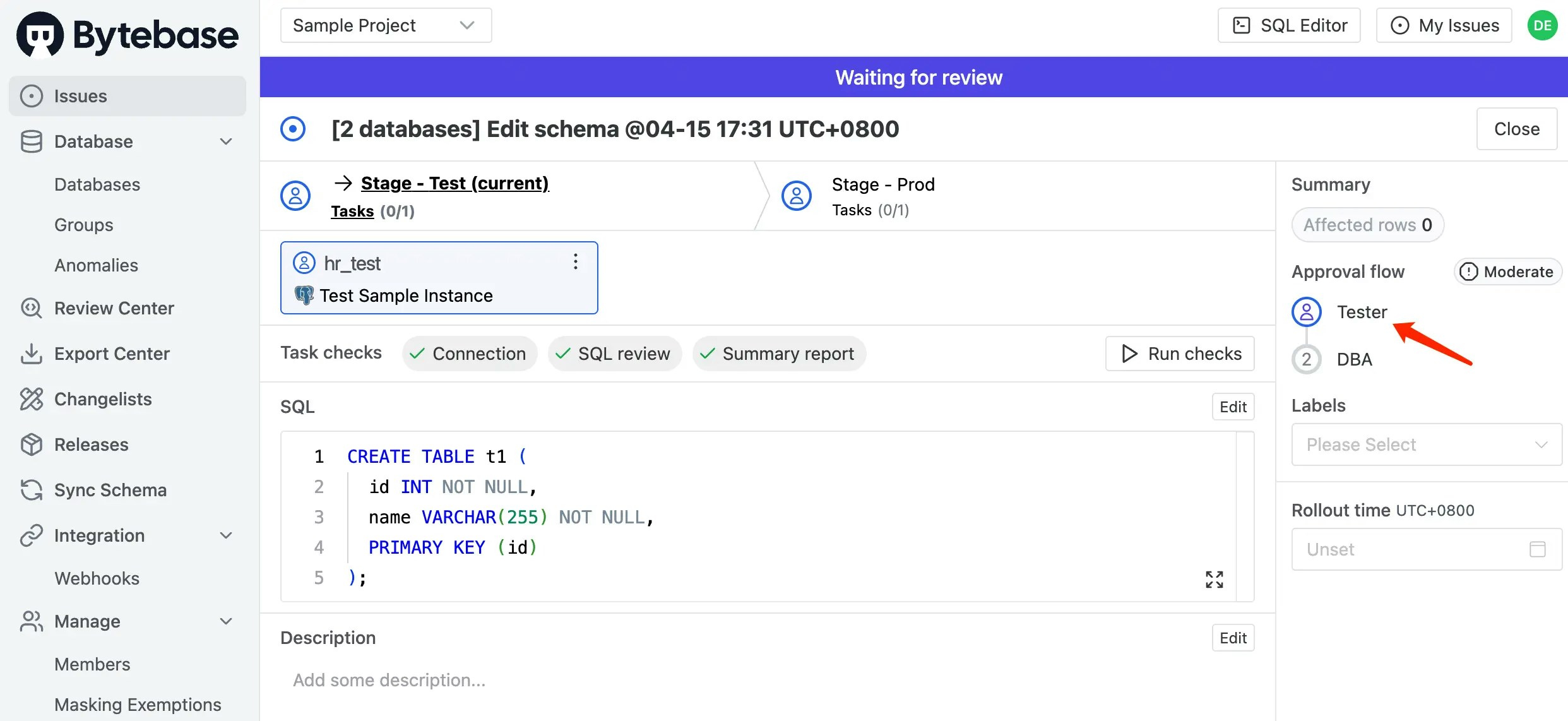
6. This time, the CREATE TABLE statement matches the rule and will be reviewed by the **Tester -> DBA** approval flow.
3. Create a new user with the role **Tester**.
4. Go to **CI/CD > Custom Approval**, and edit the CREATE TABLE rule to use the `Tester -> DBA` approval flow instead.
5. Logout and login as **Developer**. Go into the project, select both databases and click **Edit Schema**. Paste the same SQL as before and click **Create**.
```sql theme={null}
CREATE TABLE t1 (
id INT NOT NULL,
name VARCHAR(255) NOT NULL,
PRIMARY KEY (id)
);
```
6. This time, the CREATE TABLE statement matches the rule and will be reviewed by the **Tester -> DBA** approval flow.
 ## Summary
Now you have tried database change with condition-based custom approval flow, and also created your own custom roles. Bytebase provides more enterprise-level features regarding data security and data access control. If you're interested in that, follow [Just-in-Time Database Access](/tutorials/just-in-time-database-access-part1/).
## Summary
Now you have tried database change with condition-based custom approval flow, and also created your own custom roles. Bytebase provides more enterprise-level features regarding data security and data access control. If you're interested in that, follow [Just-in-Time Database Access](/tutorials/just-in-time-database-access-part1/).