> ## Documentation Index
> Fetch the complete documentation index at: https://docs.bytebase.com/llms.txt
> Use this file to discover all available pages before exploring further.
# Deploy Schema Change with Rollout Policy
Bytebase provides a powerful GUI for deploying schema migrations. This tutorial walks you through deploying schema changes with features such as SQL Review, rollout policies, custom approval, time scheduling, and more.
Bytebase offers **Community**, **Pro**, and **Enterprise** [plans](https://www.bytebase.com/pricing). Higher plans unlock additional deployment capabilities. We will explore them progressively.
### Features covered
* Level 1 – [Automatic rollout (Rollout Policy)](/change-database/environment-policy/rollout-policy/) (available in all plans)
* Level 2 – Manual rollout with [SQL Review](/sql-review/review-policy/) (available in all plans)
* Level 3 – [Custom Approval](/change-database/approval/) (available in Enterprise)
### Preparation
1. Ensure Docker is running, then start the Bytebase container:
```bash theme={null}
docker run --rm --init \
--name bytebase \
--publish 8080:8080 --pull always \
--volume ~/.bytebase/data:/var/opt/bytebase \
bytebase/bytebase:latest
```
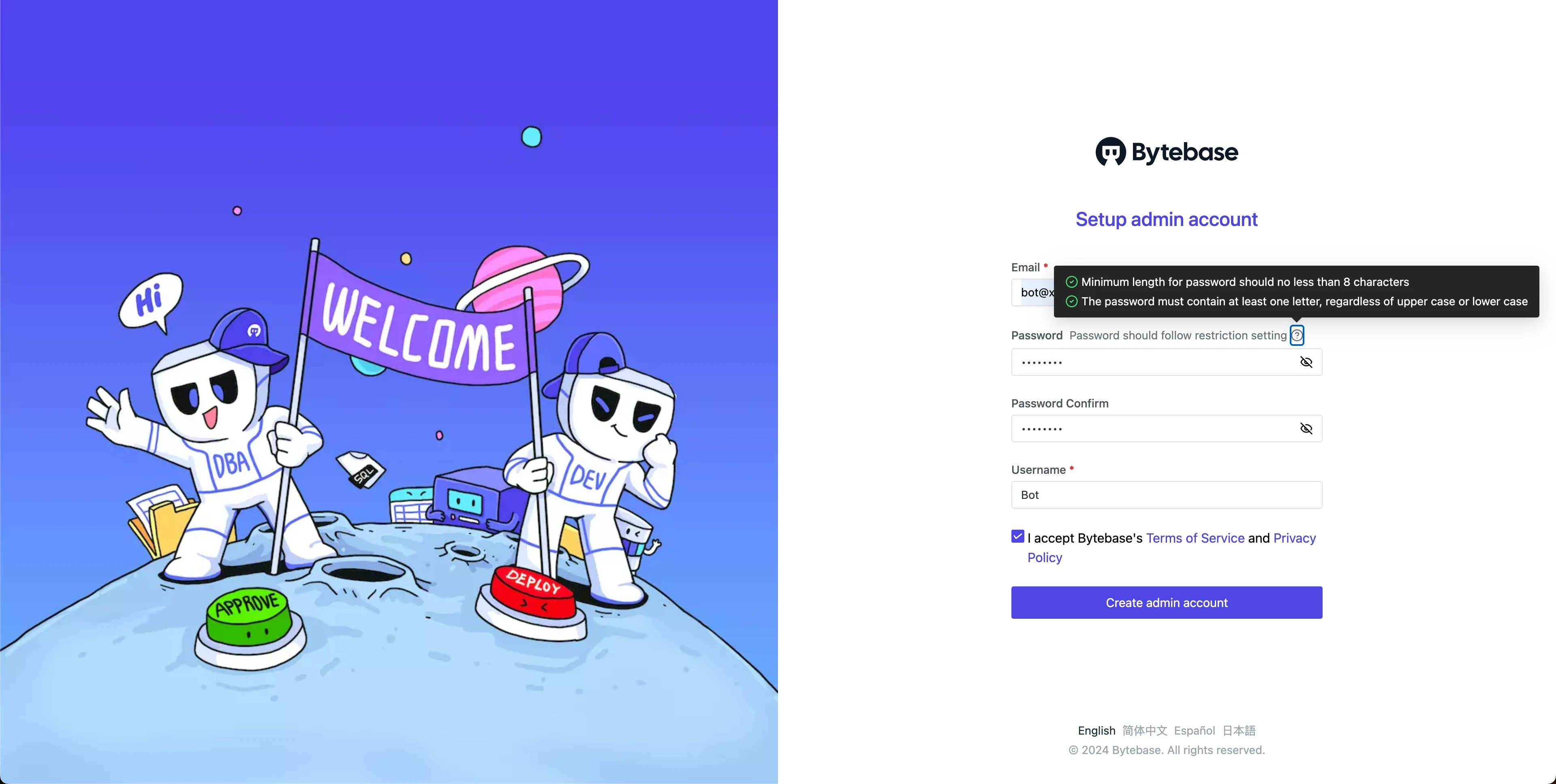
 2. Open Bytebase in [localhost:8080](http://localhost:8080/), fill in the fields and click **Create admin account**. You'll be redirected to Workspace.
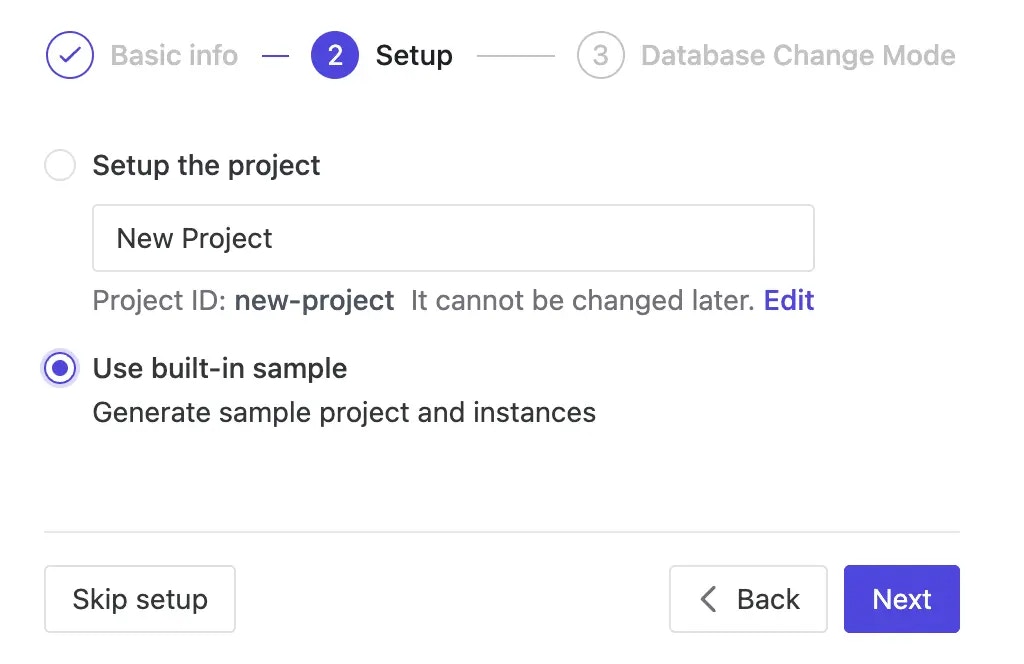
 3. During workspace setup, choose the built-in sample data.
 ### Level 1: Automatic rollout in the Test environment (All plans)
1. In Workspace, go to **Environments** > **Test**, and check `Automatic` under the **Rollout policy**.
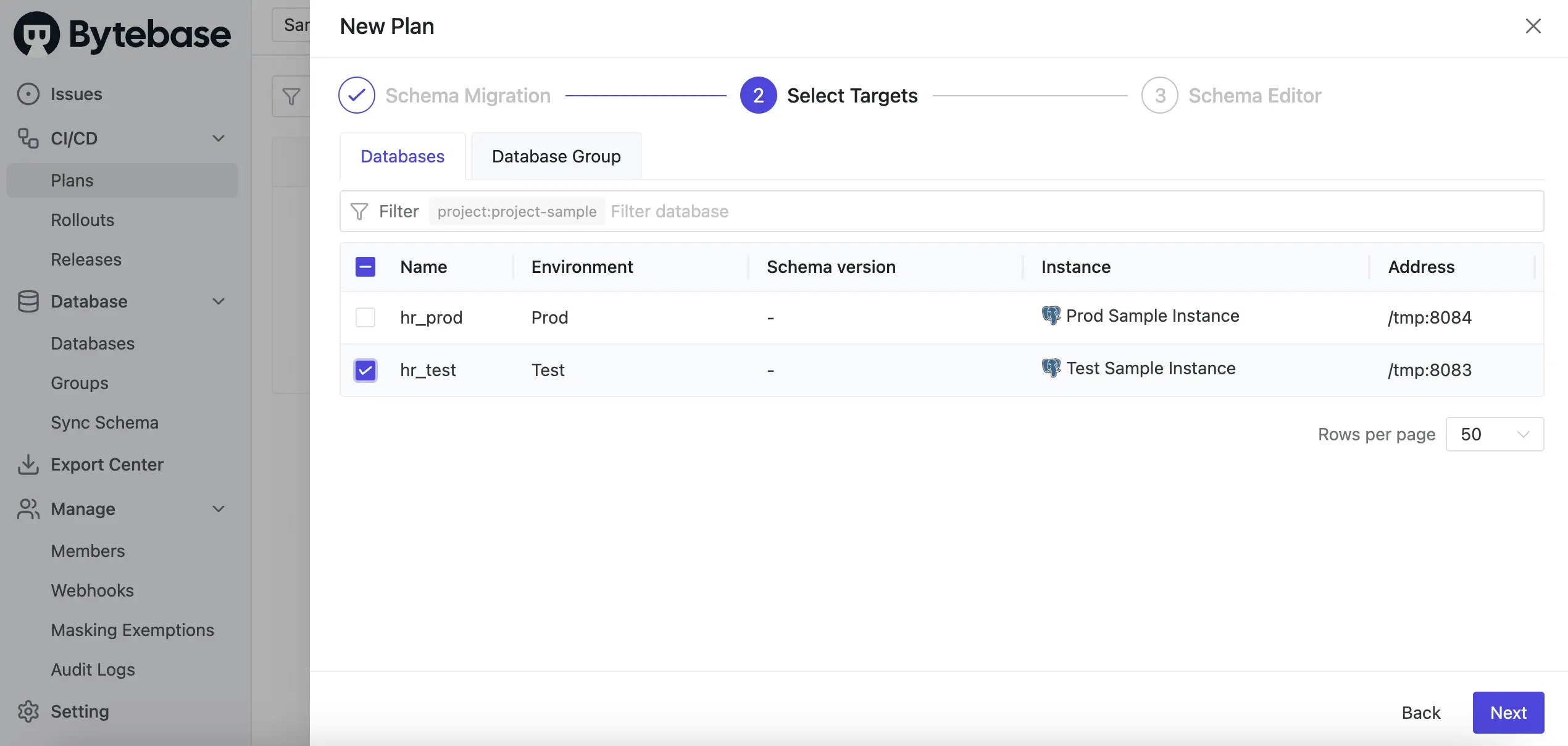
2. From the top-left project switcher, select `Sample Project`. Under the **CI/CD** section, click **Plans**, then **+ New Plan**. Choose `Schema Migration (DDL)` and select the `hr_test` database.
### Level 1: Automatic rollout in the Test environment (All plans)
1. In Workspace, go to **Environments** > **Test**, and check `Automatic` under the **Rollout policy**.
2. From the top-left project switcher, select `Sample Project`. Under the **CI/CD** section, click **Plans**, then **+ New Plan**. Choose `Schema Migration (DDL)` and select the `hr_test` database.
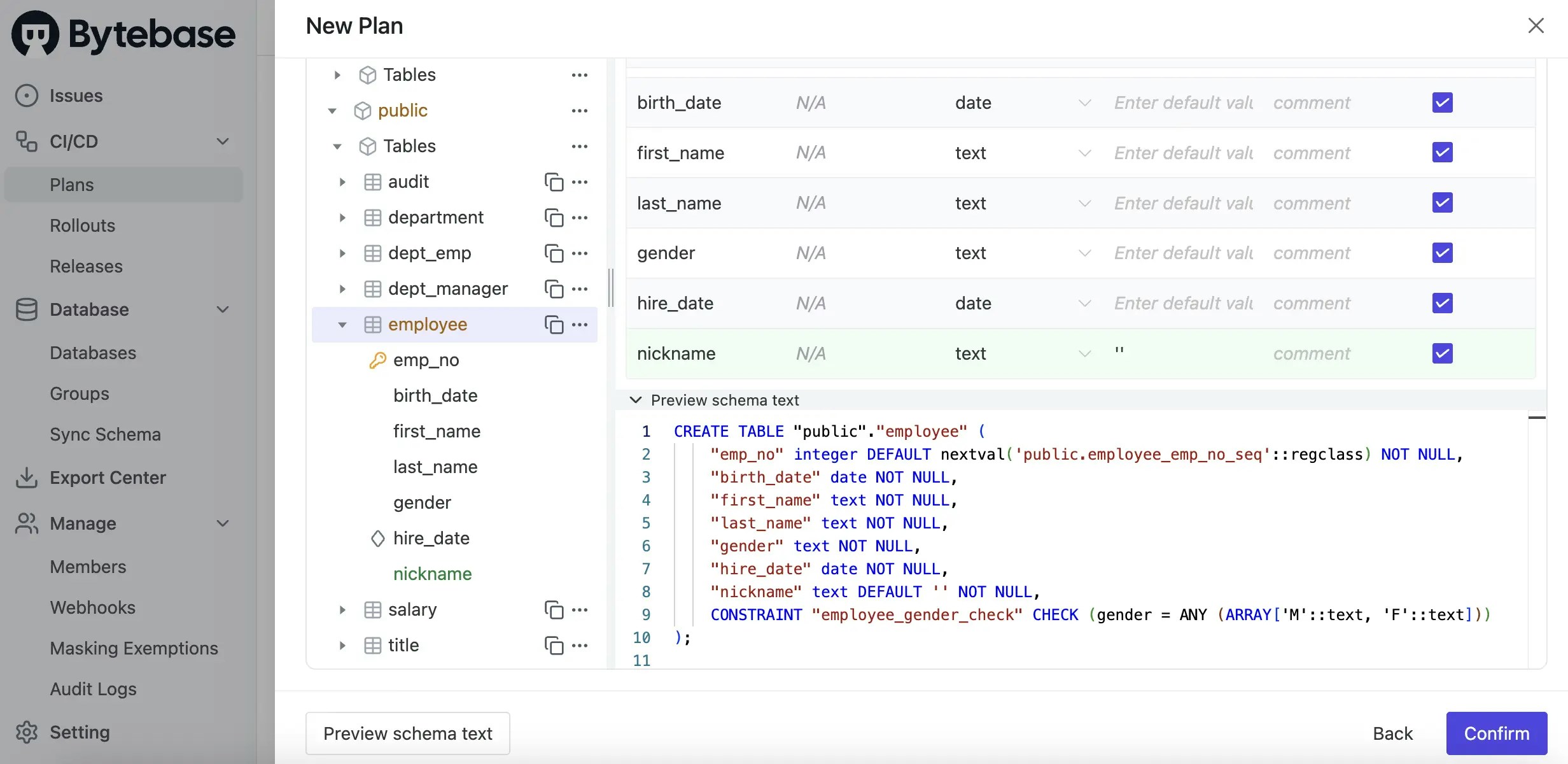
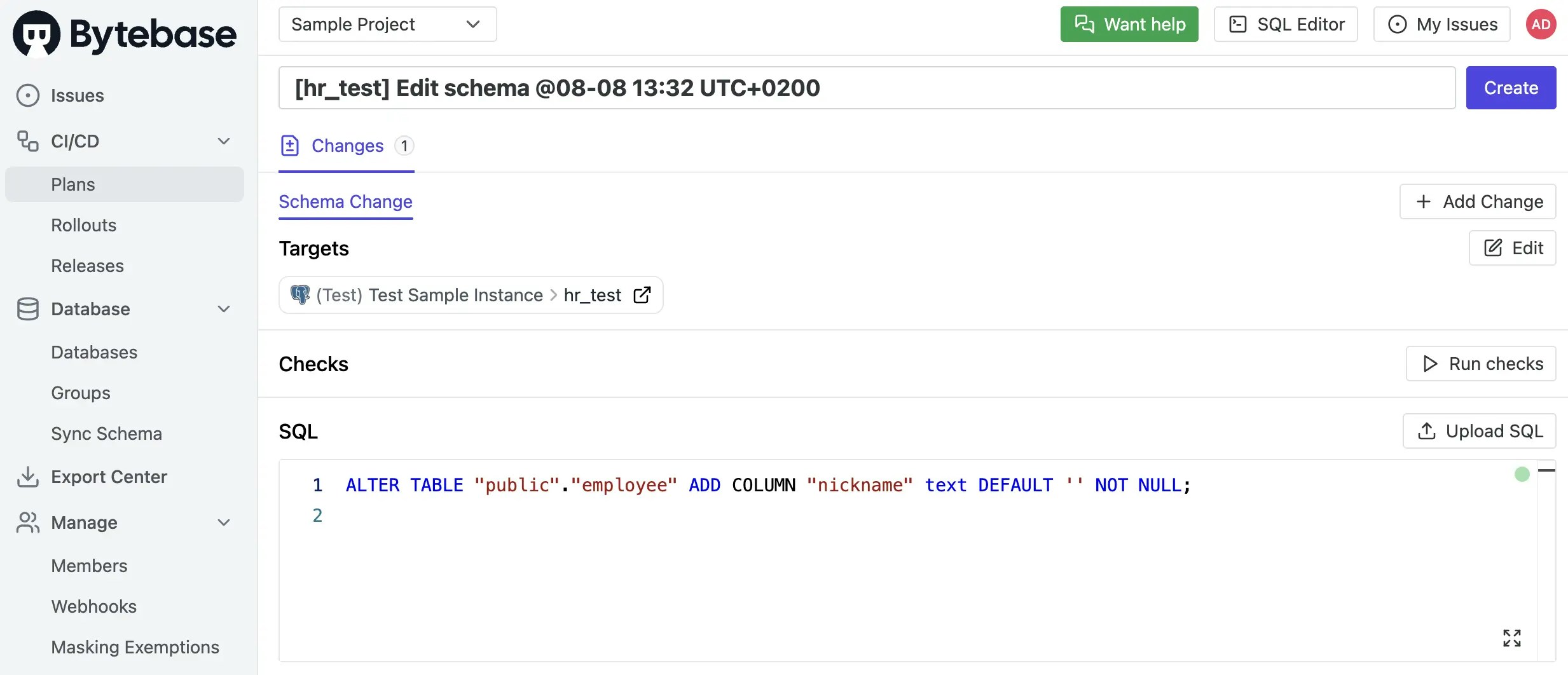
 3. Using the **Schema Editor**, add a new column `nickname` to the `employee` table and click **Confirm**.
 4. Click **Create**, then click **Ready for Review**.
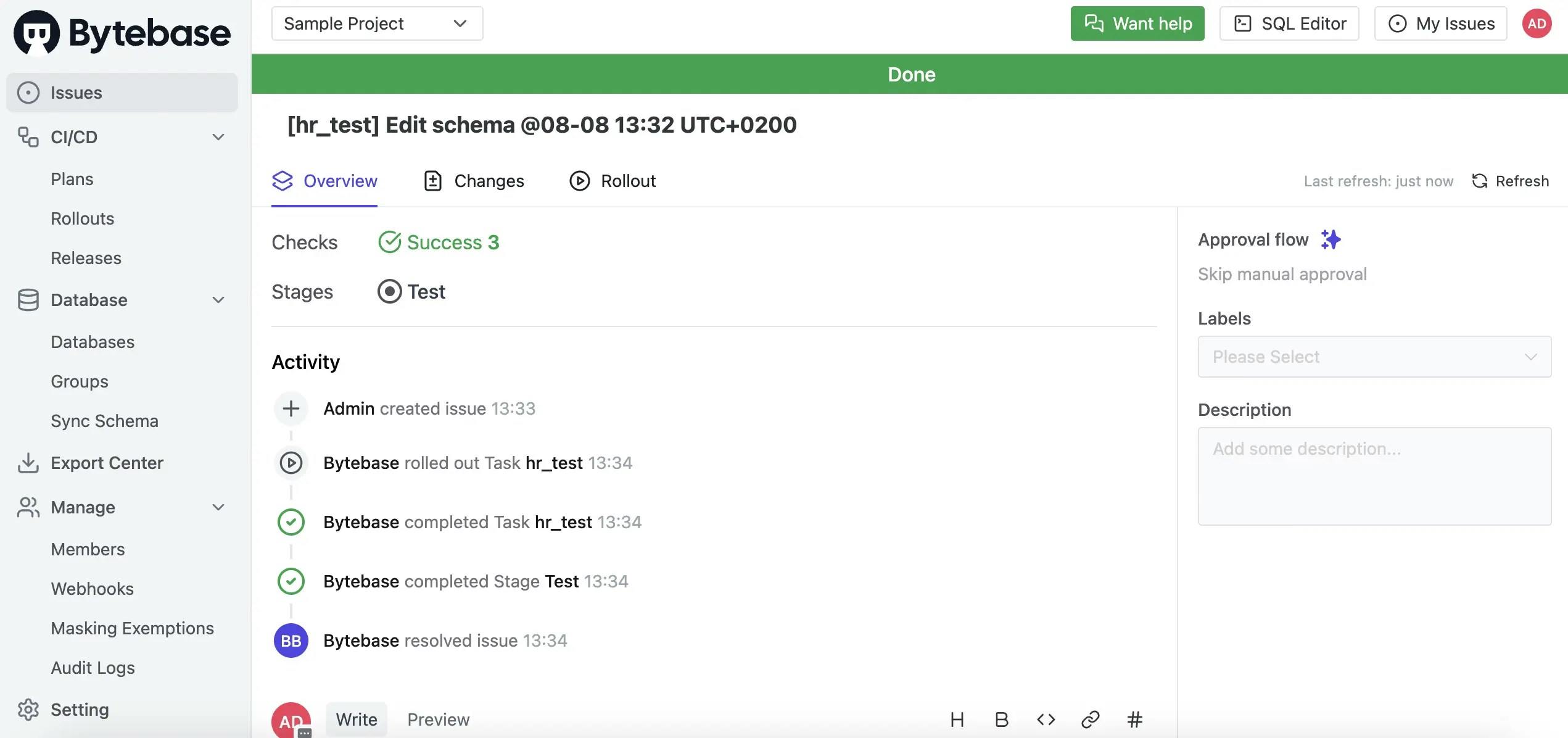
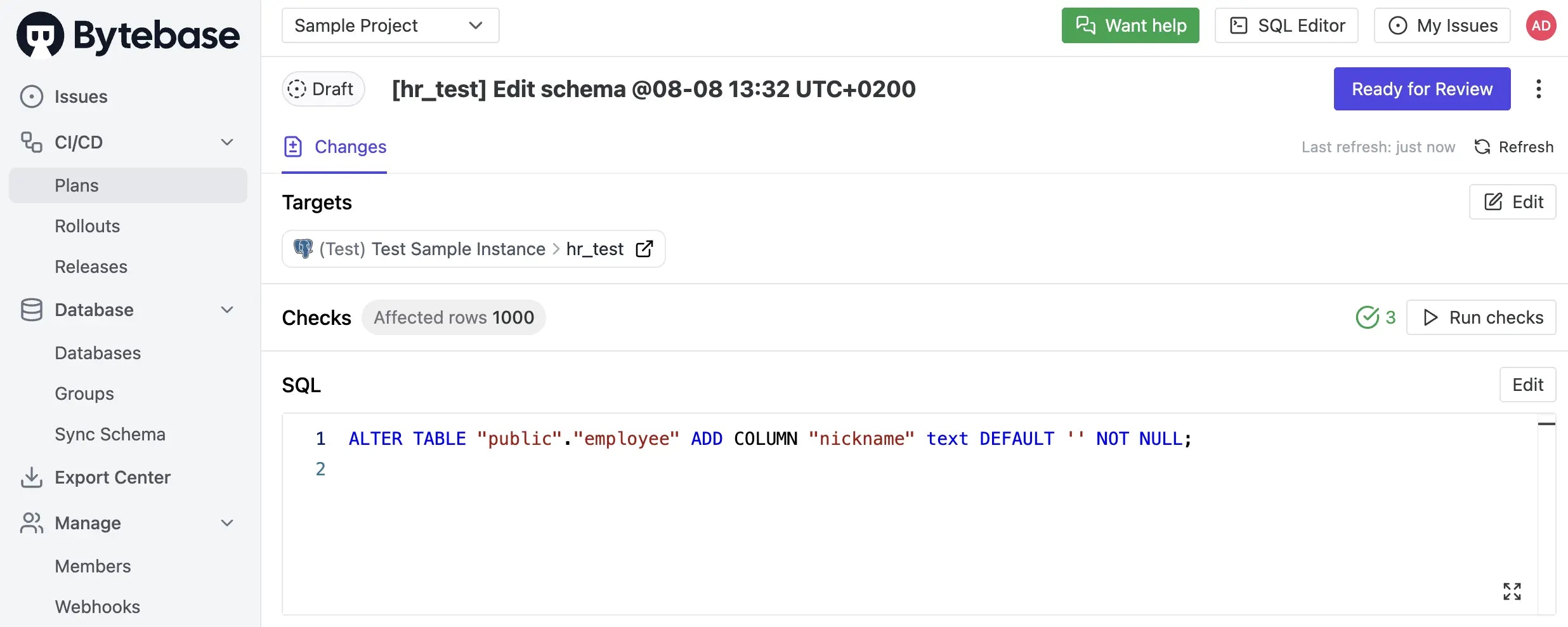 5. The rollout executes automatically to the `Test` environment. The issue is marked as `Done`.
 ### Level 2: Manual rollout with SQL Review (All plans)
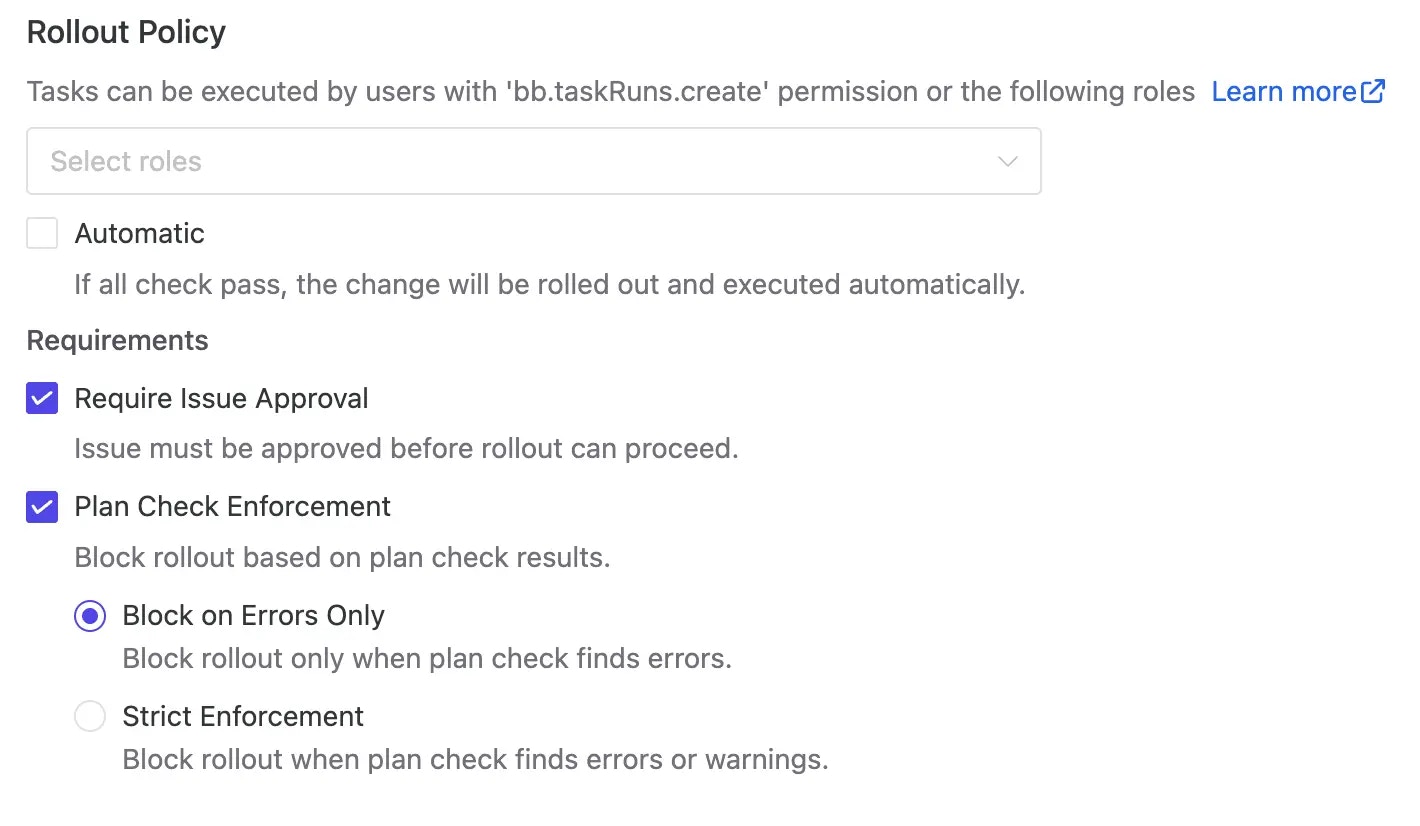
1. In Workspace, go to **Environments** > **Prod**. Leave the `Automatic` unchecked under the **Rollout policy**. Keep the default setting without changing, it's `Require Issue Approval` and `Plan Check Enforcement`>`Block on Errors Only`.
### Level 2: Manual rollout with SQL Review (All plans)
1. In Workspace, go to **Environments** > **Prod**. Leave the `Automatic` unchecked under the **Rollout policy**. Keep the default setting without changing, it's `Require Issue Approval` and `Plan Check Enforcement`>`Block on Errors Only`.
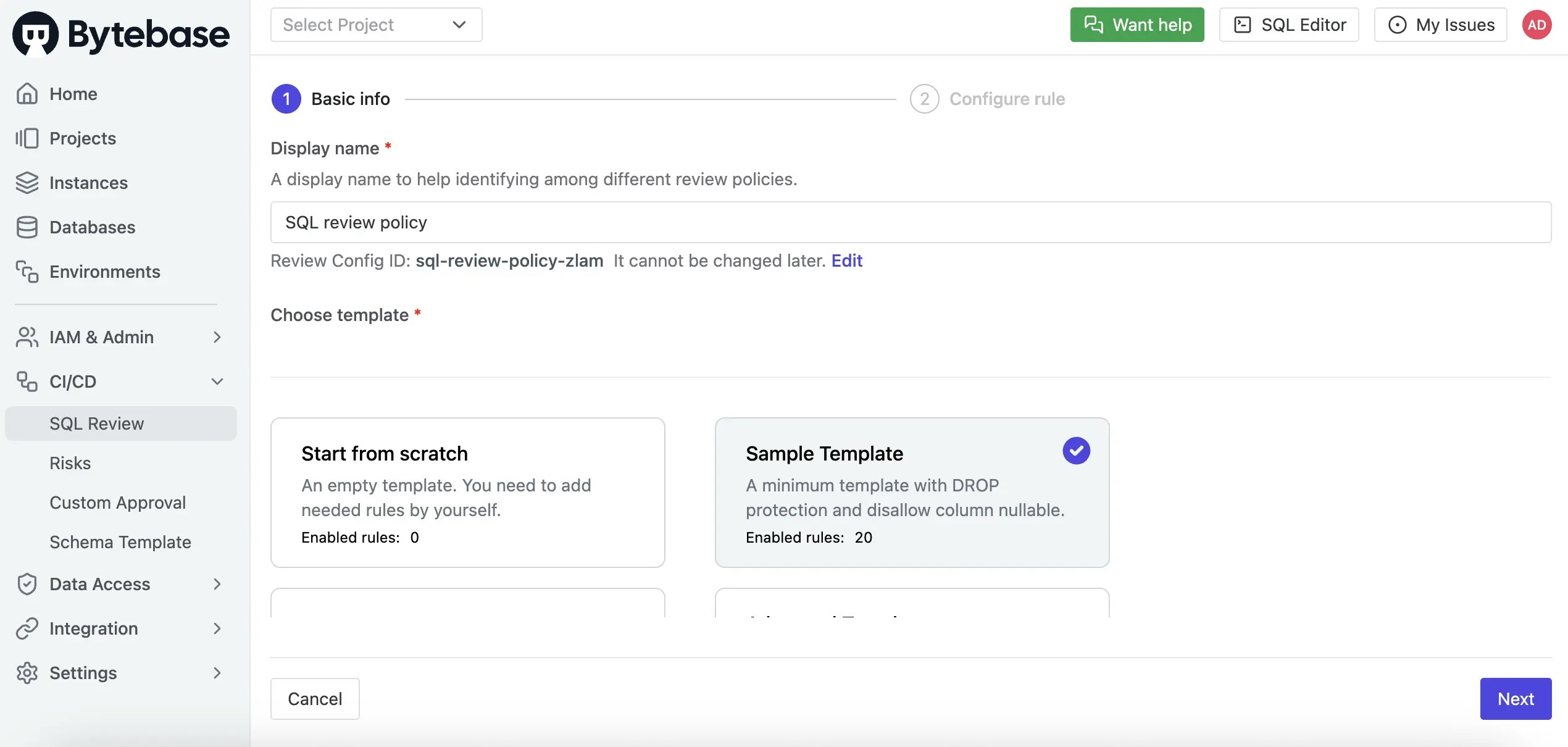
 2. We'll add an SQL Review policy to the `Prod` environment. Click **SQL Review Policy** to open **SQL Review** under the **Environment > Prod**. Select the `Sample Template`, which has 20 enabled rules.
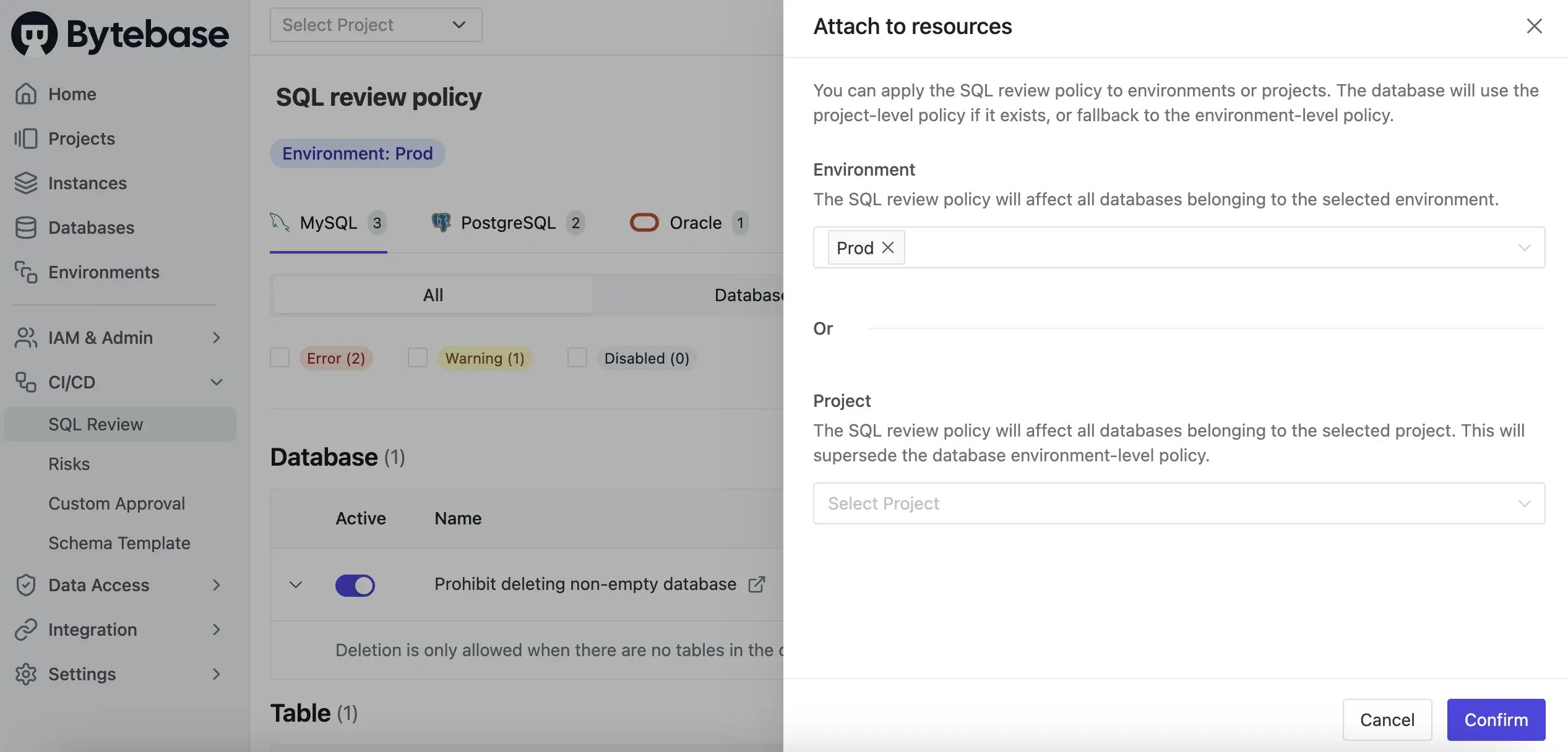
 3. Click **Confirm** to add the SQL Review policy to the `Prod` environment.
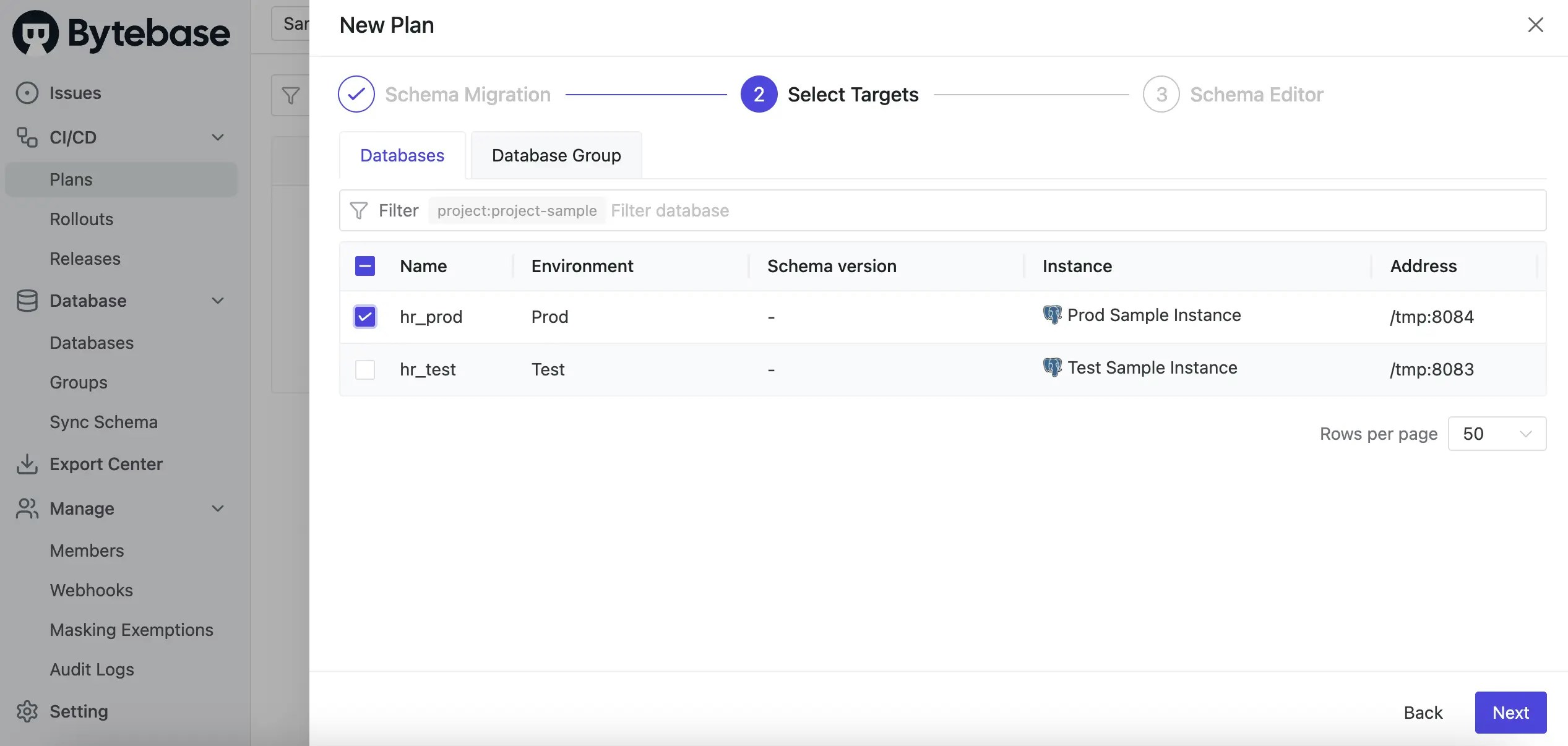
 4. From the top-left project switcher, select `Sample Project`. Under the **CI/CD** section, click **Plans**, then **+ New Plan**. Choose `Schema Migration (DDL)` and select the `hr_prod` database.
 5. Using the **Schema Editor**, add a new column `nickname` to the `employee` table and click **Confirm**.
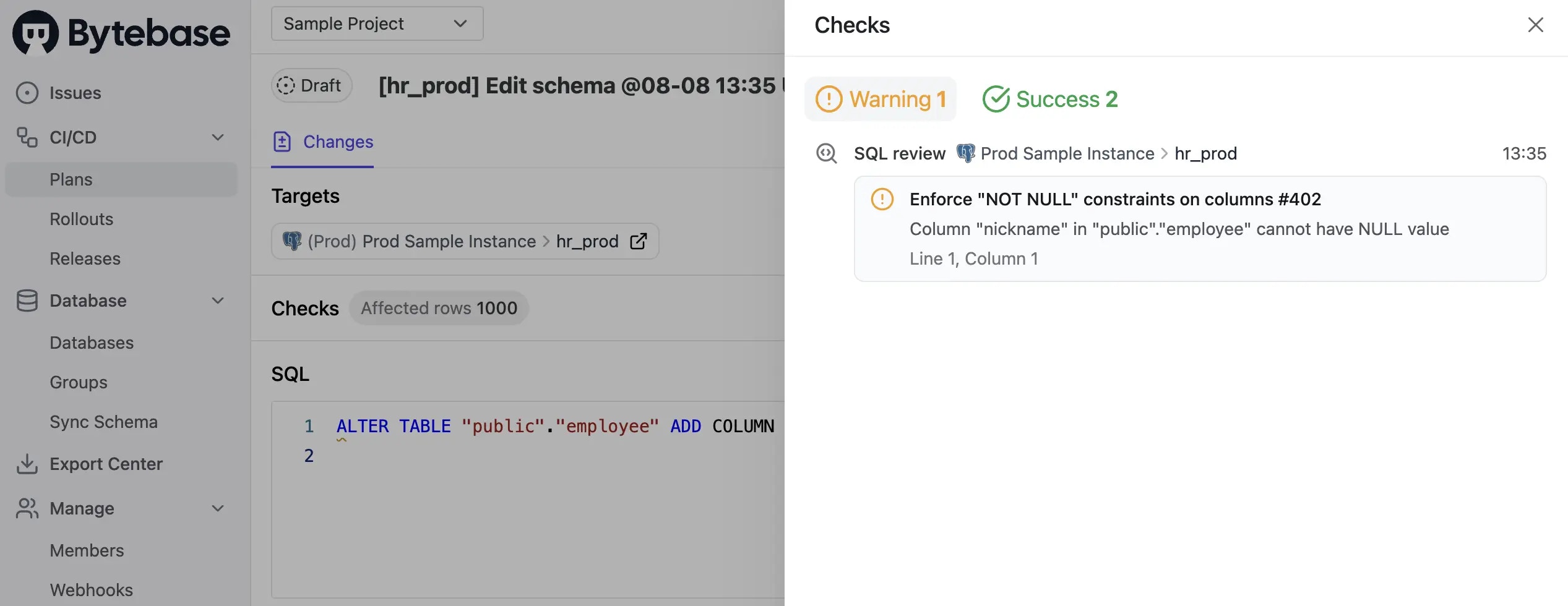
6. Intentionally violate the `NOT NULL` rule. Click **Create**; SQL Review runs automatically and shows a warning for the `Prod` task.
5. Using the **Schema Editor**, add a new column `nickname` to the `employee` table and click **Confirm**.
6. Intentionally violate the `NOT NULL` rule. Click **Create**; SQL Review runs automatically and shows a warning for the `Prod` task.
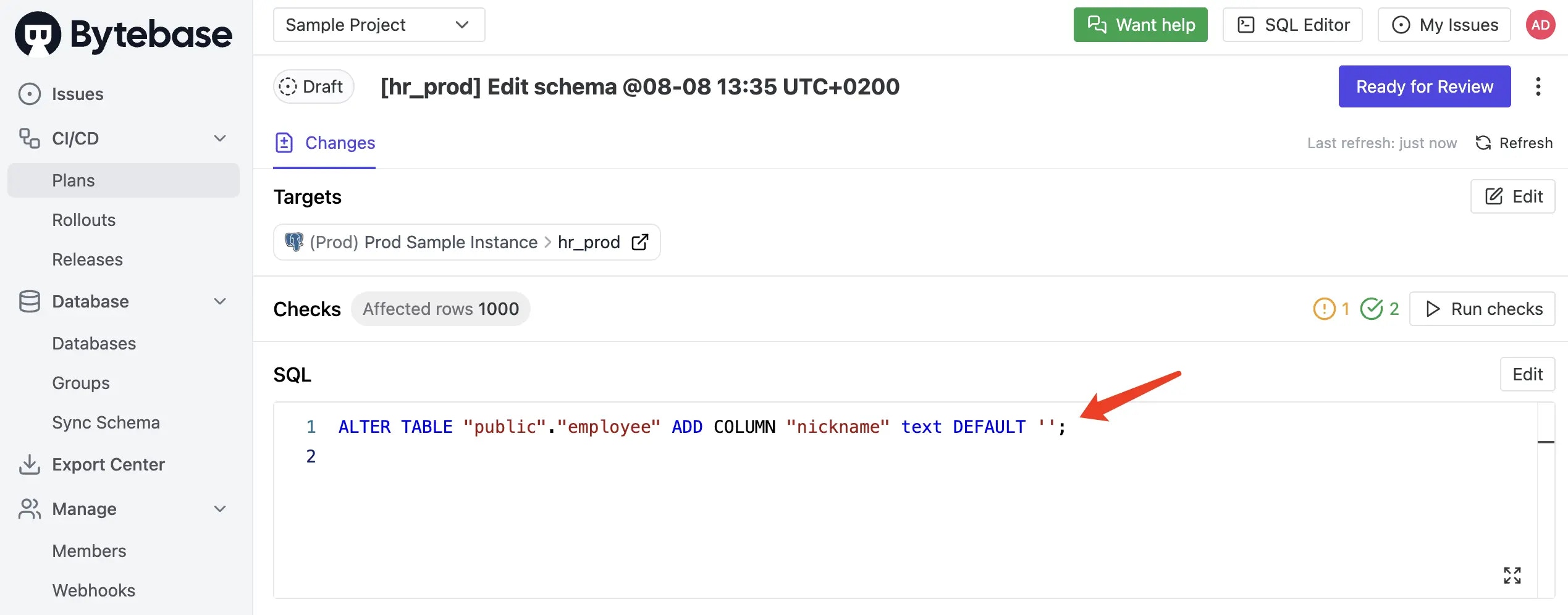 7. Click the warning to view details.
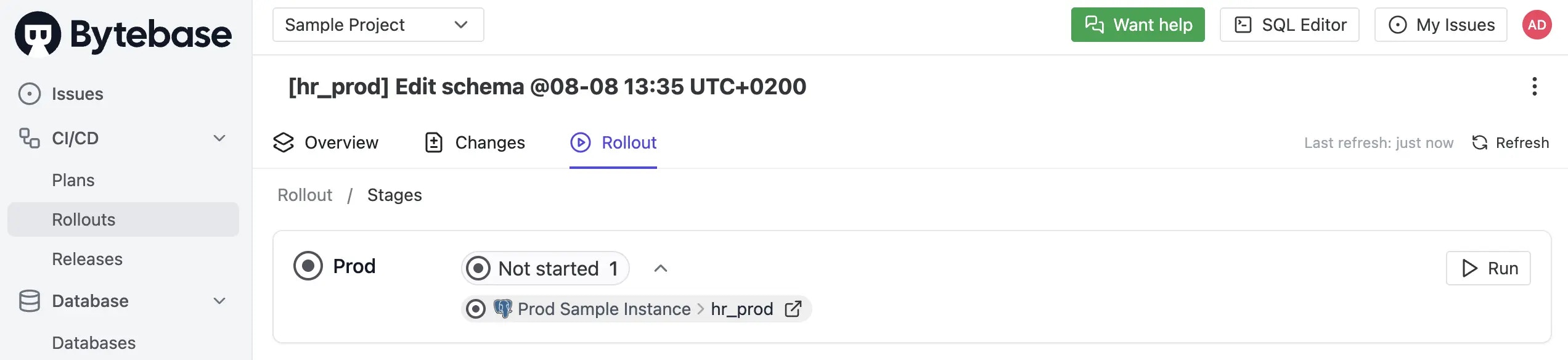
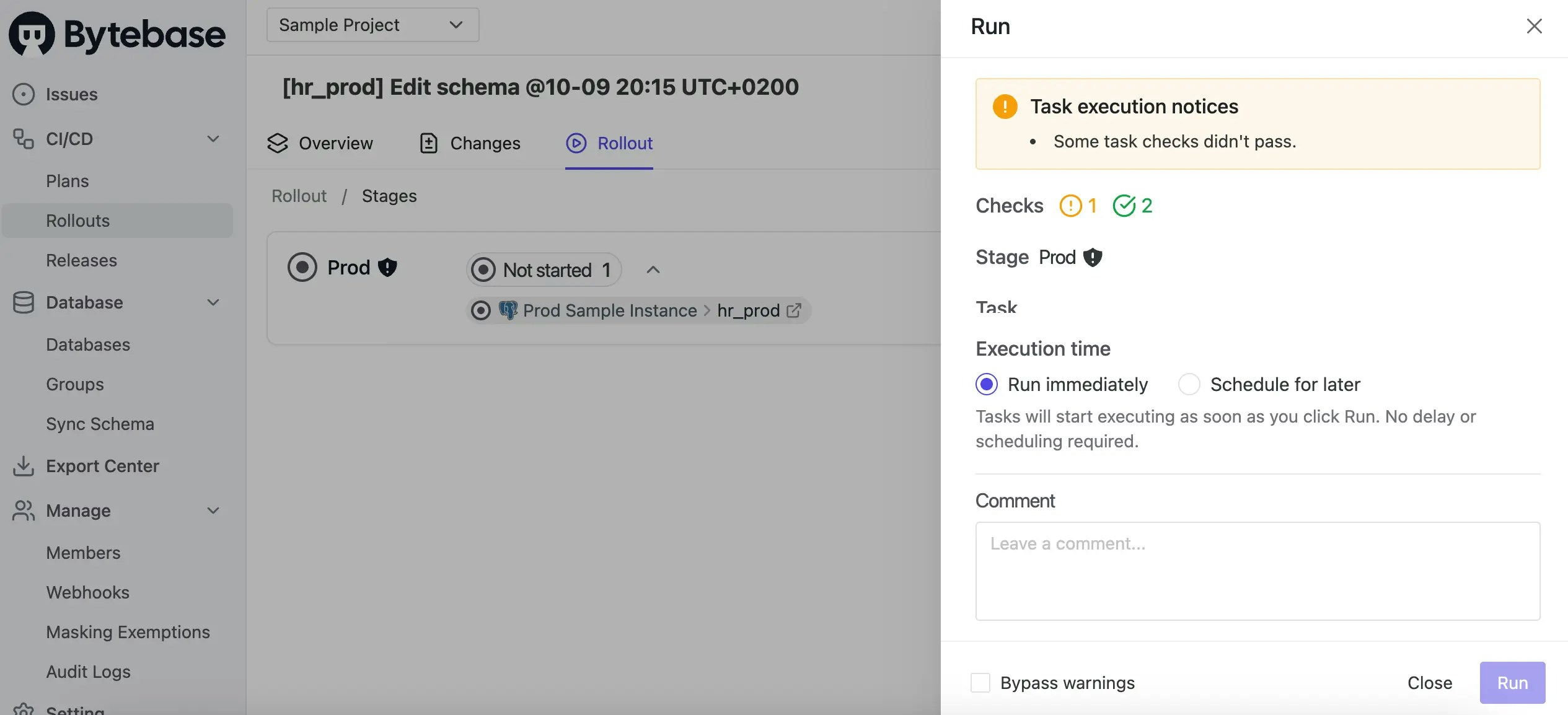
 8. Go to the **Rollout** tab, click **Run**. You will see a warning that the SQL Review is not passed. However, you can bypass the SQL Review by checking **Bypass** to continue rollout.
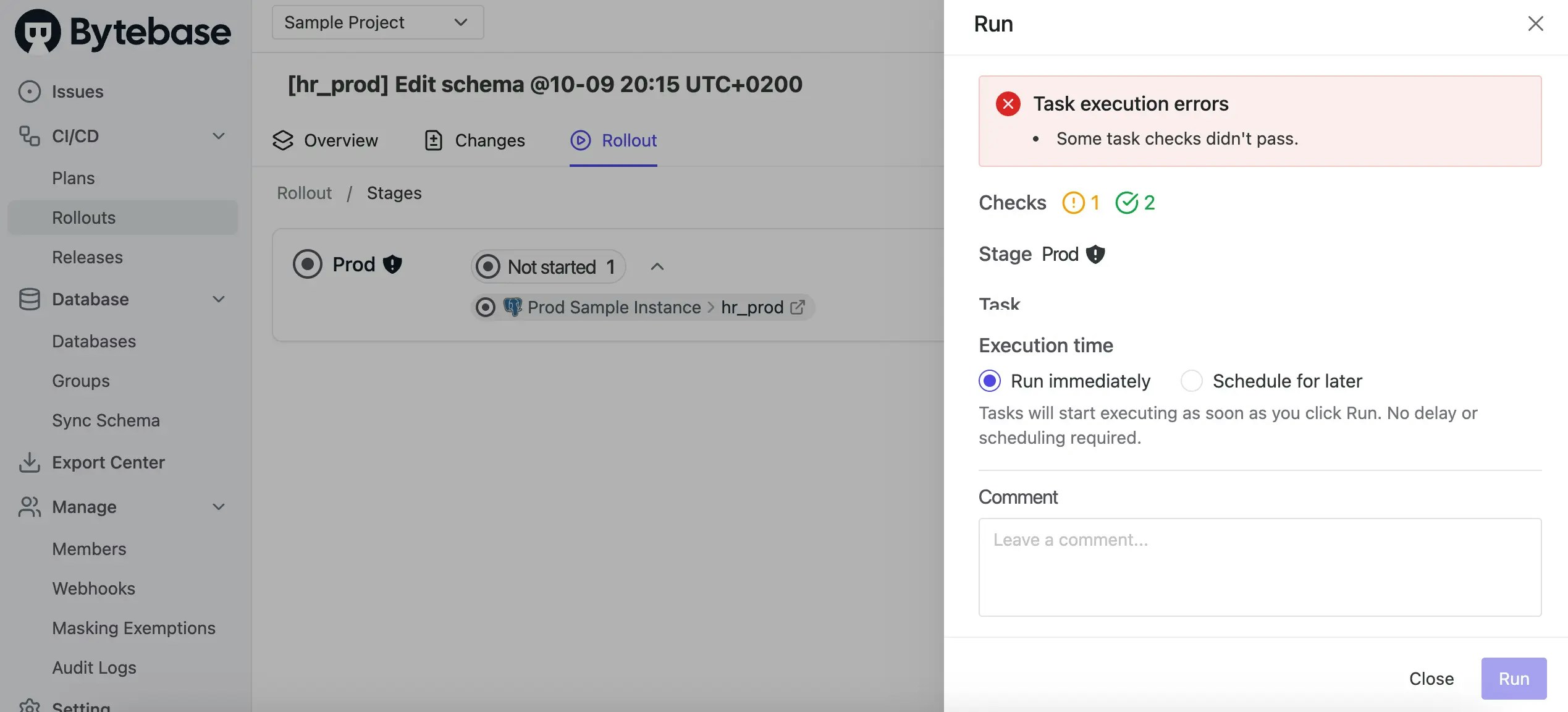
 9. Go back to the `Prod` environment, and set `Plan Check Enforcement` > `Strict Enforcement` under the **Rollout Policy**, then come back to the plan and refresh, you will see this time you can't bypass the SQL Review.
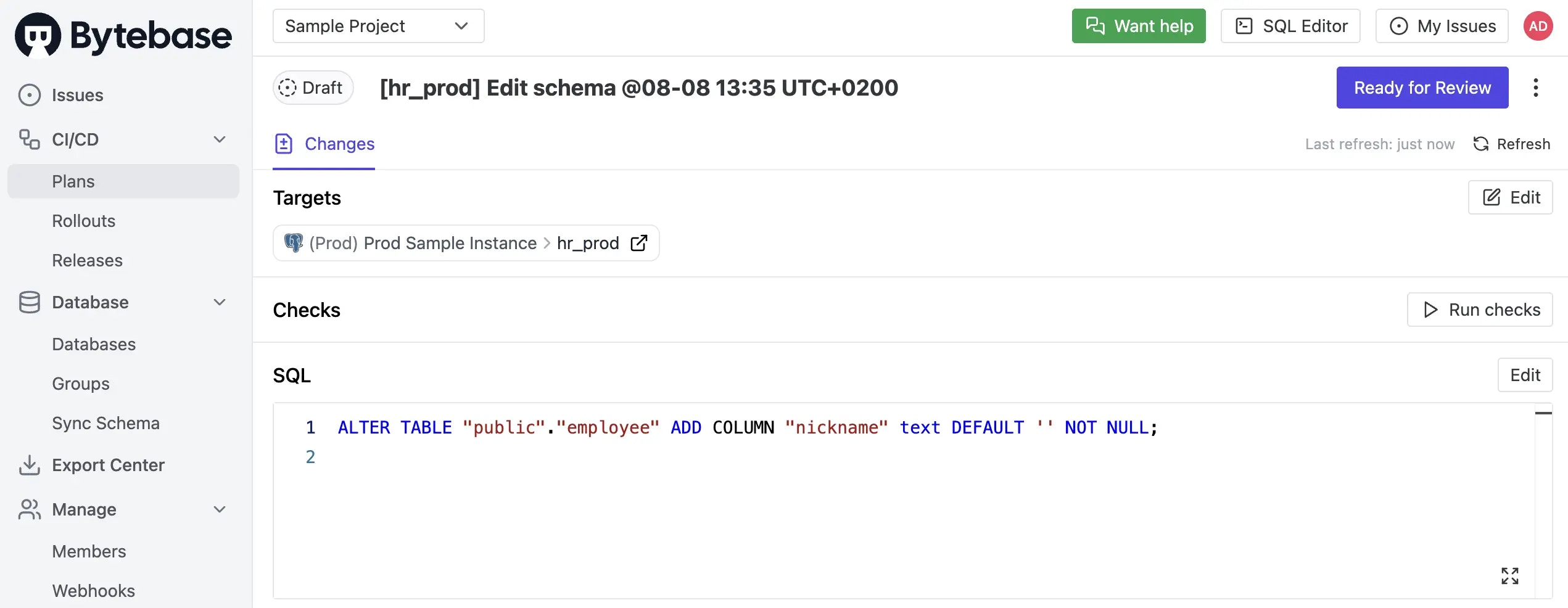
 10. Fix the SQL by adding the `NOT NULL` constraint. Click **Save** to update the plan. SQL Review runs again and should pass. Click **Ready for Review** to submit the plan for approval. Because here we don't have approval flow configured, the plan will be approved automatically.
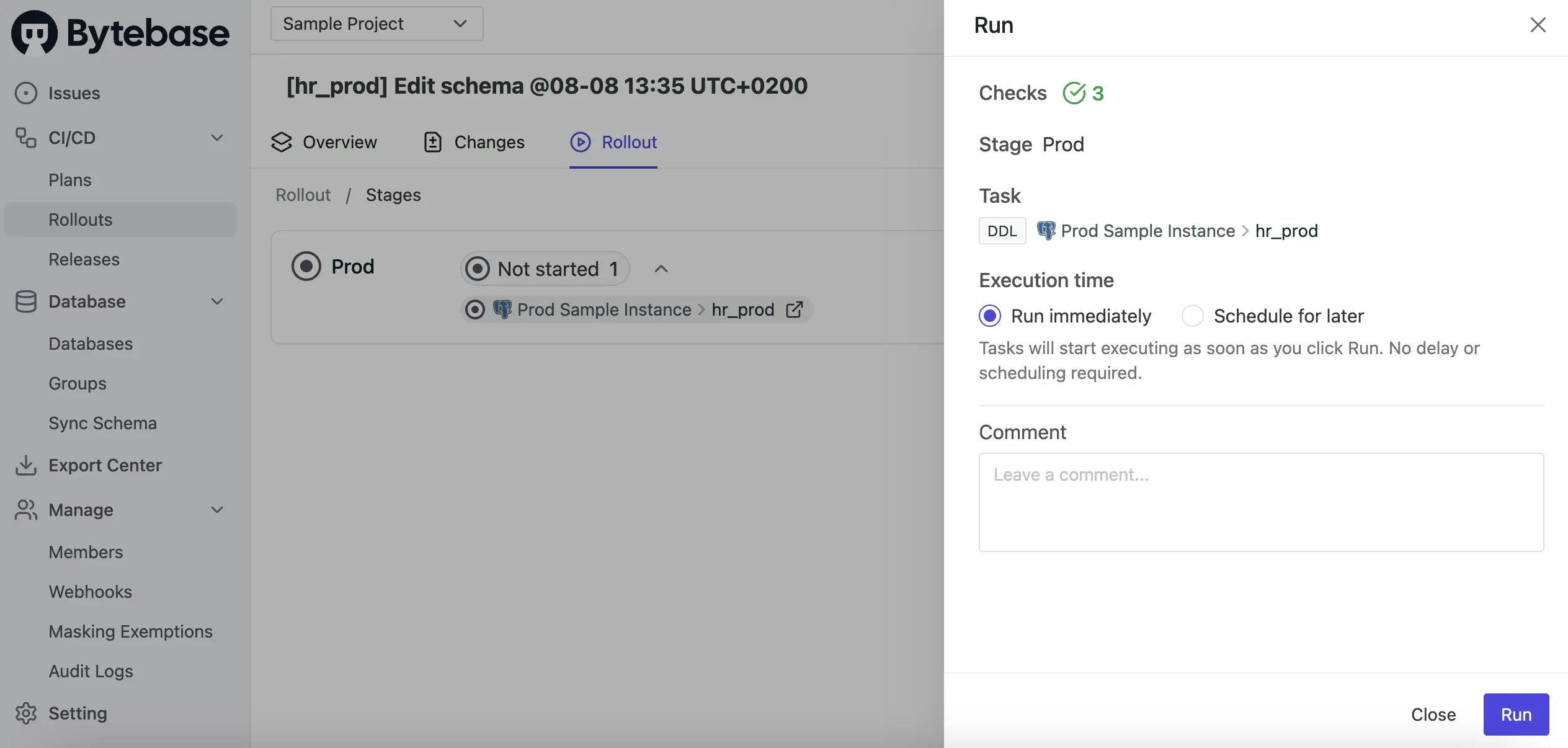
 11. The rollout is now ready, click **Run** again, this time you will see the SQL Review is passed.
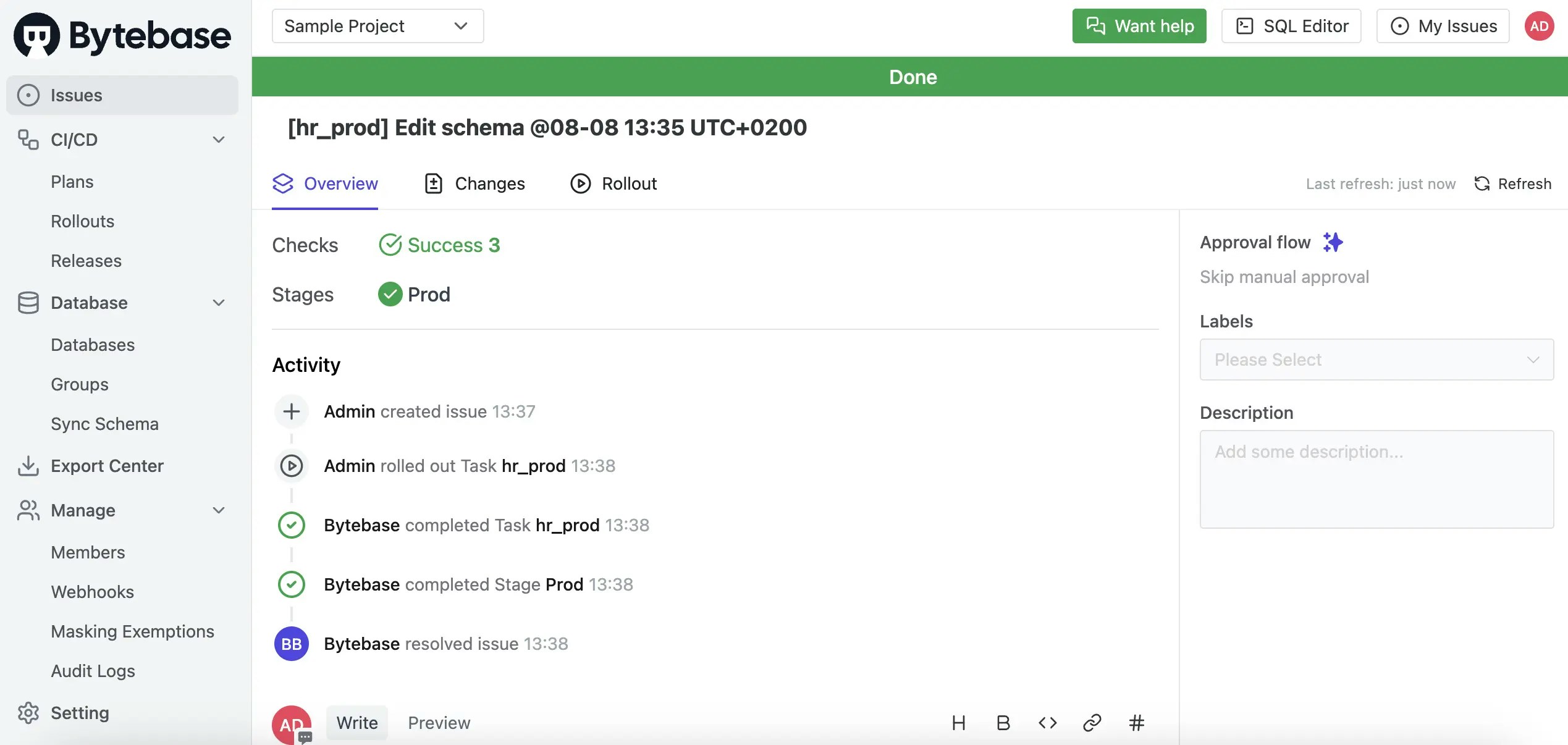
 12. After the rollout completes, the issue is marked as `Done`.
 ### Level 3: Manual rollout with custom approval (Enterprise)
If you want the approval flow to be dynamic based on context, such as the type of SQL statements, follow this tutorial: [Database Change with Custom Approval Flow](/tutorials/database-change-management-with-risk-adjusted-approval-flow/).
### Summary
You have learned how to deploy schema migrations using Bytebase. Explore more advanced capabilities:
* [GitOps](/gitops/overview/): Observe Git pushes and trigger schema migrations.
* [Batch changes](/change-database/batch-change/): Change multiple databases in a single workflow.
### Level 3: Manual rollout with custom approval (Enterprise)
If you want the approval flow to be dynamic based on context, such as the type of SQL statements, follow this tutorial: [Database Change with Custom Approval Flow](/tutorials/database-change-management-with-risk-adjusted-approval-flow/).
### Summary
You have learned how to deploy schema migrations using Bytebase. Explore more advanced capabilities:
* [GitOps](/gitops/overview/): Observe Git pushes and trigger schema migrations.
* [Batch changes](/change-database/batch-change/): Change multiple databases in a single workflow.