> ## Documentation Index
> Fetch the complete documentation index at: https://docs.bytebase.com/llms.txt
> Use this file to discover all available pages before exploring further.
# How to Move Schema Change from Test to Prod
> Learn to move schema change from test to prod.
Moving schema changes from test to production is a critical part of the database development lifecycle. Bytebase provides two primary methods to safely promote your changes across environments.
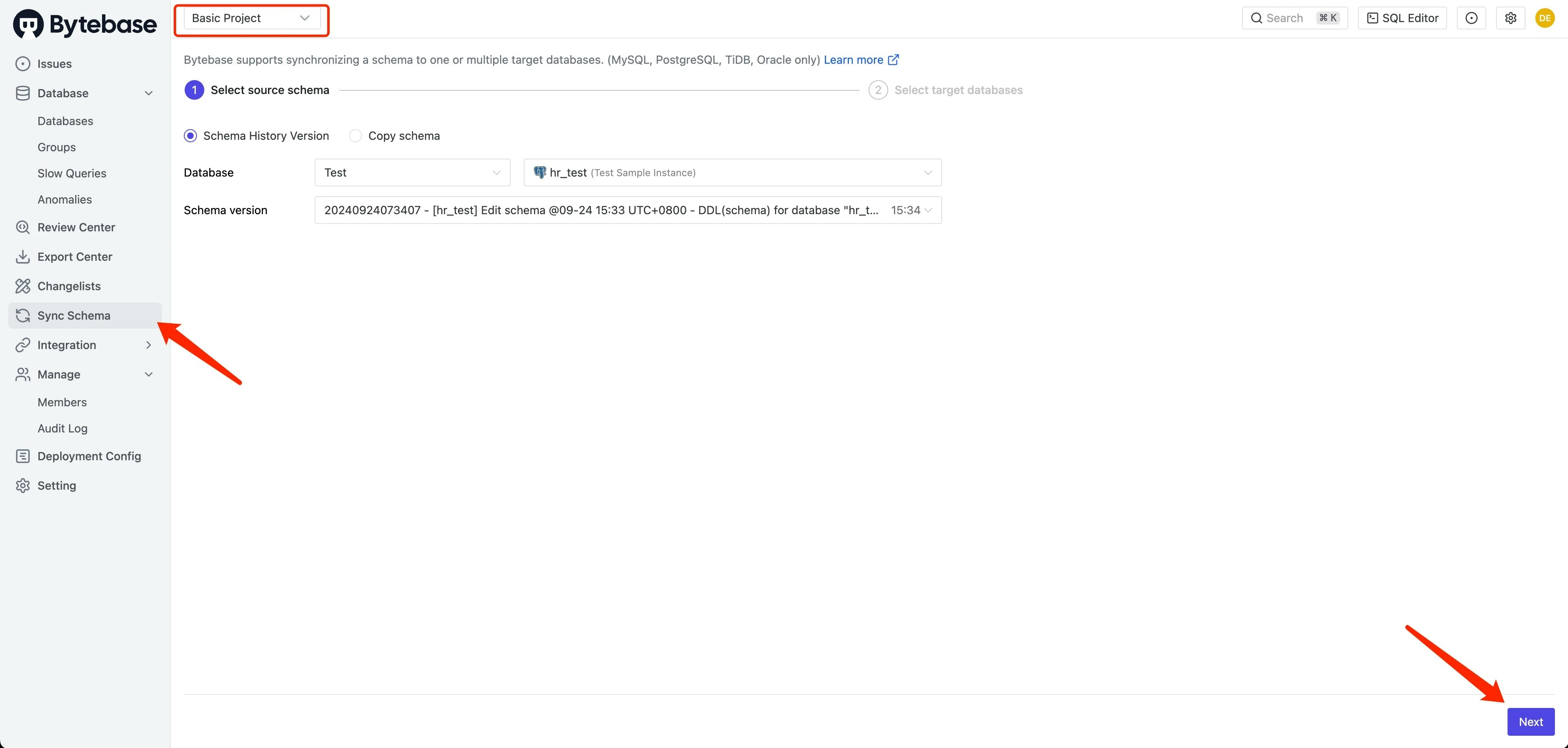
You can follow along on [Bytebase Cloud](https://cloud.bytebase.com/) or your own Bytebase instance. Open the **Basic Project** (or any project with `test` and `prod` databases) from the project selector in the upper-left to begin.
## Option 1: Streamlined rollout (Recommended)
Deploy changes to multiple environments in a single workflow:
1. Navigate to **CI/CD > Plans** and click **+ New Plan**.
2. Select **Schema Migration** as the change type.
3. Choose both `test` and `prod` databases as targets.
4. Enter your SQL changes in the editor.
5. Click **Create**, then **Ready for Review**.
6. After checks pass, go to the **Rollout** tab.
7. Click **Run** for each environment in sequence (test first, then prod).
This method ensures consistent changes across environments and maintains a clear audit trail.
## Option 2: Schema synchronization
Use this method when changes already exist in test and need to be replicated to production:
1. First, apply changes to the test database:
* Navigate to **CI/CD > Plans** and click **+ New Plan**.
* Select **Schema Migration** and choose only the `test` database.
* Enter your SQL changes and click **Create**.
* Click **Ready for Review**, then rollout the changes.
2. Synchronize test schema to production:
* Navigate to **Sync Schema** in the left sidebar.
* Select `test` as the source database.
* Choose the desired schema version and click **Next**.
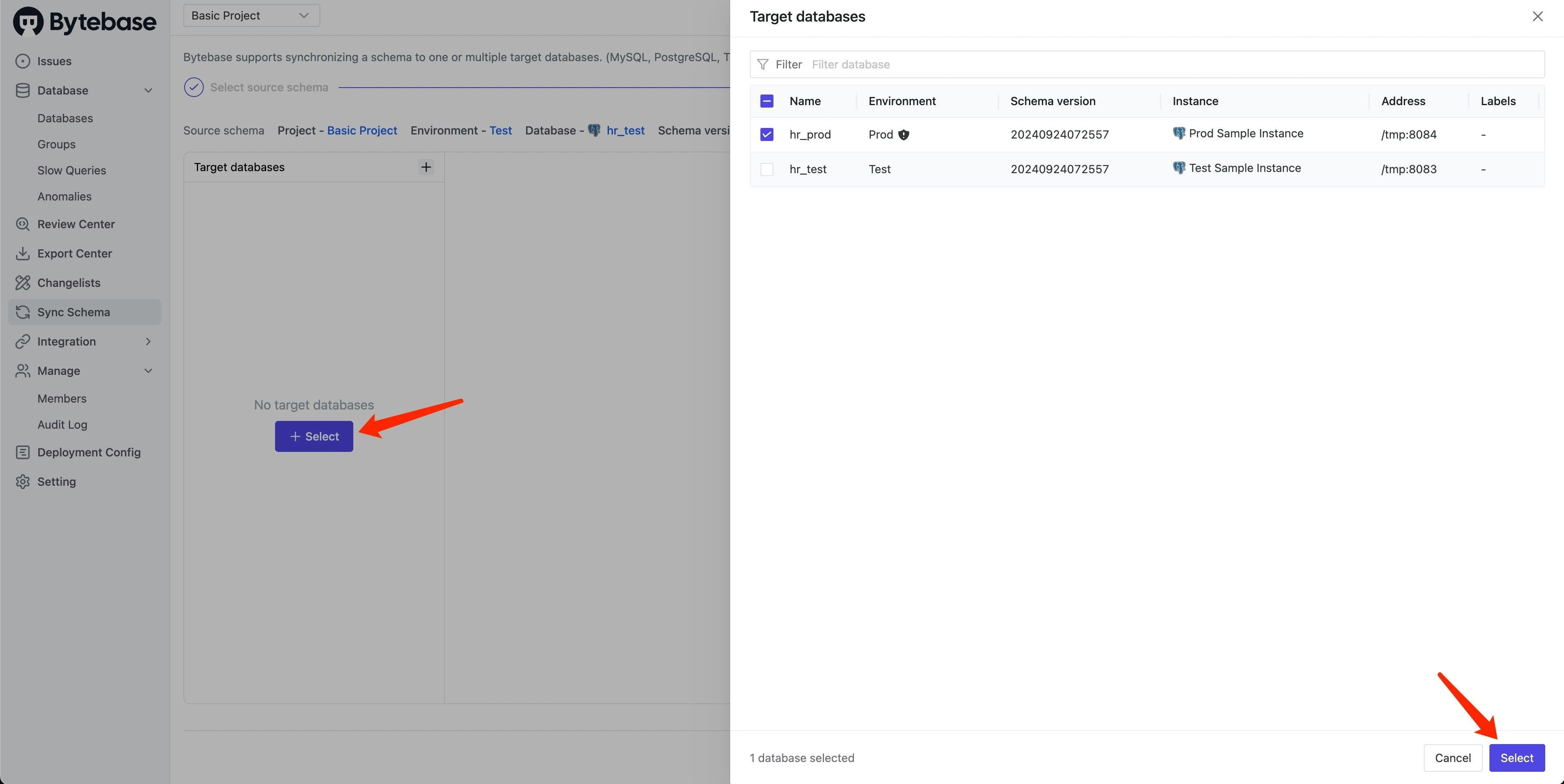
 3. Select `prod` as the target database:
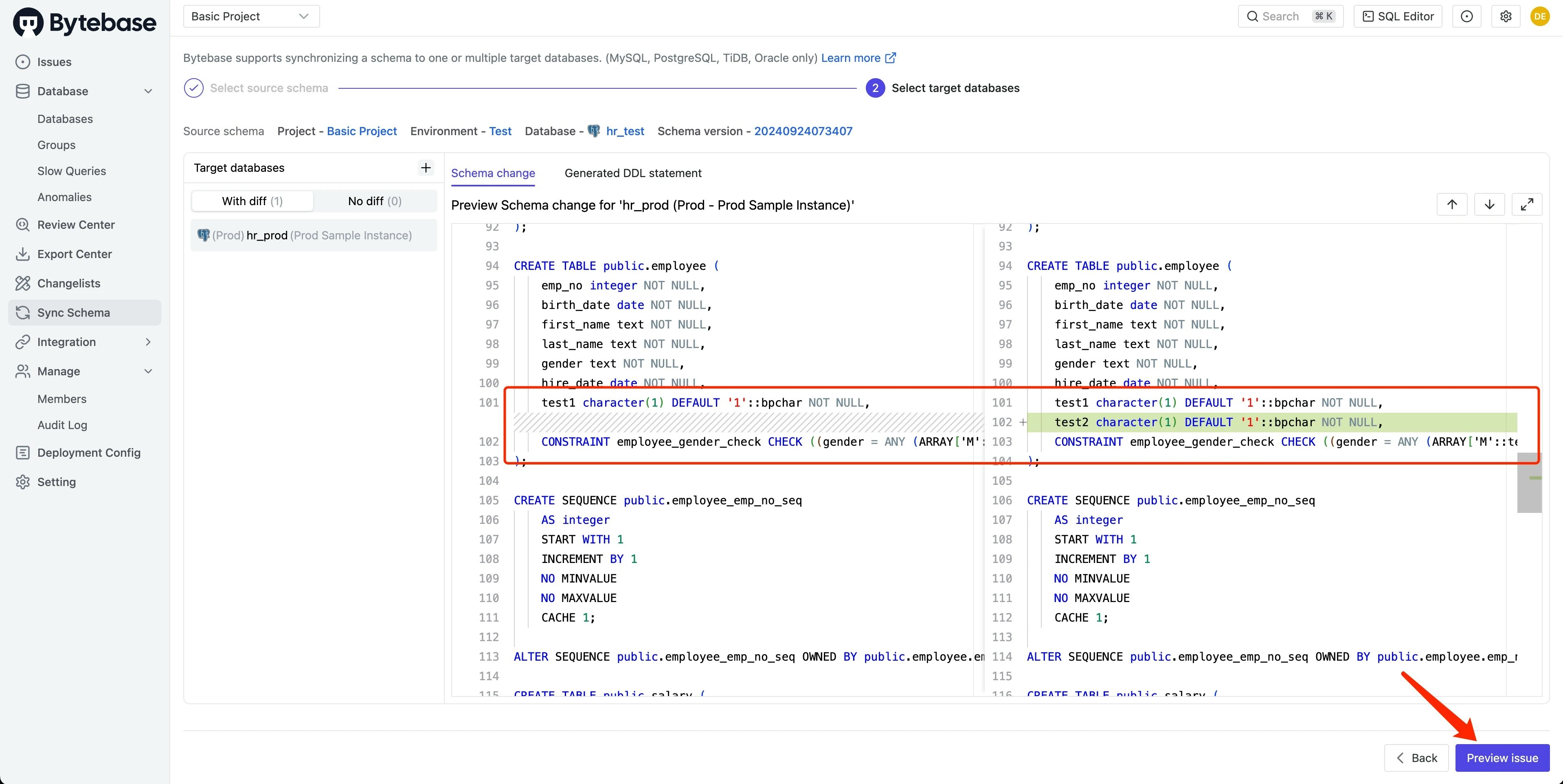
 4. Review the schema differences:
* Bytebase displays a detailed diff between test (source) and prod (target).
* Verify the changes match your expectations.
* Click **Preview issue** to proceed.
4. Review the schema differences:
* Bytebase displays a detailed diff between test (source) and prod (target).
* Verify the changes match your expectations.
* Click **Preview issue** to proceed.
 5. Deploy the changes:
* Click **Create** to generate the synchronization issue.
* Click **Ready for Review** to trigger automated checks.
* Navigate to the **Rollout** tab and click **Run**.
The schema changes are now synchronized from test to production.
## Which method to choose?
* **Streamlined rollout**: Best for new changes that need to be deployed to multiple environments.
* **Schema synchronization**: Ideal when test already has changes that need to be replicated to production.
## Related documentation
* [Batch Changes Across Environments](/change-database/batch-change/#change-databases-from-multiple-environments)
* [Schema Synchronization Guide](/change-database/synchronize-schema)
5. Deploy the changes:
* Click **Create** to generate the synchronization issue.
* Click **Ready for Review** to trigger automated checks.
* Navigate to the **Rollout** tab and click **Run**.
The schema changes are now synchronized from test to production.
## Which method to choose?
* **Streamlined rollout**: Best for new changes that need to be deployed to multiple environments.
* **Schema synchronization**: Ideal when test already has changes that need to be replicated to production.
## Related documentation
* [Batch Changes Across Environments](/change-database/batch-change/#change-databases-from-multiple-environments)
* [Schema Synchronization Guide](/change-database/synchronize-schema)