> ## Documentation Index
> Fetch the complete documentation index at: https://docs.bytebase.com/llms.txt
> Use this file to discover all available pages before exploring further.
# How to Synchronize Database Schemas
Database schema synchronization ensures consistency across multiple databases by replicating schema changes from a source to target databases. This eliminates manual SQL writing and reduces deployment errors.
Bytebase's **Sync Schema** feature enables:
* Replicating schemas to new databases
* Synchronizing changes across environments (dev → staging → prod)
* Rolling back to previous schema versions
This tutorial demonstrates three common synchronization scenarios using the Bytebase UI.
## Start Bytebase with sample data
1. Ensure Docker is running, then start the Bytebase container:
```bash theme={null}
docker run --rm --init \
--name bytebase \
--publish 8080:8080 --pull always \
--volume ~/.bytebase/data:/var/opt/bytebase \
bytebase/bytebase:latest
```
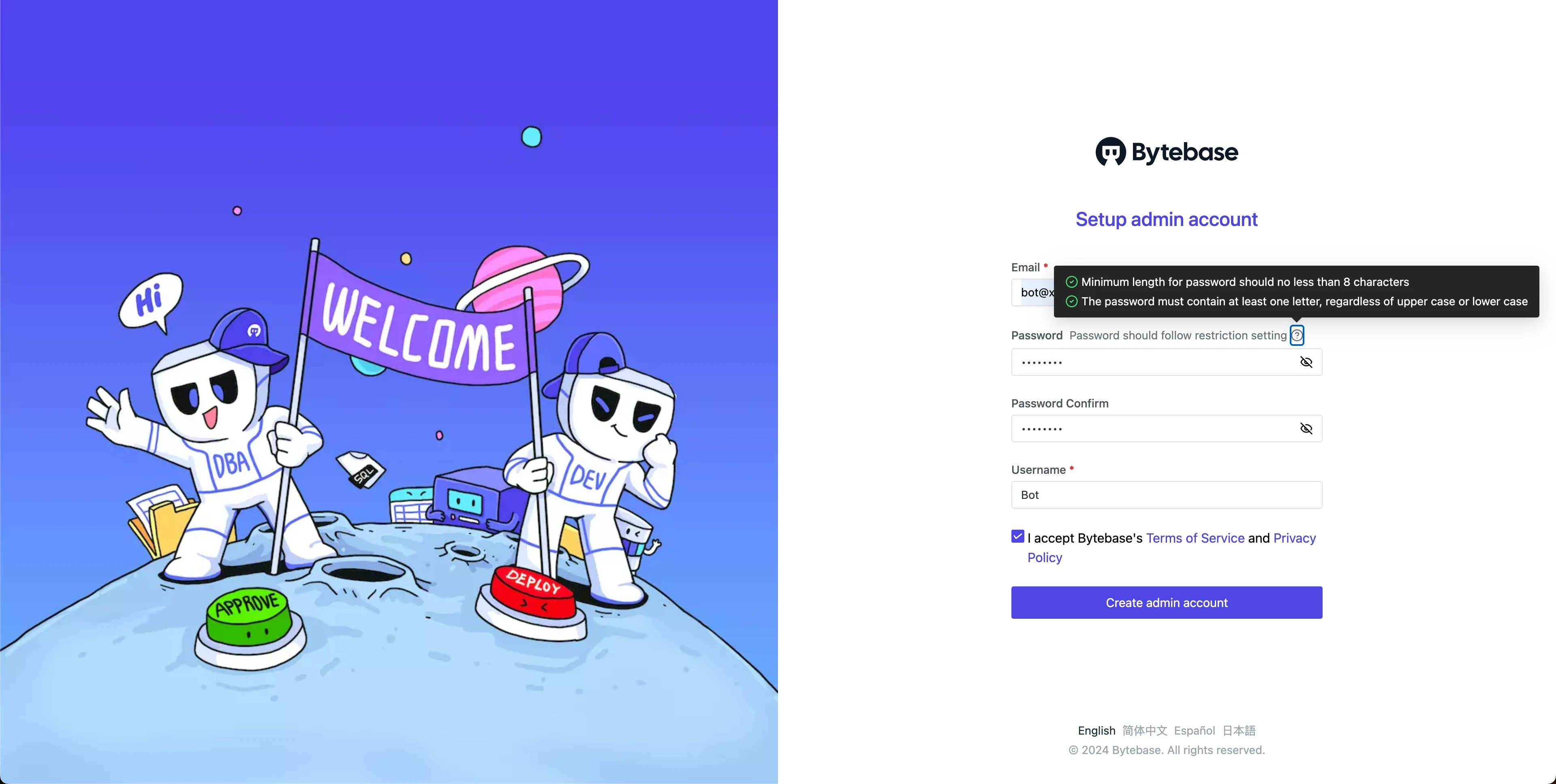
 2. Open Bytebase in [localhost:8080](http://localhost:8080/), fill in the fields and click **Create admin account**. You'll be redirected to Workspace.
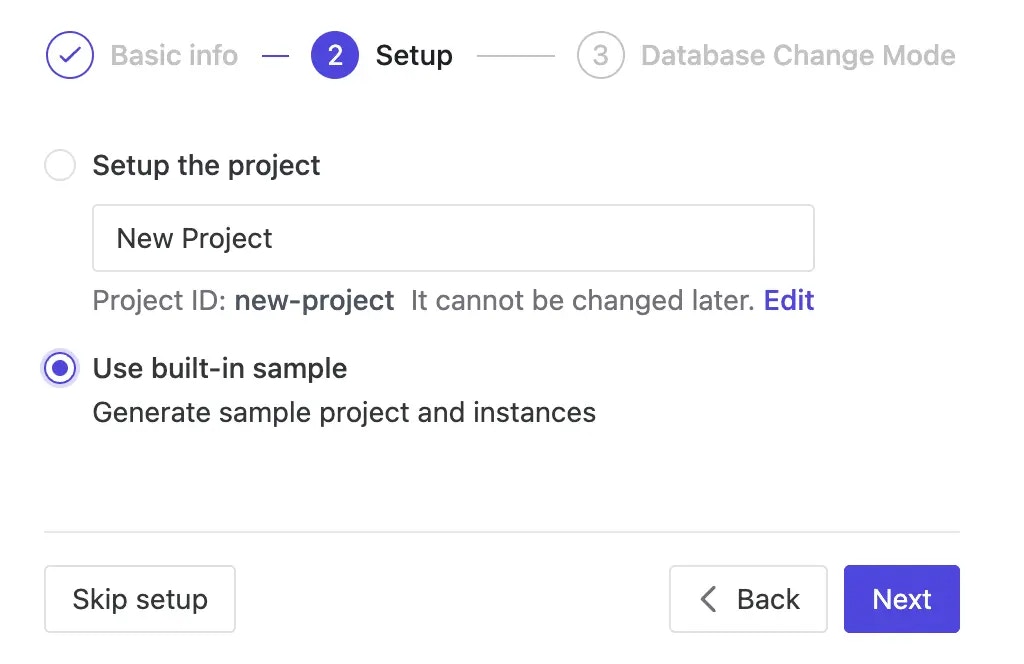
 3. During workspace setup, choose the built-in sample data.
 ## Case 1 - Sync schema to a new database
Use this when setting up a new environment or scaling out your database infrastructure.
1. In `Sample Project`, navigate to **Database > Databases**. You'll see `hr_test` (Test) and `hr_prod` (Prod) databases.
2. Click **+ New DB** and configure:
* **Name**: `hr_prod_2`
* **Environment**: `Prod`
* **Instance**: `Prod Sample Instance`
* **Database owner name**: `bbsample`
## Case 1 - Sync schema to a new database
Use this when setting up a new environment or scaling out your database infrastructure.
1. In `Sample Project`, navigate to **Database > Databases**. You'll see `hr_test` (Test) and `hr_prod` (Prod) databases.
2. Click **+ New DB** and configure:
* **Name**: `hr_prod_2`
* **Environment**: `Prod`
* **Instance**: `Prod Sample Instance`
* **Database owner name**: `bbsample`
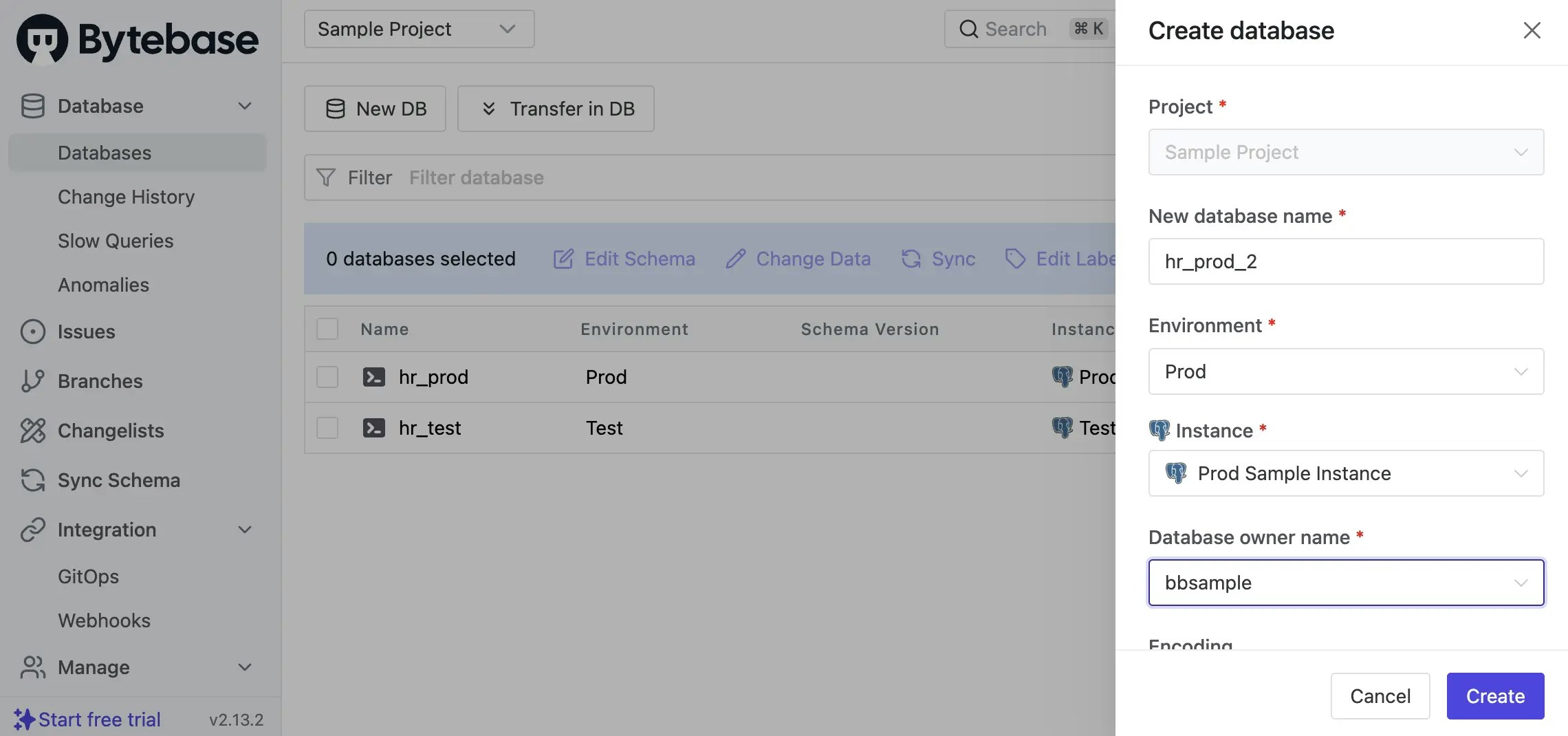 3. Click **Create**. An issue is created and executed automatically. Wait for it to complete.
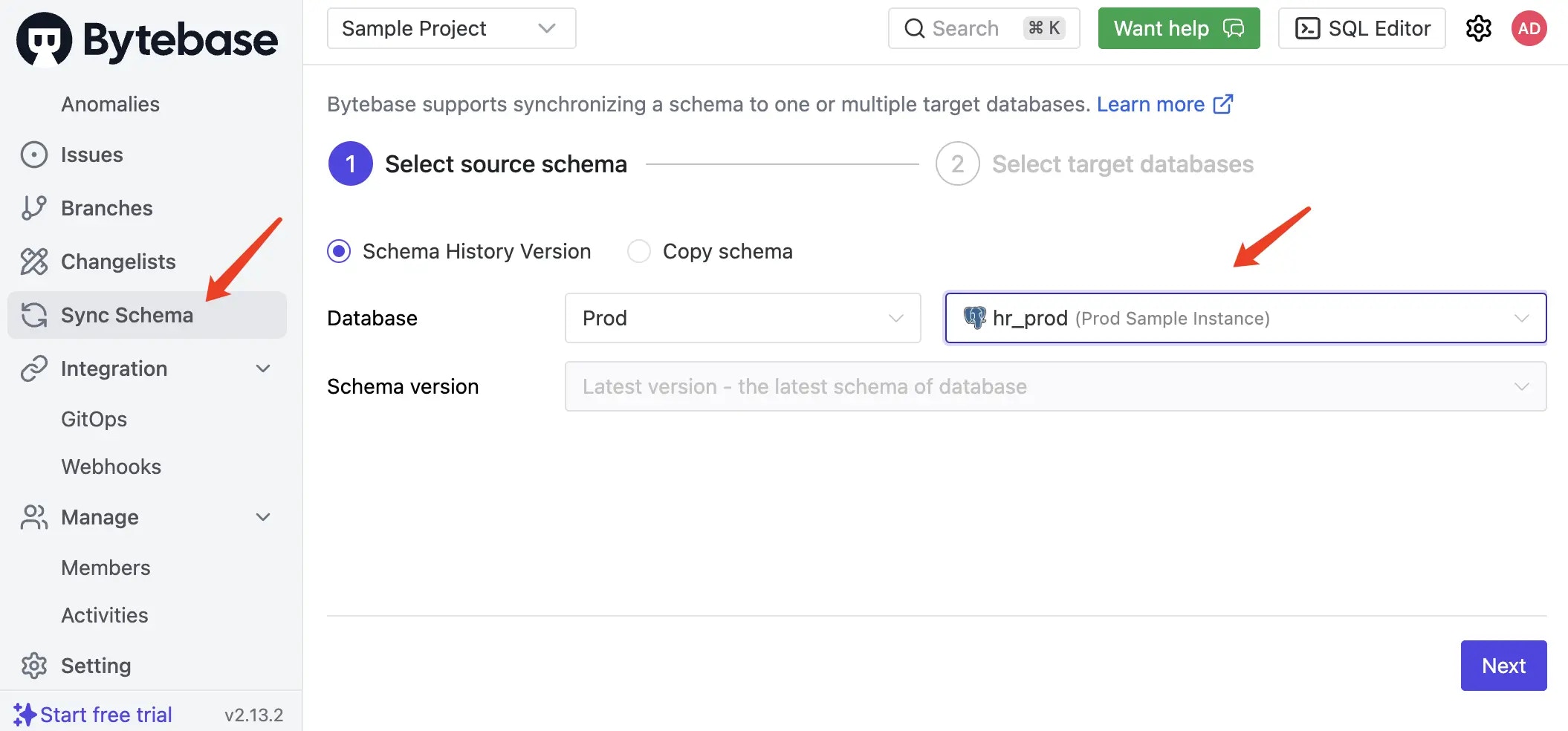
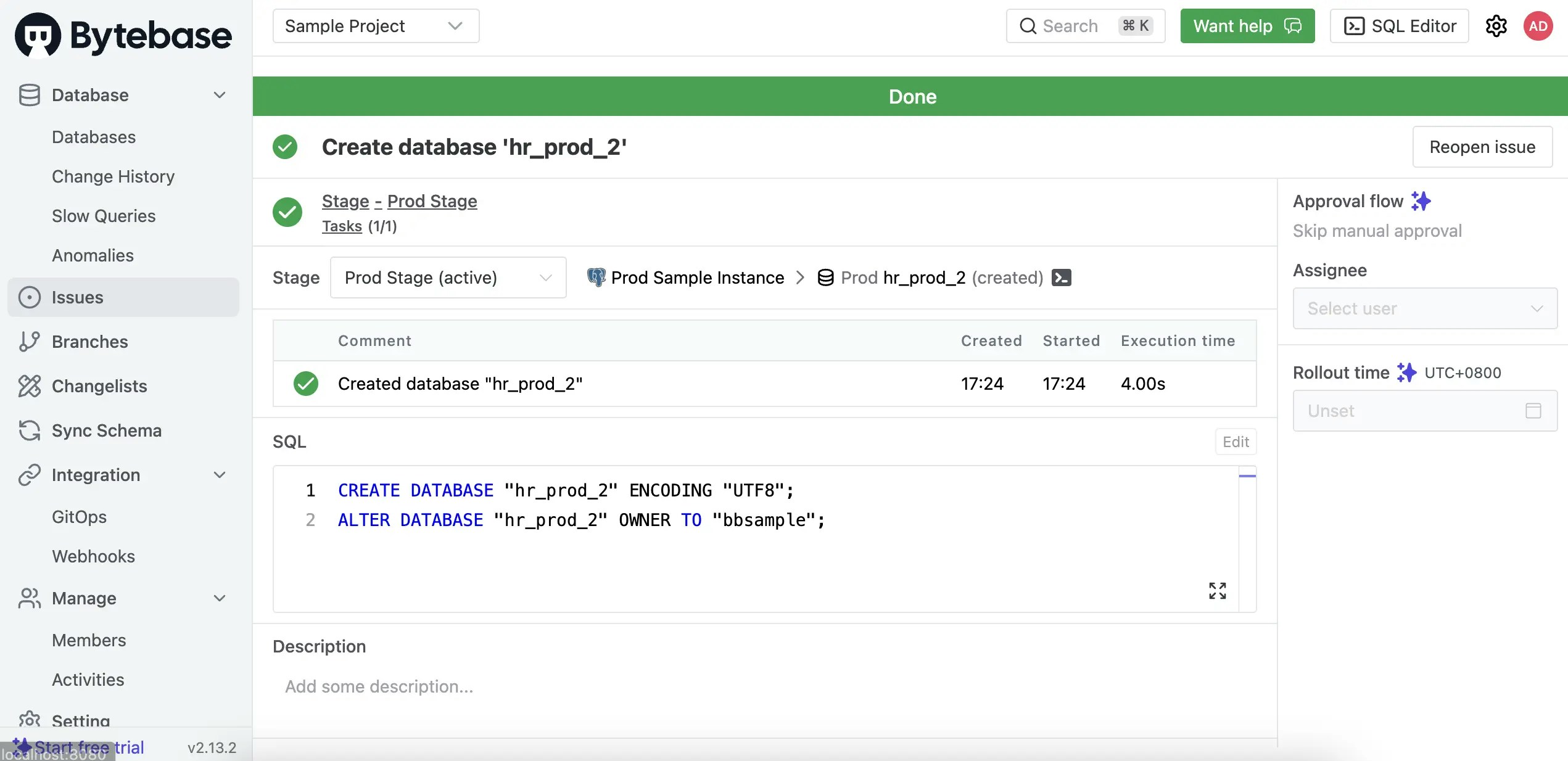 4. Click **Sync Schema** in the left sidebar. Select `hr_prod` as the source and click **Next**.
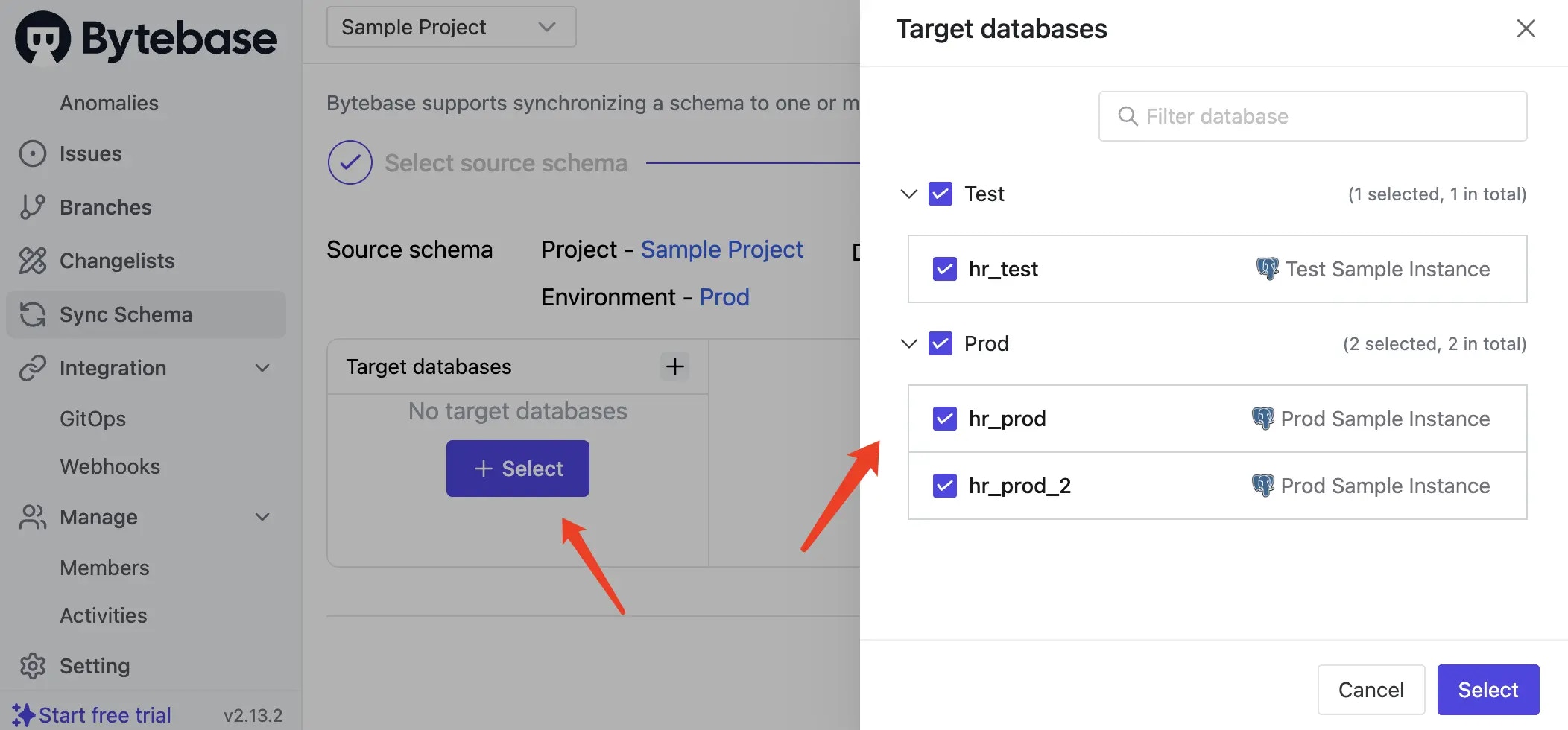
 5. Select `hr_prod_2` as the target database and click **Select**.
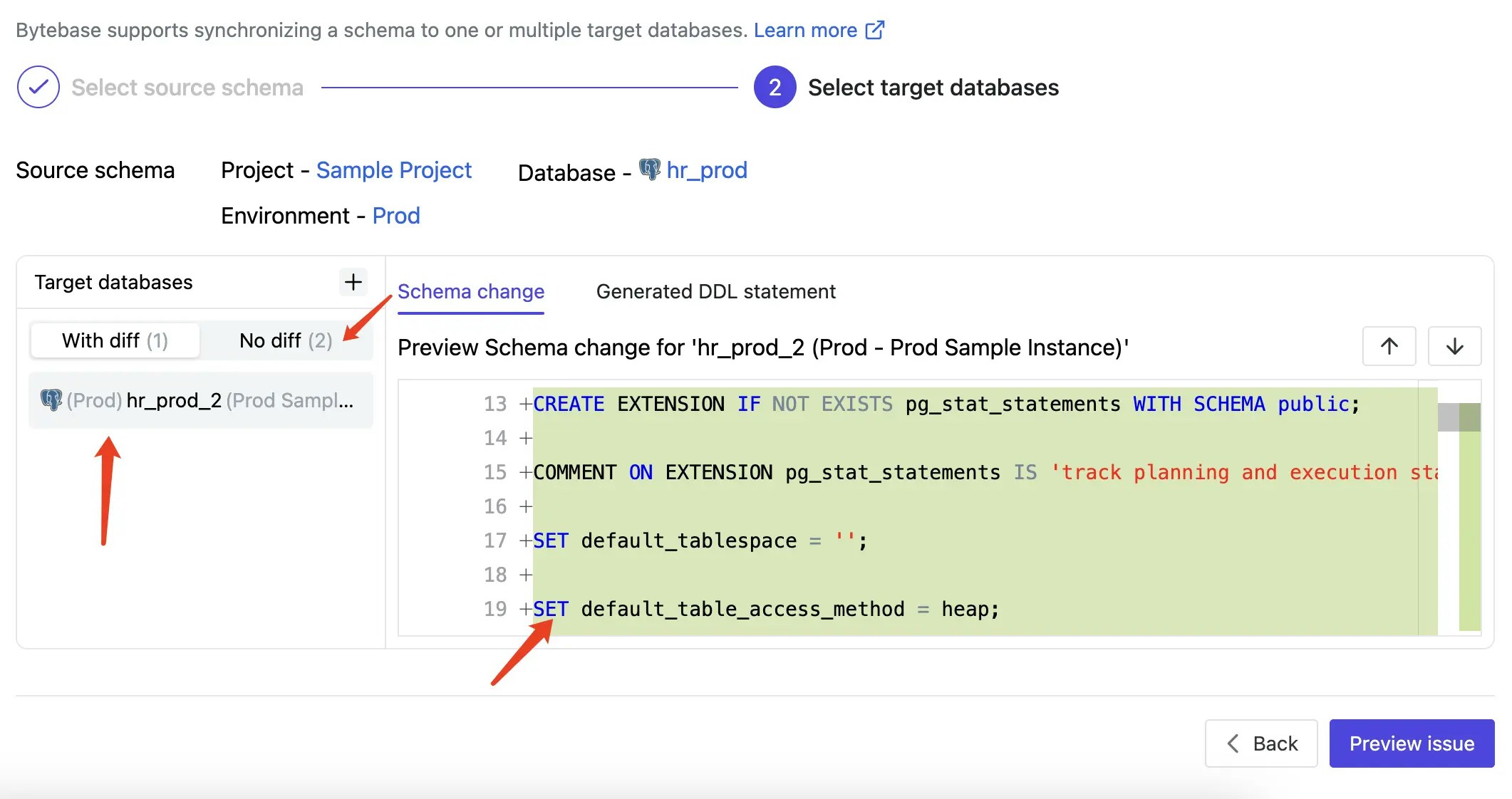
 6. Review the calculated schema differences and generated DDL statements. Click **Preview Issue**.
 7. Click **Create**, then **Ready for Review**. Navigate to **Rollout** and click **Run**. The schema is now synchronized to the new database.
## Case 2 - Sync schema from one to many
Use this for:
* Promoting changes across environments (dev → staging → prod)
* Multi-tenant SaaS deployments
* Multi-region database synchronization
1. Navigate to **CI/CD > Plans** and click **+ New Plan**.
2. Select **Schema Migration** and choose only `hr_test` as the target database.
3. Use the **Schema Editor** to add a new column:
* **Name**: `email`
* **Type**: `text`
* **Default**: `Empty string`
* **Not Null**: checked
7. Click **Create**, then **Ready for Review**. Navigate to **Rollout** and click **Run**. The schema is now synchronized to the new database.
## Case 2 - Sync schema from one to many
Use this for:
* Promoting changes across environments (dev → staging → prod)
* Multi-tenant SaaS deployments
* Multi-region database synchronization
1. Navigate to **CI/CD > Plans** and click **+ New Plan**.
2. Select **Schema Migration** and choose only `hr_test` as the target database.
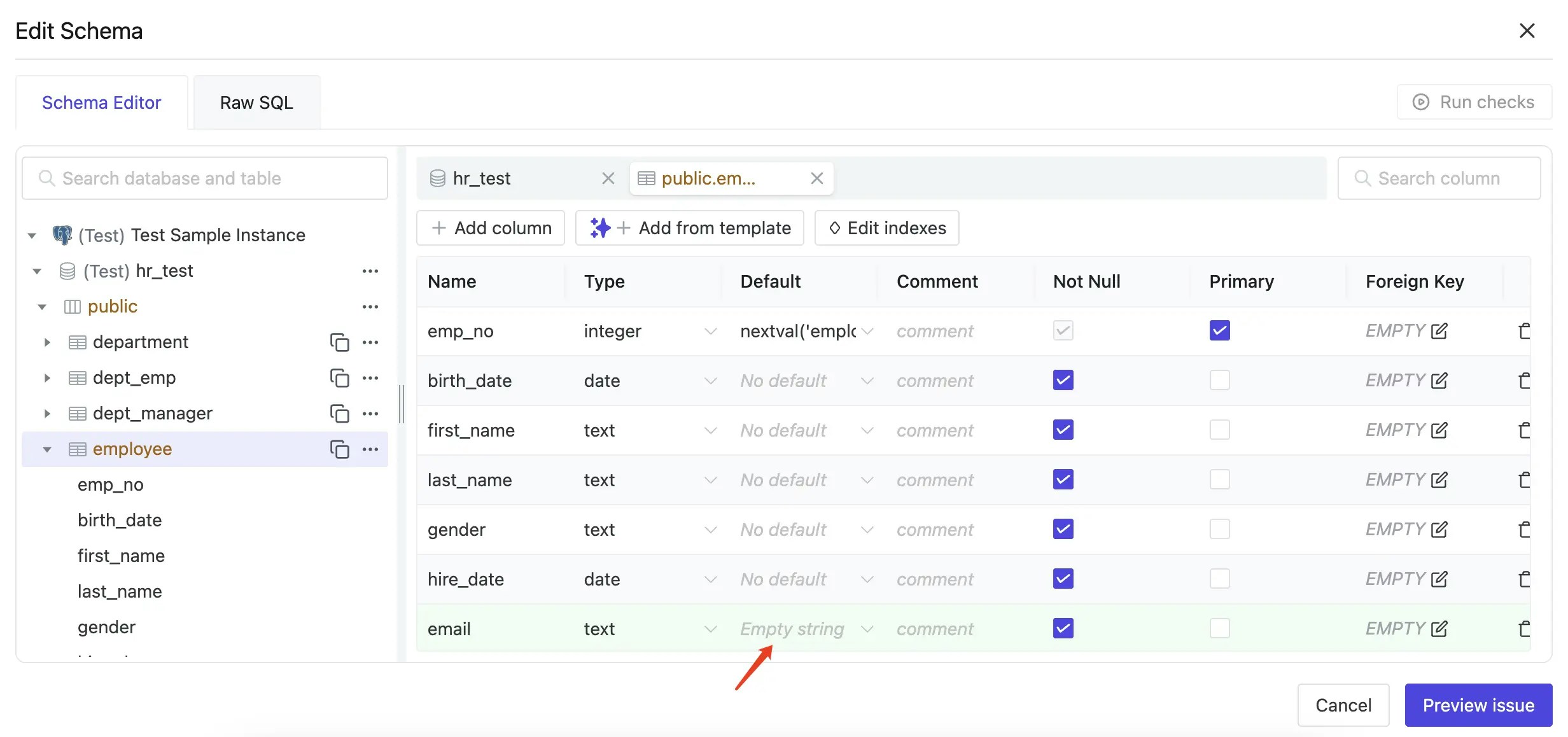
3. Use the **Schema Editor** to add a new column:
* **Name**: `email`
* **Type**: `text`
* **Default**: `Empty string`
* **Not Null**: checked
 4. Click **Create**, then **Ready for Review**. Go to **Rollout** and click **Run**. Wait for completion.
5. Click **Sync Schema** in the left sidebar. Select `hr_test` as the source and click **Next**.
4. Click **Create**, then **Ready for Review**. Go to **Rollout** and click **Run**. Wait for completion.
5. Click **Sync Schema** in the left sidebar. Select `hr_test` as the source and click **Next**.
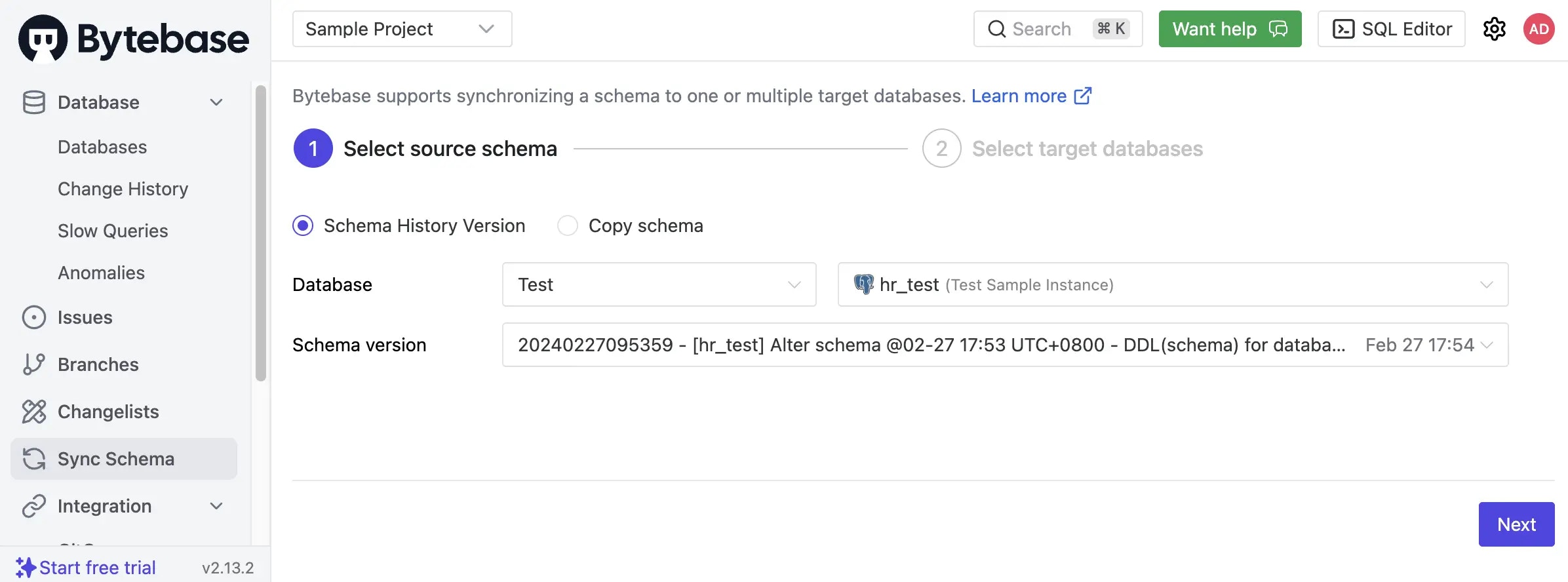 6. Select both `hr_prod` and `hr_prod_2` as targets. Review the schema differences and click **Preview issue**.
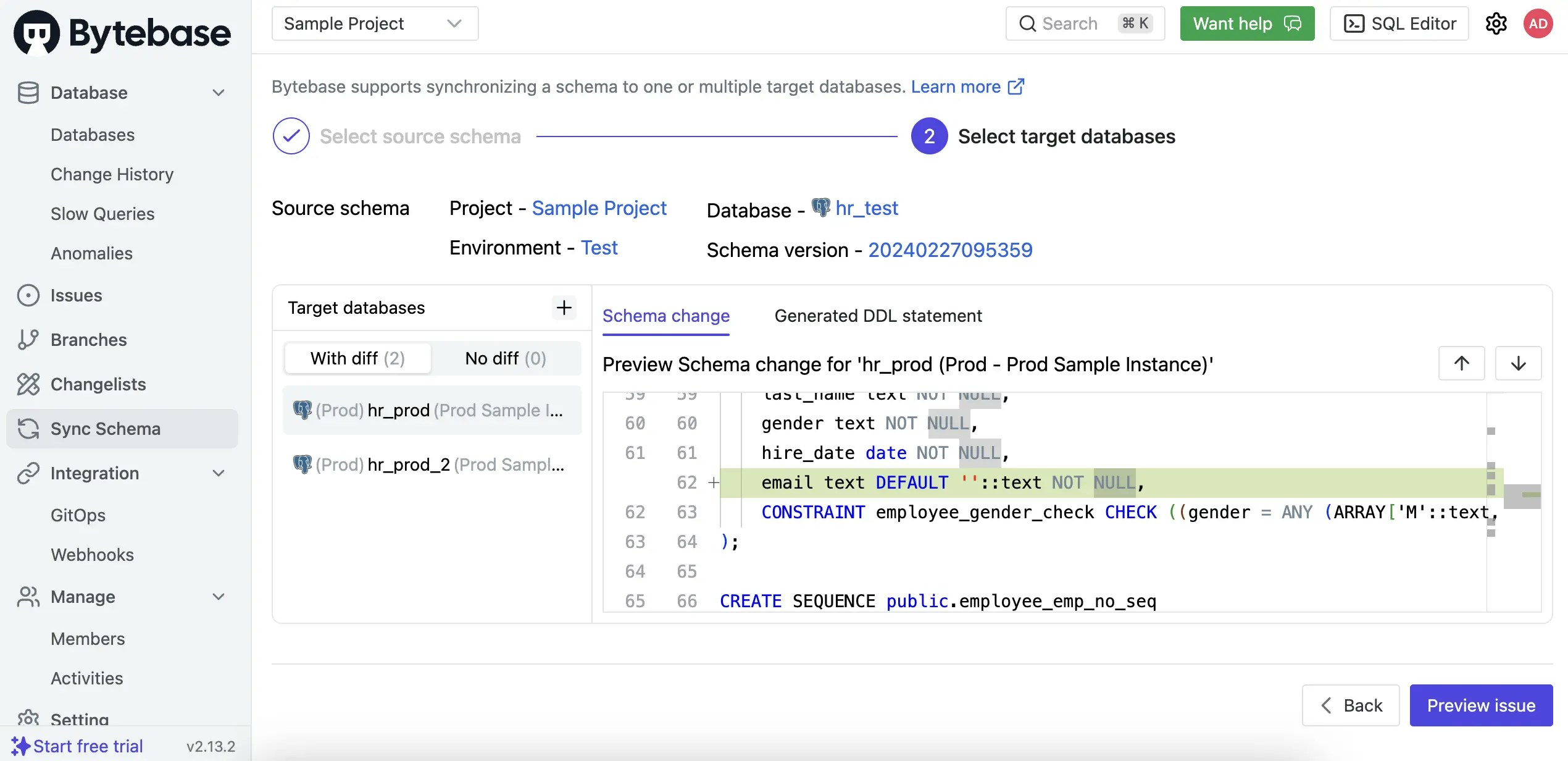 7. Click **Create**, then **Ready for Review**. Navigate to **Rollout** and click **Run** for each stage. The `email` column is now synchronized to both production databases.
## Case 3 - Rollback to previous schema versions
Use schema synchronization to roll back databases to any previous version from their migration history.
1. Navigate to **Sync Schema** and select `hr_test` as the source database.
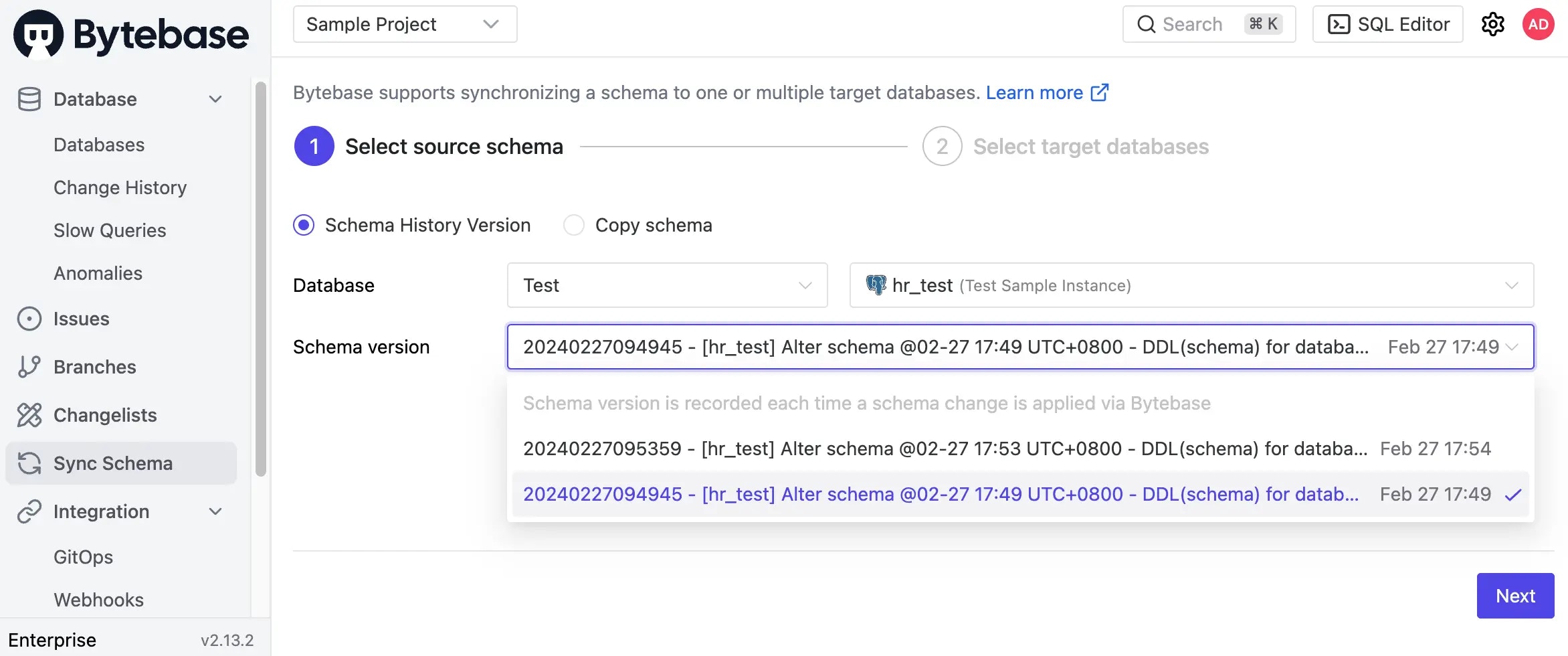
2. Select a previous schema version from the dropdown and click **Next**.
7. Click **Create**, then **Ready for Review**. Navigate to **Rollout** and click **Run** for each stage. The `email` column is now synchronized to both production databases.
## Case 3 - Rollback to previous schema versions
Use schema synchronization to roll back databases to any previous version from their migration history.
1. Navigate to **Sync Schema** and select `hr_test` as the source database.
2. Select a previous schema version from the dropdown and click **Next**.
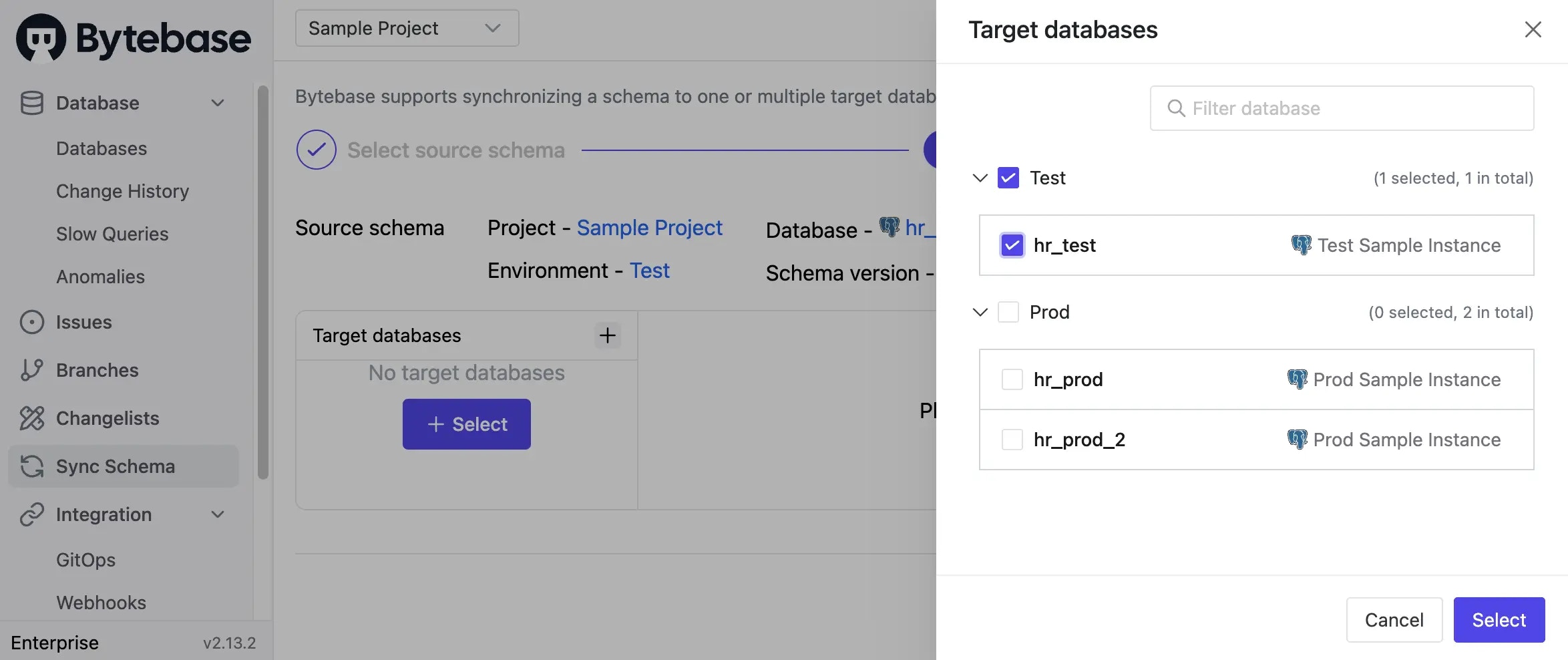
 3. Select `hr_test` itself as the target (rolling back the same database) and click **Select**.
 4. Review the rollback changes. The DDL will show what needs to be removed or modified. Click **Preview Issue**.
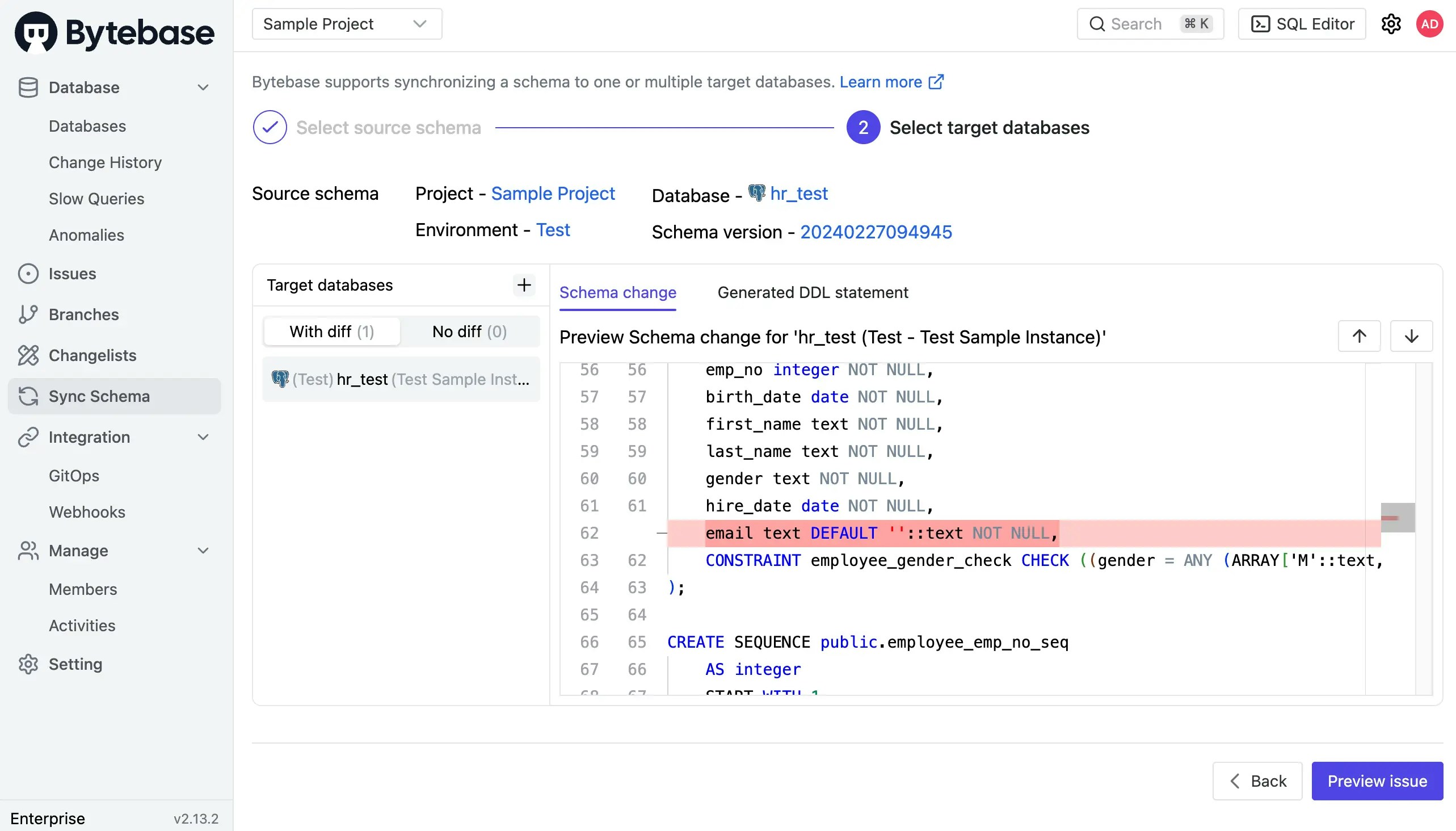 5. Click **Create**, then **Ready for Review**. Navigate to **Rollout** and click **Run**. The schema successfully rolls back to the selected version.
## Summary
You've learned how to:
* Synchronize schemas to new databases
* Propagate changes across multiple environments
* Roll back to previous schema versions
## Next steps
* Learn about [batch changes](/change-database/batch-change/)
* Explore [GitOps integration](/gitops/overview/)
5. Click **Create**, then **Ready for Review**. Navigate to **Rollout** and click **Run**. The schema successfully rolls back to the selected version.
## Summary
You've learned how to:
* Synchronize schemas to new databases
* Propagate changes across multiple environments
* Roll back to previous schema versions
## Next steps
* Learn about [batch changes](/change-database/batch-change/)
* Explore [GitOps integration](/gitops/overview/)