> ## Documentation Index
> Fetch the complete documentation index at: https://docs.bytebase.com/llms.txt
> Use this file to discover all available pages before exploring further.
# Manage Data Masking with Terraform
This tutorial is part of the **Bytebase Terraform Provider** series:
* Part 1: [Manage Environments with Terraform](/tutorials/manage-environments-with-terraform) - Set up environments with policies
* Part 2: [Manage Databases with Terraform](/tutorials/manage-databases-with-terraform) - Register database instances
* Part 3: [Manage Projects with Terraform](/tutorials/manage-projects-with-terraform) - Organize databases into projects
* Part 4: [Manage Bytebase Settings with Terraform](/tutorials/manage-general-settings-with-terraform) - Configure workspace profile and approval policies
* Part 5: [Manage SQL Review Rules with Terraform](/tutorials/manage-sql-review-rules-with-terraform) - Define SQL review policies
* Part 6: [Manage Users and Groups with Terraform](/tutorials/manage-users-and-groups-with-terraform) - Configure users and groups
* Part 7: [Manage Database Access Control with Terraform](/tutorials/manage-database-access-control-with-terraform) - Grant database permissions
* Part 8: Manage Data Masking with Terraform 👈
This tutorial series uses separate Terraform files for better organization. Files are numbered by tutorial part and sub-step (e.g., [1-1-env-setting.tf](https://github.com/bytebase/terraform-provider-bytebase/blob/main/tutorials/1-1-env-setting.tf), [1-2-env-policy-rollout.tf](https://github.com/bytebase/terraform-provider-bytebase/blob/main/tutorials/1-2-env-policy-rollout.tf) for Part 1, [2-instances.tf](https://github.com/bytebase/terraform-provider-bytebase/blob/main/tutorials/2-instances.tf) for Part 2, etc.). Terraform automatically handles dependencies between files.
## What You'll Learn
* **Define** semantic types with various masking algorithms
* **Configure** data classification levels and categories
* **Create** global masking policies that apply workspace-wide
* **Set up** database-specific column masking
* **Grant** masking exemptions for specific users
## Prerequisites
Before starting this tutorial, ensure you have:
* Completed [Part 7: Manage Database Access Control with Terraform](/tutorials/manage-database-access-control-with-terraform)
* Bytebase running with service account configured
* Your Terraform files from the previous tutorials
## Setup
From the previous tutorials, you should have:
* Database instances and projects configured
* Users and access controls set up
* Production database `hr_prod` with employee data
## Understanding Data Masking in Bytebase
Bytebase employs two concepts for [data masking](/security/data-masking/overview):
* **Semantic Types**: Define masking algorithms (e.g., full mask, partial mask)
* **Classifications**: Group data by sensitivity levels (e.g., Level 1, Level 2)
**Classifications MUST be mapped to semantic types for masking to work:**
* Classifications define sensitivity levels (Level 1, Level 2, etc.) but cannot mask data by themselves
* Semantic types define the actual masking algorithms (full-mask, range-mask, etc.)
You must map classifications to semantic types for masking to occur (e.g., Level 2 → full-mask)
You can apply masking in two ways:
1. **Global masking rules**: Define workspace-wide rules that map to semantic types
* Match by column names or patterns → semantic type
* Match by classification levels → semantic type
2. **Column-level masking**: Apply directly to specific columns
* Assign semantic types directly to columns
* Assign classifications to columns (which then use semantic types via global rules)
## Configure Data Masking
## Step 1: Define Semantic Types
| | |
| ------------------ | -------------------------------------------------------------------------------------------------------------------------- |
| Terraform resource | [bytebase\_setting](https://registry.terraform.io/providers/bytebase/bytebase/latest/docs/resources/setting) |
| Sample file | [8-1-semantic-types.tf](https://github.com/bytebase/terraform-provider-bytebase/blob/main/tutorials/8-1-semantic-types.tf) |
Create `8-1-semantic-types.tf` to define masking algorithms:
```hcl 8-1-semantic-types.tf theme={null}
resource "bytebase_setting" "semantic_types" {
name = "settings/SEMANTIC_TYPES"
semantic_types {
id = "full-mask"
title = "Full mask"
algorithm {
full_mask {
substitution = "***"
}
}
}
semantic_types {
id = "date-year-mask"
title = "Date year mask"
algorithm {
range_mask {
slices {
start = 0
end = 4
substitution = "****"
}
}
}
}
semantic_types {
id = "name-first-letter-only"
title = "Name first letter only"
algorithm {
inner_outer_mask {
prefix_len = 1
suffix_len = 0
substitution = "*"
type = "INNER"
}
}
}
}
```
## Step 2: Define Data Classification
| | |
| ------------------ | -------------------------------------------------------------------------------------------------------------------------- |
| Terraform resource | [bytebase\_setting](https://registry.terraform.io/providers/bytebase/bytebase/latest/docs/resources/setting) |
| Sample file | [8-2-classification.tf](https://github.com/bytebase/terraform-provider-bytebase/blob/main/tutorials/8-2-classification.tf) |
Create `8-2-classification.tf` to organize data by sensitivity levels:
```hcl 8-2-classification.tf theme={null}
resource "bytebase_setting" "classification" {
name = "settings/DATA_CLASSIFICATION"
classification {
id = "classification-example"
title = "Classification Example"
levels {
title = "Level 1"
level = 1
}
levels {
title = "Level 2"
level = 2
}
classifications {
id = "1"
title = "Basic"
level = 1
}
classifications {
id = "1-1"
title = "User basic"
level = 1
}
classifications {
id = "1-2"
title = "User contact info"
level = 2
}
classifications {
id = "2"
title = "Employment"
level = 1
}
classifications {
id = "2-1"
title = "Employment info"
level = 2
}
}
}
```
## Step 3: Apply Basic Configuration
Apply the semantic types and classification configuration:
```bash theme={null}
terraform plan
terraform apply
```
Verify in Bytebase:
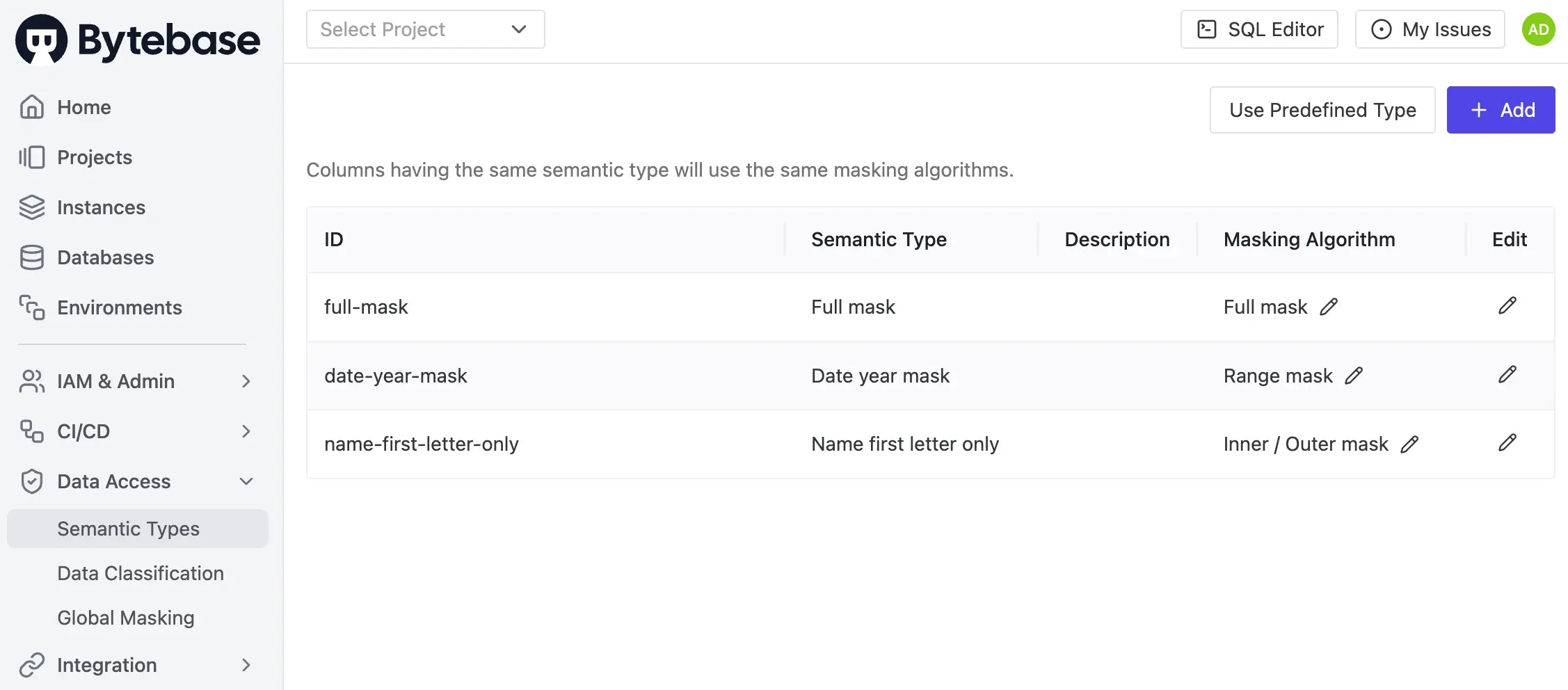
1. Click **Data Access > Semantic Types** on the left sidebar. You should see three masking types configured.
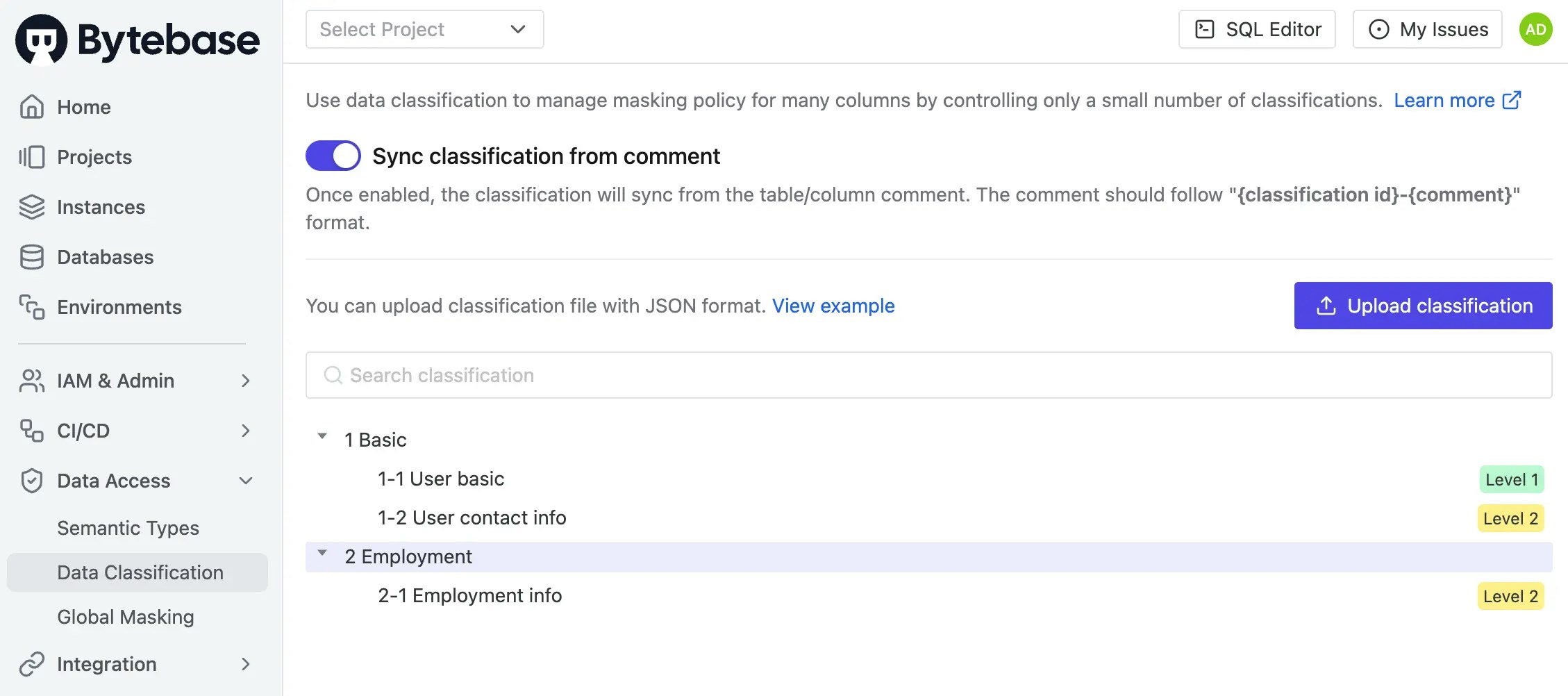
 2. Click **Data Access > Data Classification** on the left sidebar. You should see the classification hierarchy with two levels. Note that Level 2 is marked as more sensitive.
 ## Step 4: Apply Global Masking Policy
Now that you've defined your masking methods, apply them workspace-wide using a global policy.
Classification levels must be mapped to semantic types to perform actual masking. Classification
defines the sensitivity level, while semantic types define the masking algorithm.
| | |
| ------------------ | ------------------------------------------------------------------------------------------------------------------------------------ |
| Terraform resource | [bytebase\_policy](https://registry.terraform.io/providers/bytebase/bytebase/latest/docs/resources/policy) |
| Sample file | [8-3-global-data-masking.tf](https://github.com/bytebase/terraform-provider-bytebase/blob/main/tutorials/8-3-global-data-masking.tf) |
Create `8-3-global-data-masking.tf` to apply workspace-wide masking rules:
```hcl 8-3-global-data-masking.tf theme={null}
resource "bytebase_policy" "global_masking_policy" {
depends_on = [
bytebase_instance.prod,
bytebase_setting.environments
]
# parent defaults to the current workspace when omitted.
type = "MASKING_RULE"
enforce = true
inherit_from_parent = false
global_masking_policy {
rules {
condition = "resource.column_name == \"birth_date\""
id = "birth-date-mask"
semantic_type = "date-year-mask"
title = "Mask Birth Date Year"
}
rules {
condition = "resource.column_name == \"last_name\""
id = "last-name-first-letter-only"
semantic_type = "name-first-letter-only"
title = "Last Name Only Show First Letter"
}
rules {
condition = "resource.classification_level == 2"
id = "classification-level-2"
semantic_type = "full-mask" # Maps Level 2 classification to full-mask semantic type
title = "Full Mask for Classification Level 2"
}
}
}
```
Apply the global policy:
```bash theme={null}
terraform plan
terraform apply
```
Verify in Bytebase:
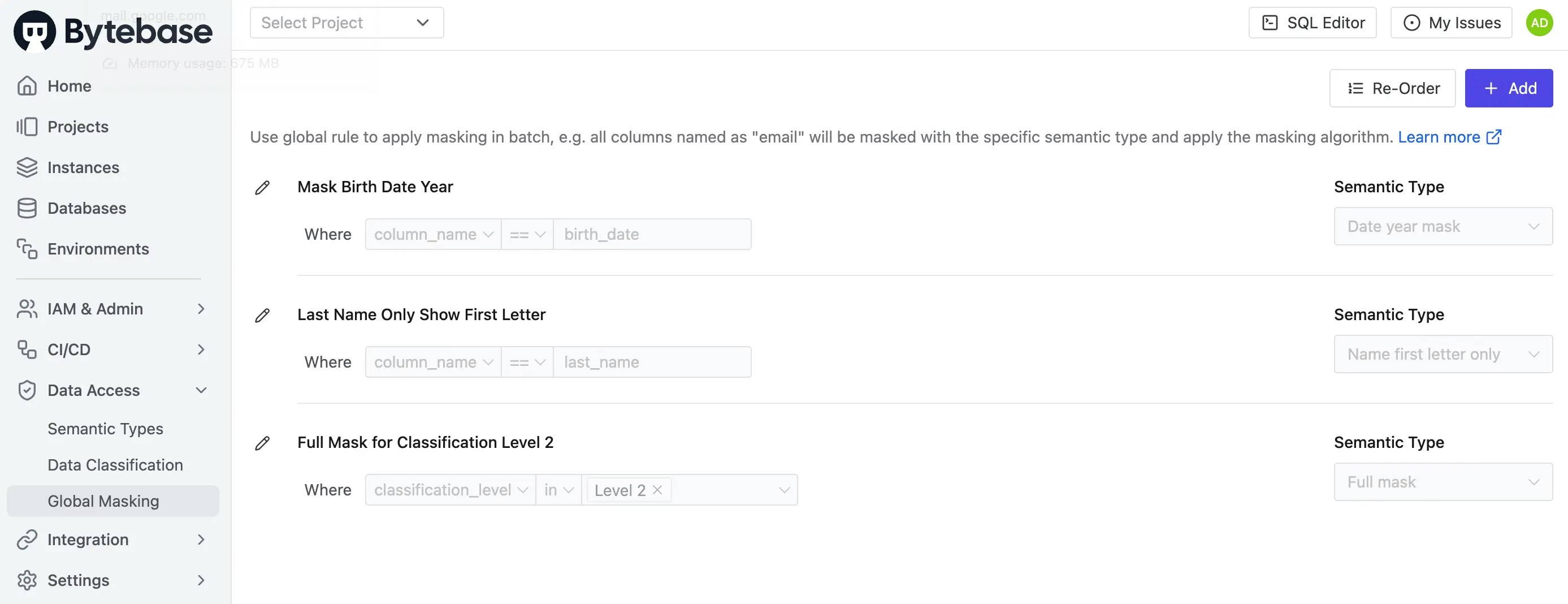
1. Click **Data Access > Global Masking**. You should see the global policy with three conditions with corresponding semantic types.
## Step 4: Apply Global Masking Policy
Now that you've defined your masking methods, apply them workspace-wide using a global policy.
Classification levels must be mapped to semantic types to perform actual masking. Classification
defines the sensitivity level, while semantic types define the masking algorithm.
| | |
| ------------------ | ------------------------------------------------------------------------------------------------------------------------------------ |
| Terraform resource | [bytebase\_policy](https://registry.terraform.io/providers/bytebase/bytebase/latest/docs/resources/policy) |
| Sample file | [8-3-global-data-masking.tf](https://github.com/bytebase/terraform-provider-bytebase/blob/main/tutorials/8-3-global-data-masking.tf) |
Create `8-3-global-data-masking.tf` to apply workspace-wide masking rules:
```hcl 8-3-global-data-masking.tf theme={null}
resource "bytebase_policy" "global_masking_policy" {
depends_on = [
bytebase_instance.prod,
bytebase_setting.environments
]
# parent defaults to the current workspace when omitted.
type = "MASKING_RULE"
enforce = true
inherit_from_parent = false
global_masking_policy {
rules {
condition = "resource.column_name == \"birth_date\""
id = "birth-date-mask"
semantic_type = "date-year-mask"
title = "Mask Birth Date Year"
}
rules {
condition = "resource.column_name == \"last_name\""
id = "last-name-first-letter-only"
semantic_type = "name-first-letter-only"
title = "Last Name Only Show First Letter"
}
rules {
condition = "resource.classification_level == 2"
id = "classification-level-2"
semantic_type = "full-mask" # Maps Level 2 classification to full-mask semantic type
title = "Full Mask for Classification Level 2"
}
}
}
```
Apply the global policy:
```bash theme={null}
terraform plan
terraform apply
```
Verify in Bytebase:
1. Click **Data Access > Global Masking**. You should see the global policy with three conditions with corresponding semantic types.
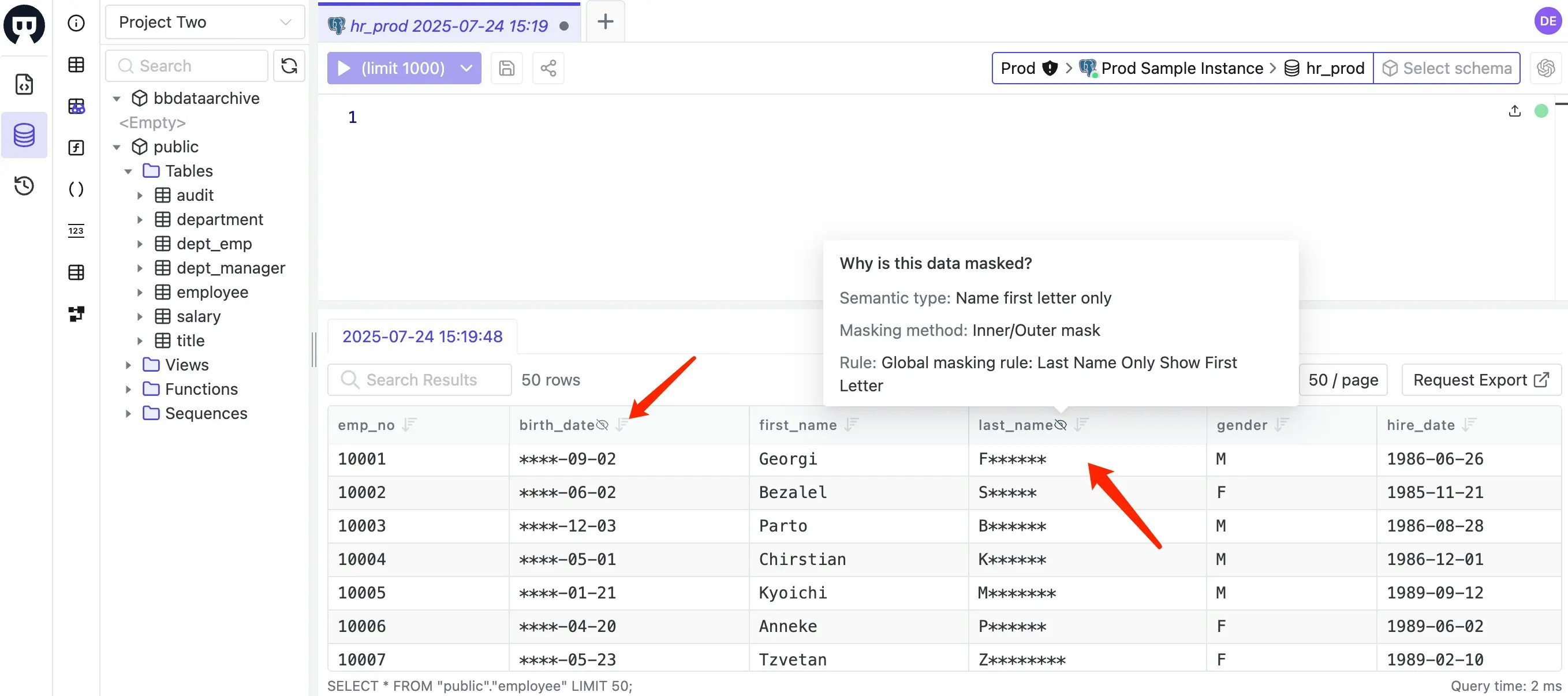
 2. Log in as Developer 1 (`dev1@example.com`), then go to **SQL Editor** to access `hr_prod`. Double-click `employee` table on the left. `birth_date` has `Mask Birth Date Year` semantic type, and `last_name` has `Last Name Only Show First Letter`. Hovering the eye icon will show the masking reason.
 ## Step 5: Apply Column-Specific Masking
| | |
| ------------------ | ------------------------------------------------------------------------------------------------------------------------------ |
| Terraform resource | [bytebase\_database](https://registry.terraform.io/providers/bytebase/bytebase/latest/docs/resources/database) |
| Sample file | [8-4-database-masking.tf](https://github.com/bytebase/terraform-provider-bytebase/blob/main/tutorials/8-4-database-masking.tf) |
Create `8-4-database-masking.tf` to apply masking to specific columns:
* Column `from_date` is assigned the semantic type `date-year-mask`
* Column `amount` is assigned the classification `2-1` (Employment info)
```hcl 8-4-database-masking.tf theme={null}
resource "bytebase_database" "database" {
depends_on = [
bytebase_instance.prod,
bytebase_project.project-two,
bytebase_setting.environments
]
name = "instances/prod-sample-instance/databases/hr_prod"
project = bytebase_project.project-two.name
environment = bytebase_setting.environments.environment_setting[0].environment[1].name
catalog {
schemas {
name = "public"
tables {
name = "salary"
columns {
name = "from_date"
semantic_type = "date-year-mask"
}
columns {
name = "amount"
classification = "2-1"
}
}
}
}
}
```
Apply the column-specific masking:
```bash theme={null}
terraform plan
terraform apply
```
Verify in Bytebase:
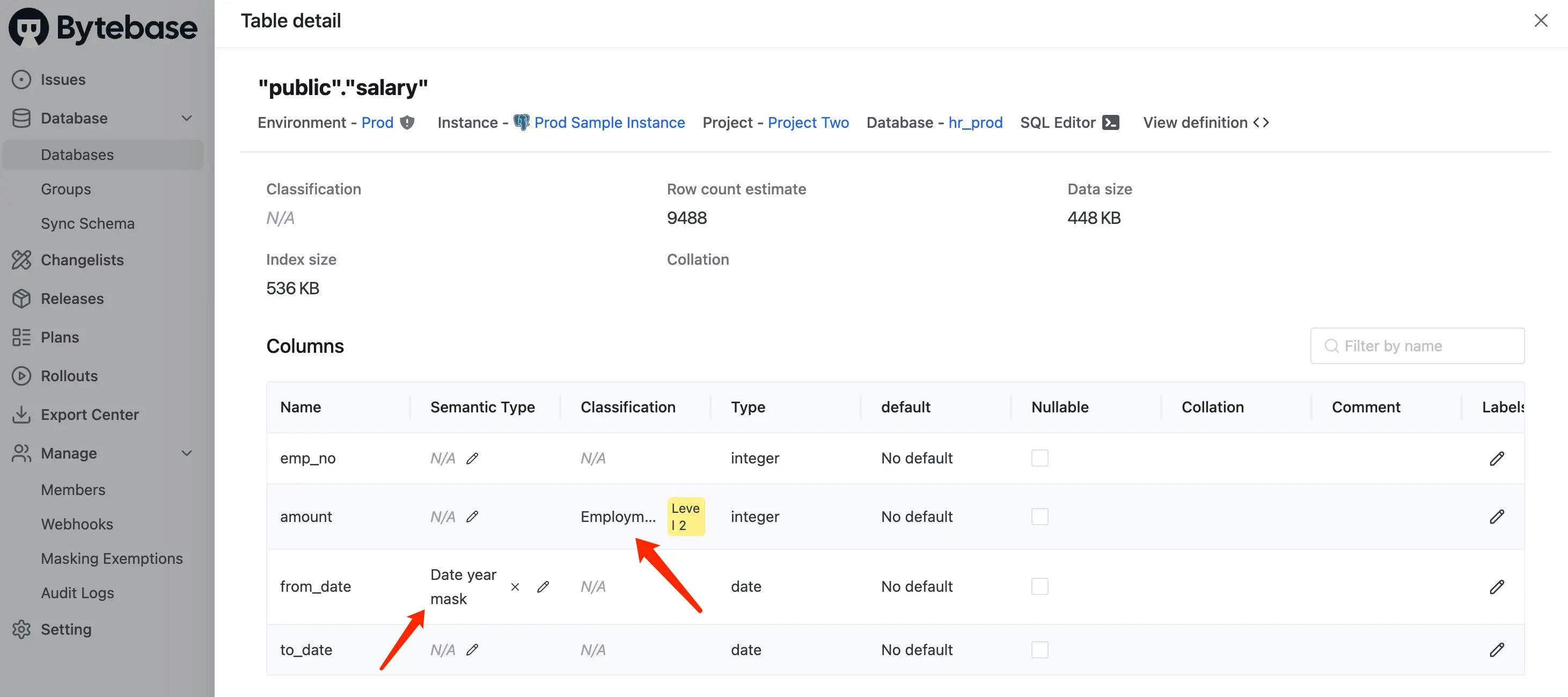
1. Go into **Project Two**, then click **Database > Databases** and click **hr\_prod**.
2. Scroll down to find `salary` table, click it. You should see:
* `amount` is assigned as `Employment info` (Level 2) **classification**
* `from_date` is assigned as `date-year-mask` **semantic type**
## Step 5: Apply Column-Specific Masking
| | |
| ------------------ | ------------------------------------------------------------------------------------------------------------------------------ |
| Terraform resource | [bytebase\_database](https://registry.terraform.io/providers/bytebase/bytebase/latest/docs/resources/database) |
| Sample file | [8-4-database-masking.tf](https://github.com/bytebase/terraform-provider-bytebase/blob/main/tutorials/8-4-database-masking.tf) |
Create `8-4-database-masking.tf` to apply masking to specific columns:
* Column `from_date` is assigned the semantic type `date-year-mask`
* Column `amount` is assigned the classification `2-1` (Employment info)
```hcl 8-4-database-masking.tf theme={null}
resource "bytebase_database" "database" {
depends_on = [
bytebase_instance.prod,
bytebase_project.project-two,
bytebase_setting.environments
]
name = "instances/prod-sample-instance/databases/hr_prod"
project = bytebase_project.project-two.name
environment = bytebase_setting.environments.environment_setting[0].environment[1].name
catalog {
schemas {
name = "public"
tables {
name = "salary"
columns {
name = "from_date"
semantic_type = "date-year-mask"
}
columns {
name = "amount"
classification = "2-1"
}
}
}
}
}
```
Apply the column-specific masking:
```bash theme={null}
terraform plan
terraform apply
```
Verify in Bytebase:
1. Go into **Project Two**, then click **Database > Databases** and click **hr\_prod**.
2. Scroll down to find `salary` table, click it. You should see:
* `amount` is assigned as `Employment info` (Level 2) **classification**
* `from_date` is assigned as `date-year-mask` **semantic type**
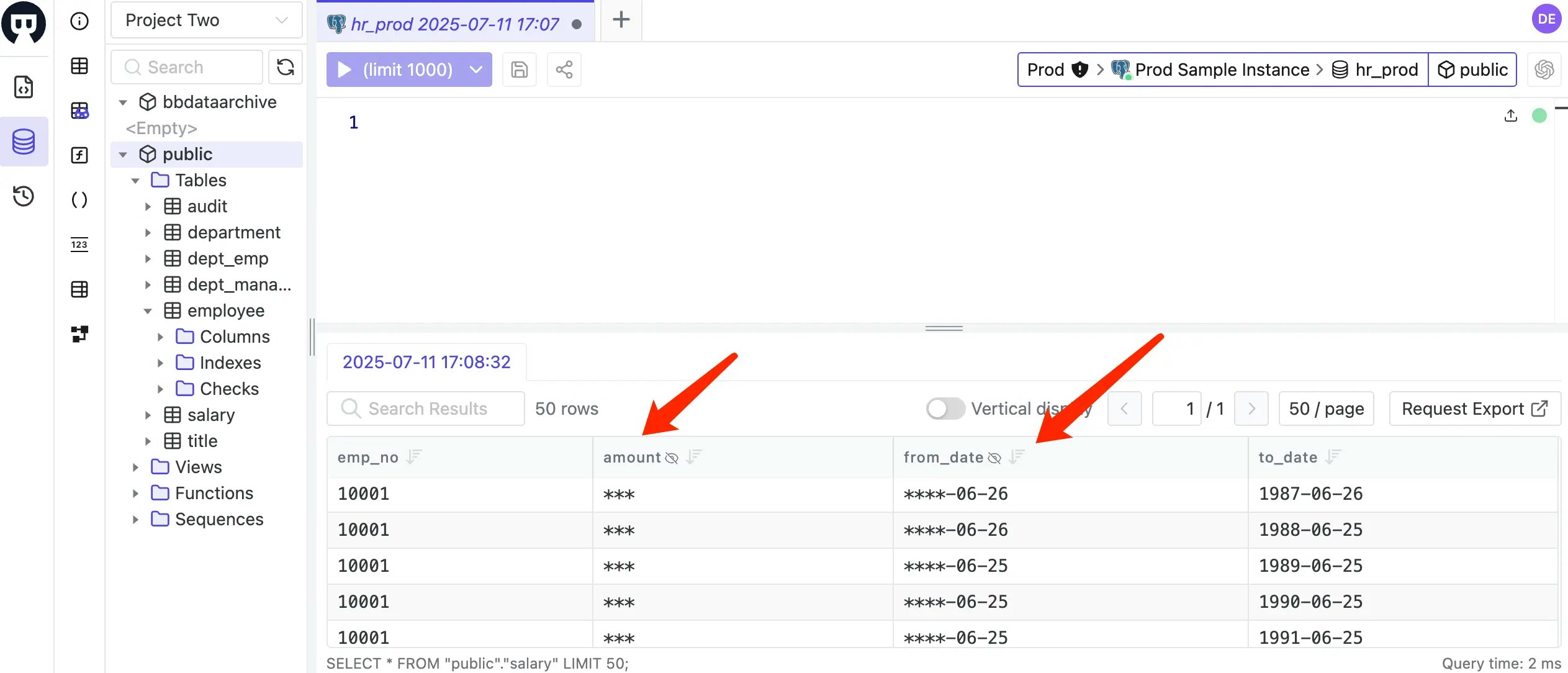
 3. Log in as Developer 1 (`dev1@example.com`), then go to **SQL Editor** to access `hr_prod`. Double-click `salary` table on the left. `from_date` has `Date year mask` semantic type, and `amount` has `L2` classification which leads to `Full masking` semantic type.
 ## Step 6: Grant Masking Exemptions
| | |
| ------------------ | -------------------------------------------------------------------------------------------------------------------------------- |
| Terraform resource | [bytebase\_policy](https://registry.terraform.io/providers/bytebase/bytebase/latest/docs/resources/policy) |
| Sample file | [8-5-masking-exemption.tf](https://github.com/bytebase/terraform-provider-bytebase/blob/main/tutorials/8-5-masking-exemption.tf) |
Create `8-5-masking-exemption.tf` to grant bypass permissions:
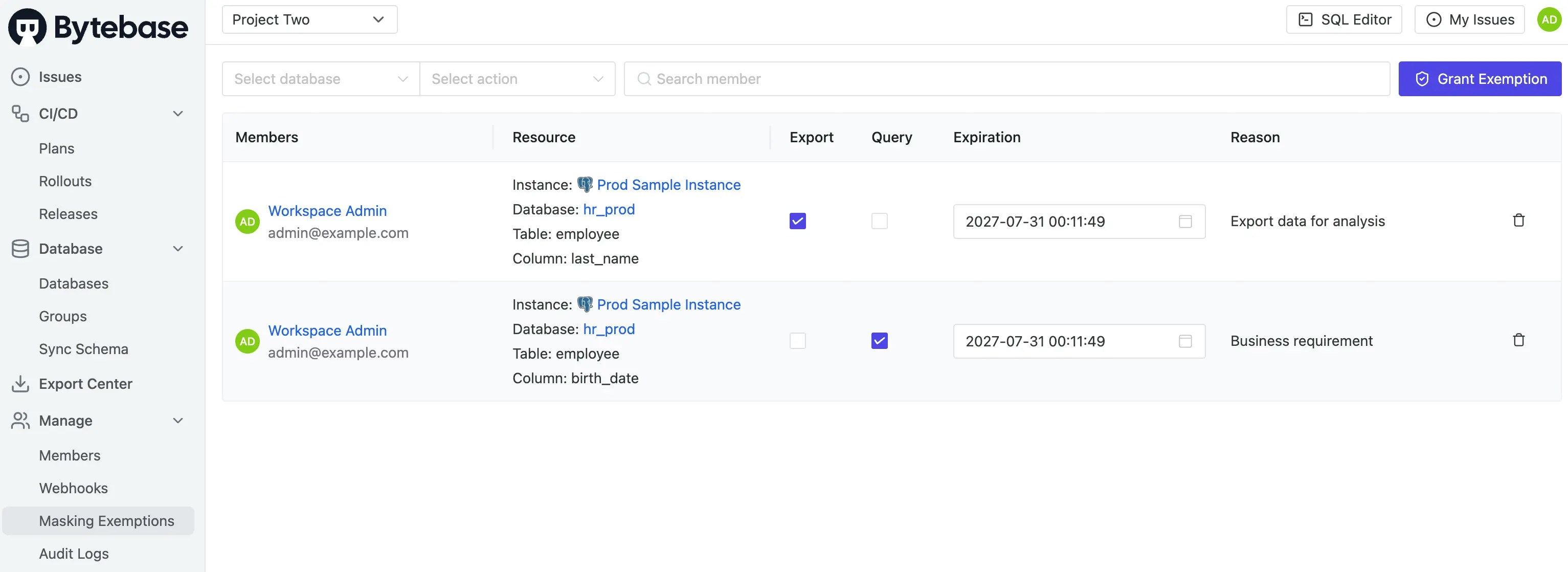
* Workspace Admin (`admin@example.com`) and QA Tester (`qa1@example.com`) have masking exemptions for `birth_date` and `last_name` in the `employee` table (expires 2027-07-30).
* Developer 1 (`dev1@example.com`) has exemptions for specific columns via CEL `raw_expression` (no expiry).
```hcl 8-5-masking-exemption.tf theme={null}
resource "bytebase_policy" "masking_exemption_policy" {
depends_on = [
bytebase_project.project-two,
bytebase_instance.prod
]
parent = bytebase_project.project-two.name
type = "MASKING_EXEMPTION"
enforce = true
inherit_from_parent = false
masking_exemption_policy {
exemptions {
reason = "Business requirement"
database = "instances/prod-sample-instance/databases/hr_prod"
table = "employee"
columns = ["birth_date", "last_name"]
members = ["user:admin@example.com", "user:qa1@example.com"]
expire_timestamp = "2027-07-30T16:11:49Z"
}
exemptions {
reason = "Grant query access"
members = ["user:dev1@example.com"]
raw_expression = "resource.instance_id == \"prod-sample-instance\" && resource.database_name == \"hr_prod\" && resource.table_name == \"employee\" && resource.column_name in [\"first_name\", \"last_name\", \"gender\"]"
}
}
}
```
If there is no `expire_timestamp` specified, the exemption will never expire.
`2027-07-30T16:11:49Z` is an ISO 8601 UTC timestamp.
Our system uses PostgreSQL to store metadata, where this value is stored as a `timestamptz`.
If you want to apply the exemption to all databases, you can skip the `database`, `table`, and `column` fields.
If you specify `raw_expression`, it defines the exemption condition directly as a CEL expression. When `raw_expression` is used, the other fields (`database`, `schema`, `table`, `columns`, `expire_timestamp`) are ignored.
## Step 7: Apply Final Configuration and Test
Apply the masking exemptions and test everything:
```bash theme={null}
terraform plan
terraform apply
```
Verify the masking exemptions are working:
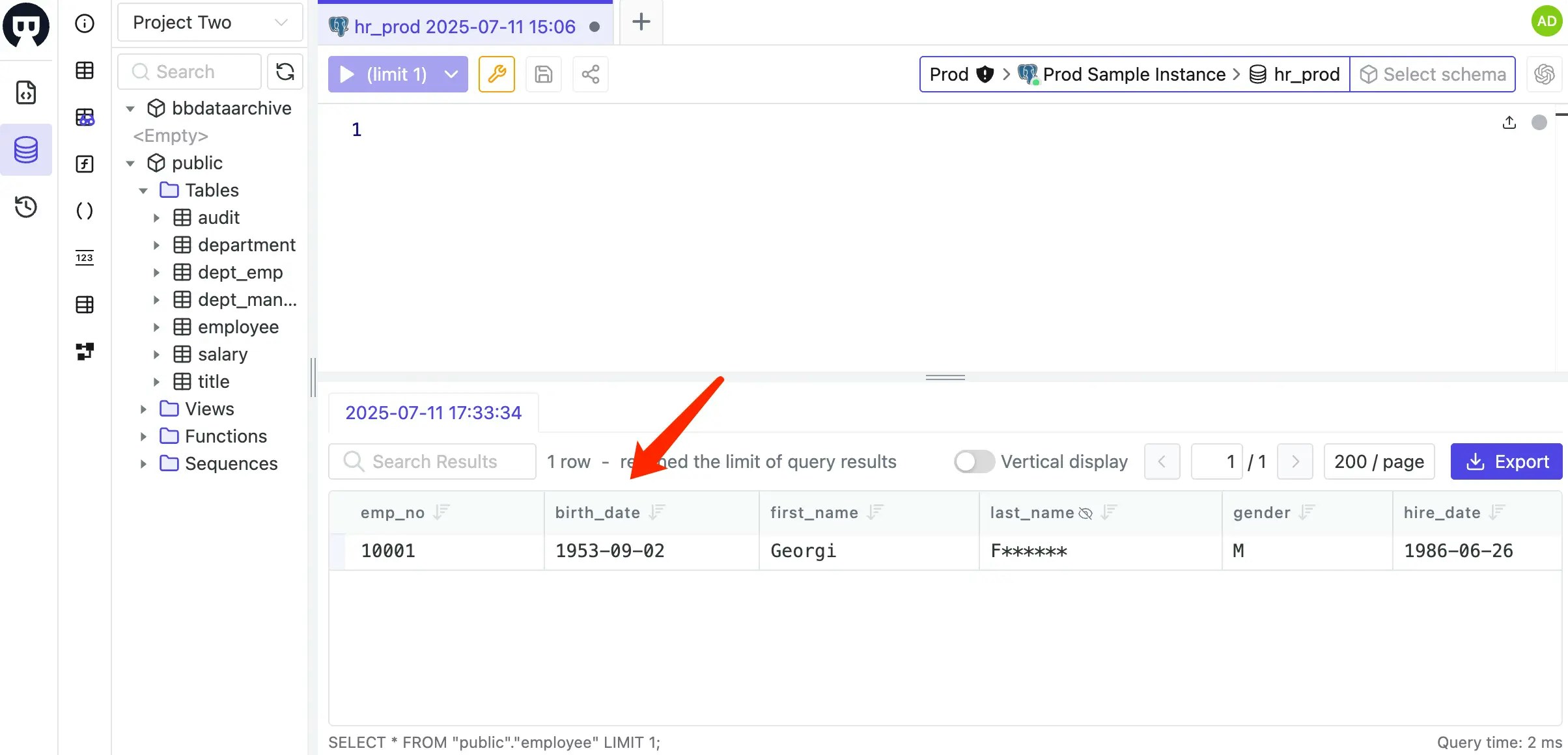
1. Log in as Workspace Admin (`admin@example.com`), then go to **SQL Editor** to access `hr_prod` and double-click the `employee` table. Both `birth_date` and `last_name` are now unmasked for both query and export.
## Step 6: Grant Masking Exemptions
| | |
| ------------------ | -------------------------------------------------------------------------------------------------------------------------------- |
| Terraform resource | [bytebase\_policy](https://registry.terraform.io/providers/bytebase/bytebase/latest/docs/resources/policy) |
| Sample file | [8-5-masking-exemption.tf](https://github.com/bytebase/terraform-provider-bytebase/blob/main/tutorials/8-5-masking-exemption.tf) |
Create `8-5-masking-exemption.tf` to grant bypass permissions:
* Workspace Admin (`admin@example.com`) and QA Tester (`qa1@example.com`) have masking exemptions for `birth_date` and `last_name` in the `employee` table (expires 2027-07-30).
* Developer 1 (`dev1@example.com`) has exemptions for specific columns via CEL `raw_expression` (no expiry).
```hcl 8-5-masking-exemption.tf theme={null}
resource "bytebase_policy" "masking_exemption_policy" {
depends_on = [
bytebase_project.project-two,
bytebase_instance.prod
]
parent = bytebase_project.project-two.name
type = "MASKING_EXEMPTION"
enforce = true
inherit_from_parent = false
masking_exemption_policy {
exemptions {
reason = "Business requirement"
database = "instances/prod-sample-instance/databases/hr_prod"
table = "employee"
columns = ["birth_date", "last_name"]
members = ["user:admin@example.com", "user:qa1@example.com"]
expire_timestamp = "2027-07-30T16:11:49Z"
}
exemptions {
reason = "Grant query access"
members = ["user:dev1@example.com"]
raw_expression = "resource.instance_id == \"prod-sample-instance\" && resource.database_name == \"hr_prod\" && resource.table_name == \"employee\" && resource.column_name in [\"first_name\", \"last_name\", \"gender\"]"
}
}
}
```
If there is no `expire_timestamp` specified, the exemption will never expire.
`2027-07-30T16:11:49Z` is an ISO 8601 UTC timestamp.
Our system uses PostgreSQL to store metadata, where this value is stored as a `timestamptz`.
If you want to apply the exemption to all databases, you can skip the `database`, `table`, and `column` fields.
If you specify `raw_expression`, it defines the exemption condition directly as a CEL expression. When `raw_expression` is used, the other fields (`database`, `schema`, `table`, `columns`, `expire_timestamp`) are ignored.
## Step 7: Apply Final Configuration and Test
Apply the masking exemptions and test everything:
```bash theme={null}
terraform plan
terraform apply
```
Verify the masking exemptions are working:
1. Log in as Workspace Admin (`admin@example.com`), then go to **SQL Editor** to access `hr_prod` and double-click the `employee` table. Both `birth_date` and `last_name` are now unmasked for both query and export.
 2. You may go to **Manage > Masking Exemptions** to view current exemptions. They will expire automatically after the expiration time.
 ## Summary
This tutorial demonstrated how to implement data masking in Bytebase using Terraform. Here are the key concepts:
**Define Phase:**
* **Semantic Types**: Define reusable masking algorithms
* **Classification**: Organize data by sensitivity levels (requires mapping to semantic types)
**Apply Phase:**
* **Global Policies**: Apply masking rules workspace-wide based on conditions
* **Column-Level Masking**: Apply semantic types or classifications to specific columns
**Additional Control:**
* **Masking Exemption**: Grant bypass permissions for specific users to query/export unmasked data
## Next Steps
Congratulations! You've completed the Bytebase Terraform tutorial series. You now have a fully configured Bytebase workspace with:
* Database instances and environments
* Organized projects
* Risk policies and approval workflows
* SQL review rules for schema standards
* Database access control
* Data masking for sensitive information
## Summary
This tutorial demonstrated how to implement data masking in Bytebase using Terraform. Here are the key concepts:
**Define Phase:**
* **Semantic Types**: Define reusable masking algorithms
* **Classification**: Organize data by sensitivity levels (requires mapping to semantic types)
**Apply Phase:**
* **Global Policies**: Apply masking rules workspace-wide based on conditions
* **Column-Level Masking**: Apply semantic types or classifications to specific columns
**Additional Control:**
* **Masking Exemption**: Grant bypass permissions for specific users to query/export unmasked data
## Next Steps
Congratulations! You've completed the Bytebase Terraform tutorial series. You now have a fully configured Bytebase workspace with:
* Database instances and environments
* Organized projects
* Risk policies and approval workflows
* SQL review rules for schema standards
* Database access control
* Data masking for sensitive information