> ## Documentation Index
> Fetch the complete documentation index at: https://docs.bytebase.com/llms.txt
> Use this file to discover all available pages before exploring further.
# Manage Database Access Control with Terraform
This tutorial is part of the **Bytebase Terraform Provider** series:
* Part 1: [Manage Environments with Terraform](/tutorials/manage-environments-with-terraform) - Set up environments with policies
* Part 2: [Manage Databases with Terraform](/tutorials/manage-databases-with-terraform) - Register database instances
* Part 3: [Manage Projects with Terraform](/tutorials/manage-projects-with-terraform) - Organize databases into projects
* Part 4: [Manage Bytebase Settings with Terraform](/tutorials/manage-general-settings-with-terraform) - Configure workspace profile and approval policies
* Part 5: [Manage SQL Review Rules with Terraform](/tutorials/manage-sql-review-rules-with-terraform) - Define SQL review policies
* Part 6: [Manage Users and Groups with Terraform](/tutorials/manage-users-and-groups-with-terraform) - Configure users and groups
* Part 7: Manage Database Access Control with Terraform 👈
* Part 8: [Manage Data Masking with Terraform](/tutorials/manage-data-masking-with-terraform) - Protect sensitive data
This tutorial series uses separate Terraform files for better organization. Files are numbered by tutorial part and sub-step (e.g., [1-1-env-setting.tf](https://github.com/bytebase/terraform-provider-bytebase/blob/main/tutorials/1-1-env-setting.tf), [1-2-env-policy-rollout.tf](https://github.com/bytebase/terraform-provider-bytebase/blob/main/tutorials/1-2-env-policy-rollout.tf) for Part 1, [2-instances.tf](https://github.com/bytebase/terraform-provider-bytebase/blob/main/tutorials/2-instances.tf) for Part 2, etc.). Terraform automatically handles dependencies between files.
## What You'll Learn
* **Configure** workspace-level IAM policies for role assignments
* **Set up** project-level permissions with granular database access
* **Implement** conditional access control for specific tables
* **Test** access restrictions with different user roles
## Prerequisites
Before starting this tutorial, ensure you have:
* Completed [Part 6: Manage Users and Groups with Terraform](/tutorials/manage-users-and-groups-with-terraform)
* Bytebase running with service account configured
* Your Terraform files from the previous tutorials
## Setup
From the previous tutorials, you should have:
* Bytebase workspaces and projects configured
* Workspace settings and approval flows set up
* Users and groups created from Part 6
* Service account with `Workspace Admin` role
## Understanding IAM in Bytebase
Bytebase has a hierarchical IAM system:
* **Workspace Level**: Permissions apply to the entire workspace
* **Project Level**: Permissions apply to specific projects only
* **Conditional Access**: Fine-grained permissions for specific databases, schemas, and tables
## Configure Access Control
### Step 1 - Configure Workspace IAM Policy
| | |
| ------------------ | ------------------------------------------------------------------------------------------------------------------------ |
| Terraform resource | [bytebase\_iam\_policy](https://registry.terraform.io/providers/bytebase/bytebase/latest/docs/resources/iam_policy) |
| Sample file | [7-1-workspace-iam.tf](https://github.com/bytebase/terraform-provider-bytebase/blob/main/tutorials/7-1-workspace-iam.tf) |
Create `7-1-workspace-iam.tf` with workspace-level permissions:
```hcl 7-1-workspace-iam.tf theme={null}
resource "bytebase_iam_policy" "workspace_iam" {
depends_on = [
bytebase_user.workspace_admin,
bytebase_service_account.tf_service_account,
bytebase_workload_identity.github_ci,
bytebase_user.workspace_dba1,
bytebase_user.workspace_dba2,
bytebase_group.qa
]
# parent defaults to the current workspace when omitted.
iam_policy {
binding {
role = "roles/workspaceAdmin"
members = [
format("user:%s", bytebase_user.workspace_admin.email),
# Keep the Terraform-running service account as Workspace Admin so
# subsequent `terraform apply` runs retain full permissions.
format("serviceAccount:%s", bytebase_service_account.tf_service_account.email),
]
}
binding {
role = "roles/workspaceDBA"
members = [
format("user:%s", bytebase_user.workspace_dba1.email),
format("user:%s", bytebase_user.workspace_dba2.email),
format("workloadIdentity:%s", bytebase_workload_identity.github_ci.email),
]
}
binding {
role = "roles/workspaceMember"
members = [
"allUsers"
]
}
binding {
role = "roles/projectViewer"
members = [
format("group:%s", bytebase_group.qa.email),
]
}
}
}
```
Service accounts use the `serviceAccount:` member prefix, workload identities use `workloadIdentity:`, users use `user:`, and groups use `group:`.
`allUsers` is a special member representing everyone in the workspace. Without it, users may be
unable to access the workspace.
### Step 2 - Apply Workspace IAM Configuration
```bash theme={null}
terraform plan
terraform apply
```
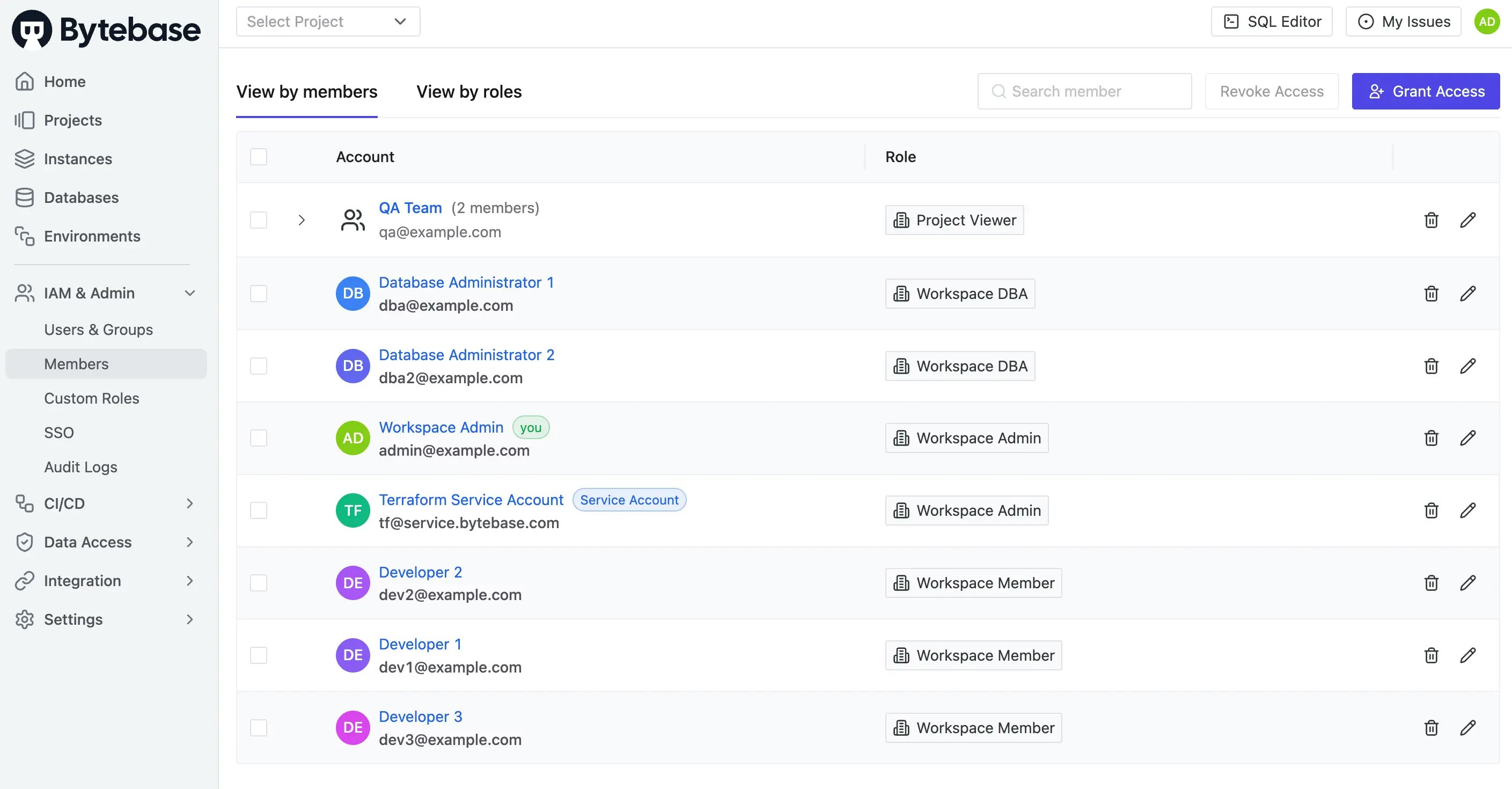
**Verify Workspace Roles**
1. Go to **IAM & Admin > Members**
2. Check user roles:
* `admin@example.com`: Workspace Admin
* `tf@service.bytebase.com` (service account): Workspace Admin
* `dba@example.com`, `dba2@example.com`: Workspace DBA
* `allUsers`: Workspace Member
3. Note that `QA Team` group has `Project Viewer` role for ALL projects
 ### Step 3 - Configure Project IAM Policy
| | |
| ------------------ | -------------------------------------------------------------------------------------------------------------------- |
| Terraform resource | [bytebase\_iam\_policy](https://registry.terraform.io/providers/bytebase/bytebase/latest/docs/resources/iam_policy) |
| Sample file | [7-2-project-iam.tf](https://github.com/bytebase/terraform-provider-bytebase/blob/main/tutorials/7-2-project-iam.tf) |
Create `7-2-project-iam.tf` for project-specific permissions:
```hcl 7-2-project-iam.tf theme={null}
resource "bytebase_iam_policy" "project_iam" {
depends_on = [
bytebase_group.developers,
bytebase_user.workspace_dba1,
bytebase_user.workspace_dba2
]
parent = bytebase_project.project-two.name
iam_policy {
binding {
role = "roles/projectOwner"
members = [
format("user:%s", bytebase_user.workspace_dba1.email),
format("user:%s", bytebase_user.workspace_dba2.email)
]
}
binding {
role = "roles/projectDeveloper"
members = [
"allUsers",
format("group:%s", bytebase_group.developers.email)
]
}
binding {
role = "roles/sqlEditorUser"
members = [
format("group:%s", bytebase_group.developers.email)
]
condition {
database = "instances/prod-sample-instance/databases/hr_prod"
schema = "public"
tables = ["employee", "salary"]
expire_timestamp = "2027-07-10T16:17:49Z"
}
}
}
}
```
`2027-07-10T16:17:49Z` is an ISO 8601 UTC timestamp. Our system uses PostgreSQL to store metadata,
where this value is stored as a `timestamptz`.
### Step 4 - Apply Complete IAM Configuration
```bash theme={null}
terraform plan
terraform apply
```
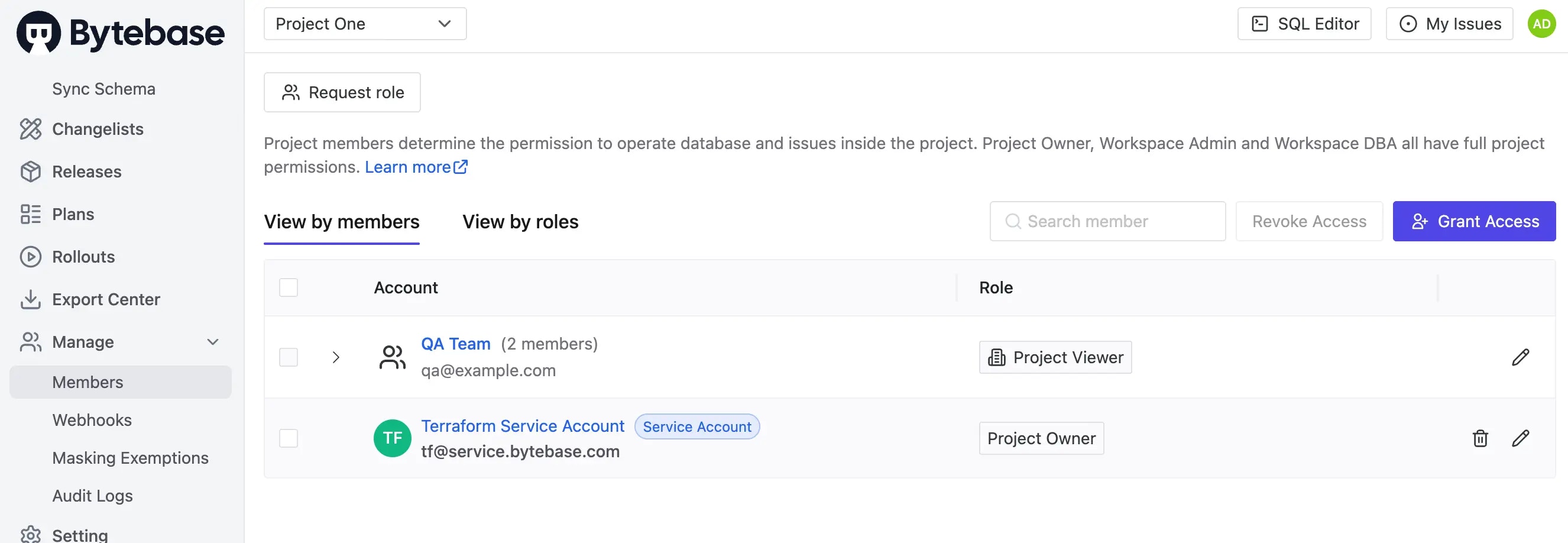
### Step 5 - Verify Project Permissions
Go to **Project One** > **Manage > Members**:
* `QA Team`: `Project Viewer` (inherited from workspace)
* `Terraform Service Account`: `Project Owner` (as creator)
### Step 3 - Configure Project IAM Policy
| | |
| ------------------ | -------------------------------------------------------------------------------------------------------------------- |
| Terraform resource | [bytebase\_iam\_policy](https://registry.terraform.io/providers/bytebase/bytebase/latest/docs/resources/iam_policy) |
| Sample file | [7-2-project-iam.tf](https://github.com/bytebase/terraform-provider-bytebase/blob/main/tutorials/7-2-project-iam.tf) |
Create `7-2-project-iam.tf` for project-specific permissions:
```hcl 7-2-project-iam.tf theme={null}
resource "bytebase_iam_policy" "project_iam" {
depends_on = [
bytebase_group.developers,
bytebase_user.workspace_dba1,
bytebase_user.workspace_dba2
]
parent = bytebase_project.project-two.name
iam_policy {
binding {
role = "roles/projectOwner"
members = [
format("user:%s", bytebase_user.workspace_dba1.email),
format("user:%s", bytebase_user.workspace_dba2.email)
]
}
binding {
role = "roles/projectDeveloper"
members = [
"allUsers",
format("group:%s", bytebase_group.developers.email)
]
}
binding {
role = "roles/sqlEditorUser"
members = [
format("group:%s", bytebase_group.developers.email)
]
condition {
database = "instances/prod-sample-instance/databases/hr_prod"
schema = "public"
tables = ["employee", "salary"]
expire_timestamp = "2027-07-10T16:17:49Z"
}
}
}
}
```
`2027-07-10T16:17:49Z` is an ISO 8601 UTC timestamp. Our system uses PostgreSQL to store metadata,
where this value is stored as a `timestamptz`.
### Step 4 - Apply Complete IAM Configuration
```bash theme={null}
terraform plan
terraform apply
```
### Step 5 - Verify Project Permissions
Go to **Project One** > **Manage > Members**:
* `QA Team`: `Project Viewer` (inherited from workspace)
* `Terraform Service Account`: `Project Owner` (as creator)
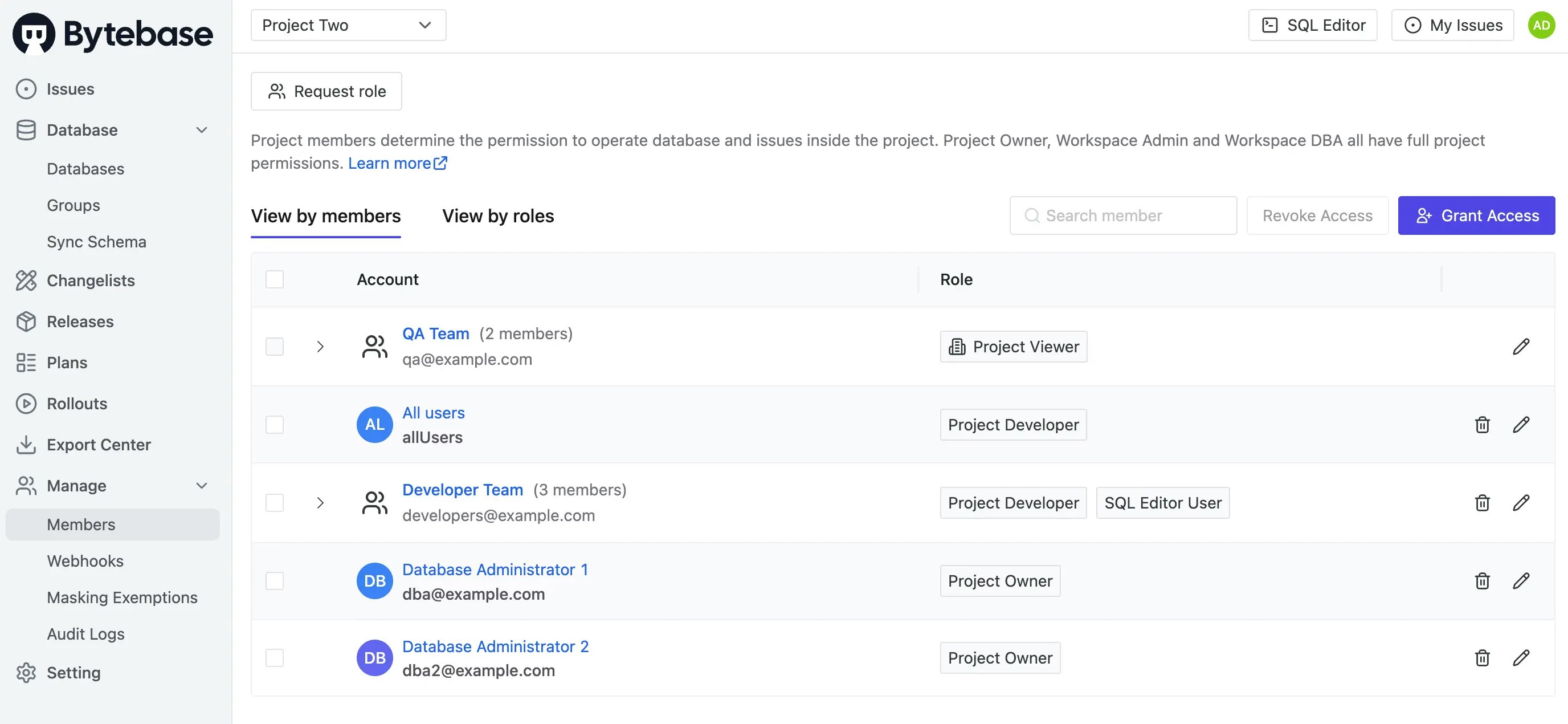
 1. Go to **Project Two** > **Manage > Members**:
* `QA Team`: `Project Viewer`(inherited from workspace)
* `DBA users`: `Project Owner`
* `All users` + `Developer Team`: `Project Developer`
* `Developer Team`: `SQL Editor User` with table restrictions
1. Go to **Project Two** > **Manage > Members**:
* `QA Team`: `Project Viewer`(inherited from workspace)
* `DBA users`: `Project Owner`
* `All users` + `Developer Team`: `Project Developer`
* `Developer Team`: `SQL Editor User` with table restrictions
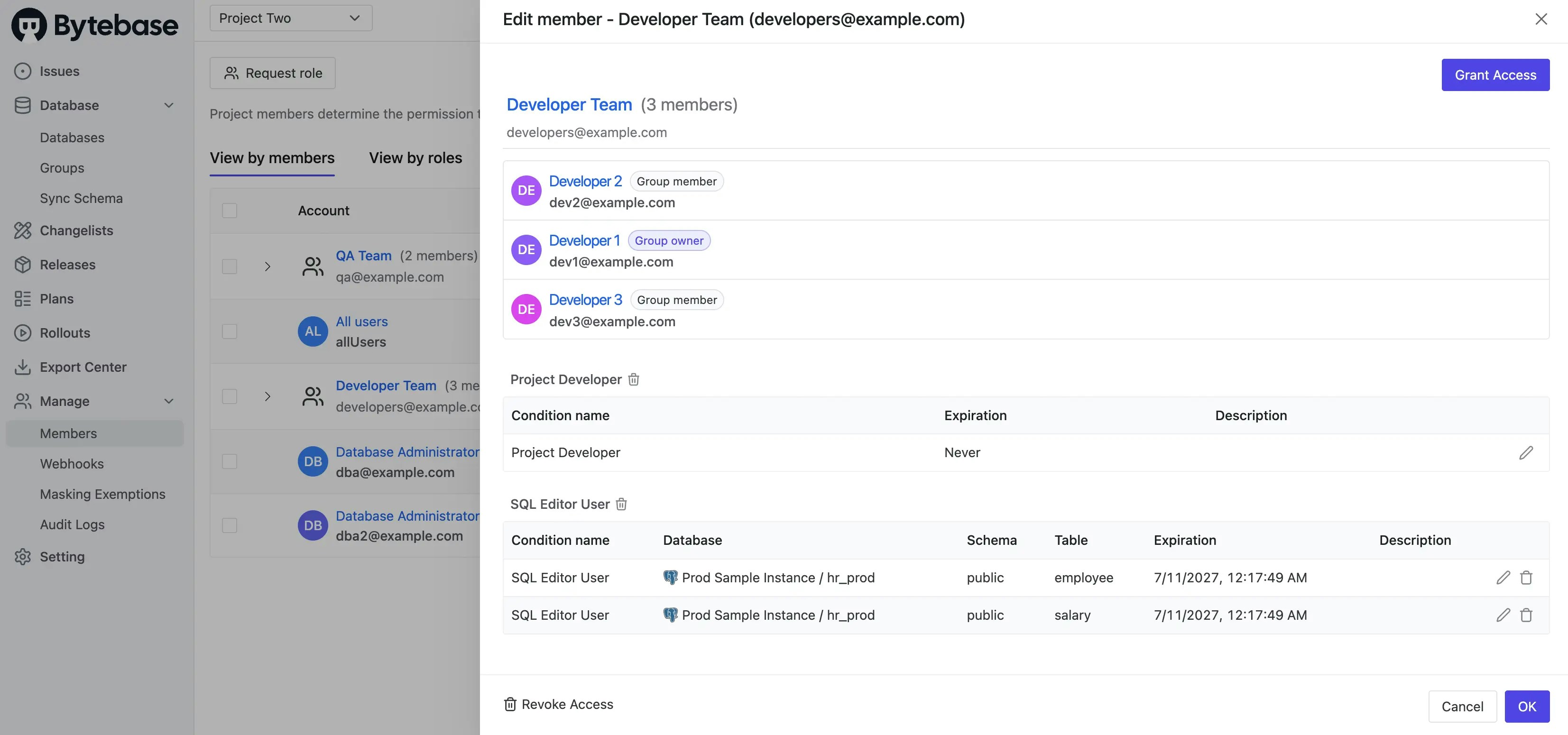
 2. Click **Edit** (pen icon) on `Developer Team`'s `SQL Editor User` role to see table-level restrictions:
 ### Step 6 - Test Access Control
Test the access control configuration by logging in as different users:
#### Set Up Test User
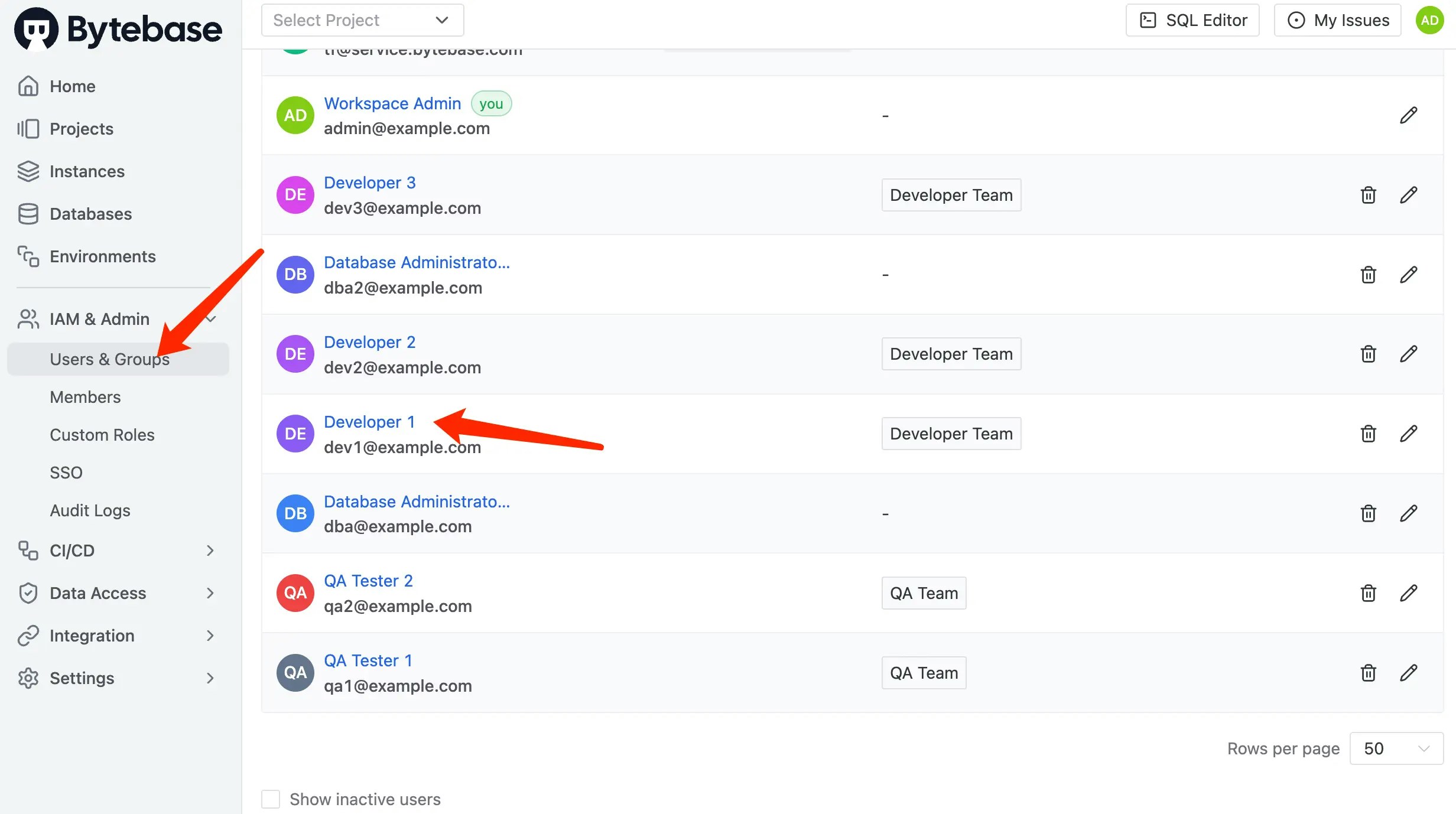
1. Go to **IAM & Admin > Users & Groups**.
2. Find and click on `Developer 1`.
3. Click **Edit** and set a password.
### Step 6 - Test Access Control
Test the access control configuration by logging in as different users:
#### Set Up Test User
1. Go to **IAM & Admin > Users & Groups**.
2. Find and click on `Developer 1`.
3. Click **Edit** and set a password.
 #### Test Developer Access
1. Log in as `dev1@example.com` in a new browser/incognito window.
2. Verify project visibility:
* ✅ Can see **Project Two**
* ❌ Cannot see **Project One**
#### Test SQL Editor Restrictions
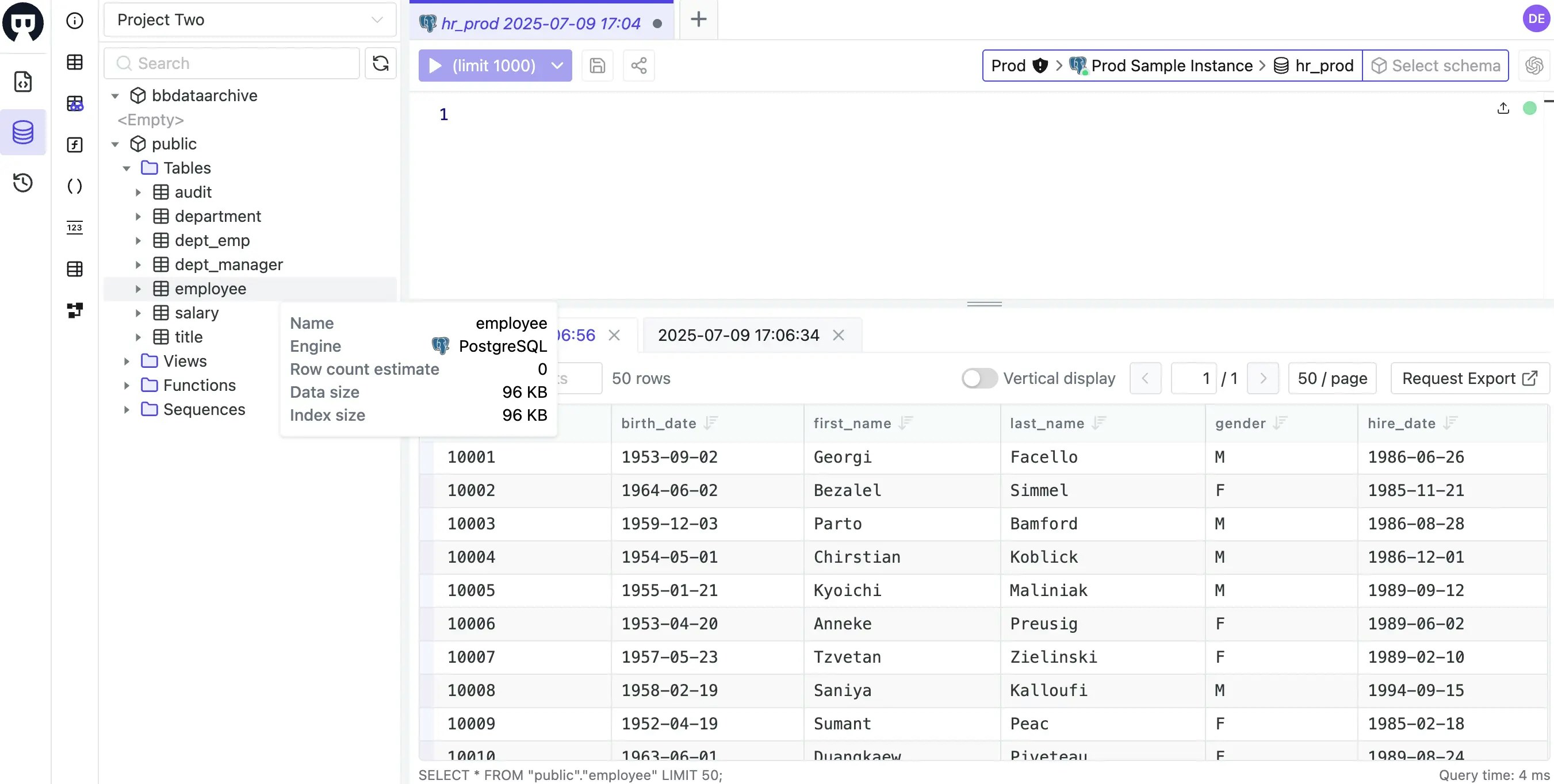
1. Navigate to **SQL Editor**.
2. Connect to `Prod > Prod Sample Instance > hr_prod`.
3. Test table access:
* ✅ Query `employee` table - Should work
* ✅ Query `salary` table - Should work
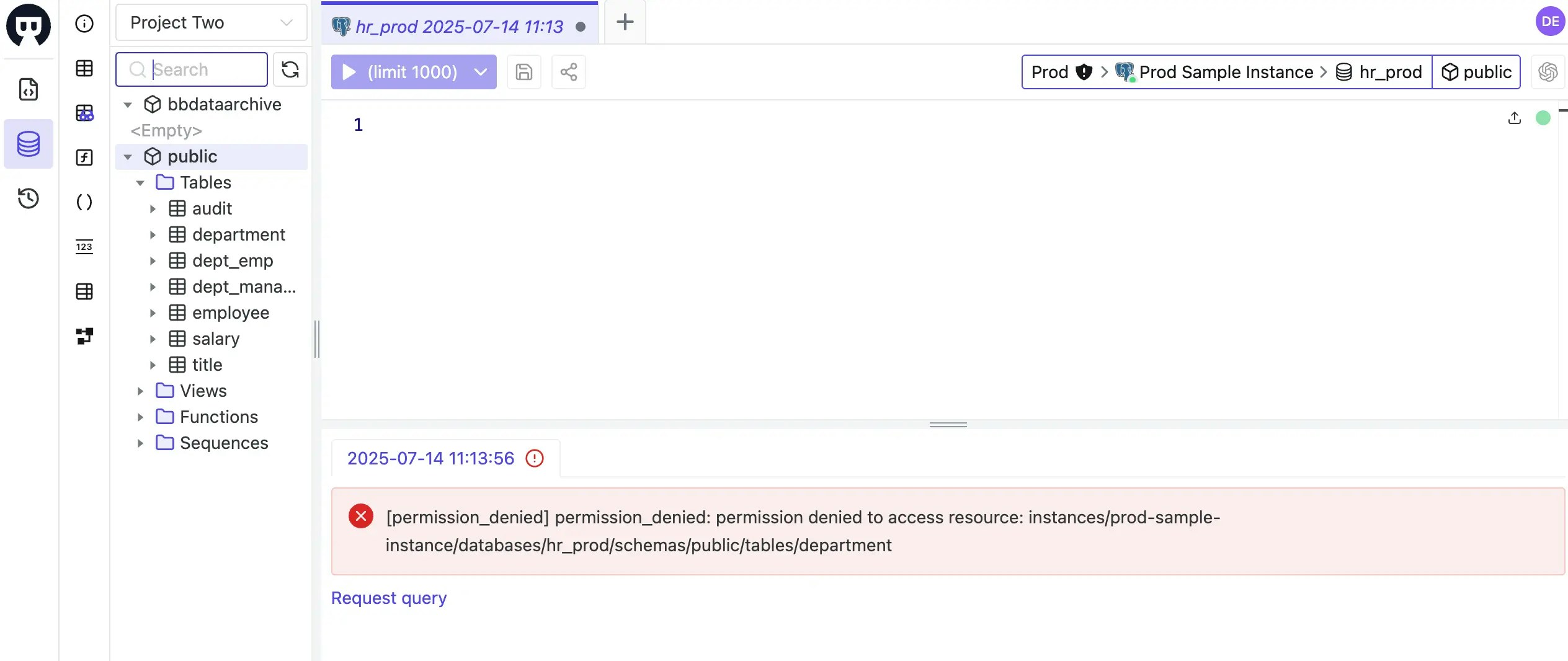
* ❌ Query `department` table - Should fail with permission error
#### Test Developer Access
1. Log in as `dev1@example.com` in a new browser/incognito window.
2. Verify project visibility:
* ✅ Can see **Project Two**
* ❌ Cannot see **Project One**
#### Test SQL Editor Restrictions
1. Navigate to **SQL Editor**.
2. Connect to `Prod > Prod Sample Instance > hr_prod`.
3. Test table access:
* ✅ Query `employee` table - Should work
* ✅ Query `salary` table - Should work
* ❌ Query `department` table - Should fail with permission error
 ## Common Access Control Patterns
This tutorial demonstrates several best practices:
1. **Separation of Duties**: DBAs have owner permissions, developers have restricted access
2. **Group-Based Management**: Use groups instead of individual user assignments
3. **Least Privilege**: Grant only necessary permissions at the appropriate level
4. **Conditional Access**: Time-limited, table-specific permissions for sensitive data
5. **Inheritance**: Workspace-level project roles apply to ALL projects
## Key Points
* **IAM Hierarchy**: Workspace policies apply globally, project policies are scoped to specific projects
* **Project Roles at Workspace Level**: When assigned in workspace IAM, project roles (like `projectViewer`) apply to ALL projects
* **Group Benefits**: Manage permissions for teams rather than individuals
* **Conditional Bindings**: Fine-grained access control down to table level with expiration
* **Role Inheritance**: Higher roles include permissions of lower roles
## Common Access Control Patterns
This tutorial demonstrates several best practices:
1. **Separation of Duties**: DBAs have owner permissions, developers have restricted access
2. **Group-Based Management**: Use groups instead of individual user assignments
3. **Least Privilege**: Grant only necessary permissions at the appropriate level
4. **Conditional Access**: Time-limited, table-specific permissions for sensitive data
5. **Inheritance**: Workspace-level project roles apply to ALL projects
## Key Points
* **IAM Hierarchy**: Workspace policies apply globally, project policies are scoped to specific projects
* **Project Roles at Workspace Level**: When assigned in workspace IAM, project roles (like `projectViewer`) apply to ALL projects
* **Group Benefits**: Manage permissions for teams rather than individuals
* **Conditional Bindings**: Fine-grained access control down to table level with expiration
* **Role Inheritance**: Higher roles include permissions of lower roles