> ## Documentation Index
> Fetch the complete documentation index at: https://docs.bytebase.com/llms.txt
> Use this file to discover all available pages before exploring further.
# Manage Databases with Terraform
This tutorial is part of the **Bytebase Terraform Provider** series:
* Part 1: [Manage Environments with Terraform](/tutorials/manage-environments-with-terraform) - Set up environments with policies
* Part 2: Manage Databases with Terraform 👈
* Part 3: [Manage Projects with Terraform](/tutorials/manage-projects-with-terraform) - Organize databases into projects
* Part 4: [Manage Bytebase Settings with Terraform](/tutorials/manage-general-settings-with-terraform) - Configure workspace profile and approval policies
* Part 5: [Manage SQL Review Rules with Terraform](/tutorials/manage-sql-review-rules-with-terraform) - Define SQL review policies
* Part 6: [Manage Users and Groups with Terraform](/tutorials/manage-users-and-groups-with-terraform) - Configure users and groups
* Part 7: [Manage Database Access Control with Terraform](/tutorials/manage-database-access-control-with-terraform) - Grant database permissions
* Part 8: [Manage Data Masking with Terraform](/tutorials/manage-data-masking-with-terraform) - Protect sensitive data
This tutorial series uses separate Terraform files for better organization. Files are numbered by tutorial part and sub-step (e.g., [1-1-env-setting.tf](https://github.com/bytebase/terraform-provider-bytebase/blob/main/tutorials/1-1-env-setting.tf), [1-2-env-policy-rollout.tf](https://github.com/bytebase/terraform-provider-bytebase/blob/main/tutorials/1-2-env-policy-rollout.tf) for Part 1, [2-instances.tf](https://github.com/bytebase/terraform-provider-bytebase/blob/main/tutorials/2-instances.tf) for Part 2, etc.). Terraform automatically handles dependencies between files.
## What You'll Learn
Register database instances in Bytebase using Terraform.
## Prerequisites
Before starting this tutorial, ensure you have:
* **Completed [Part 1](/tutorials/manage-environments-with-terraform)**:
* Bytebase running with built-in sample data
* Service account created
* Terraform initialized
* Environments configured
## Step 1 - Explore Built-in Instances
Bytebase sample data includes two sample PostgreSQL instances. Let's explore them:
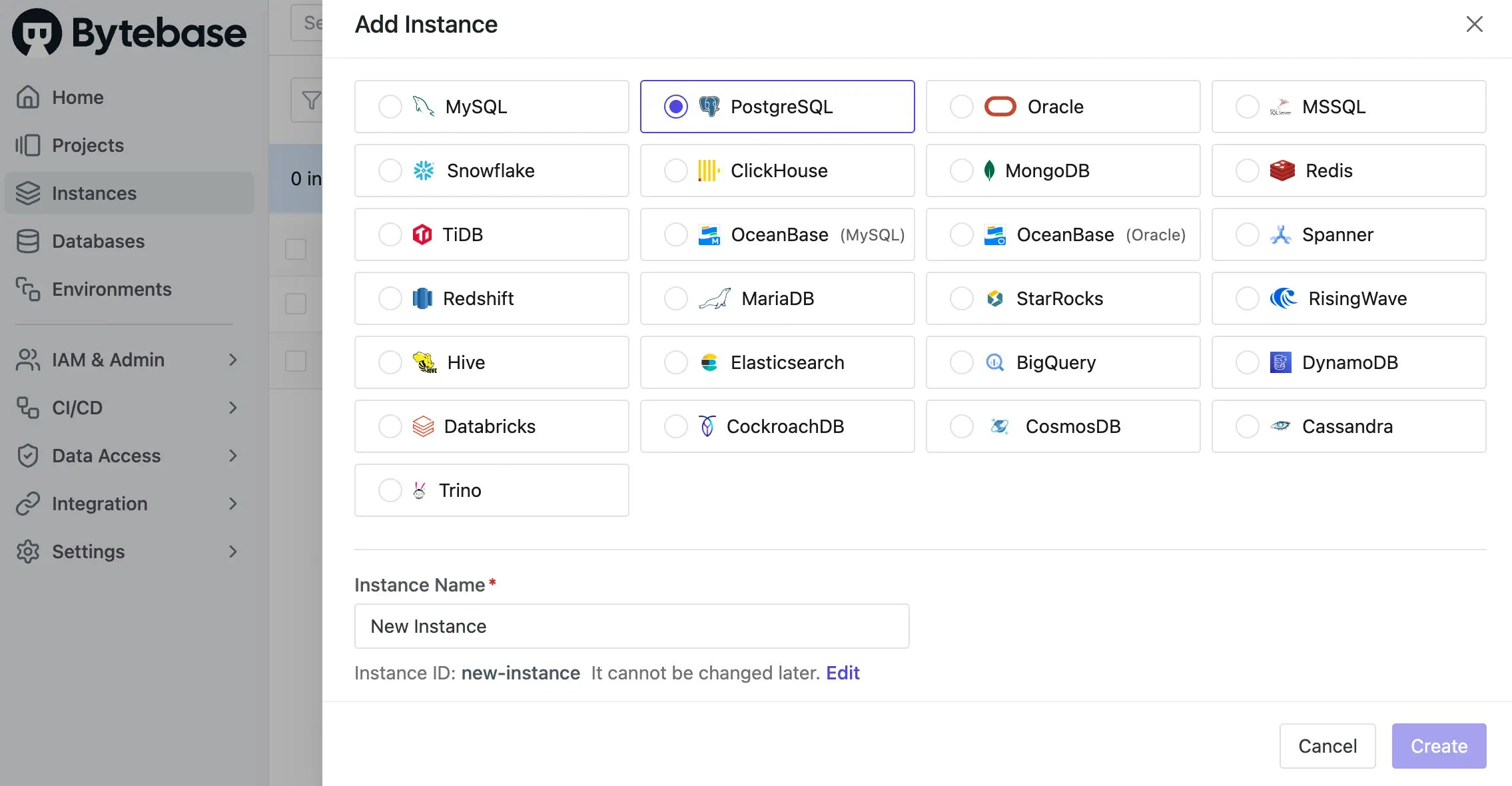
1. In Bytebase, click **Instances** on the left sidebar. You'll see two PostgreSQL instances:
* **Test Sample Instance** (port 8083)
* **Prod Sample Instance** (port 8084)
2. Click **+Add Instance**, you may add more database instances.
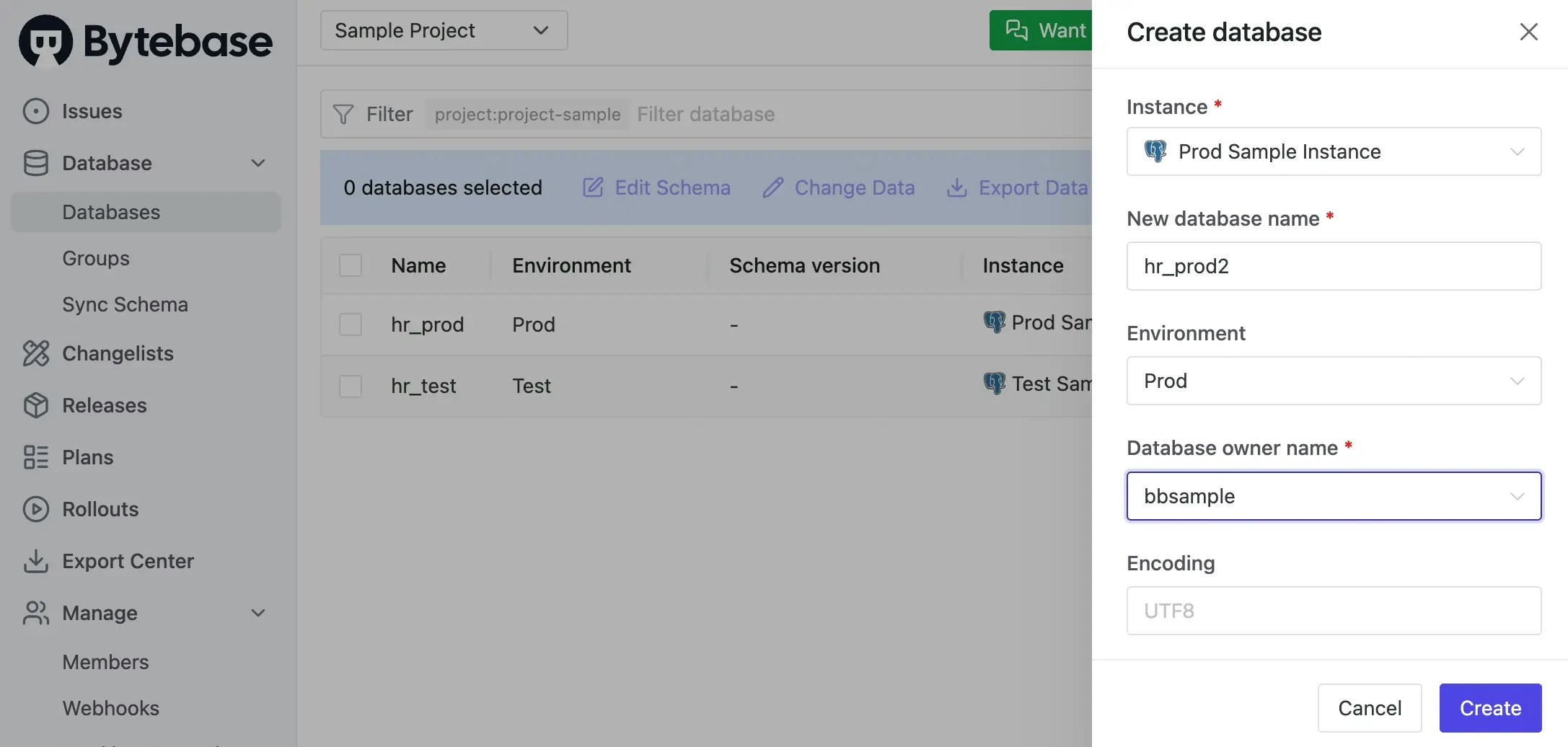
 3. Click **Projects** on the left sidebar to see the `Sample Project`, then click it. You'll see:
* `hr_test` database on Test instance
* `hr_prod` database on Prod instance
4. Click **+ New DB**, you may create more databases on the existing instances.
3. Click **Projects** on the left sidebar to see the `Sample Project`, then click it. You'll see:
* `hr_test` database on Test instance
* `hr_prod` database on Prod instance
4. Click **+ New DB**, you may create more databases on the existing instances.
 ## Step 2 - Register Instances with Terraform
Now let's import these instances into Terraform management.
| | |
| ------------------ | -------------------------------------------------------------------------------------------------------------- |
| Terraform resource | [bytebase\_instance](https://registry.terraform.io/providers/bytebase/bytebase/latest/docs/resources/instance) |
| Sample file | [2-instances.tf](https://github.com/bytebase/terraform-provider-bytebase/blob/main/tutorials/2-instances.tf) |
Create `2-instances.tf` with the following configuration:
```hcl 2-instances.tf theme={null}
# Test Sample Instance - PostgreSQL on port 8083
resource "bytebase_instance" "test" {
depends_on = [bytebase_setting.environments]
resource_id = "test-sample-instance"
environment = "environments/test"
title = "Test Sample Instance"
engine = "POSTGRES"
# Assign instance license
activation = true
# Connection settings for the built-in test database
data_sources {
id = "admin data source test-sample-instance"
type = "ADMIN"
host = "/tmp" # Unix socket for local connection
port = "8083"
username = "bbsample"
password = "" # Empty for local auth
}
}
# Production Sample Instance - PostgreSQL on port 8084
resource "bytebase_instance" "prod" {
depends_on = [bytebase_setting.environments]
resource_id = "prod-sample-instance"
environment = "environments/prod"
title = "Prod Sample Instance"
engine = "POSTGRES"
activation = true
data_sources {
id = "admin data source prod-sample-instance"
type = "ADMIN"
host = "/tmp"
port = "8084"
username = "bbsample"
password = ""
}
}
```
`sync_databases` is a list of database names to sync. By default, all databases are synced.
If you don't want to sync all databases, you can set something like `sync_databases = ["db1", "db2"]`.
**Understanding the Configuration**
* **depends\_on**: Ensures environments from Part 1 exist first
* **resource\_id**: Must match the existing instance ID
* **environment**: Links instance to Test or Prod environment
* **data\_sources**: Connection details for the database
## Step 3 - Apply Configuration
Now apply the configuration:
```bash theme={null}
terraform plan
terraform apply
```
## Step 4 - Verify Setup
1. Go to **Instances** in Bytebase.
2. Verify both instances show:
* Correct environment assignment
* `Y` under License column (if using Enterprise)
You can now modify instance properties through Terraform. For example, to rename an instance:
```hcl theme={null}
resource "bytebase_instance" "test" {
# ... other config ...
title = "Development Database" # Changed title
}
```
## Summary and Next Steps
You've successfully registered database instances with Terraform!
## Step 2 - Register Instances with Terraform
Now let's import these instances into Terraform management.
| | |
| ------------------ | -------------------------------------------------------------------------------------------------------------- |
| Terraform resource | [bytebase\_instance](https://registry.terraform.io/providers/bytebase/bytebase/latest/docs/resources/instance) |
| Sample file | [2-instances.tf](https://github.com/bytebase/terraform-provider-bytebase/blob/main/tutorials/2-instances.tf) |
Create `2-instances.tf` with the following configuration:
```hcl 2-instances.tf theme={null}
# Test Sample Instance - PostgreSQL on port 8083
resource "bytebase_instance" "test" {
depends_on = [bytebase_setting.environments]
resource_id = "test-sample-instance"
environment = "environments/test"
title = "Test Sample Instance"
engine = "POSTGRES"
# Assign instance license
activation = true
# Connection settings for the built-in test database
data_sources {
id = "admin data source test-sample-instance"
type = "ADMIN"
host = "/tmp" # Unix socket for local connection
port = "8083"
username = "bbsample"
password = "" # Empty for local auth
}
}
# Production Sample Instance - PostgreSQL on port 8084
resource "bytebase_instance" "prod" {
depends_on = [bytebase_setting.environments]
resource_id = "prod-sample-instance"
environment = "environments/prod"
title = "Prod Sample Instance"
engine = "POSTGRES"
activation = true
data_sources {
id = "admin data source prod-sample-instance"
type = "ADMIN"
host = "/tmp"
port = "8084"
username = "bbsample"
password = ""
}
}
```
`sync_databases` is a list of database names to sync. By default, all databases are synced.
If you don't want to sync all databases, you can set something like `sync_databases = ["db1", "db2"]`.
**Understanding the Configuration**
* **depends\_on**: Ensures environments from Part 1 exist first
* **resource\_id**: Must match the existing instance ID
* **environment**: Links instance to Test or Prod environment
* **data\_sources**: Connection details for the database
## Step 3 - Apply Configuration
Now apply the configuration:
```bash theme={null}
terraform plan
terraform apply
```
## Step 4 - Verify Setup
1. Go to **Instances** in Bytebase.
2. Verify both instances show:
* Correct environment assignment
* `Y` under License column (if using Enterprise)
You can now modify instance properties through Terraform. For example, to rename an instance:
```hcl theme={null}
resource "bytebase_instance" "test" {
# ... other config ...
title = "Development Database" # Changed title
}
```
## Summary and Next Steps
You've successfully registered database instances with Terraform!