> ## Documentation Index
> Fetch the complete documentation index at: https://docs.bytebase.com/llms.txt
> Use this file to discover all available pages before exploring further.
# Self-host Llama3 for Bytebase AI Assistant
> In this tutorial, we will demonstrate how to use One API to help deploy Llama3 to Bytebase SQL editor
For data security reasons, you may want to enable [AI Assistant](/ai-assistant/) with a self-deployed LLM. Here we chose the powerful open source model Llama3. We used [Ollama](https://ollama.com/) and [One API](https://github.com/songquanpeng/one-api/blob/main/README.en.md) as a relay to convert between Bytebase's OpenAI API-compliant requests and Llama3 API requests.
## Prerequisites
Before you begin, make sure you have:
* [Docker](https://www.docker.com/) installed
* [Bytebase](https://www.bytebase.com/docs/get-started/step-by-step/deploy-with-docker/) instance running
## Get Llama3 running in Docker
Run the following command in terminal to get a Docker container running:
```bash theme={null}
docker run -d -p 11434:11434 --name ollama --restart always ollama/ollama
```
Container starts and returns id, then enter the container with the following command:
```bash theme={null}
docker exec -it ollama bash
```
Pull and run the Llama3 model. Due to mapping issues, the model needs to be renamed to `gpt-3.5-turbo` (or mapped in One-API). After renaming, the model name is `gpt-3.5-turbo`, but indeed it is still Llama3.
```bash theme={null}
ollama pull Llama3
ollama cp Llama3 gpt-3.5-turbo
ollama run gpt-3.5-turbo
```
Now that the model is running, you can test if the API is working properly in a new terminal page:
```bash theme={null}
curl http://localhost:11434/api/generate -d '{
"model": "gpt-3.5-turbo",
"prompt":"Why is the sky blue?"
}'
```
Seeing the results streaming out means that API is working well.
## Configure One API
Choose a directory with read\&write permissions (replace `YOUR_PATH` in the following command) to save data and logs. For example, you can use the `pwd` command in the mac terminal to view the current path and replace `YOUR_PATH` with it.
```bash theme={null}
docker run --name one-api -d --restart always -p 3000:3000 -e TZ=Asia/Shanghai -v YOUR_PATH/one-api:/data justsong/one-api-en
```
Seeing the Docker container start and id output means successful deployment. If you encounter any issues, refer to the solution in One API documentation.
 In Docker dashboard, you can see one-api container and its address as well. You can access `localhost:3000` here to log in to One API dashboard.
The initial account username is `root`, password is `123456`.
### Configure Channel
Enter **channel page**, select **Add a new channel**. Fill in model information:
* **Type**: `ollama`
* **Name**: `Llama3`
* **Group**: `default`
* **Model**: `gpt-3.5-turbo`
* **Key**: Anything (for example `SSSS|sssss|1111`) with format `APPID|APISecret|APIKey` if ollama has not set up for key
* **Proxy**: the IP address of the ollama container `http://host.docker.internal:11434`
Furthermore, we mentioned above that the model name can be mapped in One-API. This can be done in the **Model redirection** bar on this page using a JSON string.
### Configure API Keys
In the **API keys** page, click **Add New Token**, and fill in the **Name** (for example `Llama3`) and **Model scope** (for example `gpt-3.5-turbo`).
After clicking **Submit**, you will see the new API key in **My keys** list within **API keys** page. Click **Copy** to get a token starting with `sk-`, with witch you can repalce `YOUR_TOKEN` in the code below. If the code runs successfully in your terminal, it means that One API configuration is complete.
```bash theme={null}
curl http://localhost:3000/v1/chat/completions \
-H "Content-Type: application/json" \
-H "Authorization: Bearer YOUR_TOKEN" \
-d '{
"model": "gpt-3.5-turbo",
"messages": [
{
"role": "user",
"content": "Tell me a joke."
}
],
"temperature": 0.7
}'
```
## Configure Bytebase and run
In Bytebase Workspace, go to **Settings > General** and scroll down to the **AI Assistant** section. Check **Enable AI Assistant**, then configure:
* **AI Provider**: **OpenAI**.
* **API Key**: the `YOUR_TOKEN` you generated in One API.
* **API Endpoint**: `http://localhost:3000/v1/chat/completions`. Bytebase posts OpenAI-compatible requests to this URL as-is, so include the full `/v1/chat/completions` path — not just the host.
* **Model Name**: `gpt-3.5-turbo` — the name you mapped Llama3 to in One API.
Click **Update**.
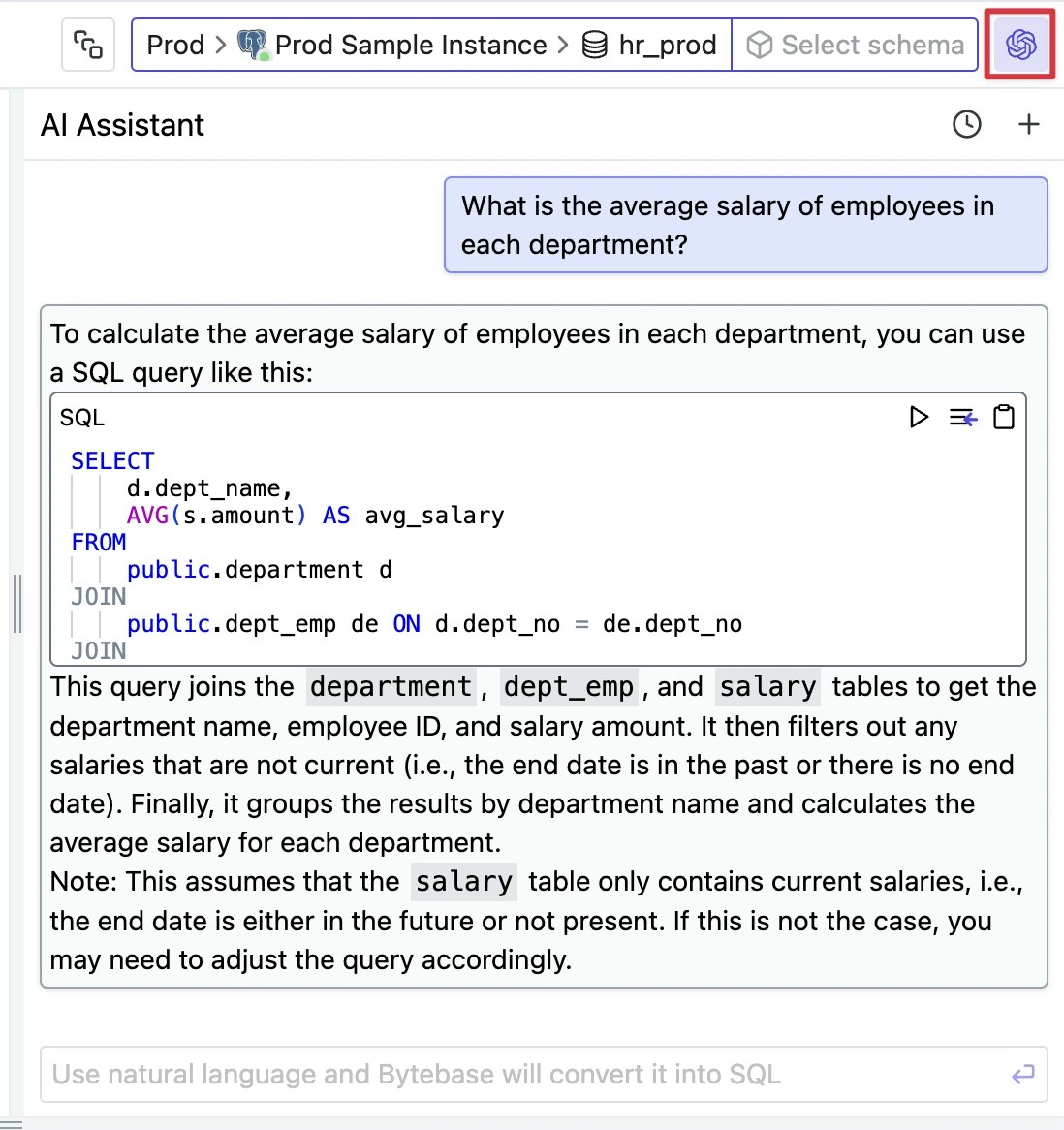
Enter **SQL Editor** from the top of any page. Click the AI icon in the top right corner to start a conversation with the AI Assistant, ask questions in natural language, and get SQL results.
In Docker dashboard, you can see one-api container and its address as well. You can access `localhost:3000` here to log in to One API dashboard.
The initial account username is `root`, password is `123456`.
### Configure Channel
Enter **channel page**, select **Add a new channel**. Fill in model information:
* **Type**: `ollama`
* **Name**: `Llama3`
* **Group**: `default`
* **Model**: `gpt-3.5-turbo`
* **Key**: Anything (for example `SSSS|sssss|1111`) with format `APPID|APISecret|APIKey` if ollama has not set up for key
* **Proxy**: the IP address of the ollama container `http://host.docker.internal:11434`
Furthermore, we mentioned above that the model name can be mapped in One-API. This can be done in the **Model redirection** bar on this page using a JSON string.
### Configure API Keys
In the **API keys** page, click **Add New Token**, and fill in the **Name** (for example `Llama3`) and **Model scope** (for example `gpt-3.5-turbo`).
After clicking **Submit**, you will see the new API key in **My keys** list within **API keys** page. Click **Copy** to get a token starting with `sk-`, with witch you can repalce `YOUR_TOKEN` in the code below. If the code runs successfully in your terminal, it means that One API configuration is complete.
```bash theme={null}
curl http://localhost:3000/v1/chat/completions \
-H "Content-Type: application/json" \
-H "Authorization: Bearer YOUR_TOKEN" \
-d '{
"model": "gpt-3.5-turbo",
"messages": [
{
"role": "user",
"content": "Tell me a joke."
}
],
"temperature": 0.7
}'
```
## Configure Bytebase and run
In Bytebase Workspace, go to **Settings > General** and scroll down to the **AI Assistant** section. Check **Enable AI Assistant**, then configure:
* **AI Provider**: **OpenAI**.
* **API Key**: the `YOUR_TOKEN` you generated in One API.
* **API Endpoint**: `http://localhost:3000/v1/chat/completions`. Bytebase posts OpenAI-compatible requests to this URL as-is, so include the full `/v1/chat/completions` path — not just the host.
* **Model Name**: `gpt-3.5-turbo` — the name you mapped Llama3 to in One API.
Click **Update**.
Enter **SQL Editor** from the top of any page. Click the AI icon in the top right corner to start a conversation with the AI Assistant, ask questions in natural language, and get SQL results.