> ## Documentation Index
> Fetch the complete documentation index at: https://docs.bytebase.com/llms.txt
> Use this file to discover all available pages before exploring further.
# SQL Review with Bytebase GUI
When modifying data in the database, it's crucial to ensure that the changes are both safe and accurate. Bytebase offers a feature called [SQL Review](/sql-review/review-policy/), which allows you to evaluate your SQL changes before they are applied to the database. SQL Review can be invoked from the Bytebase GUI, CI or API.
This is one of the tutorial series of SQL Review:
1. SQL Review with Bytebase GUI (this one)
2. SQL Review with CI (integrated with Database GitOps workflow):Add commentMore actions
* [Database GitOps with GitHub Actions](/tutorials/gitops-github-workflow/#step-3-configure-sql-review-in-bytebase)
* [Database GitOps with Azure DevOps](/tutorials/gitops-azure-devops-workflow/#step-3-configure-sql-review-in-bytebase)
* [Database GitOps with GitLab CI](/tutorials/gitops-gitlab-workflow/#step-3-configure-sql-review-in-bytebase)
* [Database GitOps with Bitbucket Pipelines](/tutorials/gitops-bitbucket-workflow/#step-3-configure-sql-review-in-bytebase)
3. [SQL Review with Bytebase API](/tutorials/sql-review-api/)
4. [Codify SQL Review Policies with Bytebase API](/tutorials/api-sql-review-policy/)
This tutorial will walk you through using SQL Review in Bytebase with Bytebase GUI to improve your database schema change process. The **Community Plan** is sufficient for completing this tutorial.
## Prerequisites
Make sure you have [Docker](https://www.docker.com/) installed, and if you don’t have important existing Bytebase data locally, you can start over from scratch by `rm -rf ~/.bytebase/data`.
## Start Bytebase with sample data
1. Ensure Docker is running, then start the Bytebase container:
```bash theme={null}
docker run --rm --init \
--name bytebase \
--publish 8080:8080 --pull always \
--volume ~/.bytebase/data:/var/opt/bytebase \
bytebase/bytebase:latest
```
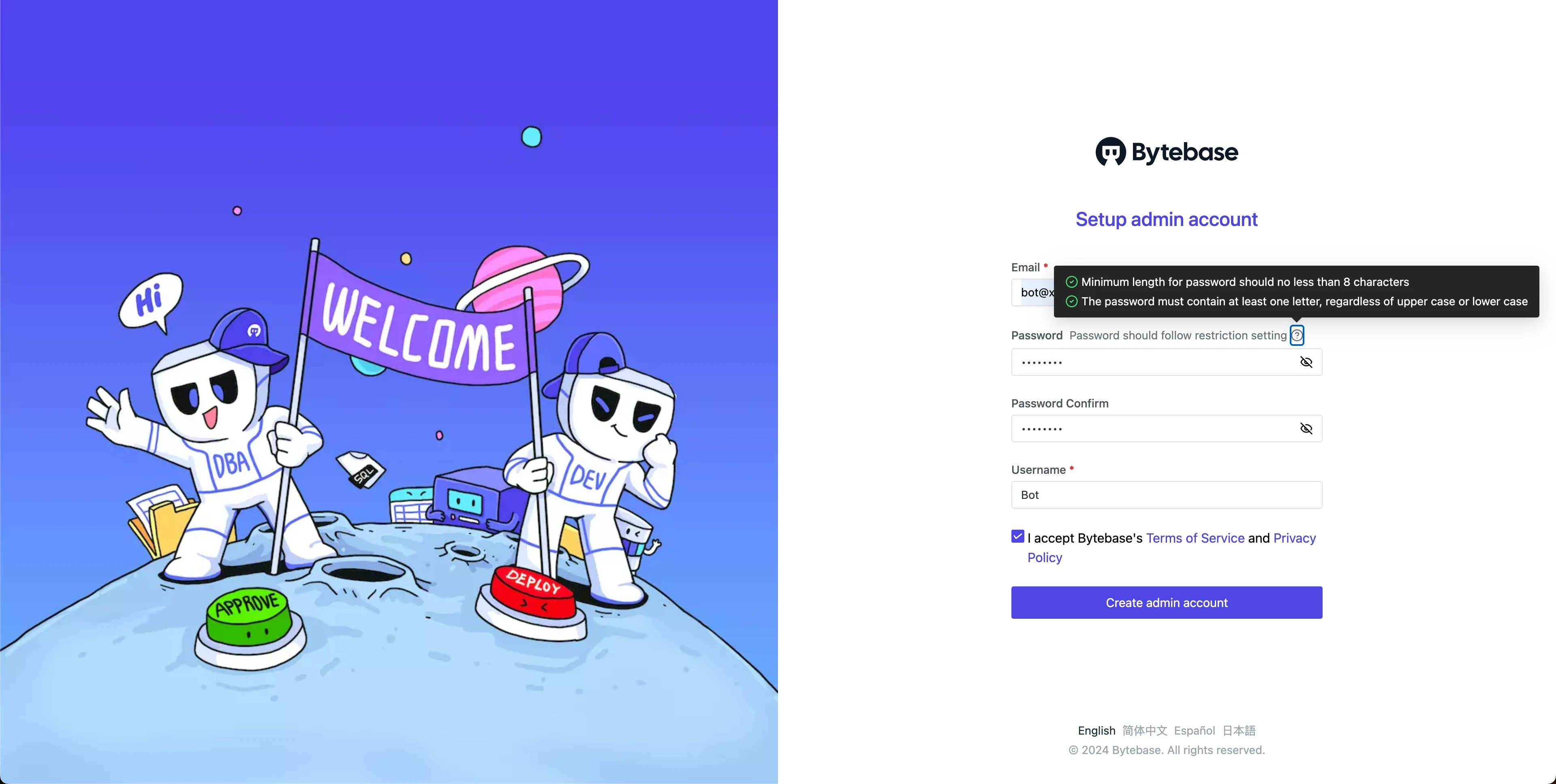
 2. Open Bytebase in [localhost:8080](http://localhost:8080/), fill in the fields and click **Create admin account**. You'll be redirected to Workspace.
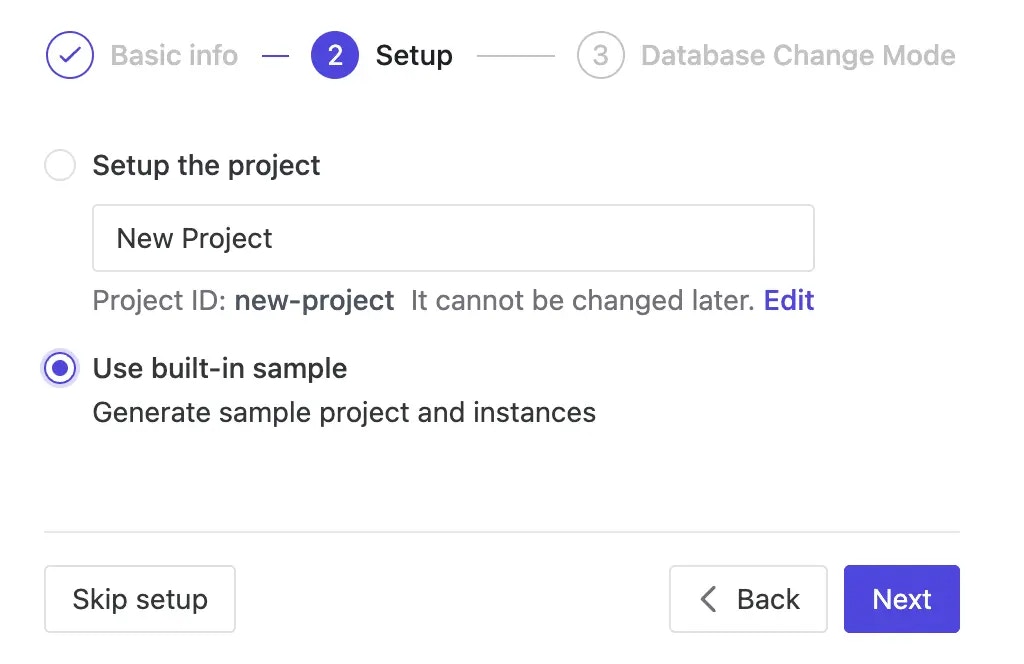
 3. During workspace setup, choose the built-in sample data.
 ## Configure SQL Review Policies
1. Navigate to **CI/CD** > **SQL Review** in the left menu. Click **+ New SQL Review** to create a new SQL review.
2. Choose `Sample Template` which has 20 enabled rules and click **Confirm and add**. Attach the SQL review to Environment `Prod` and click **Confirm**.
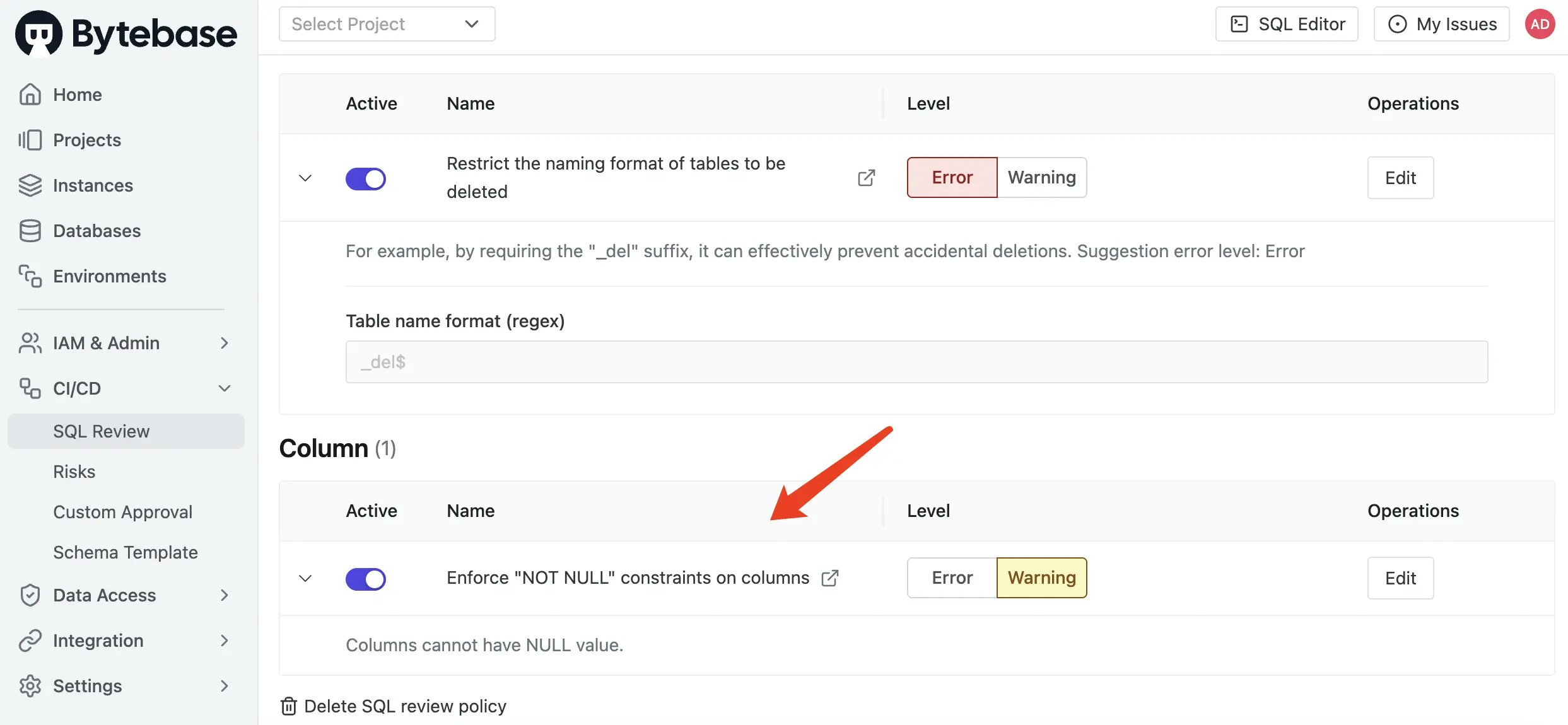
3. You'll see the SQL review is created. Note that there's a warning sign for the `NOT NULL` rule.
## Configure SQL Review Policies
1. Navigate to **CI/CD** > **SQL Review** in the left menu. Click **+ New SQL Review** to create a new SQL review.
2. Choose `Sample Template` which has 20 enabled rules and click **Confirm and add**. Attach the SQL review to Environment `Prod` and click **Confirm**.
3. You'll see the SQL review is created. Note that there's a warning sign for the `NOT NULL` rule.
 ## Trigger SQL Review
1. Go to `Sample Project`, navigate to **CI/CD** > **Plans** and click **+ New Plan**.
2. Select `hr_prod` database as the target since the default SQL Review policy is attached to the `Prod` environment. Click **Confirm** to proceed. You can use the **Schema Editor** to visually design the schema, here we'll intentionally uncheck **Not Null** for `nickname` column.
3. The plan will be in `Draft` status. SQL Review will run automatically, and you'll see violations against our defined rules marked in orange as `warning`.
## Trigger SQL Review
1. Go to `Sample Project`, navigate to **CI/CD** > **Plans** and click **+ New Plan**.
2. Select `hr_prod` database as the target since the default SQL Review policy is attached to the `Prod` environment. Click **Confirm** to proceed. You can use the **Schema Editor** to visually design the schema, here we'll intentionally uncheck **Not Null** for `nickname` column.
3. The plan will be in `Draft` status. SQL Review will run automatically, and you'll see violations against our defined rules marked in orange as `warning`.
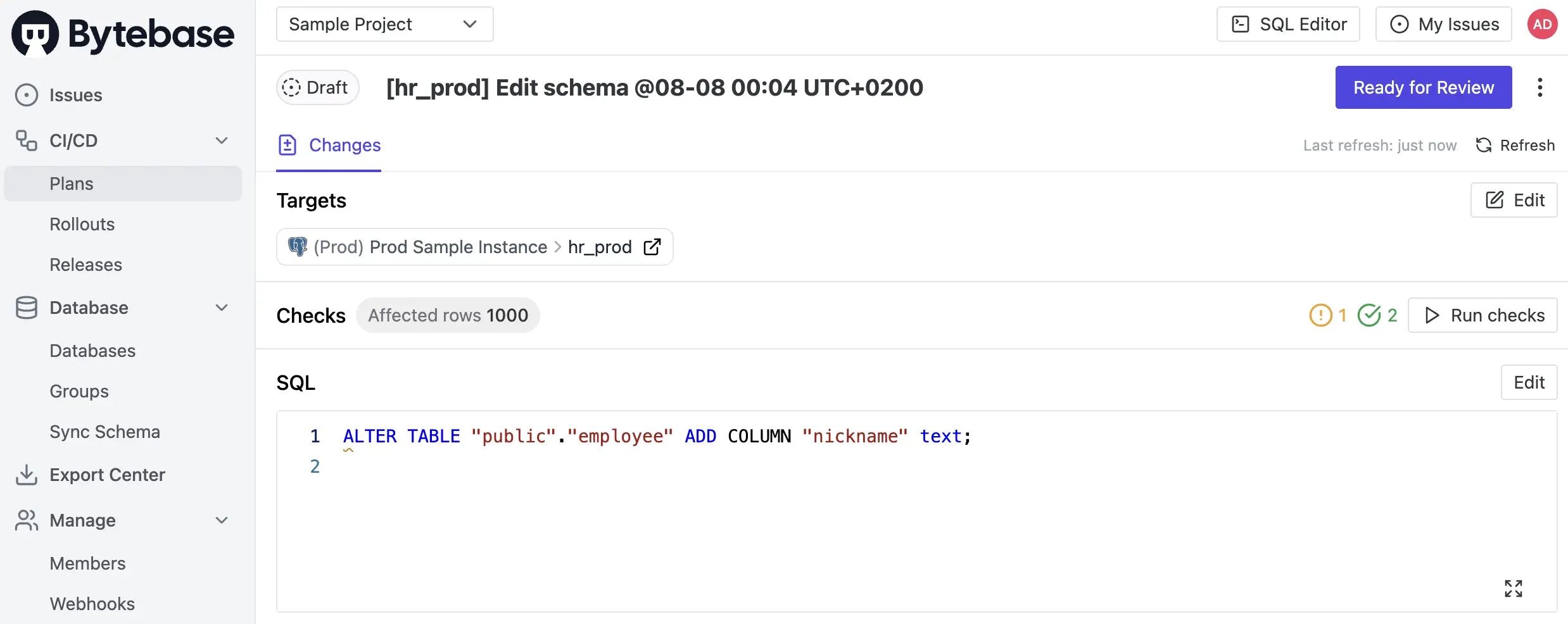
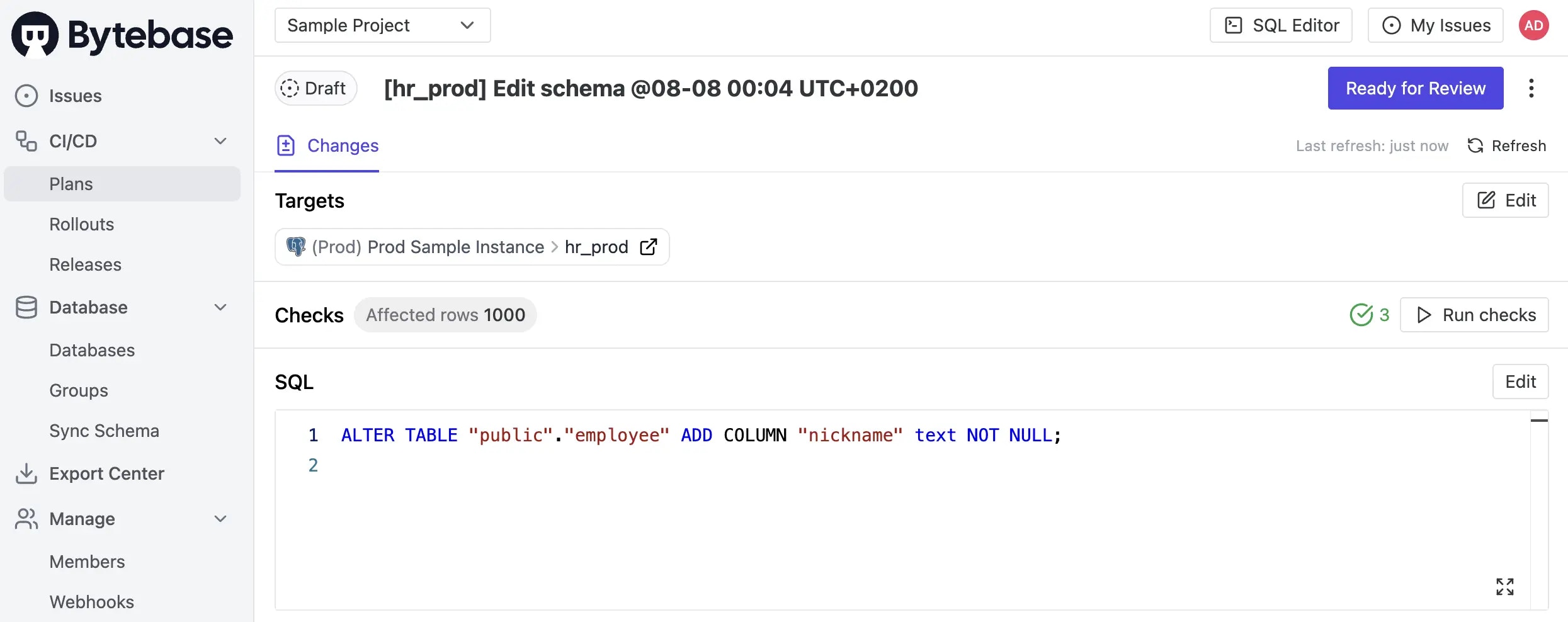
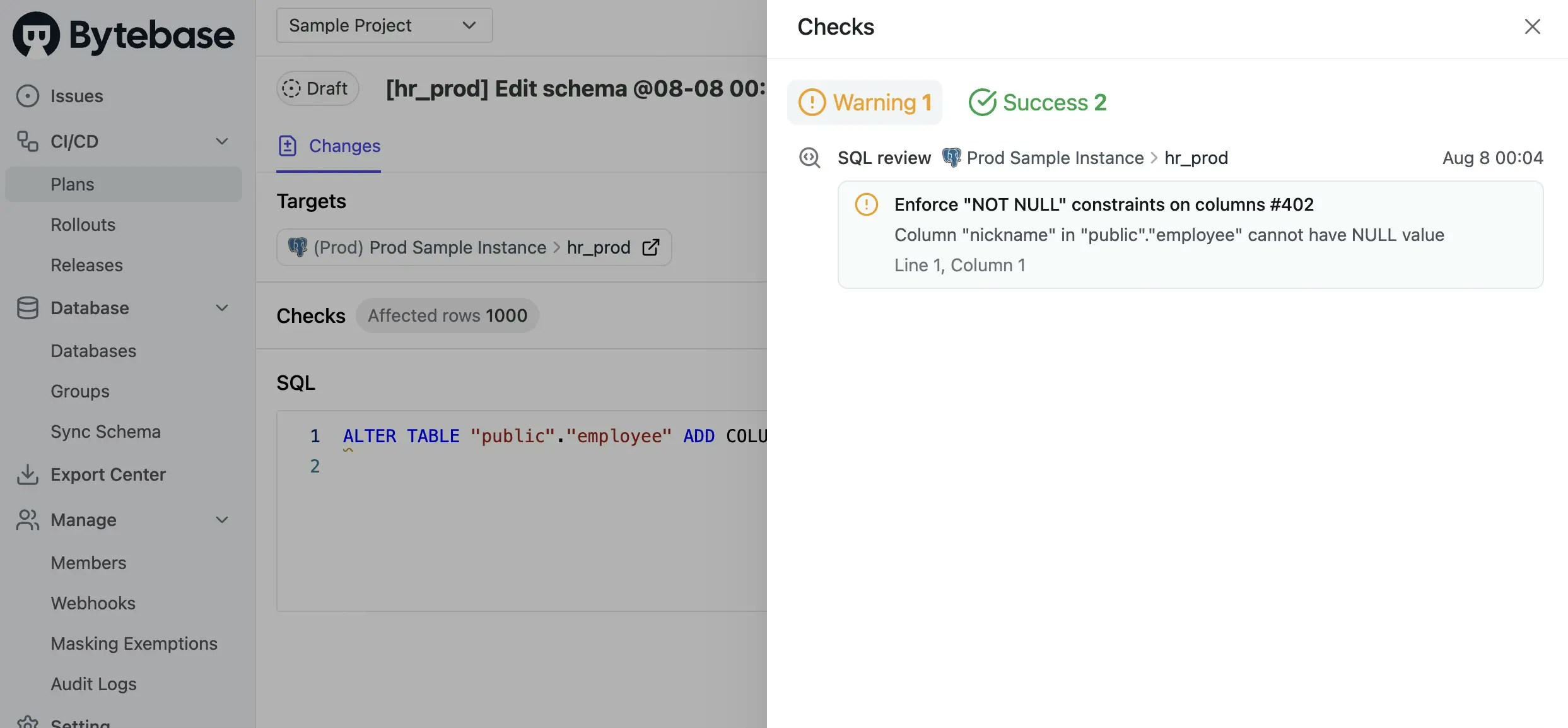 4. You may resolve this by editing the SQL to add `NOT NULL` constraints. Click **Save** to update the plan. The SQL Review checks will run again and should now pass.
 ## Summary
Now you have learned how to trigger SQL Review in Bytebase GUI, you may also refer to the [SQL Review](/sql-review/review-policy) document for more details. Next, let's learn how to [trigger SQL Review from your CI API](/tutorials/sql-review-api/).
## Summary
Now you have learned how to trigger SQL Review in Bytebase GUI, you may also refer to the [SQL Review](/sql-review/review-policy) document for more details. Next, let's learn how to [trigger SQL Review from your CI API](/tutorials/sql-review-api/).