

The changelog was previously called change history.
View the changelog
Open a database and select the Changelog tab to see every change Bytebase has applied, most recent first. Each entry shows its status, when it was created, and the rollout it came from. The first migration on a database also creates a baseline entry that records the starting schema.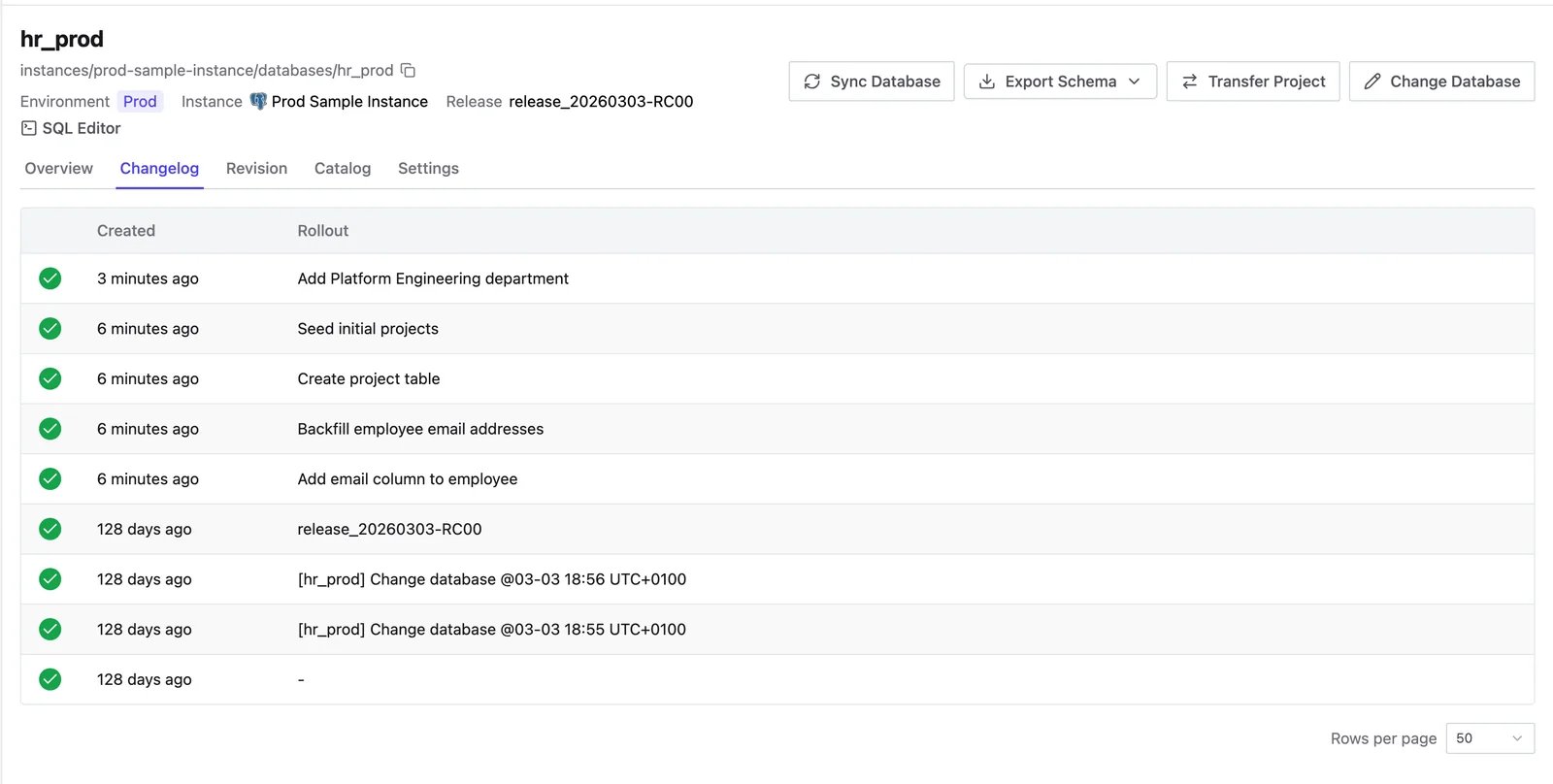
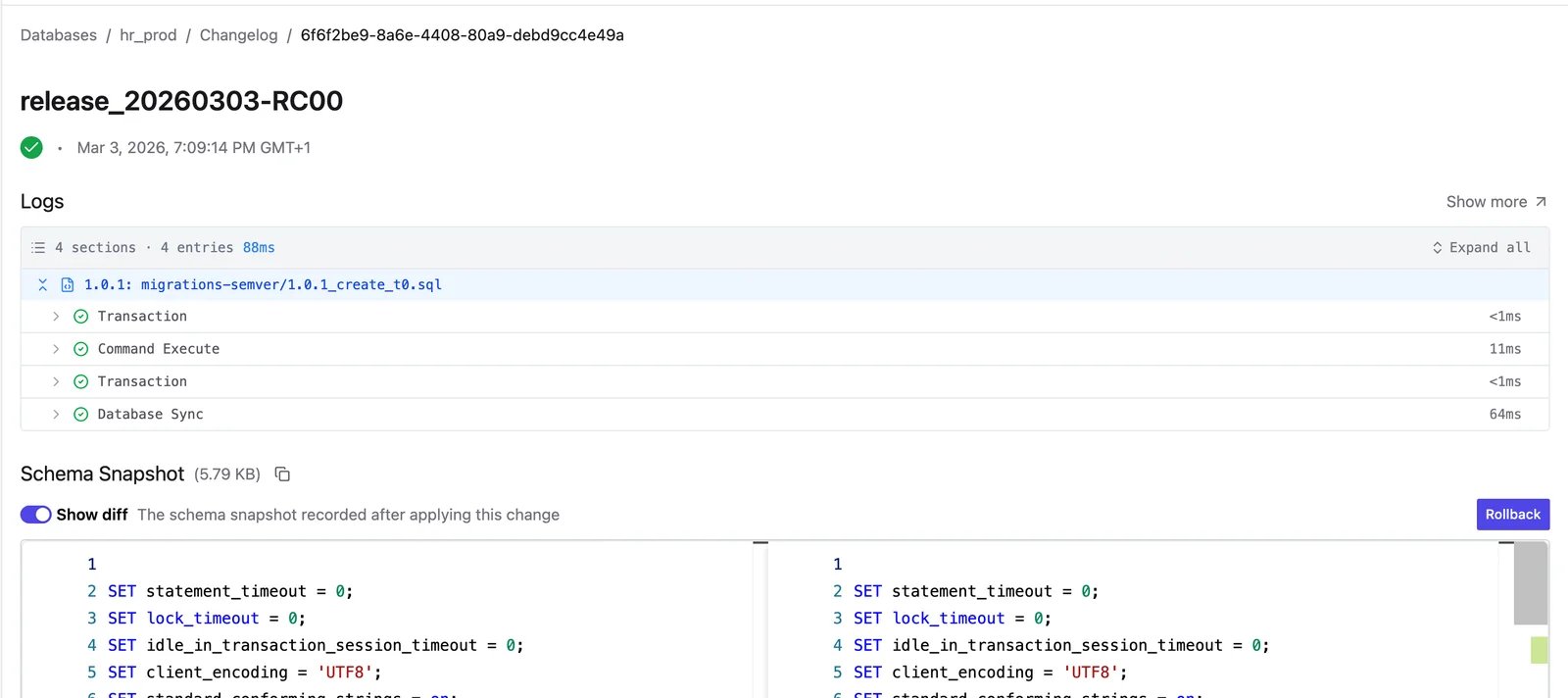
Roll back a change
From a changelog entry, select Rollback to revert the database to the schema snapshot from the previous changelog entry (the schema before the change). Bytebase seeds the Synchronize Schema flow with that snapshot and generates the DDL to return the database to that state, which you then review and roll out like any other change. Rollback is available when:- The database does not belong to the
Defaultproject. - You have permission to alter the database’s schema.
- The entry’s status is Done and the change produced an actual schema difference.
- The database engine supports schema rollback: MySQL, TiDB, OceanBase, PostgreSQL, Oracle, and SQL Server.
Revision
Versioned migrations also record a revision on the database, tracked on the separate Revision tab. Revisions capture which migration versions have been applied so Bytebase knows what still needs to run. See GitOps for how revisions drive version-based rollouts.Import a revision
If a version has already been applied outside Bytebase, import it as a revision so Bytebase marks it as done without re-running the SQL. On the Revision tab, click Import, then choose a source:- From Release — pick a project release and select one or more of its files. Files whose version already has a revision on the database are listed separately as already imported and can’t be selected again.
- From Local Files — upload one or more
.sqlfiles. Bytebase tries to parse a version from each filename; enter or edit it before confirming.
Using the state-based (SDL) workflow? Releases work the same way — see the state-based release page. Local files such as
schema/public.sql or tables/users.sql usually have no parseable version, so enter one manually, and set Revision Type to DECLARATIVE.