

Step 1 - Setup Bytebase
-
Ensure Docker is running, then start the Bytebase container:

-
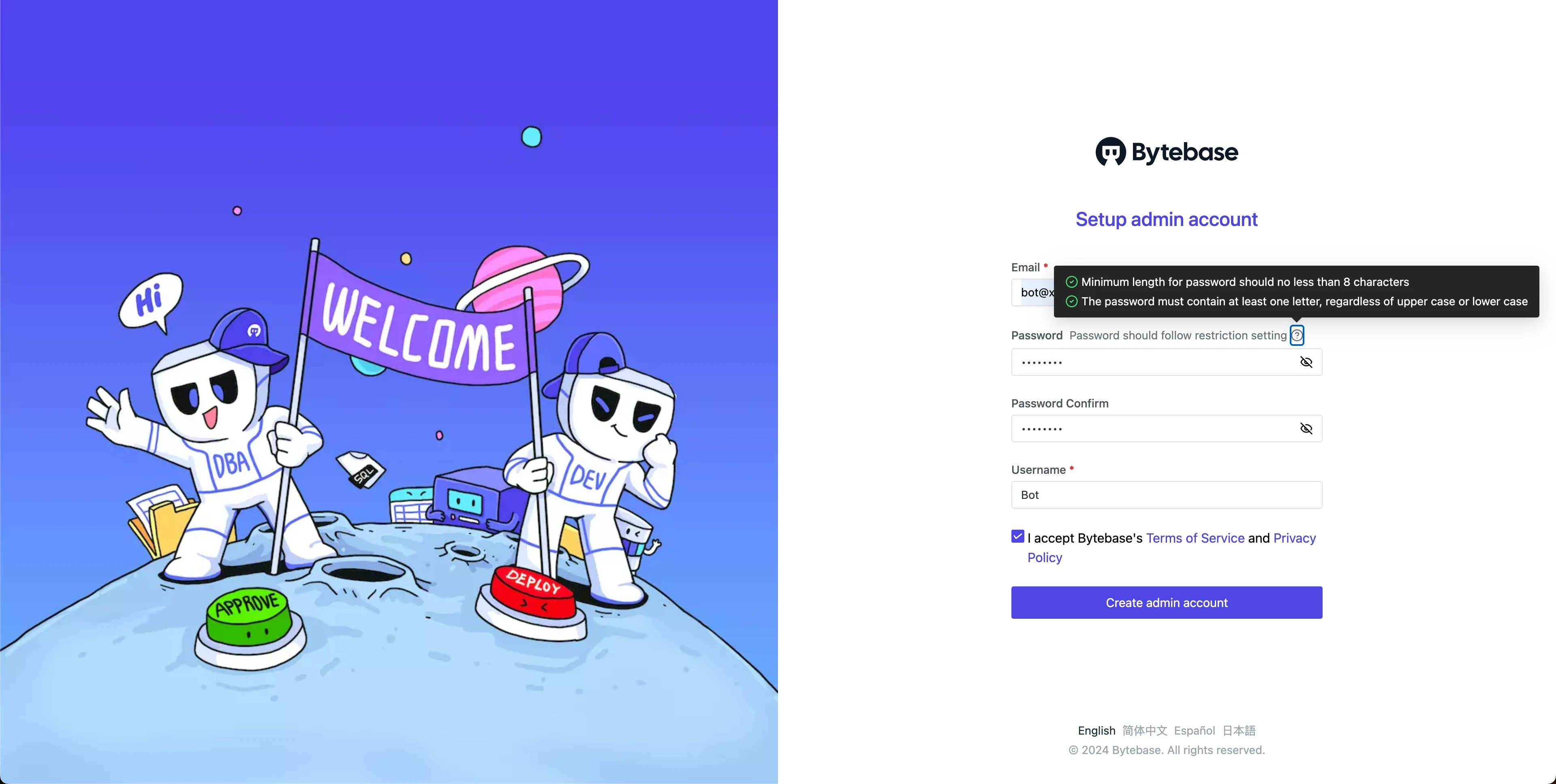
Open Bytebase in localhost:8080, fill in the fields and click Create admin account. You’ll be redirected to Workspace.
-
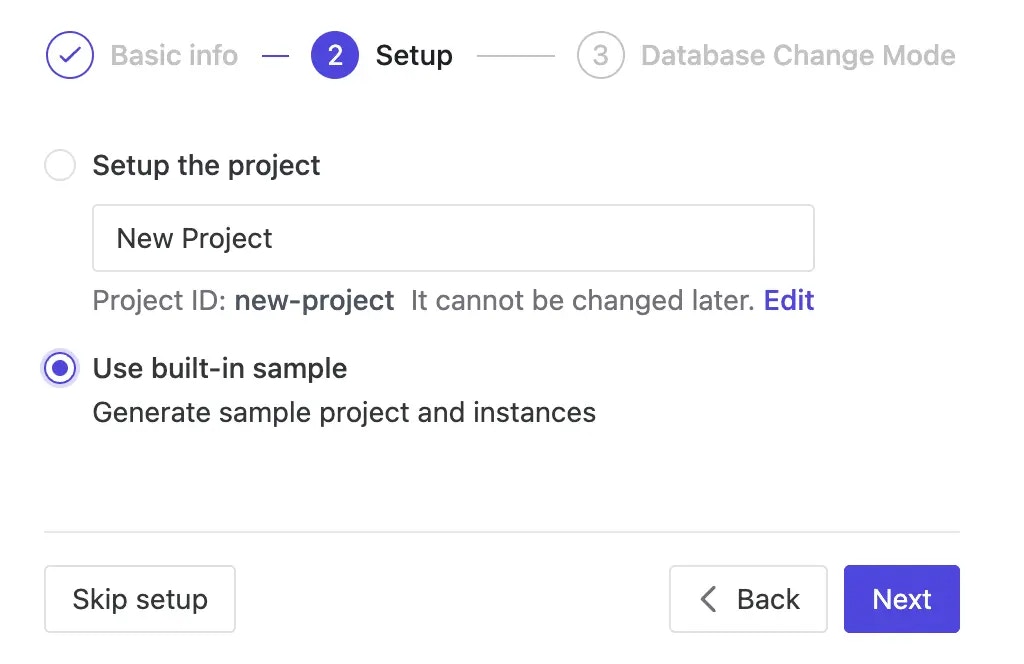
During workspace setup, choose the built-in sample data.
Step 2 - Configure the external URL
The MCP server uses your external URL to tell the AI assistant where to sign in. For the local Docker setup, point it atlocalhost.
- Navigate to Settings > General > External URL.
-
Set it to
http://localhost:8080and save.
On a real deployment, set the external URL to the public address your AI assistant can
reach. See Configure external URL.
Step 3 - Connect your AI assistant
The MCP endpoint is your external URL followed by/mcp — here http://localhost:8080/mcp.
We use Claude Code as the example client.
-
Add the server:
-
Verify it’s registered:
You should see
bytebaselisted with! Needs authentication. The next step signs you in.
For other clients (Codex, Copilot CLI, Gemini CLI, VS Code) or JSON configuration, see the
MCP integration page.
Step 4 - Authenticate
-
Start Claude Code:
-
Run
/mcp, selectbytebase, and choose Authenticate. Your browser opens Bytebase. - Sign in with the admin account you created. The authorization page then shows the workspace access policy and what this session may do. Click Allow.
- Claude Code stores the token and refreshes it automatically.
Step 5 - Inspect a schema
From here you interact with Bytebase in plain language. The quoted lines are example prompts; your wording can differ — just refer to databases by name.-
Ask the assistant to look at a schema:
“Using Bytebase, show me the schema of the hr_test database.”
-
Drill into a table:
“Show me the full definition of the employee table in hr_test.”
Step 6 - Query data
-
Ask a question that reads data:
“How many rows are in the employee table in hr_test?”
-
Try something more specific:
“List the 10 most recently hired employees in hr_test.”
Query results honor Bytebase’s data masking policies. Masking needs the Enterprise plan,
so on the Community plan used here, no values are masked.
Step 7 - Switch the access policy to Read-write
A new workspace starts with the MCP access policy at Read-only, which refuses changes. To allow changes, switch the policy to Read-write:- In Bytebase, go to Integration > MCP.
- Under Access policy, click Edit policy.
- Select Read-write and click Save policy.
Step 8 - Propose a schema change
When you ask the assistant to propose a change, it opens a change issue with automatic checks instead of running the SQL. The issue follows your normal review and deploy flow.-
Ask for a change:
“In Bytebase, propose a change that adds a nullable
The assistant returns a link to the change issue. It may say the issue is waiting for approval. On the Community plan, Bytebase skips approval a moment later.nickname VARCHAR(50)column to the employee table in hr_test. Title it ‘Add nickname to employee’.” - Open the link and review the proposed SQL and the check results.
- In the Deploy section, click Run (the button names the stage, for example Run · Test). Wait for Deployed.
On the Enterprise plan, you can add a multi-step approval flow,
for example routing higher-risk changes to additional approvers, before a change deploys.
Deployment is configurable per environment: manual by default, or automatic.
Step 9 - Switch back to Read-only
When you finish, set the access policy back to Read-only, unless you still want the assistant to make changes:- Go to Integration > MCP.
- Under Access policy, click Edit policy.
- Select Read-only and click Save policy.
Next Steps
- Model Context Protocol (MCP) - full setup, access policy, and limitations
- First Schema Change in 5 Minutes - the review workflow the assistant plugs into
- Custom Approval Flow - for adding approvers